When the connection fails
The lost state of a controller, the test of the guide in plain words, Test Connection, and the connection report: the checks, the probable causes with their steps and the conditions to verify.
This page explains what TouchUp shows when it cannot connect to a controller, and how to find the cause with Test Connection and the connection report. It applies to Fanuc and Yaskawa.
The state of the controller
A failed connection never removes the controller. It stays in the Controllers view with the state "lost" and the reason given by the controller or the network. A notification shows the same reason, with a button to the report.
Test the connection in the guide
The guide Add a controller has a Test the connection button on its address page and on its protocols page, see Connect to your first controller. It runs the same checks as Test Connection and answers in plain words, never with a code alone: a sentence that says what is wrong, then numbered steps that say what to do on the controller or on the network (which address or cable to check, which service or option to enable, which mode to put the pendant in), the most likely cause first. When all is well, it says "The controller at the address answers: TouchUp can connect to it."
Test Connection
Right click the controller, then Test Connection. TouchUp checks the network and each protocol of the brand, one by one, and gives the result of each check: OK, WARNING or FAILED, with the port and the time. It does not connect: you can run it on a controller in production.
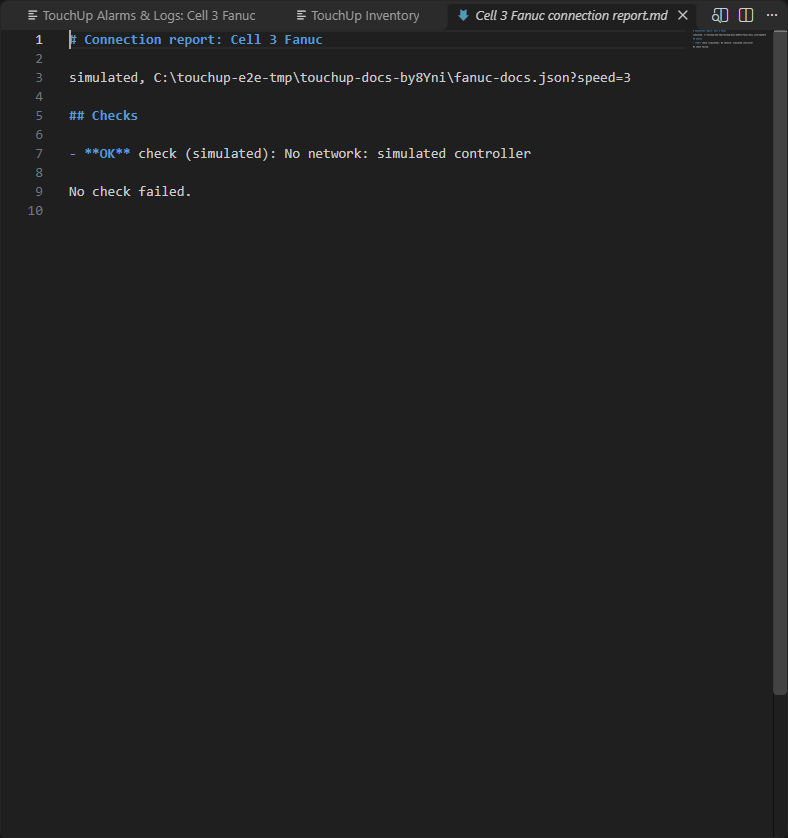
The connection report
Show Connection Report (right click on the controller, or the button of the notification) opens a page in three parts.
Checks
The result of each check, with the protocol, the port, the message of the controller and a hint when TouchUp knows one.
Probable causes
The causes of the failure, the most likely first, from the results of the checks. Each cause is a numbered sentence that says what is wrong, for example "Host unreachable: nothing answers at the address of the controller", followed by numbered steps to do.
Conditions to verify
The settings that the controller and the network need for this brand, with the menu of the pendant or the parameter. They are the same as in Prepare a Fanuc controller and Prepare a Yaskawa controller.
Share the report
The passwords are masked in the whole report. You can copy it into a message to your integrator or to the support.