Editions and license
Free to read, paid to write: what the free edition does, what needs a Pro subscription, the Account page with the email code, the free trial of 24 hours, the license file of an offline PC, Sign out of this PC, the 5 PCs of a subscription, the diff that a free user sees before a save is refused, the Feedback page with Report this error and the optional share of your configuration, and the grace period.
- Free to read, paid to write
- Free, without account
- Pro, with a subscription
- One person, up to 5 PCs
- Perpetual license, on request
- Get the license of a PC
- With internet: the email code
- Without internet: the license file
- Try Pro for 24 hours
- After a purchase
- Sign out of this PC
- The Account view
- The Account page
- Feedback and Report this error
- Share my configuration
- The license dialog
- When a paid action is not allowed
- The Pro dialog
- A save or a send of a free user shows the diff
- Expiry, renewal and grace
- When a 6th PC is used
- Offline and privacy
- Anonymous usage statistics
- What to read next
TouchUp is free to read and paid to write. This page lists what the free edition does, what needs a Pro license, how to get the license of a PC with or without internet with the Account page, the free trial, and the Feedback page. It applies to Fanuc and Yaskawa.
Free to read, paid to write
The limit is the controller, not the feature. An action that only reads a connected robot, or edits a file on your PC, is free. An action that writes to a controller or changes its runtime state needs the Pro edition.
Free, without account
- Connect to any number of controllers, of every supported brand.
- Read the status, the alarms, the alarm log and the inventory.
- Open the files of the controller, and edit every native file on your PC. Open, copy, paste and compare a position.
- Back up a controller, compare backups and live controllers.
- Read the user frames and tools of a Fanuc robot, in a table and in 3D.
- Reset the alarms: maintenance does it many times a day.
Pro, with a subscription
- Send a file to the controller, save a file that lives on the controller.
- Create, import, rename, delete, paste and drop files and folders on the controller, see Manage controller files.
- Write values and positions, start and stop programs. See Edit a position.
- Write and copy the user frames and tools of a robot. This is off for every brand in this version, see User frames and tools.
- Restore a file or a backup to a controller.
- Set breakpoints, Continue, Step and Pause in the debugger.
- Send KCL commands to a Fanuc controller with the KCL Terminal, see KCL Terminal.
Pro is a subscription, given per robot brand: a Fanuc license writes to Fanuc controllers. Reading is never limited by brand. The prices, the purchase and the change of brands are in Buy TouchUp Pro and change its brands.
One person, up to 5 PCs
A Pro subscription is for one person. The same person can use TouchUp on up to 5 PCs, for example the office PC, a laptop and the PC of a robot cell. A team buys one subscription per person. Do not share an account, its email or its license between persons: the terms of use forbid it.
Perpetual license, on request
A perpetual license for all brands is available on request: every brand, every update for life. The amounts you already paid for a subscription are deducted. It is not sold online yet. Click Ask for the perpetual license on the purchase page, or write to UnderAutomation from the contact page.
Get the license of a PC
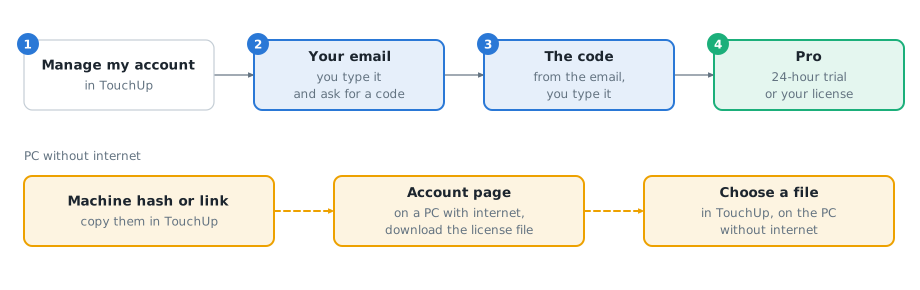
Everything starts in the Account view, the last view of the TouchUp container. Click Manage my account: the Account page opens in an editor tab. You can also run TouchUp: Manage my Account. The buttons Try Pro 24 h Free, Sign In and Import License File of the dialogs and the notifications open the same page. No browser is needed, so it works the same in the desktop application and in the web application.
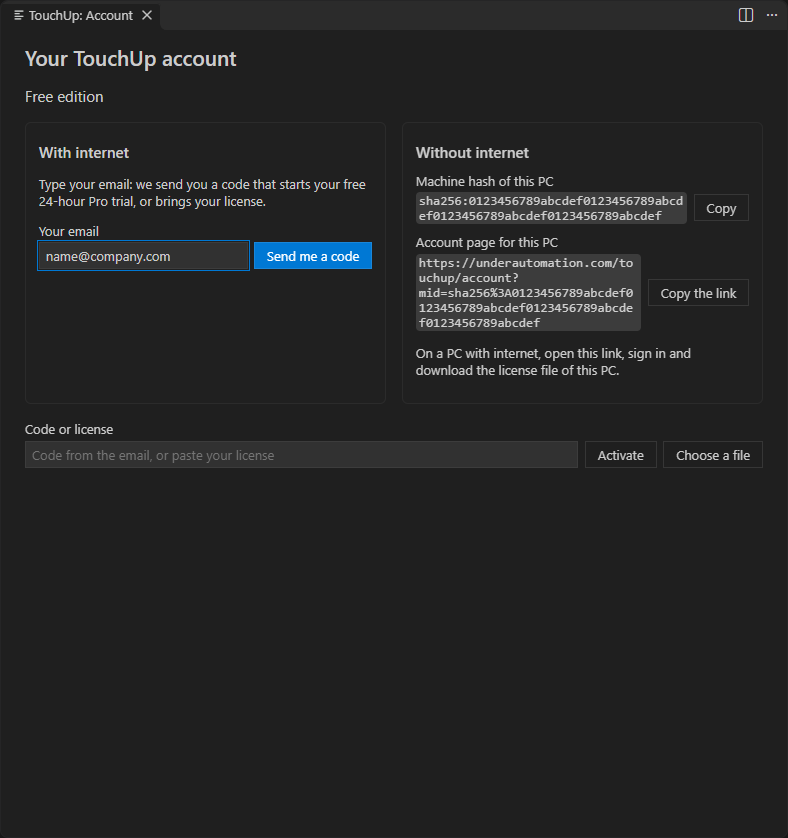
With internet: the email code
Three steps. They are the same for a person with a subscription and for a person who never used TouchUp Pro.
- Click
Manage my account. - Type your email in
Your emailand clickSend me a code. The page says "Check your mailbox" with your address. The email "Your TouchUp code" holds a code of 8 characters, valid for 15 minutes. If you did not ask for it, ignore the email: nothing was created. - Type the code in
Code or licenseand clickActivate. Capital letters, small letters, spaces and the dash are all accepted.
What you get depends on the email:
- A person with a TouchUp Pro subscription gets the license of this PC, for the brands of the subscription.
- A person who never had a TouchUp subscription gets the free Pro trial of 24 hours, see below.
- A person whose trial or subscription ended gets no license. The page says "Your trial is over: see the plans".
There is no password. If you already have a license, paste it in Code or license instead of a code and click Activate: TouchUp installs it.
Without internet: the license file
A PC of a robot cell often has no internet. Get its license on another PC. The column Without internet of the Account page gives what you need.
- On the PC without internet, click
Copyto copy its machine hash: a code that starts withsha256:. Or clickCopy the link: the link of the account page of this PC, with the machine hash in it. - On a PC with internet, open the link, or open the account page of underautomation.com and enter the machine hash. Sign in with your email, then download the license file of this PC. It is named
touchup-followed by 8 characters, with the extension.license. - Copy the file to the PC without internet, for example with a USB key.
- On the PC without internet, click
Choose a fileand select the file. The extensions.licenseand.licare accepted. You can also paste the text of the file inCode or licenseand clickActivate.
The license is for this PC only: a file made for another machine hash is refused.
Try Pro for 24 hours
A person who never had a TouchUp license can try TouchUp Pro once, for 24 hours, for every brand, without a payment card. The email code starts it: the three steps above, with an email that never had a subscription.
- Click
Manage my account. - Type your email and click
Send me a code. - Type the code from the email and click
Activate.
The Account view then shows Pro trial, all brands, until the end of the trial. There is one trial for each email, and none after a subscription. A trial has no grace period: it ends at the time shown. The Account page shows the time left, and Renew on underautomation.com opens the account page of the site, where you can renew the trial.
Subscribe of the Account page, and See Plans of the dialogs, open the purchase page of TouchUp on underautomation.com, where you choose the brands and the period, see Buy TouchUp Pro and change its brands. The link holds no data of your PC.
After a purchase
Once you have paid, click I paid, refresh the license on the Account page. TouchUp asks underautomation.com for the license of your new subscription and installs it, with no restart. TouchUp also does it at each start, see Expiry, renewal and grace.
Sign out of this PC
While a license is installed, the link Sign out of this PC is at the bottom of the Account page. It asks a confirmation, then:
- The license is removed from this PC, which returns to the free edition. Your files and backups stay.
- When the PC has internet, its place is freed for another PC of your subscription.
- When the PC has no internet, it keeps its place until you remove it on the account page of underautomation.com, see When a 6th PC is used.
You can activate a license again at any time with a code, a pasted license or a file.
The Account view
The Account view is the last view of the TouchUp container. It shows one line with the state of the license, the button Manage my account and the link Send feedback. There is no license item in the status bar.
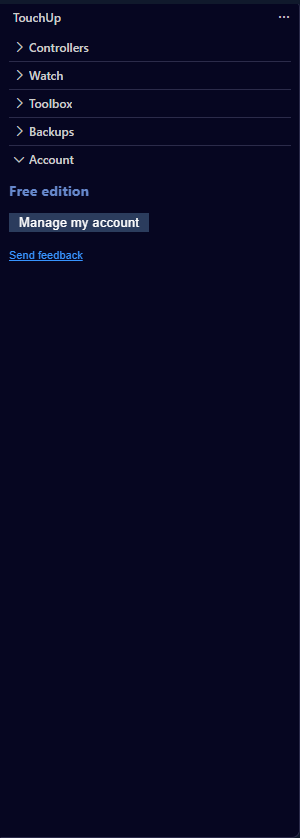
The line of the view, with the color of a warning when it needs your attention:
| Line | Meaning |
|---|---|
Checking the license... | TouchUp reads the state of the license. It lasts a moment |
Free edition | No license on this PC. Writes are locked |
Free edition: <reason> | The license is refused, for example the license of another PC. Warning color |
Pro trial, all brands, until <date and time> | The trial of 24 hours is running |
Pro Fanuc, active or Pro Fanuc and Yaskawa, active | A valid license, with the brands it covers (Pro, all brands, active for a license of every brand) |
Pro Yaskawa, renew before <date> | The period of the subscription ends in 30 days or less, or has ended and the grace period runs until this date. Warning color |
Pro, this PC is not registered: free a PC before <date> | The 5 PCs of the subscription are taken. Writes stay enabled until the date. Warning color, see When a 6th PC is used |
Free edition, trial ended on <date> | The trial is over |
Free edition, Pro ended on <date> | The license and its grace period ended. TouchUp is free again. Warning color |
Dates and times are in the format of your editor.
The Account page
Manage my account opens the Account page. Its content follows the state:
| State | The page shows |
|---|---|
| No license | The two columns With internet and Without internet, and the field Code or license with Activate and Choose a file |
| Trial | Time left, Trial ends and Brands, then Subscribe, Renew on underautomation.com and I paid, refresh the license |
| Subscription | Brands, Period ends, the reason if there is one, and the machine hash of this PC, then Manage on underautomation.com and I paid, refresh the license |
| Trial or subscription ended | The reason or the end date, See plans, Manage on underautomation.com and I paid, refresh the license, then the two columns to use another license. No second trial is offered |
Manage on underautomation.com opens the account page of the site: the brands, the PCs, the invoices and the cancellation. A license installed on the PC always shows Sign out of this PC at the bottom.
Feedback and Report this error
The link Send feedback of the Account view opens the Feedback page, an editor tab. You can also run TouchUp: Send Feedback.
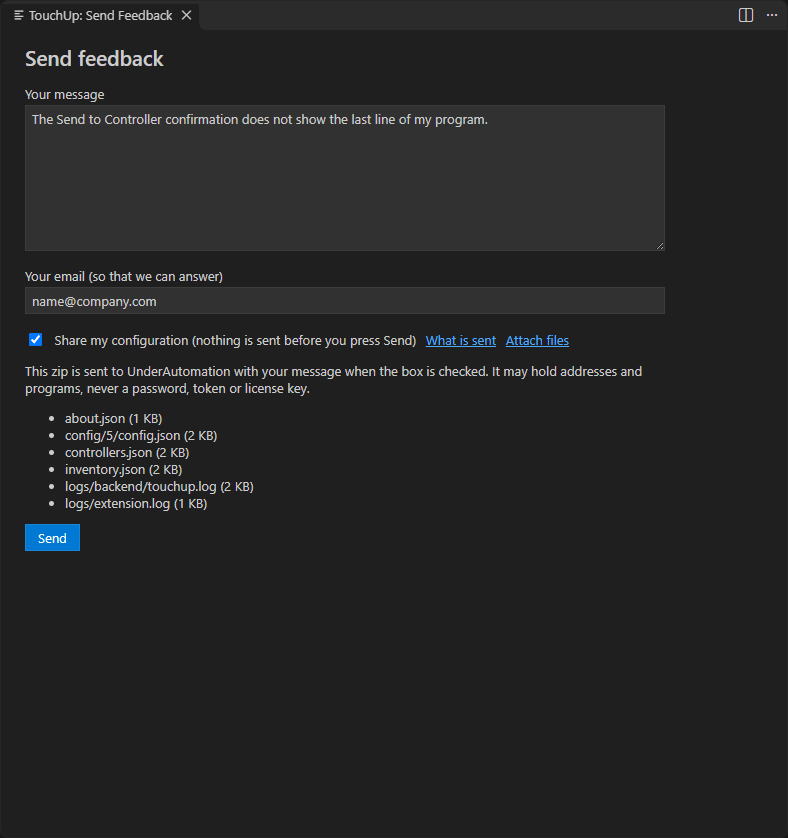
Write your message in Your message. Without a license, the page asks for your email, so that UnderAutomation can answer. With a license, it uses the email of your account. Click Send: the page says "Sent. Thank you." and empties the message. Closing the tab forgets a message that is not sent.
Every error notification of TouchUp has the button Report this error. It opens the Feedback page with the message already filled in: the error, the operation, the brand and model of the controller, and the versions of TouchUp and of the application. Secrets such as passwords and tokens are removed from the error. The cursor is in the message: change or remove each line, add what you were doing, then click Send.
What leaves your PC, only when you click Send:
- your message and your email,
- a zip of your configuration, only when
Share my configurationis checked, see below.
Share my configuration
Under the message of the Feedback page, the box Share my configuration is unchecked by default. Unchecked, only your message and your email are sent. Checked, a zip file goes with your message to UnderAutomation, so that the support can see your setup. Nothing leaves your PC before you click Send, and the box is unchecked again after a feedback is sent.
The page lists the files of the zip with their sizes as soon as you check the box. The link What is sent shows the same list, and the page says that the zip goes to UnderAutomation.
The zip holds:
- the versions of TouchUp, of the application and of the operating system,
- your
.touchup/config.jsonfiles, when they are JSON files, - the list of the controllers that are connected: name, brand, model, software version, address and the functions available,
- the controllers already seen by TouchUp, as in the Inventory view,
- the end of the logs of TouchUp,
- the files that you attach.
It may hold the addresses of your controllers and your programs. It never holds a password, a token or a license key: they are removed from the files and from the logs, and in a JSON file also by the name of the key. A backup is never attached.
While the box is checked, the link Attach files opens a file picker to add programs or files, and the zip is built again. Unchecking the box drops every attached file: the page cannot remove one alone.
TouchUp refuses a file, and says why, when:
| Refused | Reason shown |
|---|---|
| A file of a backup | A backup is never attached |
| A copy that TouchUp keeps before a write | It is never attached |
| An archive (zip, 7z, rar, gz...) | Its content cannot be checked for secrets: attach the files themselves |
| A JSON file that cannot be read whole (a key twice in an object, a string that is not text) | It cannot be checked for secrets |
| A file of more than 3 MiB, or a zip of more than 3 MiB | The feedback takes 3 MiB at most: uncheck the box, check it again and attach fewer or smaller files |
| A PC without a usable keychain of the operating system, when controllers are configured | The passwords of the controllers cannot be masked: no zip is built |
When the zip cannot be built, the page shows the reason in red. Send then says "Not sent" until you uncheck Share my configuration: you can always send your message without the configuration.
The license dialog
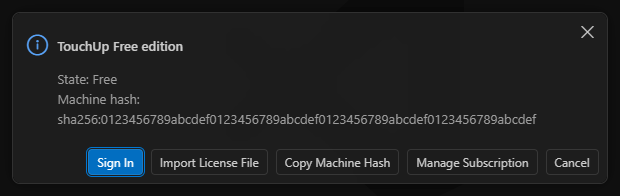
TouchUp: Show License opens a dialog with the state, the licensee, the brands, the expiry date and the machine hash of this PC. Its buttons are Sign In and Import License File, which open the Account page, Copy Machine Hash and Manage Subscription.
When a paid action is not allowed
A paid action is always visible. In the menus, the command shows a lock and (Pro), for example Send to Controller (Pro) or Delete (Pro). When you run a paid action that your license does not cover, nothing is sent to the controller. A dialog says what is missing, or, for a save and a send, a confirmation shows the diff.
The Pro dialog
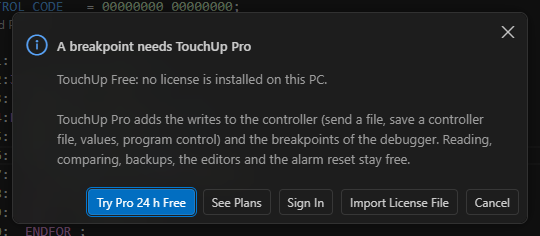
The dialog gives the reason: no license on this PC, a license that expired, or a license that does not cover the brand of the controller. It says what Pro adds, in words that blame nobody: the writes to the controller (send a file, save a controller file, values, program control) and the breakpoints and the Continue, Step and Pause of the debugger. It says what stays free: reading, comparing, backups, the editors and the reset of the alarms. Then it gives the way out. For a PC that never had a license:
Try Pro 24 h Free: opens the Account page, where an email code starts the trial of 24 hours, see Try Pro for 24 hours.See Plans: the purchase page.Sign In: opens the Account page, to get the license of this PC, see above.Import License File: opens the Account page, whereChoose a filetakes the license file of a PC without internet.
For a PC that had a license (expired, another brand, the 5 PCs taken, a refused license), the dialog has Sign In, Import License File and Manage Subscription, and no trial. A license of another brand says a license for Yaskawa or a license for Fanuc is needed, not Pro in general.
An error notification of a refused write has the same way out, in short: Try Pro 24 h Free and Sign In, or Sign In, Import License File and Manage Subscription.
When you save a controller file again and again, the dialog opens at most once per minute. The saves in between say "nothing was sent" in the status bar.
A save or a send of a free user shows the diff
When a free user saves a file of a controller, or runs TouchUp: Send to Controller, TouchUp does not stop at the dialog. It opens the same confirmation as for a Pro user, with the diff between the file and the file on the controller: you see what the change would be. The button Confirm is greyed, and Cancel has the focus.
Under the diff, the Pro text gives the title (for example Send file PICK.LS needs TouchUp Pro), the reason, what Pro adds and what stays free, and the buttons:
Try Pro 24 h Free,Sign InandSee Plansfor a PC that never had a license.Manage SubscriptionandSign Infor a PC that had one.
Nothing is written. No copy is made and nothing is recorded in the audit log. The tab of the editor stays modified, so your change is not lost. With several files, TouchUp shows the diff of the first one, then one message: A.LS, B.LS, C.LS were not sent: <reason>. When the controller has no such file, every line shows as added. When TouchUp cannot read the file of the controller, it shows the dialog of the paragraph above.
A Yaskawa .prm is refused first, with the procedure: see Load a parameter file at the pendant. A simulated controller is never locked.
Expiry, renewal and grace
- Warnings. At 30 days and at 7 days before the end of the license, TouchUp shows a warning once, with the buttons
Sign InandManage Subscription. - Renewal. A license lasts for the paid period, a month or a year. When the subscription is renewed, the PC gets a new license at its next start of TouchUp with internet. You can also click
I paid, refresh the licenseon the Account page to get it at once. - Grace. After the end of the license, Pro stays enabled for 14 days, with a warning that gives the date. Then TouchUp is free again, with the status
Free (expired). Your files and your backups stay available. - Subscription not paid. When the subscription is cancelled or an invoice is overdue, TouchUp warns you at its next start with internet. The license keeps working until its end date, then the grace period applies.
Manage Subscription opens the account page, where you manage the payment, read the invoices or cancel the subscription.
When a 6th PC is used
A subscription works on up to 5 PCs. The 6th PC gets no license: when you type the code of your email, the Account page shows the text of the site, which asks you to free a PC. You do it in one of two ways:
- On a PC that you no longer use, and that you can still open, click
Sign out of this PCon its Account page. Its place is freed when it is online. - On the account page of underautomation.com, remove the PC from the list.
Then ask for a new code on the 6th PC.
A PC that holds a license, but is not registered while the 5 places are taken, shows an error at the start of TouchUp:
Pro stays enabled on this PC for 14 days, then TouchUp is free again on it. To fix it, free a place as above:
- Sign in on the account page of your subscription, at
underautomation.com/touchup/account. - In the list of your PCs, click
Removeon a PC that you no longer use. The place is free at once. - Restart TouchUp on the PC that was refused, or click
I paid, refresh the licenseon its Account page. It registers itself again.
Removing a PC does not stop it at once: its license works offline until its end date, and the removal applies at its next start with internet.
Offline and privacy
The license is a signed file, checked on your PC. TouchUp does not need internet to check it: a PC of the robot cell without internet works until the end of the license period plus the 14 days of grace.
At each start of TouchUp, when the PC has internet, TouchUp makes one check with underautomation.com:
- It sends the license and nothing else: no robot, no program, no file, no name of controller.
- It registers the PC on the subscription, and receives a new license when the subscription was renewed or changed.
- It happens once per start. An error, or no internet, changes nothing: the license of the PC applies as it is.
A PC without a license makes no check. The Account page sends your email and the machine hash of the PC to underautomation.com only when you click Send me a code or Activate, and Sign out of this PC sends the license once to free its place. The terms of use and the privacy policy describe the data of the account.
Anonymous usage statistics
TouchUp can send anonymous usage statistics. They help the team to see which commands are used and which errors are common. They are off by default: nothing is sent unless you turn them on.
To turn them on, set touchup.telemetry.enabled to on in the user settings of VS Code. A workspace cannot turn it on for you. To turn them off, set it to off again.
What TouchUp sends, and nothing else:
- The name of a command, when you run it, from a fixed list of 13:
Add Controller,Connect,Disconnect,Test Connection,Back Up Now,Back Up (choose type)...,Compare with Controller... (TouchUp),Compare with Revision... (TouchUp),Export Robot Report,Index This Robot from Controller,Show Mastering (Fanuc),Refresh VariablesandIdentify Controller. No command that writes to a controller is on the list. - A number of errors for each of five categories: the TouchUp service did not start, the TouchUp service stopped, a connection failed, a timeout, a command failed. Only the category and the count are sent, never the text of an error.
- The version of TouchUp, the version of VS Code and the family of your operating system (Windows, macOS or Linux).
TouchUp never sends robot data, programs, files or file names, paths, controller names, brands or addresses, alarm texts, anything about your license or your account, or an identifier of you or of your PC. No user number and no PC number is sent.
It also follows the telemetry setting of VS Code. When telemetry.telemetryLevel of VS Code is off, or when your organization turns the telemetry of VS Code off, nothing is sent, whatever the setting of TouchUp says. An administrator can use this to keep it off on every PC.
The desktop and web applications send nothing: the setting does not exist there. A build of TouchUp that has no address to send to, for example a build made for development, sends nothing even when the setting is on.
What to read next
- Buy TouchUp Pro and change its brands
- Send a file to the controller
- Write values and control a program, the writes that Pro covers
- Install TouchUp