AI chat of the desktop and web applications
Ask a question about your robots in the AI chat panel of the desktop and web applications: nothing leaves your PC before you set up a provider and send a message, the providers (Claude account, Copilot, API keys, Ollama), the TouchUp tools that you pick in the chat and allow one by one, the note on keys in the web application, the switches to turn the AI off and the untrusted workspace.
This page explains the AI chat panel of the TouchUp desktop and web applications: how to connect the AI service of your choice, how to ask a question about your robots, and how to turn the AI off. It applies to Fanuc and Yaskawa controllers. The chat uses the read-only tools of TouchUp. It never writes to a controller.
In VS Code, the chat is the one of VS Code, for example Copilot Chat: see AI tools and MCP server.
What you get
The AI chat is a panel on the right of the window, with the title Ask the TouchUp AI. It is the chat of the application, as Copilot Chat is the chat of VS Code. It is not an AI made by TouchUp: it is on by default, and it has no AI service behind it until you choose one.
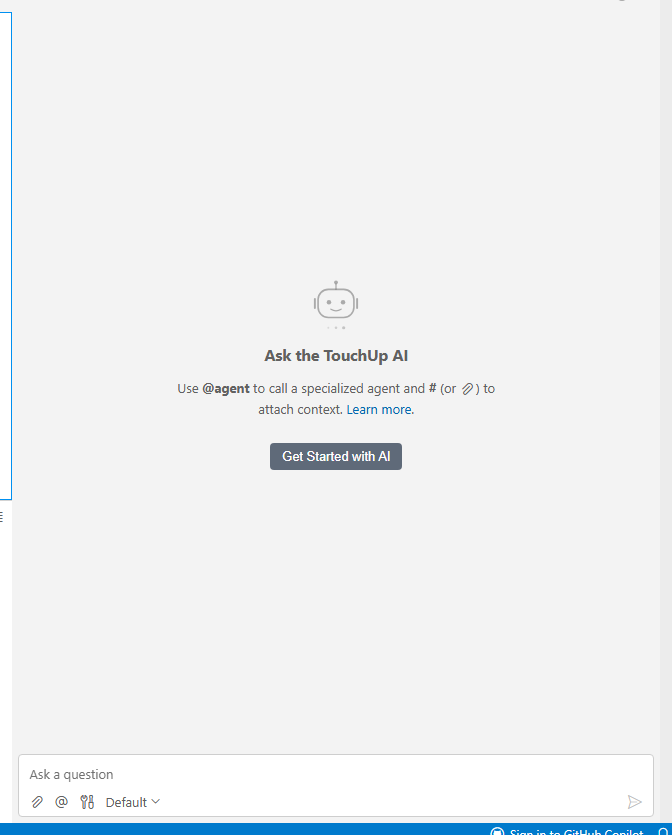
Nothing leaves your PC before you set up a provider and send a message. At the first start, the panel shows No Language Model Providers Available. This is normal: you have not chosen a provider yet. The second sentence of that message, which says that the packages are not installed in this IDE and speaks of custom distributions, does not apply to TouchUp: the providers are installed. Choose a provider as shown below. The button Continue Anyway lets you write to an agent that needs no language model of the application, such as Claude Code.
When you send a message, your text and what the tools return go to the provider that you chose. Read its terms before you use it with data of your robots.
Choose a provider
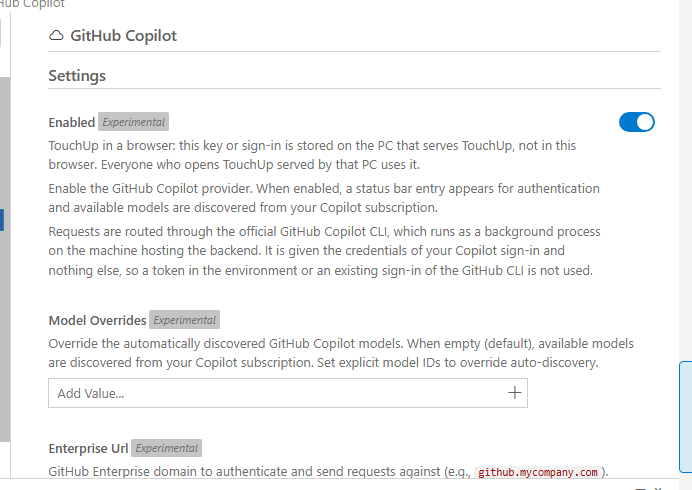
Open the settings of the providers with the command Open AI Configuration view, then Providers & Models.
| Provider | What you need |
|---|---|
| Claude account, agent Claude Code | Claude Code installed and signed in on this PC (run claude, then /login). TouchUp does not ship it: install the Claude Code SDK once with npm install -g @anthropic-ai/claude-agent-sdk, which needs Node.js. If it is installed elsewhere, give its path in the settings of Claude Code |
| GitHub Copilot | The Copilot command line tool, installed once with npm install -g @github/copilot, or its path in the settings of GitHub Copilot. Then choose Sign in to GitHub Copilot in the status bar |
| Anthropic, OpenAI, Google | An API key of your account, typed in the page of the provider |
| Anthropic (Custom), OpenAI (Custom) | The address and the key of a service that speaks the same language as these providers, for example a model server of your company |
| Ollama, Llamafile | A model that runs on this PC. No key and no account. Install it and its model first |
Codex is in the list of providers, but it is not available in the release archive.
A key typed in a provider page is stored in clear text in your user settings file. The page of each provider tells how to use an environment variable instead.
Keys in the web application
In the web application, the key or the sign-in of a provider is stored on the PC that serves TouchUp, not in your browser. Everyone who opens TouchUp served by that PC uses it. The settings page of each provider says it first.
Ask a question about your robots
The TouchUp tools read your robots: the controllers, a program, the programs and the files of a controller, and the other tools of AI tools and MCP server. They are ready when the application starts, with nothing to configure. Open AI Configuration, MCP Servers, then TouchUp to see the server and its tools.
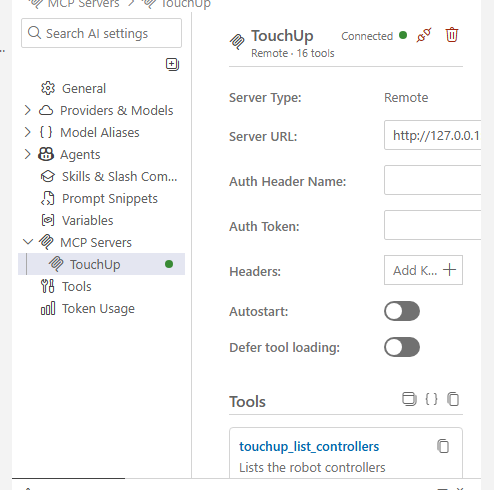
TouchUp starts this server itself when the application starts. The Autostart switch of the page stays off: this is normal, do not turn it on.
The tools read a controller that is connected in TouchUp. They never connect it. To ask about a robot, connect it first, see Connect to your first controller.
The chat does not offer a tool to the model by itself. You pick the tools for each question:
- In the chat input, type
~mcp_TouchUpand choose a tool in the list. You can also type its whole name, for example~mcp_TouchUp_touchup_list_controllers.
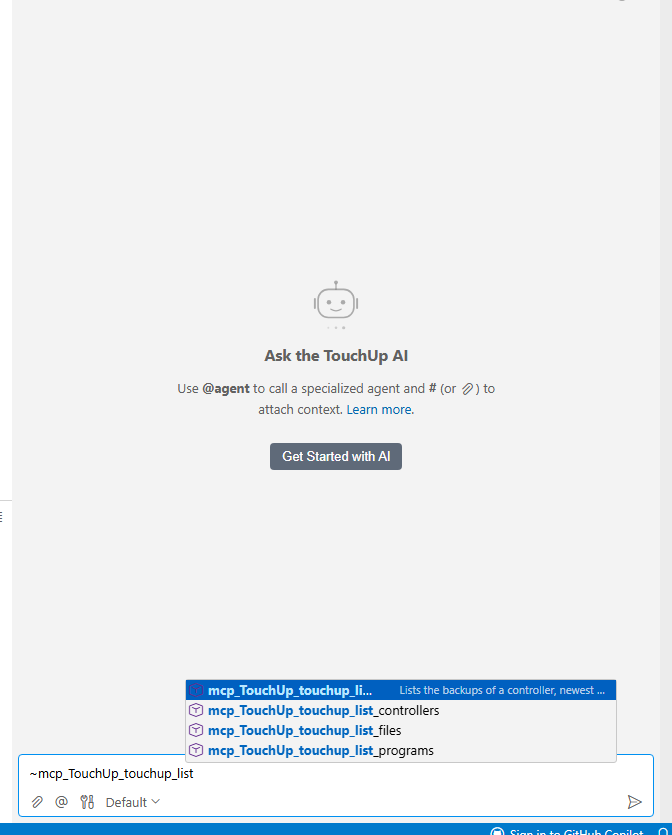
- Write your question after the tools, for example
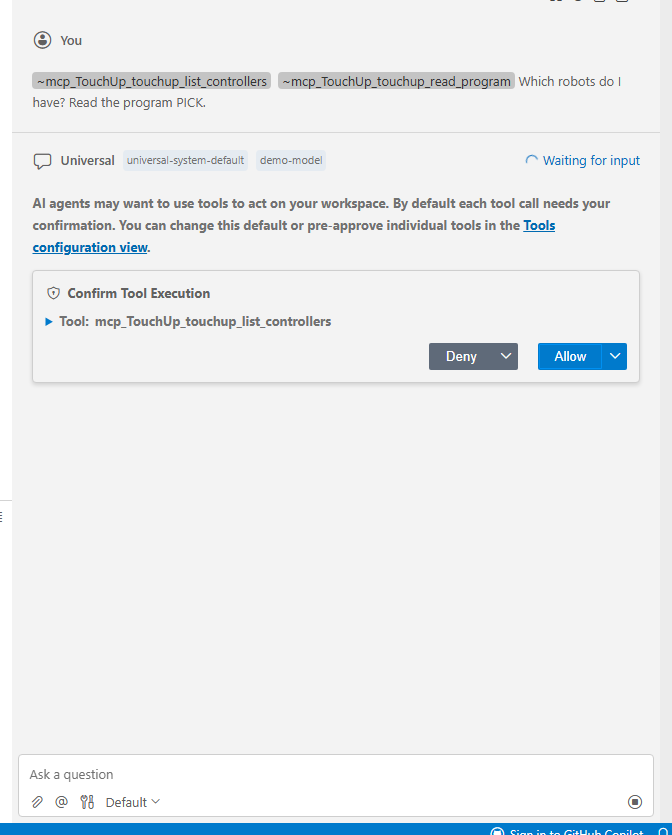
Which robots do I have? Read the program PICK.Send it. - The chat asks to confirm each call of a tool. Read the tool and its arguments, then choose
Allow, orDenyto refuse.
- After the last
Allow, the model answers. Each call stays in the conversation.
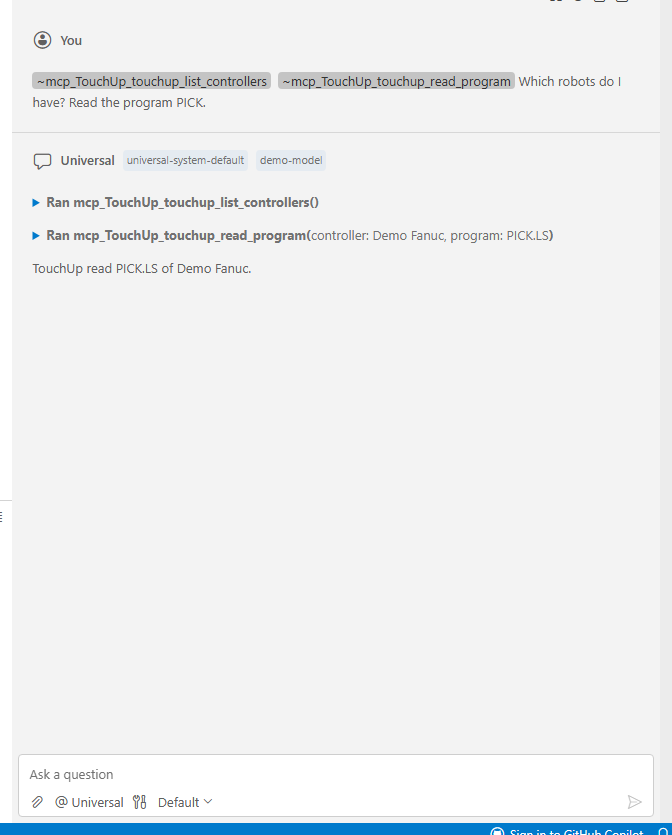
The chat tells that you can change the confirmation or pre-approve individual tools in its Tools configuration view. TouchUp does not change that choice. All the TouchUp tools only read.
The agent Claude Code is Claude Code itself: it uses the tools that you gave to Claude Code, not the tools chosen in the chat. To give it TouchUp, run TouchUp: Copy MCP Server Configuration and follow Claude Code and other MCP hosts. Add --scope user after claude mcp add: without it, Claude Code keeps the server only for the folder where you ran the command, and the agent of the chat does not necessarily work in that folder. If the agent does not list your controllers, run claude mcp list in a terminal and check that touchup is connected.
What the tools never return
- A protected file, for example
SYSVARS.VAof a Fanuc or a.PRMfile of a Yaskawa, is listed with its name, size and date. Its content is never returned. - The tools that list programs and files return names, types, sizes and dates, never the content of a program.
- Passwords, tokens and license keys that TouchUp knows are replaced by
***in the results.
Turn the AI off
Three switches turn the AI chat off. Each of them removes the chat panel and the AI commands.
| Switch | Who uses it |
|---|---|
The setting touchup.ai.enabled, set to off in the user settings | Each user |
The switch Enable AI features, in AI Configuration, General | Each user |
The file policy.json of the PC | An administrator, for every user. It cannot be turned back on by a user, see The machine policy |
Restart the application after you turn the AI off, so that nothing of it stays running. The policy is read when the application starts.
Untrusted folder
TouchUp asks if you trust the authors of the folder that you open. In an untrusted folder, the application is in Restricted Mode and the AI is blocked: the chat panel says it. Open a folder that you trust to use the chat.