Parameter and variable files
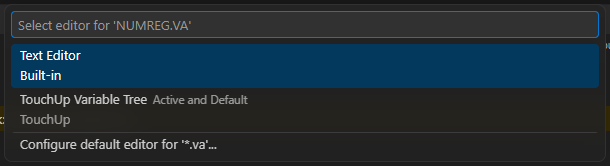
The table of a Yaskawa .prm file and the tree of a Fanuc .va listing, opened by default with Reopen Editor With for the text, ALL.PRM read-only, and the tables of VAR.DAT by type with their names and uses.
This page explains the tables and the tree that TouchUp offers for the data files of a controller: the Yaskawa parameter files (.prm), the Yaskawa VAR.DAT with its VARNAME.DAT, and the Fanuc .va listings. They work on a file opened from a controller and on a file of your PC. Reading and editing need no connection. The values of a VAR.DAT or of a .va file of a controller are written to the controller by the write steps, see Write the values of a VAR.DAT and Write the values of a .va tree.
Open a file as a table or as a tree
A Yaskawa .prm file opens as a table, and a Fanuc .va file opens as a tree, by default: from the Explorer, from a double click, and from the Files node of a controller. VAR.DAT opens as text; run TouchUp: Open as Table, or click the table icon in the title of the editor, to see its tables.
To see the text of a .prm or a .va file, right click the tab of the editor and choose Reopen Editor With..., or run View: Reopen Editor With..., then choose Text Editor. The same list brings back the table or the tree. While the text is open, TouchUp: Open as Table and TouchUp: Open as Tree, and the icon of the title, open the table or the tree too.
Saving a table is the save of the editor. For a file of a controller it is a write, with the steps of every write: license, confirmation, copy of the old file and audit log. See Send a file to the controller. A table changes the open text only, and a file of your PC is saved like any other. There are three exceptions for a file of a controller. A Yaskawa .prm file is never saved to the controller, see Load a parameter file at the pendant. The values of a VAR.DAT and of a Fanuc .va file are not saved as a file: they are written as values, see below. A Fanuc .va file cannot be saved at all, see Formats that a controller cannot load.
Parameter files (.prm)
The table of a .prm file has one row per parameter, with the columns Parameter, Value, Name, Description, Unit and Range. The name of each parameter comes from the TouchUp catalog, which is built from the Yaskawa manuals: a short name, the labels of the values of a choice parameter and of the bits of a bit field, and the manual section that defines the parameter. UnderAutomation writes a longer description for a few well-known parameters.
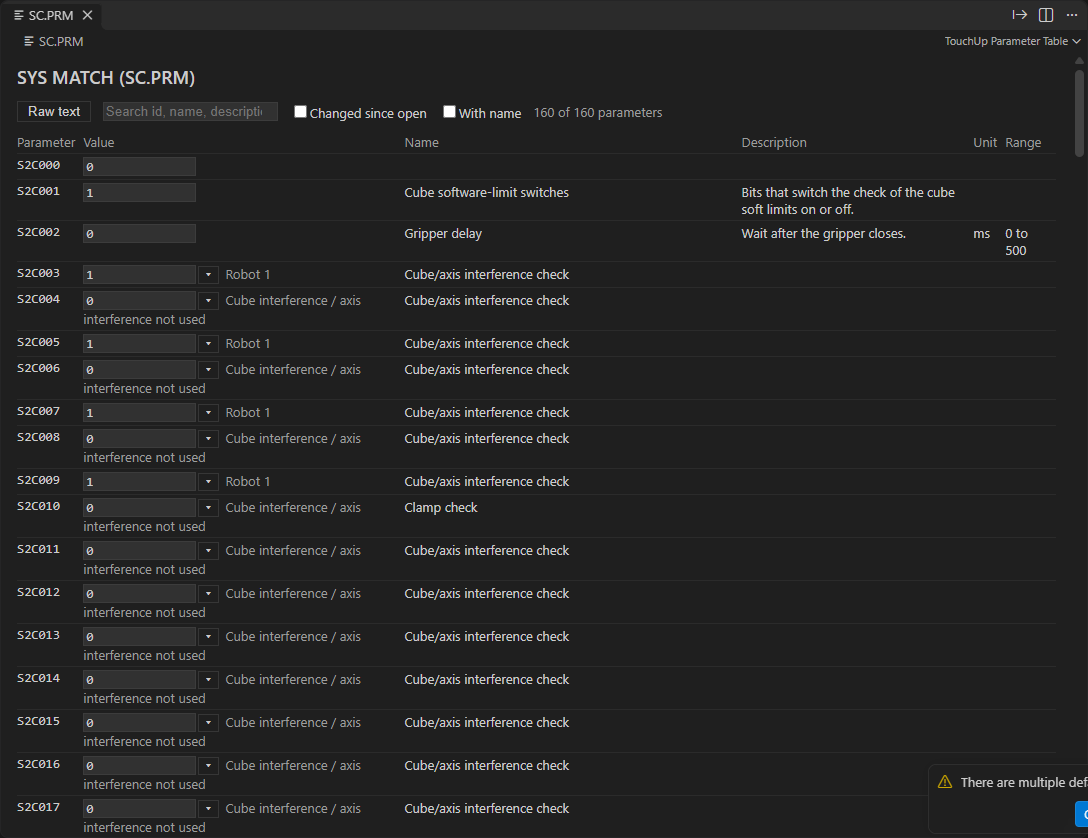
- Search looks in the identifier, the name and the description. The filters
Edited onlyandWith namekeep the rows that you edited in this session and the rows that have a name. An edited value shows the old value struck through, next to the new one. Undo, or typing the old value again, removes the mark. - Edit a value in its cell and press
Enter. A value is an integer of 32 bits. A value outside the range of the catalog is a warning, the cell still accepts it. Anything else is refused with the reason under the cell. The rest of the file is not touched: the spaces and the line ends stay as they were. - A parameter with values (a switch or a choice): the Value cell is a list. Click its arrow or press
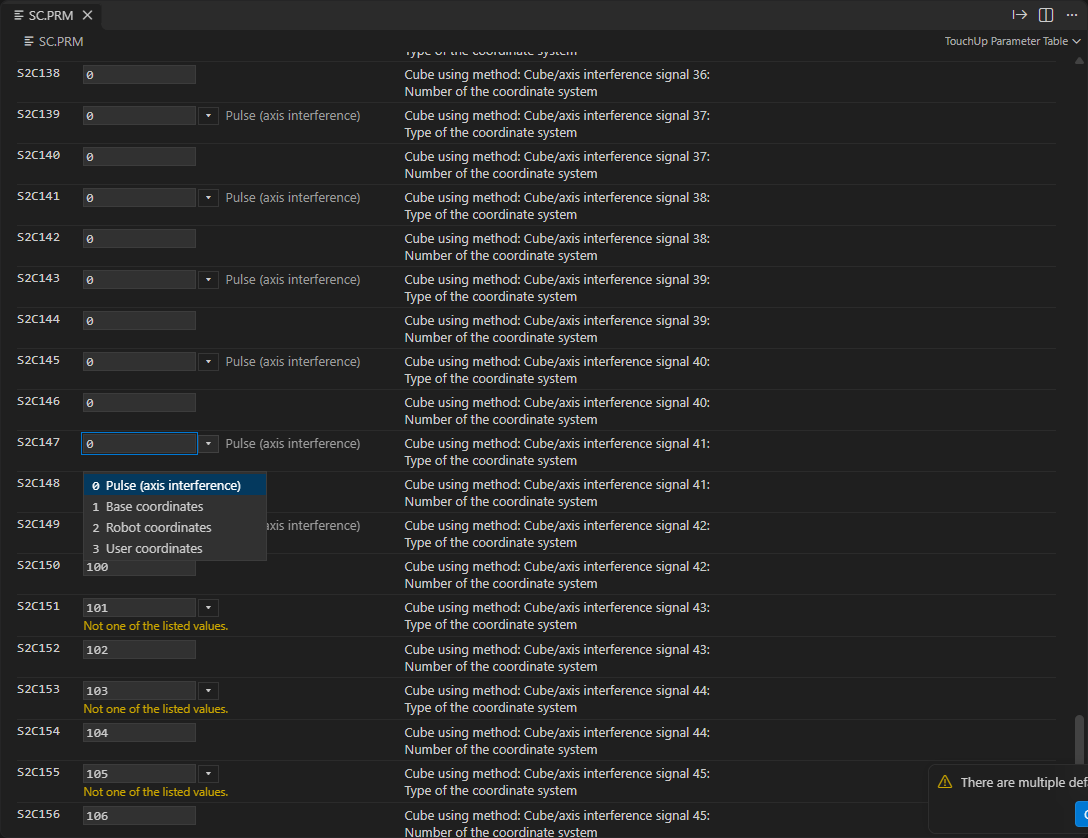
Downto see each value with its label, and pick one, or type any other integer. A value that is not in the list is accepted with the warningNot one of the listed values., because the controller can accept values that the manual does not list. Only a non-integer is refused. - The table never sends the file to the robot: export it and load it at the pendant, see below.
Raw textshows the text of the same file, and you can edit it there.- The table shows the first 1000 rows of a search: refine the search to see the others.
Files that are read-only
ALL.PRMis read-only: "ALL.PRM is read-only: protected by a Yaskawa checksum." The table shows the values and the reason, and nothing can be changed.- A file that has bytes that the editor could not read is read-only too, with the reason. Reopen it with the right encoding, see Edit a program.
Your own names
The setting touchup.catalogs.local is a list of catalog files (JSON, the same format as the catalogs of TouchUp). A relative path is read from the workspace folder. For a .prm file, a catalog of Yaskawa parameters is laid over the one of TouchUp: your names, descriptions, units and ranges win, field by field. A file that only gives a name for S2C010 keeps the type, the unit and the range that TouchUp has for it. A file that cannot be read is skipped, with one warning, and the catalog of TouchUp is used.
Load a parameter file at the pendant
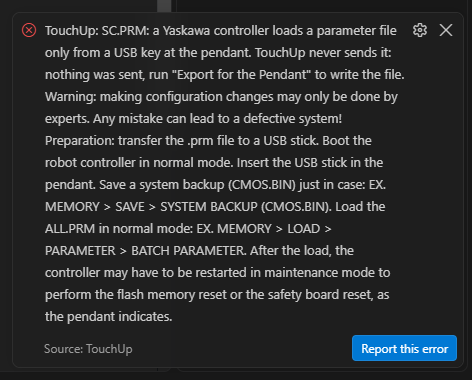
A Yaskawa controller loads a .prm file only from a USB key, at the pendant. TouchUp never sends it. TouchUp: Send to Controller, the save of the editor and Restore This File from a Backup... refuse a .prm: nothing is sent, your change stays in the editor, and the message tells you to export the file and gives the procedure.
Export the file
- Open the
.prmfile, from the controller or from your PC, and make your changes. - Run
Export for the Pendant...: click the export icon in the title of the editor, or right click the file in theFilesnode. No license is needed, because nothing is written to a controller. - Choose where to save the file. The folder of the workspace is proposed, with the name of the file.
TouchUp writes two files in the folder you chose:
- The edited file, with the name you chose.
- The original, as it was read from the controller, next to it:
SC.original.PRMforSC.PRM. When another file already has that name, the copy gets a time stamp, for exampleSC.original-20260105-101500.PRM. A copy of an earlier export is never replaced. Rename the copySC.PRMto load the original back.
A notification gives both paths and the procedure below. If you saved the file under another name, it reminds you to rename the file as the pendant expects before the load.
TouchUp refuses the export, and writes nothing, when the file has bytes that the editor could not read. Reopen it with the right encoding.
Export ALL.PRM
ALL.PRM is exported as it is: it is read-only. Its load at the pendant is very long, so TouchUp asks a confirmation first (Export ALL.PRM). When you changed individual files, for example SC.PRM, the message proposes to export and load those files instead.
Load the file at the pendant
Making configuration changes may only be done by experts. Any mistake can lead to a defective system.
- Copy the
.prmfile to a USB key. - Boot the controller in normal mode and insert the key in the pendant.
- Save a system backup first, in case:
MEMORY > SAVE > SYSTEM BACKUP (CMOS.BIN). - Load the file in normal mode:
MEMORY > LOAD > PARAMETER > BATCH PARAMETER. - After the load, the controller may have to restart in maintenance mode, for the reset of the flash memory or of the safety board, as the pendant indicates.
VAR.DAT
The table of VAR.DAT has one tab per type, with its count: B, I, D, R, S, P, BP and EX. The columns are the number, the name and the value.
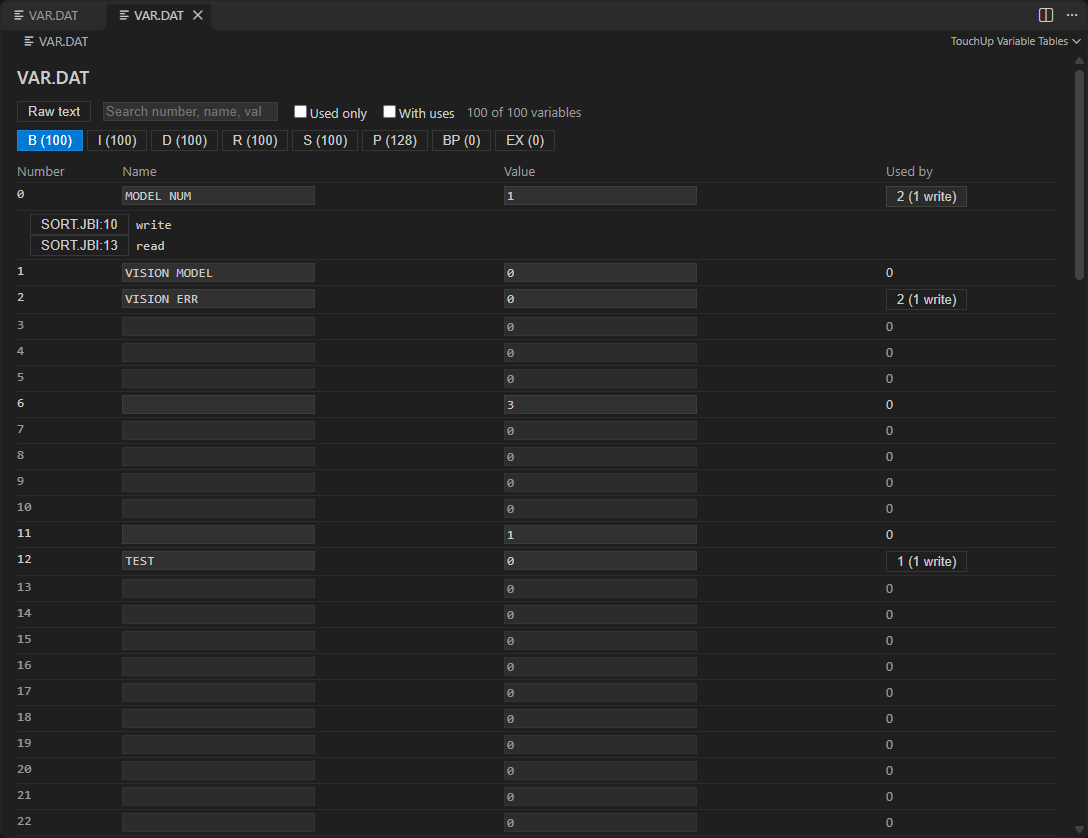
- Search looks in the number, the name and the value. The filter
Used onlyhides the variables that have a zero value and no name.Raw textshows the text of the file. - The names come from the
VARNAME.DATof the same folder (also on the same controller path). Without that file, the column of names is empty and read-only, with the reason. - Edit a value of a
B,I,D,RorSvariable in its cell. On a file of a connected Yaskawa controller, the new value is a pending value, see Write the values of aVAR.DAT. On a file of your PC it changes the text. Edit a name in the same way: the name goes toVARNAME.DAT, which is a file of its own. The table then shows "VARNAME.DAT has changes that are not saved" with the buttonSave. The save of the editor savesVAR.DATonly. If you close the table with unsaved names, TouchUp asks: saveVARNAME.DAT, or revert. - A refused change (a value out of range, a name with a comma...) leaves the cell as it was and shows the reason under the cell.
P,BPandEXare read-only: TouchUp does not write positions here. A file that has bytes that the editor could not read is read-only too.
Write the values of a VAR.DAT
In the VAR.DAT of a connected Yaskawa controller, a value that you edit in a B, I, D, R or S tab is not an edit of the file. The cell shows the new value, and the value read stays next to it with a Revert button. The table then shows Revert All and Write N changed values.
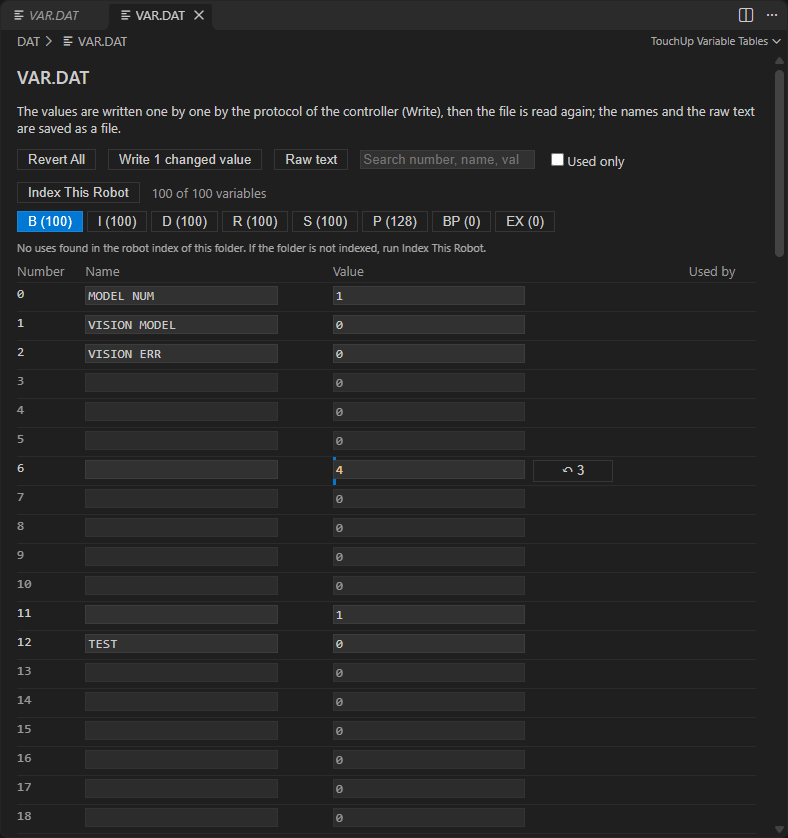
- Edit the values in the table. The same checks as for a file apply: the type, the range and the number of digits.
- Click
Write N changed values. TouchUp follows the steps of every write, see Write values and control a program: license, one confirmation that lists every value with its value now and its new value, copy of the old value, and audit log. - TouchUp reads the file again. The table shows what the controller holds, and no pending value is left.
A value that the controller refused stays pending and shows Not written, with the reason in its tooltip. When the table is not connected to a Yaskawa controller, or the controller has no value write, the values are read-only and the table says why. A document with an unsaved text edit is not read again after the write: TouchUp tells you to revert the edit. The names (VARNAME.DAT) and the Raw text keep the save of the file. P, BP and EX stay read-only here: use the position editor.
Used by
The column Used by gives the number of uses of the variable in the programs of the robot, for example 3 (1 write). Click the number to list the users: file and line, the kind of use (read, write, call or define), and "(disabled)" on a disabled line. Click a user to open the file at the use. The filter With uses keeps the variables that are used.
The programs are the files of the folder of VAR.DAT, read the way Navigate across a robot describes. The column is filled for the tab you look at, a moment after the table. Changing the tab, or a click on Index This Robot, asks again. A variable has up to 100 users listed: the count is the true one, followed by "and N more".
When the column is empty, a small text above the table gives the reason, and the button Index This Robot reads the folder of the file (for a file of a controller, the command asks for the folder). TouchUp cannot tell a folder that is not read from a folder without any use: both give the same text.
Fanuc .va listings
A .va file is a listing of the variables of the controller, for example NUMREG.VA for the numeric registers or SYSTEM.VA for the system variables. The tree shows each variable with its name, its type (ARRAY[200] OF Numeric Reg, STRING[13]), its value and, for a register, its comment.
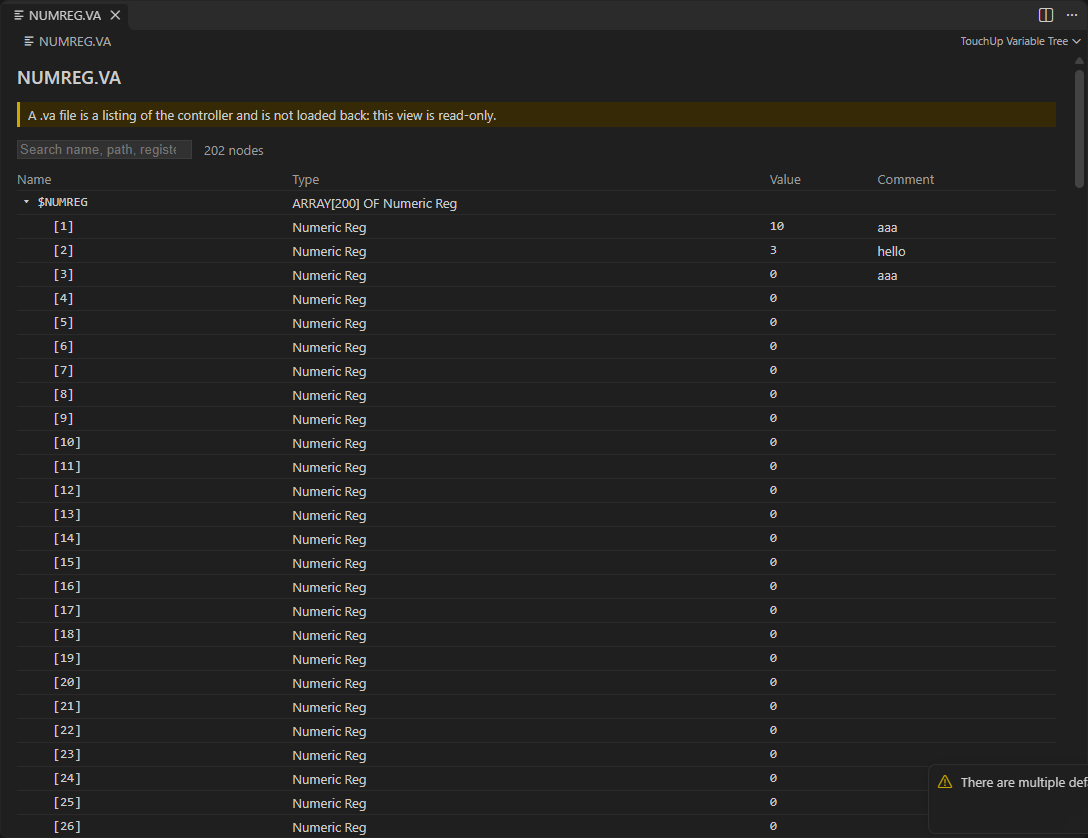
- Open a node with its arrow: the fields (
$CELL_GRP[1].$CELL_FRAME) and the elements of an array ([1],[1,2]for the registers and the position registers) are its children. An open node shows its first 1000 children, with the buttonShow more. - Search looks in the name, the path and the comment of a register, whatever the case, and
$is ignored. The matches come as a flat list with their full path, the first 500 only. - On a file of your PC, the tree is read-only.
- On a file of a controller, the values are edited as pending values, see below. A
.vafile is a listing of the controller, and the controller does not load it back: the file is never written, the values are.
Write the values of a .va tree
Edit a value in its cell, in the tree of a .va file opened from a controller. The edited cell shows the new value, with a Revert button that brings back the value read. The tree shows Revert All and Write N changed values.
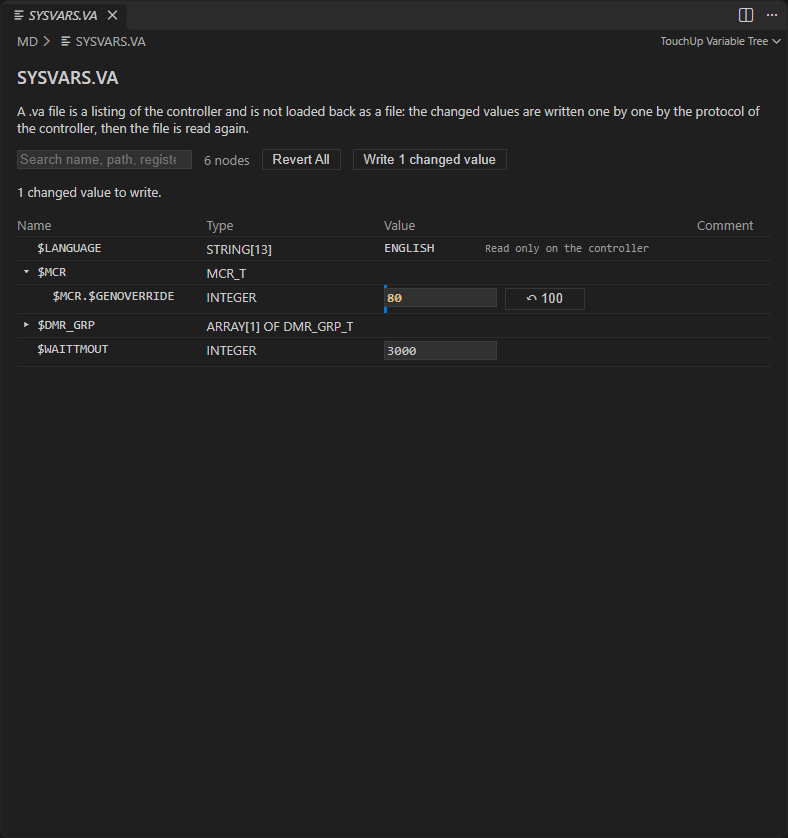
- Edit the values. Each register (
R[n]), string register (SR[n]), system variable and KAREL variable is written by its own name. The comment of a register can be edited too. - Click
Write N changed values. The write follows the steps of every write (license, one confirmation, copy of the old value, audit log), see Write values and control a program. - TouchUp reads the file again. The tree shows the file as the controller holds it, with no pending value and no unsaved change.
A value that was not written stays pending and shows Not written with the reason. Some nodes are read-only, with a short reason: a variable with the access RO, a node that is not one value, a position, and a position register of a group 2 or more. A position register (PR[n]) has an Open button that opens the position editor, where you edit its value and its form. The pending values are kept while the tree is open: closing the tree drops them.