Open controller files
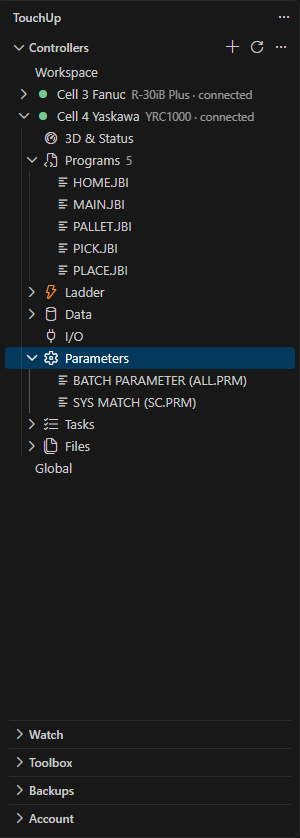
The nodes of a Fanuc or Yaskawa controller in the Controllers view (3D & Status, programs, data, I/O, Tasks, parameters), Reveal in Files and Reveal in the node, New Program, the Files node, a Fanuc TP program opened through its listing or printtp, the colors of each file type, the save of a file back to the controller and the dialog when the file changed.
- The nodes of a controller
- The nodes that list files
- Show a file in the other node
- Create a program
- The nodes that open a view
- The Tasks node
- The Files node
- Open a Fanuc TP program
- Open a Fanuc variable file (.VR)
- Compare a file with the last backup
- Languages
- Edit and save a file of the controller
- What the save does
- When the file changed on the controller
- After the save
- What to read next
This page explains how to browse a connected controller in the Controllers view: the nodes of its brand, the files of the controller, how to open them in the editor, and which file types TouchUp colors. It applies to Fanuc and Yaskawa. Reading a file is free, saving a file of the controller is a write.
The nodes of a controller
A connected controller opens on 3D & Status, then the nodes of its brand, then the Files node. Each node groups what you look for by name, so you do not need to know in which folder of the controller it is.
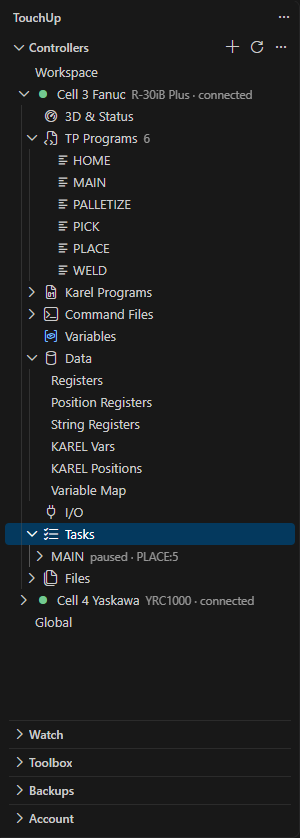
| Brand | Nodes |
|---|---|
| Fanuc | 3D & Status, TP Programs, Karel Programs, Command Files, Variables, Data, I/O, Tasks, Files |
| Yaskawa | 3D & Status, Programs, Ladder, Data, I/O, Parameters, Tasks, Files |
The nodes that list files
These nodes read one folder of the controller and keep the files that match:
| Node | Files |
|---|---|
TP Programs (Fanuc) | The .TP programs of MD:, shown without the extension, with their number next to the node |
Karel Programs (Fanuc) | The .PC programs. A click opens the .kl source of the program from your PC, see Open the source of a Karel program |
Command Files (Fanuc) | KCL Files (*.CF) and Command Files (*.CM), see KCL files and command files, and the KCL Terminal entry, see KCL Terminal |
Programs (Yaskawa) | The .JBI jobs of /JOB, with their number next to the node |
Ladder (Yaskawa) | The ladder program CIOPRG.LST |
Parameters (Yaskawa) | The .PRM files of /PRM, with the names of the pendant, for example BATCH PARAMETER (ALL.PRM) |
A file in these nodes is the same file as in the Files node: same click, same menus, same confirmations. Rename, delete, cut, copy, paste and drag and drop all follow Manage controller files, and a change made in one node shows in the other.
Show a file in the other node
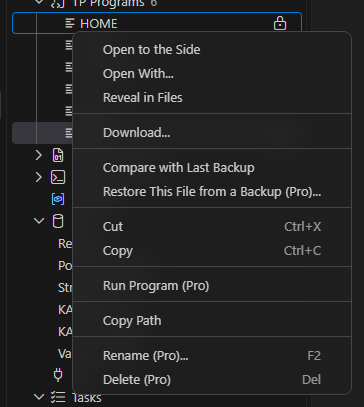
A file shows twice: under its node, and under Files. Right click it to jump to the other place.
- Under a node,
Reveal in Filesopens the folders of theFilesnode down to the same file and selects it. - Under
Files, the entry names the node that lists the file:Reveal in TP Programs,Reveal in Karel Programs,Reveal in KCL Files (*.CF)orReveal in Command Files (*.CM)on a Fanuc controller,Reveal in Programs,Reveal in LadderorReveal in Parameterson a Yaskawa controller. A file that no node lists has no such entry.
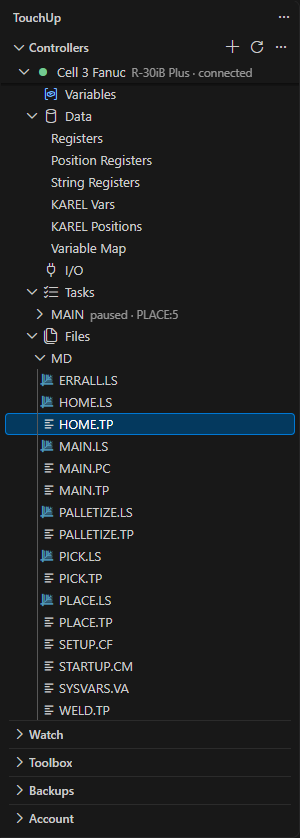
Revealing reads nothing from the controller: it uses the listing that TouchUp already has. When the file is not in that listing, for example after a change on the controller, a message says <file> is not in the last listing: Refresh. Use Refresh on the row of the Files node, then try again. When Files was never opened, the reveal lists its first level once.
Create a program
TP Programs (Fanuc) and Programs (Yaskawa) have a button New Program... on their row, and the same entry in their right click menu. Karel Programs has none: a Karel .pc is compiled from a source, not typed. The button is on a controller that accepts file writes. A new program is a write, so the Free edition shows New Program (Pro)... with a lock, see Editions and license.

- Click
New Program..., then type the name in the boxNew program in <node> of <controller>. The box checks the name while you type. - TouchUp writes the smallest program the controller accepts, after the confirmation of every write: license, copy of a replaced file, audit log. See Manage controller files.
- The new program opens in the editor.
On a Fanuc controller, the name is a letter followed by letters, digits or _, 36 characters at most. TouchUp writes <NAME>.LS in MD:, and the controller loads it as a TP program. It refuses a name when <NAME>.TP, <NAME>.LS or <NAME>.PC already exists. The controller needs the ASCII Upload option (R507 or R796). Without it, TouchUp says why and sends nothing. On a Yaskawa controller, TouchUp writes <NAME>.JBI in /JOB, with the rules of a job name: the name is refused when it is not valid or already used.
The nodes that open a view
A click on one of these nodes makes its controller the active one, then shows the panel that answers it. A controller that is not connected shows the message <name> is not connected.
| Node | What a click opens |
|---|---|
3D & Status | The Status panel of the controller, see Status and status bar |
Variables (Fanuc) | The Variables panel |
Registers, Position Registers, String Registers, KAREL Vars and KAREL Positions under Data (Fanuc) | The Data panel, on the kind that you clicked |
Each kind under Data (Yaskawa) | The Data panel, on the kind that you clicked |
Variable Map under Data | The Variable Map panel |
I/O | The I/O panel |
Data itself only opens and closes. These panels are described in Read live values.
The commands Open Status and Open Alarms & Logs of the right click menu of a controller act on the controller that you clicked, not on the active one.
The Tasks node
Open Tasks to see the tasks that the controller runs, one row per task: its name, its state, then the program and the line, for example MAIN stopped · MAIN:13. When the controller reports none, the row says No task reported. A click on a task opens its program at the line it executes. Open a task to see its call stack: the first program of the task is on top, then the programs it called, down to the one that runs now. This order is the same on Fanuc and on Yaskawa, see Read live values. A Yaskawa controller lists its master task and its sub tasks. Right click a task for Attach Debugger, see Follow a program with the debugger.
The list follows the controller while the node is open. A closed node does not ask the controller for anything.
The Files node
A connected controller has a Files node in the Controllers view. Open it to list the files and the folders of the controller. A click on a file opens it in the editor.
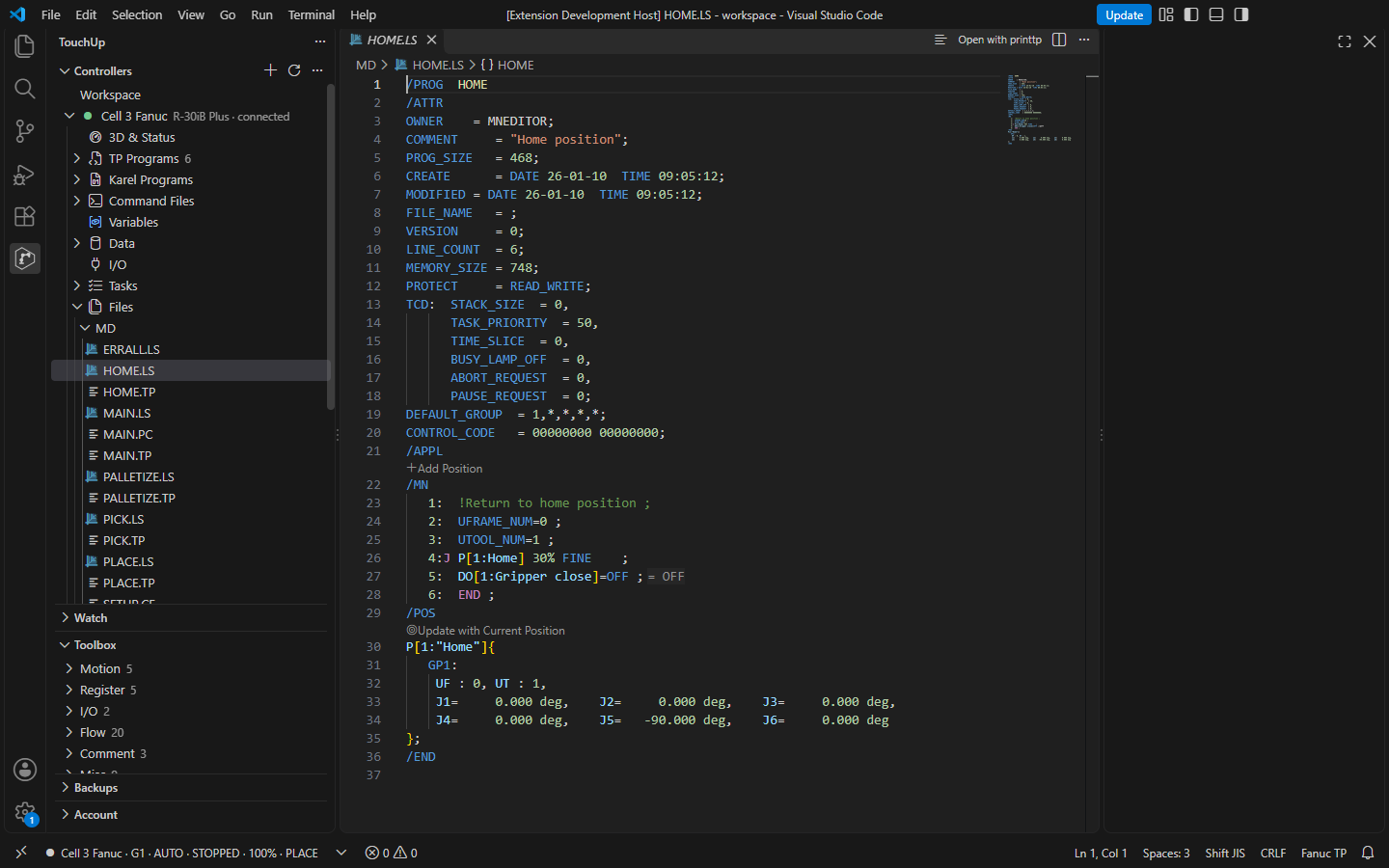
TouchUp: Open Controller File opens a file by its name, without the tree. A long download shows its progress next to the file.
The Files node works like the Explorer of VS Code: right click a file for Open to the Side, Open With..., Download... and Copy Path, which are free, and use the buttons and the menu to create, import, rename, delete, copy and move files, which are writes. See Manage controller files.
Open a Fanuc TP program
A Fanuc controller stores a TP program as a .TP binary file, and often a listing of it, a .LS text file of the same name. A click on a .TP (in TP Programs, in the Files node, or Open to the Side) opens what you can read:
- The controller has the listing (
MAIN.LSbesideMAIN.TP): the listing opens in the editor, with the colors of TP programs. Nothing runs. The title of the editor offersOpen with printtp, to read the conversion of the.TPinstead. - There is no listing: a message says
<name>.TP has no listing (.LS) on the controller, and offersConvert with printtp.
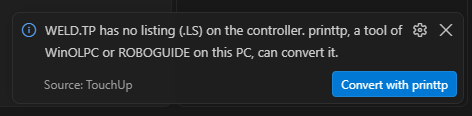
printtp is a tool of WinOLPC and ROBOGUIDE, on your PC. TouchUp runs it only after you click Convert with printtp, or Open with printtp in the title of a listing, and never by itself. It converts a copy of the .TP that TouchUp reads from the controller, and the result opens as a read-only text. Nothing is saved, nothing is written to the controller, and a second conversion refreshes the same text.
- Set
touchup.fanuc.winolpcPathto the folder of the WinOLPC or ROBOGUIDE tools, as formaketpin Send a file to the controller. When it is empty, TouchUp looks in thePATH. When the tool is not found, the message names this setting. - A
.TPof more than 5 MB is not converted. A conversion that takes more than 60 seconds is stopped. - When
printtpfails, the message gives the last lines of what it said. Open With...on a.TPskips all this and opens the raw file, for example in a hex editor.
Open a Fanuc variable file (.VR)
The variables of a Karel program are kept in a .VR binary file, and sometimes in a listing of it, a .VA text file of the same name. A click on a .VR follows the same rule as a .TP:
- The controller has the listing (
MAIN.VAbesideMAIN.VR): the.VAopens in the tree of variables, see Parameter and variable files. Nothing runs. - There is no listing: a message says
<name>.VR has no variable file (.VA) on the controller, and offersConvert with kconvars.
kconvars is a tool of WinOLPC on your PC. TouchUp runs it only after you click Convert with kconvars. It converts a copy of the .VR that TouchUp reads from the controller, and the variables open read-only in the tree. Nothing is saved and nothing is written to the controller. The setting touchup.fanuc.winolpcPath, the robot.ini of the controller, the limit of 5 MB and the stop after 60 seconds are the same as for printtp.
Compare a file with the last backup
Right click a file of the Files node, then Compare with Last Backup, to see what changed in this file since the last backup of the controller. The same command is in the title bar of an editor opened from the controller. See Compare backups and controllers.
Languages
TouchUp colors the native files of each brand, from the extension of the file:
| Brand | Files | Language |
|---|---|---|
| Fanuc | .ls | TP programs |
| Fanuc | .kl, .klh, .klt | Karel sources, see Edit Karel and KCL files |
| Fanuc | .cf, .cm | KCL files and command files |
| Fanuc | .va | Variable files |
| Yaskawa | .jbi | INFORM jobs |
| Yaskawa | .cnd, .dat, .prm, .lst | Condition, data, parameter and list files, with folding |
The files of your PC with these extensions get the same colors: open a backup folder, or a folder of MotoSim or ROBOGUIDE.
Edit and save a file of the controller
A file opened from the Files node can be edited. Saving it (Ctrl+S) sends it back to the controller: the save is a write, with the same steps as Send a file to the controller.
What the save does
- The bytes of the editor are sent as they are, without any change.
- The confirmation dialog opens at once, with the diff between your version and the file on the controller now.
Enterconfirms. - A free user sees the same dialog with
Confirmgreyed, and the way to Pro under the diff. Nothing is written and the tab stays modified. See A save or a send of a free user shows the diff. - When the controller refuses the file, the tab stays modified and a notification gives the cause and the setting to change.
- A Yaskawa
.prmfile is never saved to the controller: the editor keeps your change and a message gives the procedure. See Load a parameter file at the pendant.
When the file changed on the controller
Before it sends your file, TouchUp checks that the file on the controller is the one you opened. If someone changed it in the meantime, the save stops and a dialog says <file> changed on the controller since it was opened. A compare opens beside it, with Controller now, Your version and the version you opened as the base, so you can merge the two. 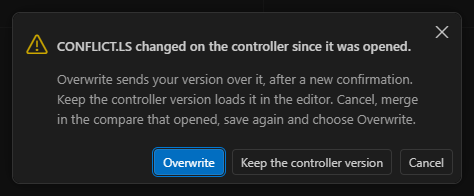
The dialog offers:
Overwrite: your version goes over the controller version, after a new confirmation with the new diff.Keep the controller version: the editor loads the file of the controller and your edits are dropped.Cancel: nothing is written and the tab stays modified. Merge in the compare, save again, then chooseOverwrite.
When the file was removed from the controller, the dialog says <file> was removed from the controller since it was opened. and offers only Overwrite, which sends your version as a new file, after its confirmation.
After the save
The controller can rewrite what it receives, for example the line numbers or the header of a program. TouchUp does not read the file back by itself: close and open the file again to see the version of the controller.