Buy TouchUp Pro and change its brands
Buy Pro per brand on the purchase page: the prices, the billing period, the VAT by country, the payment by card or by quote, the license after the payment. Then add a brand at once, remove a brand at the end of the paid period, cancel and resume on your account page.
This page explains how to buy TouchUp Pro on underautomation.com, and how to add or remove a brand later on your account page. It applies to Fanuc and Yaskawa. For the license of a PC, see Editions and license.
One subscription, one brand at a time
TouchUp Pro is sold per robot brand and per person. You pay for each brand that you write to:
| Period | Price of one brand, without VAT |
|---|---|
| Yearly | 350 EUR per year, which is 2 months free |
| Monthly | 35 EUR per month |
- A Fanuc license writes to Fanuc controllers, a Yaskawa license to Yaskawa controllers. Reading is free for every brand, see Editions and license.
- One subscription is for one person and works on up to 5 PCs of that person. A team buys one subscription per person.
- The brands that TouchUp supports later can be added to the same subscription.
- Prices are in euros.
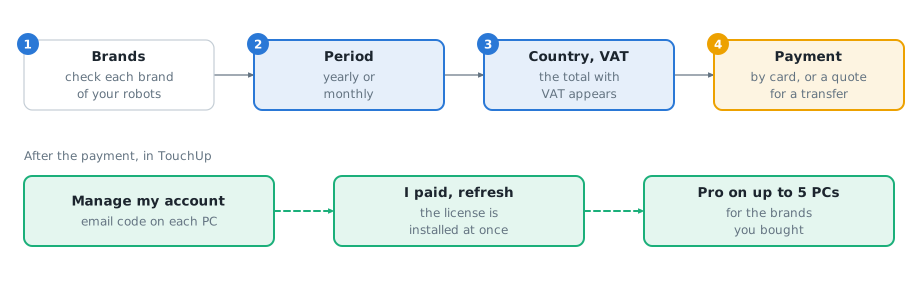
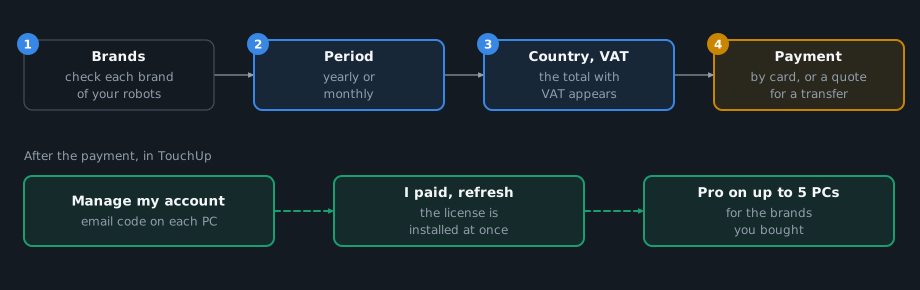
The purchase page
Subscribe of the Account page, and See Plans of the dialogs of TouchUp, open the purchase page of TouchUp on underautomation.com. You can also open the order page of the site and choose TouchUp Pro in the list of products. The link holds no data of your PC.
- Brands. Check the brand of each robot that you write to. Nothing is checked at first, and at least one brand is needed. The page says what Pro gives for a brand: send programs, write registers and variables, restore a backup and debug programs.
- Billing period.
Yearlyis selected at first. It gives 2 months free, and the license works offline for one year with no interruption.Monthlyhas no commitment: connect the PC to the internet at least once a month. - Total. The page shows the total without VAT, updated at each click. For a yearly total it also shows the price per month.
- Contact details. For a payment by card, type your email, your company, your phone, your address and your country. The email is the one that you will use in TouchUp. Add your VAT number if you have one.
- VAT. Once your country is entered, the page shows the VAT and the total with VAT, see below.
- Payment.
Pay by cardis selected at first: you pay on the payment page and the subscription starts at once. If you have a promotion code, you can type it on the payment page.Pay by bank transfer or purchase ordergives you a quote as a PDF file instead, with the same brands and period. After the quote, you place the order with its number.
A subscription is for one person: the page reminds you to order one subscription per user for a team.
VAT
The prices are without VAT. The VAT depends on your country and on your VAT number:
| You are | VAT |
|---|---|
| In France | French VAT, 20% |
| A company of another EU country, with a VAT number that starts with the code of your country | None (reverse charge) |
| In another EU country, without a VAT number | French VAT, 20% |
| Outside the EU | None |
An EU company that does not type its VAT number pays the French VAT: the page tells you to type it to pay no VAT. Your VAT number is printed on your invoices.
During a trial
If you buy while your free trial of 24 hours runs, use the same email as the trial. When at least 48 hours and 10 minutes of the trial remain, your subscription starts at its end and the hours left stay free. Otherwise you pay at once, and the trial ends when the payment is made. The trial is never billed. See Try Pro for 24 hours.
After the payment
In TouchUp, open the Account page with Manage my account, and click I paid, refresh the license. TouchUp installs the license of your new subscription at once, with no restart. On another PC, type your email in Your email, click Send me a code, then type the code, see Get the license of a PC. TouchUp also checks your subscription at each start.
If you had a trial, a purchase ends it: the subscription replaces it.
Your account page
Open Manage on underautomation.com on the Account page of TouchUp, or go to underautomation.com/touchup/account. Sign in with your email: the site sends you a link, there is no password. Use the email of your subscription.
For each subscription, the page shows:
- its name, its brands and the date of its next renewal,
- the brands, with a button to add or to remove each one, see below,
- the buttons
Manage subscription, andGet the license for this PCwhen you come from TouchUp, - the PCs of the subscription, with a button
Removeto free a place, see When a 6th PC is used, - the form of the PC without internet, which gives its license file.
Manage subscription opens the page of the payment service. There you change your payment method and your billing details, read your invoices and cancel the subscription. You cannot change the brands or the period there: use the buttons of the account page.
Add a brand
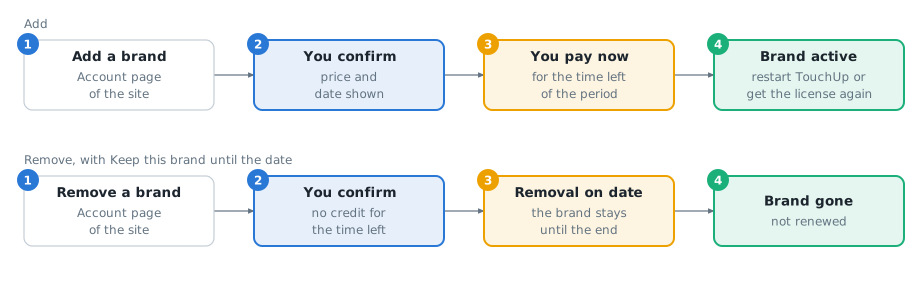
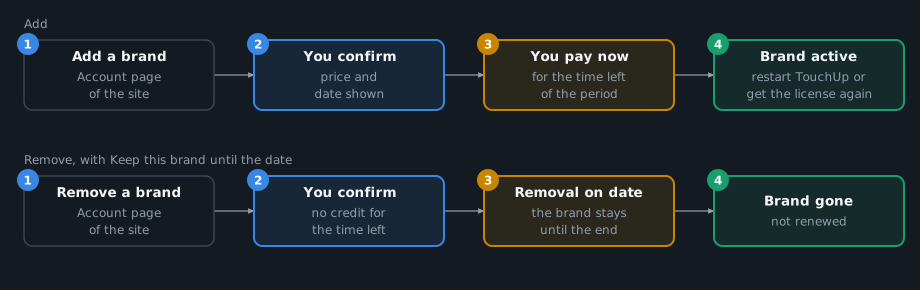
- On your account page, under
Brands of this subscription, clickAdd Yaskawa(or the brand that you need). - A question shows the price of the brand, without VAT, and the date of the end of the current period. For a yearly subscription it reads: "Add Yaskawa for 350 EUR per year without VAT? You pay now for the time left until" the date.
- Confirm. You pay now only the time left of the period, with the VAT of your subscription. The next renewals include the brand.
- The page says "Brands changed. Restart TouchUp or get the license again to use them." Restart TouchUp, or click
I paid, refresh the licenseon the Account page of TouchUp.
If the payment is declined, or if your bank asks for an extra check, nothing changes: the subscription keeps its brands and keeps working. The page says "The payment was declined. Update your payment method in Manage subscription, then try again."
Remove a brand
- On your account page, click
Remove Fanuc(or the brand that you no longer need). - A question tells you that the brand stays until the end of the period, that it is not renewed after, and that there is no credit for the time left. Confirm.
- The brand shows
Removal onand the date. Pro stays enabled for this brand until that date, on every PC. A license file made for an offline PC also keeps working until its own end date. - Change your mind before the date with
Keep this brand: the removal is cancelled, free of charge. Adding the brand again does the same.
Nothing is credited or refunded for a removed brand.
A subscription keeps at least one brand. For the last brand, the page says "A subscription keeps at least one brand. To stop TouchUp Pro, cancel the subscription in Manage subscription." The buttons of the brands are shown only when the change is possible. In these cases the page says to contact UnderAutomation at [email protected], who make the change for you:
- a subscription paid by a quote (bank transfer or purchase order),
- a subscription that has a discount, for the removal of a brand,
- the change of the period, from monthly to yearly or the reverse. You can also cancel the subscription and buy it again with the other period at the end of the paid period.
The 24-hour trial covers every brand: it has no brand buttons. Subscribe to choose your brands.
Cancel and resume
Click Manage subscription and cancel there. The cancel takes effect at the end of the period that you paid: the subscription and its brands keep working until that date. Nothing is refunded.
After a cancel, the account page shows "Cancellation pending, your Pro license ends on" the date, with the button Resume the subscription. Click it before the date to keep the subscription. Every brand of the subscription then renews, also a brand whose removal was pending, and the page lists the brands. You can remove a brand again after that. While a cancellation is pending, the buttons to add and to remove a brand are hidden.
At the end date, the grace period of 14 days applies, then TouchUp is free again on your PCs, see Expiry, renewal and grace. Your files and your backups stay.
What to read next
- Editions and license, the Account page of TouchUp and the license of a PC
- Write values and control a program, what Pro covers