Manage controller files
Create, import, rename, delete, copy and move the files of a controller like in the Explorer: buttons and menu of the Files node, one confirmation per gesture with a copy of every replaced or deleted file, Cut, Copy, Paste and drag and drop between controllers and your PC, Replace or Keep Both, and what Fanuc and Yaskawa cannot do.
This page explains how to create, import, rename, delete, copy and move the files of a controller from the Files node of the Controllers view, the way you do in the Explorer of VS Code. It applies to Fanuc and Yaskawa controllers, with the differences listed at the end. To browse and open the files, see Open controller files.
What changes the controller
Every action that creates, replaces, renames or deletes a file is a write. It follows the steps of every write: license, one confirmation, a copy of the old file, audit log. See Send a file to the controller.
| Free | Pro |
|---|---|
Open to the Side, Open With..., Download..., Copy Path, Refresh, Collapse All, Cut, Copy, and the paste of controller files into the Explorer | New File..., New Folder..., Import Files..., Import Folder..., Rename..., Delete, Paste, and the drag and drop onto a controller |
- One confirmation for one gesture. Deleting three files, or pasting a folder with its files, opens one dialog that lists every change. Cancel: nothing is sent.
- A copy before TouchUp replaces or deletes a file. The dialog says it:
Delete /MD/HOME.LS (copied first). - The button
Cancelhas the focus when a file is replaced or deleted, so that one press of Enter never changes the controller. - The audit log has a line for each file and each folder. See Send a file to the controller.
- The controller is checked again just before the change. When a file changed on the controller since you confirmed, TouchUp changes nothing and asks you to confirm again.
An action that the controller cannot do is greyed or hidden. When you run it, TouchUp says why and sends nothing.
Buttons and menus
Put the pointer on the Files node or on a folder: the buttons New File..., New Folder..., Import Files..., Refresh and Collapse All (on the Files node only) appear on the row, as in the title of the Explorer.
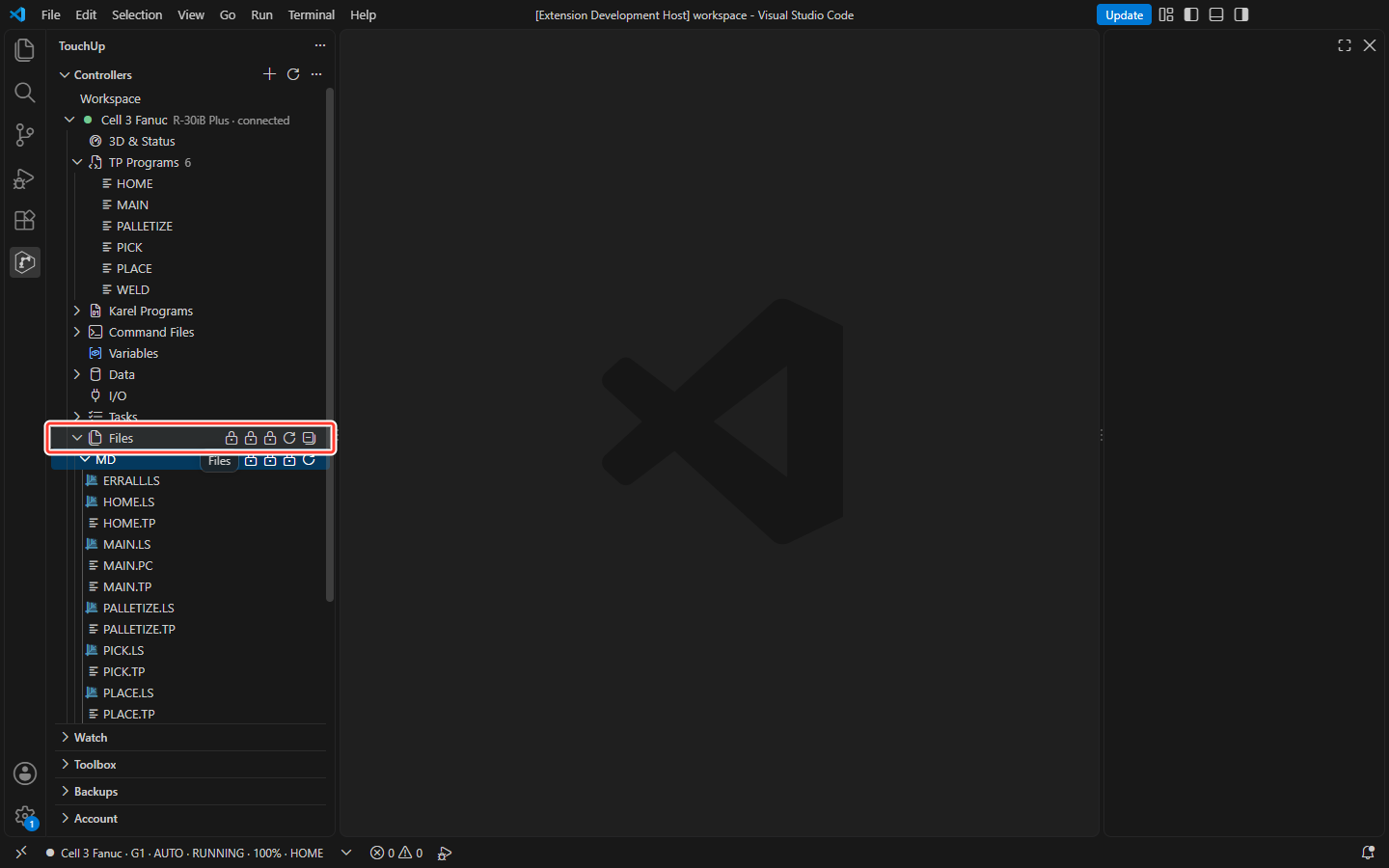
Right click a file or a folder for the other commands.
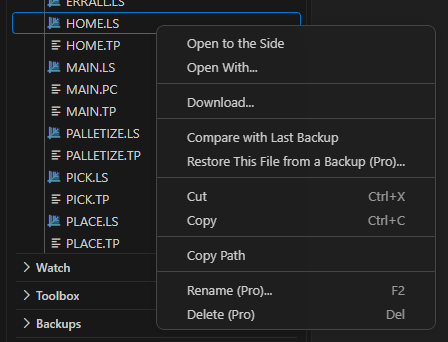
| Command | What it does |
|---|---|
Open to the Side | Opens the file in a second editor, beside the first one |
Open With... | Opens the file, then asks which editor to use. See Parameter and variable files |
Download... | Saves a copy of the file on your PC. TouchUp asks for the place. A job is saved in the encoding that the editor uses for it |
Cut, Copy, Paste | The clipboard of the Files node, see below |
Copy Path | Puts the path of the file on the controller in the clipboard of your PC |
Rename... (F2) | Renames a file. The name is selected without its extension |
Delete (Delete) | Deletes the files and folders you selected |
Compare with Last Backup | See Compare backups and controllers |
Restore This File from a Backup... | See Back up a controller. It is a write: Pro |
Select several rows with Ctrl or Shift and a click: Delete, Cut, Copy and the drag and drop act on all of them. The files must belong to one controller.
Refresh reads the folder again and keeps the open folders open. Collapse All closes them.
A user of the free edition sees the commands that change the controller with a lock and (Pro), for example Delete (Pro). See A free user.
New File and New Folder
New File... asks for the name in an input box. The grey example is the program of the brand: program.ls for a Fanuc controller, program.jbi for a Yaskawa controller.

- The file is created in the folder you clicked.
- When the name ends with
.lsor.jbi, the file is a program with the minimum content that the controller accepts: its header, no instruction. The name line of the program is written from the file name, in capitals. Any other file is empty. - The new file opens in the editor.
- A Fanuc program name starts with a letter, then letters, digits or
_, 36 characters at most. A Yaskawa job name follows the rules that the editor shows for a job name. - Every name: no
/ \ : * ? " < > |, no control character, no space at the start or the end, and not a name that exists in the folder (the case does not matter).
The dialog of the confirmation says New file /MD/PICK2.ls. TouchUp never replaces a file with New File.
New Folder... creates a folder the same way, on the controllers that have folders.
Import files and folders
Import Files... opens the file dialog of your PC. Select one or more files: they are sent to the folder.
- A name that exists in the folder asks
<name> exists in <folder> of <controller>. Replace?withReplaceandCancel. A replaced file is copied first. - A file of more than 5 MB, or files of more than 50 MB together, are refused with the reason. A file of a controller is rarely that big.
Import Folder... sends a whole folder of your PC, with its folders and files.
- Names that start with a dot (hidden files and folders) and linked files and folders are not imported. The confirmation lists them.
- At most 2000 files and folders.
- A folder that already exists on the controller is refused: there is no merge. Open it and use
Import Files....
Rename
Rename... renames a file on the controller. The file is kept, so there is no copy.
- Only a file can be renamed. A folder cannot, yet.
- A program (
.lson Fanuc,.jbion Yaskawa) cannot be renamed: its name is also written inside the program. TouchUp says so, before the license check:Copy it with a new name, then delete it.Create the program again withNew File..., or copy and edit it. - The new name follows the rules of
New File.... On a Fanuc controller, a name with a space,*or?is refused, and a file stays on its device.
Delete
Delete (or the Delete key) deletes the selected files and folders. The confirmation lists them one by one.
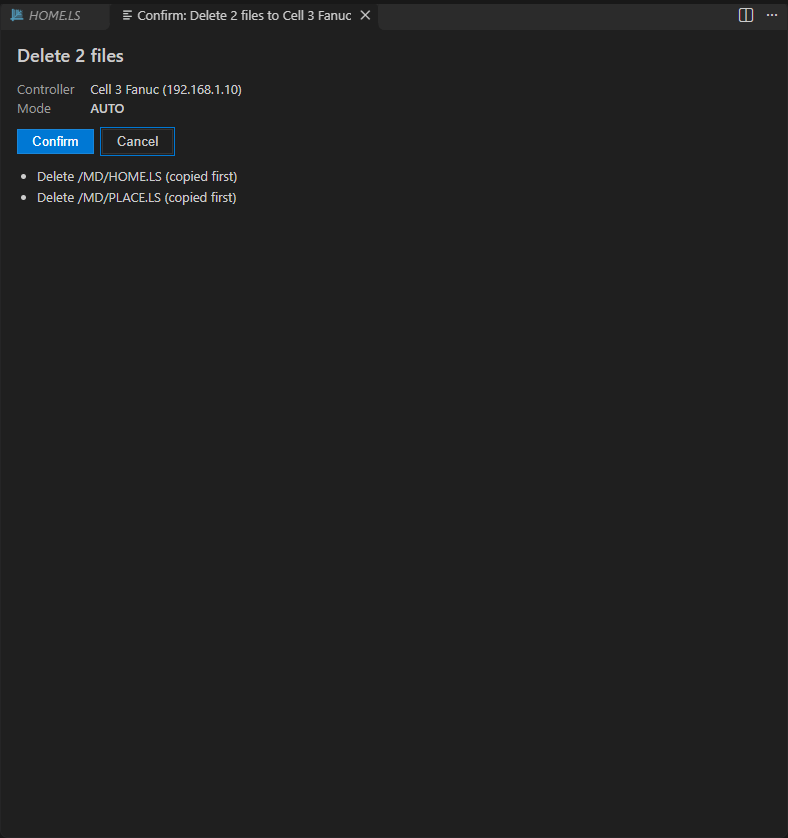
- A folder is deleted with its files and folders. The confirmation lists them, and the files are copied first.
- The result is one message:
TouchUp: HOME.LS deleted, PLACE.LS deleted.When some changes are refused, it lists what was done and what was refused with the reason.
Cut, copy, paste and drag and drop
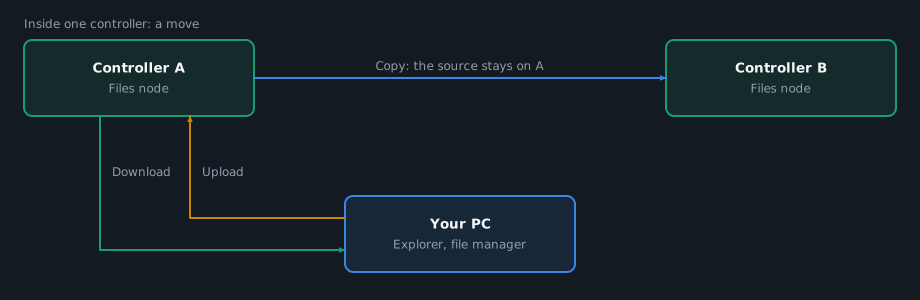
Drag the selected files onto a folder, or use Cut or Copy, then Paste on the target folder. The result depends on the source and the target:
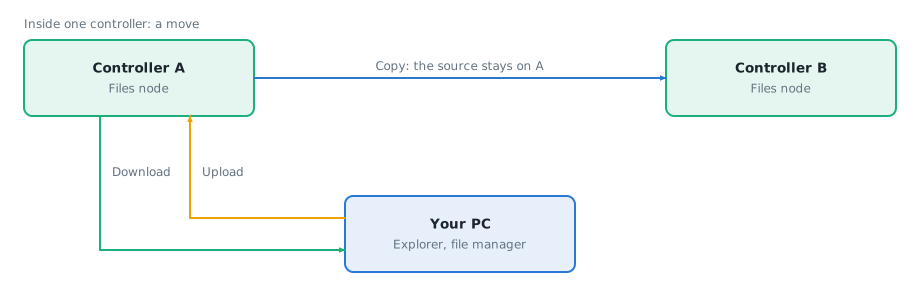
| From | To | Result |
|---|---|---|
| A controller | The same controller | Drag and drop, and Cut, move the files. Copy copies them |
| A controller | Another controller | A copy. The source stays on the first controller, even after Cut |
| Your PC (drag and drop) | A controller | An upload |
| A controller | The Explorer of VS Code (drag and drop, or Paste Controller Files) | A download |
- Inside one controller, a move is a rename. It works for the files that can be renamed: a program and a folder cannot be moved, and TouchUp tells you to copy it, then delete the original.
- A move never replaces a file, and never deletes one. When the name exists in the target folder, the question offers
Keep BothorCancelonly. - Onto another controller, the file is copied, and the source stays on the first controller: TouchUp never deletes on a controller as a side effect of a paste. The confirmation says it.
- From your PC, drag files or folders from the Explorer of VS Code or from the file manager of your PC onto the
Filesnode or a folder. The rules are the ones ofImport Files...andImport Folder...: hidden files and links are left out, the same limits. - Into the Explorer, drag a file of the controller onto a folder of the Explorer, or copy it and run
Paste Controller Filesin the menu of a folder of the Explorer. It is a download, it is free, and TouchUp asks before it replaces a file of your PC. A name that your PC cannot accept, for example a name with:or*, is left out. - The clipboard of the Explorer cannot be read by TouchUp. To send a file from your PC, drag it or use
Import Files.... Cutwaits: if you decline a paste, the files stay cut, as in the Explorer.
Replace, Keep Both or Cancel
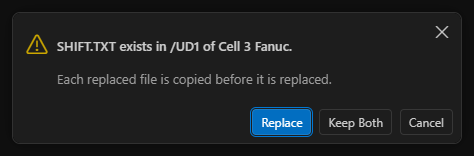
When a name already exists in the target folder, a question asks what to do, as the Explorer does:
| Answer | What it does |
|---|---|
Replace | The old file is copied, then replaced. Not offered for a folder (there is no merge), for a file onto itself, or for a move |
Keep Both | The new file gets a free name: NAME_1.EXT, NAME_2.EXT... Not offered for a program, whose name is inside the file |
Cancel | Nothing is changed |
Two files with the same name in one gesture are refused: paste or drop them in two steps.
The confirmation
One dialog lists each change, in plain words:
| Row | Meaning |
|---|---|
New file <path> | A file that does not exist yet |
Replace <path> (the file on the controller is copied first) | A file is replaced |
Rename <path> to <name> (the file is kept, no copy) | A rename |
Delete <path> (copied first) | A file is deleted |
New folder <path> | A folder is created |
Delete the folder <path>: 2 files and 1 folder inside | A folder is deleted with what it holds |
A change that TouchUp or the controller refuses stays in the list with Refused: and the reason. The other changes can go on. When every change is refused, Confirm is greyed.
After you confirm, TouchUp makes the changes one by one and reports once: what was done, then what was refused or failed, each with its reason. When the link with the controller is lost, the remaining changes are not tried, and the message says Outcome unknown for the one in progress: check the controller and the audit log before you try again.
A free user
The commands that change the controller are visible with a lock and (Pro). When a free user runs one, TouchUp shows the dialog of TouchUp Pro: the reason, what Pro adds, what stays free, and the way to try it. See Editions and license. Nothing is asked first (no name, no file dialog) and nothing is sent to the controller.
The commands that only read stay free: Open to the Side, Open With..., Download..., Copy Path, Refresh, Collapse All, Cut and Copy.
What a controller cannot do
| Brand | Not available |
|---|---|
| Fanuc | New Folder..., Import Folder..., and the copy or delete of a folder are not available yet. You can browse the folders and work on the files inside them. A program (.ls, .tp, .pc) can be created only at the top of the MD: device. A file stays on its device when you rename it. A .LS or .VA at the top of MD: cannot be deleted: it is the listing that the controller makes of a .TP or a .VR. Delete the .TP or the .VR instead |
| Yaskawa | No Rename... and no folder: the name of a job is inside the job, and the controller has no folders. Copy a job with a new name, then delete the old one. A .prm file is never deleted nor sent: see Load a parameter file at the pendant |
A job or a program whose name line names another program is refused. Edit the name line first.