Connect to your robot
Prepare the controller (remote mode, job selection, file overwrite), then connect the SDK: High Speed Ethernet Server by default, Ethernet Server, HTTP and FTP on demand. Ports, timeouts, errors.
- Prerequisites
- Prepare the controller
- Enable the Ethernet function
- Set the parameters
- Enable the remote commands
- Put the key in the remote position
- Allow the job selection
- Allow the file overwrite
- Quick connection
- Connection parameters
- UDP: what "connected" means
- Standalone client
- Errors
- Disconnect
- Try it in the demo application
- Reference
- What to read next
This page explains how to connect the SDK to a Yaskawa Motoman controller: the settings of the controller, the connection parameters, the errors and the disconnection. By default the SDK uses the High Speed Ethernet Server of the controller, over UDP. The Ethernet Server, HTTP and FTP are enabled with one flag each, see Choose a protocol. Nothing is installed on the controller.
Prerequisites
- The PC reaches the controller on the network. Its address is set in
LAN INTERFACE SETTING, see Enable the Ethernet function. - The Ethernet function is enabled on the controller. The High Speed Ethernet Server answers on the UDP ports 10040 (data) and 10041 (files). A firewall between the PC and the controller must let these ports through.
- The controller is one of: YRC1000 (micro), MOTOMAN NEXT, DX100 / DX200, FS100.
The read methods work in any mode. The commands (servo, motion, job start, file write) need the settings below.
Prepare the controller
Each setting is made once, on the programming pendant, with the security mode set to MANAGEMENT. Do the steps in this order: first the Ethernet function, then the parameters, then the remote commands.
Enable the Ethernet function
The Ethernet function is set in the maintenance mode of the controller.
- Start the controller in maintenance mode. Two ways:
- Switch on the controller while you hold the
MAIN MENUkey of the pendant. - On a running controller, select
CPU RESET>MAINTENANCE>REBOOT.
- Switch on the controller while you hold the
- Select
SYSTEM INFOand press theSECURITYbutton. - Select the mode and change it to
MANAGEMENT. The default password is sixteen 9:9999999999999999. - In the main menu, select
SYSTEM>SETUP>OPTION FUNCTION.
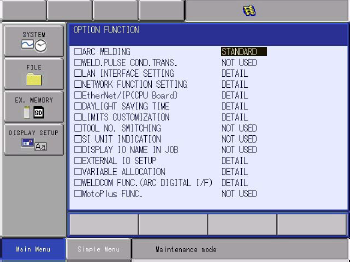
- In
LAN INTERFACE SETTING, set the IP address, the subnet mask and the gateway of the controller. - In
NETWORK FUNCTION SETTING:- Set
ETHERNETtoUSED. - Set
FTPtoEXPANDED. The FTP client needs it. - Set
ETHERNET SERVERtoEXPANDED. The Ethernet Server client needs it.
- Set
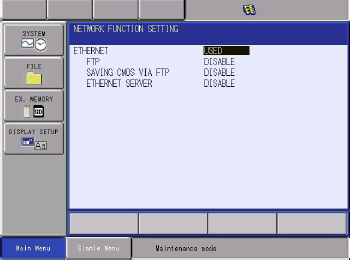
- Restart the controller in normal mode.
If ETHERNET stays at NOT USED and cannot be changed, the Ethernet function is not enabled on your controller. Ask the Yaskawa support to enable it. It is a parameter of the FD type: only the Yaskawa mode can change it, with a checksum signature in the file ALL.PRM.
Set the parameters
Select PARAMETER > RS and set these values:
| Parameter | Value | Meaning |
|---|---|---|
RS000 | 2 | Transmission protocol of the host control function |
RS005 | 1 | The port is used by the host control function |
RS007 | 2 | Read and write are accepted when the controller is not in remote mode |
RS022 | 1 | The variable number 0 is accepted |
RS029 | 1 | Upload files and write data during the playback |
RS034 | 200 | Response wait timer A, in ms. Factory value |
RS035 | 200 | Monitoring timer B, in ms. Factory value |
To write the I/O and the variables in play mode, select PARAMETER > S2C and set:
| Controller | Parameter | Value |
|---|---|---|
| DX100, FS100 | S2C409 | 1 |
| DX200, YRC1000, YRC1000micro | S2C541, S2C542 | 0 |
GetSystemParameter reads these values back from your application, see System parameters.
Enable the remote commands
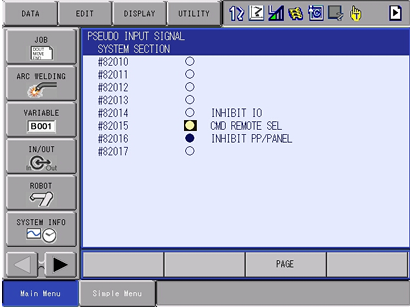
- Select
IN/OUT>PSEUDO INPUT SIGNAL. - Move the cursor to
#82015 CMD REMOTE SELand pressINTER LOCK+SELECT.
Put the key in the remote position
The commands need the key of the pendant in the remote position.
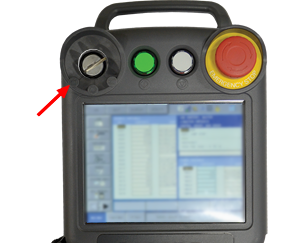
To use the key for the remote control, copy #80011 (key in the remote position) to #40042 (remote control enabled) with the ladder editor:
- Select
IN/OUT>LADDER EDITOR. - Check that no other rung writes
#40042, then add this rung:

GetStatusInformation().CommandRemote is true when the controller accepts the remote commands.
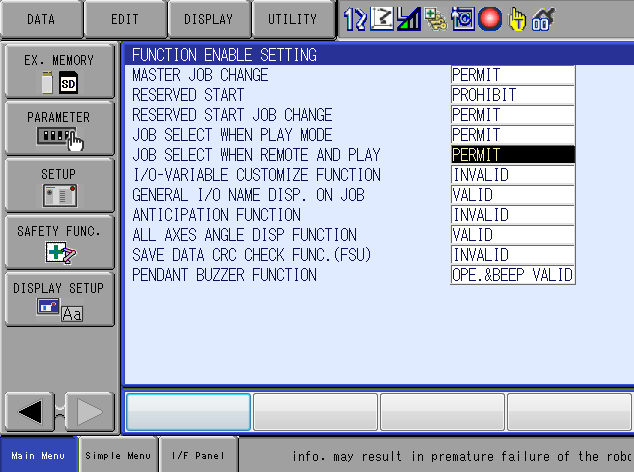
Allow the job selection
- Select
SETUP>FUNCTION ENABLE. - Set
JOB SELECT WHEN REMOTE AND PLAYtoPERMIT. On the Smart Pendant, set the parameterSC2 224to0.
Allow the file overwrite
To send a file that already exists on the controller:
- Select
PARAMETER>RS. - Set
RS029to1andRS214to1.
Quick connection
Pass the address of the controller. The other parameters keep their default values.
static void Main(){var robot = new YaskawaRobot();// IP address of the controller, default ports and timeoutsrobot.Connect("192.168.0.1");// Every function of the SDK is a method of robot.HighSpeedEServervar status = robot.HighSpeedEServer.GetStatusInformation();Console.WriteLine($"Servo on: {status.ServoOn}, play mode: {status.Play}");robot.Disconnect();}}
YaskawaRobot gives access to every function of the SDK, through its HighSpeedEServer property.
Connection parameters
ConnectParameters holds every option. Use it when the controller has other ports, or when the network needs longer timeouts.
static void Main(){var parameters = new ConnectParameters("192.168.0.1");// Ping the controller first (default: true)parameters.PingBeforeConnect = true;// UDP ports of the High Speed Ethernet Server (defaults: 10040 and 10041)parameters.HighSpeedEServer.DataPort = 10040;parameters.HighSpeedEServer.FilePort = 10041;// Time to wait for an answer, in millisecondsparameters.HighSpeedEServer.DataTimeoutMilliseconds = 1500;parameters.HighSpeedEServer.PowerOnTimeoutMilliseconds = 8000;parameters.HighSpeedEServer.FileTimeoutMilliseconds = 4000;var robot = new YaskawaRobot();robot.Connect(parameters);robot.Disconnect();}
| Parameter | Default | Meaning |
|---|---|---|
IP | none | IP address or host name of the controller |
PingBeforeConnect | true | Send a ping first. The connection fails if there is no answer in 200 ms |
HighSpeedEServer.Enable | true | Open the High Speed Ethernet Server client |
HighSpeedEServer.DataPort | 10040 | UDP port of the data commands |
HighSpeedEServer.FilePort | 10041 | UDP port of the file transfers |
HighSpeedEServer.DataTimeoutMilliseconds | 1500 | Time to wait for the answer of a data command |
HighSpeedEServer.PowerOnTimeoutMilliseconds | 8000 | Time to wait for the answer of SetServo(true) |
HighSpeedEServer.FileTimeoutMilliseconds | 4000 | Time to wait for the answer of a file transfer |
EServer.Enable | false | Open the Ethernet Server client (TCP 80) |
Http.Enable | false | Open the HTTP client (TCP 80) |
Ftp.Enable | false | Open the FTP client (TCP 21) |
The other parameters of EServer, Http and Ftp (ports, timeouts, FTP account) are described on the page of each protocol.
static void Main(){var parameters = new ConnectParameters("192.168.0.1");// High Speed Ethernet Server (UDP 10040 and 10041): enabled by defaultparameters.HighSpeedEServer.Enable = true;// Ethernet Server (TCP 80): status, jobs, variables, I/O and movesparameters.EServer.Enable = true;// Web server of the controller (TCP 80): file lists and text filesparameters.Http.Enable = true;// FTP server of the controller (TCP 21): file transfersparameters.Ftp.Enable = true;parameters.Ftp.FtpUser = "ftp"; // "anonymous" can only downloadvar robot = new YaskawaRobot();robot.Connect(parameters);// One property per protocolvar status = robot.HighSpeedEServer.GetStatusInformation();var jobs = robot.EServer.GetJobDirectory();var files = robot.Http.GetFileList(FileExtension.JOB);var listing = robot.Ftp.GetListing("/JOB");// Closes every protocolrobot.Disconnect();}}
The ping also protects the controller: a request sent while the controller starts can raise an error on it. Set PingBeforeConnect to false only when a firewall blocks ICMP between the PC and the controller.
UDP: what "connected" means
UDP has no connection. Connect checks the license, sends the ping and opens the socket: it does not exchange a message with the controller. The first method call is the first exchange. If the controller does not answer, this call fails after DataTimeoutMilliseconds.
To check the link at startup, call a read method, for example GetStatusInformation(), right after Connect.
Connected is true while the socket is open.
Standalone client
HighSpeedEServerClient opens a High Speed Ethernet Server client without YaskawaRobot. The methods are then directly on the client: client.GetStatusInformation() instead of robot.HighSpeedEServer.GetStatusInformation().
static void Main(){// A High Speed Ethernet Server client without YaskawaRobotvar client = new HighSpeedEServerClient();client.Connect("192.168.0.1", new HighSpeedEServerConnectParameters());// The methods are directly on the clientRobotStatusData status = client.GetStatusInformation();Console.WriteLine($"Running: {status.Running}");client.Close();}}
Errors
{var robot = new YaskawaRobot();try{robot.Connect("192.168.0.1");robot.HighSpeedEServer.StartJob();}catch (InvalidLicenseException ex){// No valid license: the trial is over, or the key is wrongConsole.WriteLine(ex.LicenseInfo);}catch (ConnectException ex){// The UDP socket could not be openedConsole.WriteLine($"{ex.Address}: {ex.Message}");}catch (InvalidDataAnswerException ex){// The controller refused the command, for example "Servo OFF" or "Command remote not set"Console.WriteLine($"{ex.Message} ({ex.Status}, {ex.AddedStatus})");}catch (SocketException ex){// No answer before the timeoutConsole.WriteLine(ex.Message);}catch (Exception ex){// For example, no answer to the pingConsole.WriteLine(ex.Message);}}}
| Exception | When |
|---|---|
InvalidLicenseException | Connect is called without a valid license. See Licensing |
Exception | No answer to the ping, or a method is called before Connect |
ConnectException | The UDP socket could not be opened. Address gives the address and the port |
SocketException | No answer before the timeout, or the port is closed |
InvalidDataAnswerException | The controller refused the command. Message gives the reason, Status and AddedStatus the codes |
HostControlException | The controller refused a command of the Ethernet Server |
FtpException | An FTP operation failed. Reason gives the cause, see FTP |
Frequent messages of InvalidDataAnswerException, and what to check:
| Message | Check |
|---|---|
Command remote not set | The remote mode, see Prepare the controller |
Incorrect mode | The mode of the controller: play mode to start a job |
Servo OFF | Switch the servo on first |
Error/alarm occurring | Reset the alarm, see Alarms |
Hold by programming pendant, External hold | Release the hold on the pendant or on the external signal |
Cannot over write the target file | RS029 and RS214, see Allow the file overwrite |
Disconnect
Disconnect closes the sockets. Call it when your application ends, or when it no longer needs the controller.
var robot = new YaskawaRobot();robot.Connect("192.168.0.1");// True while the UDP socket is openConsole.WriteLine(robot.Connected);// Close the sockets when the application no longer needs the controllerrobot.Disconnect();}}
Try it in the demo application
Everything on this page can be tried without writing code, in the Connection page of the demo application.
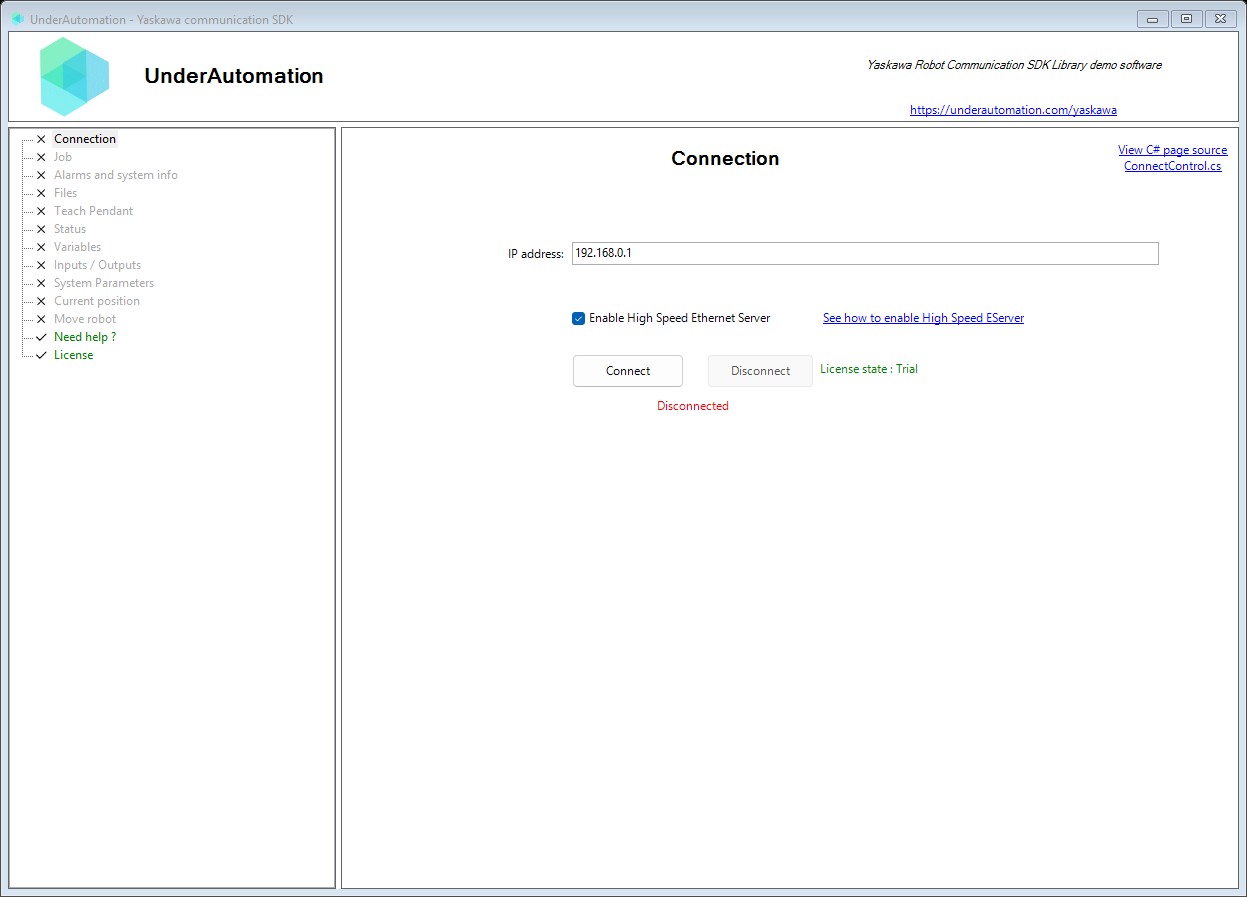
The demo application is open source. The C# source of this page is ConnectControl.cs.
Reference
Contains a set of connection parameters for robot communication. Supports High Speed Ethernet Server and Host Control protocols.
| Member | Type | Description |
|---|---|---|
ConnectParameters() Constructor | Creates a new set of connect parameters | |
ConnectParameters(string) Constructor | Creates a new set of connect parameters and defines IP property | |
EServer Property | EServerConnectParametersInternal | Ethernet Server connect parameters. Used for TCP-based Host Control communication via Ethernet Server. |
Ftp Property | FtpConnectParametersInternal | FTP connect parameters. Used for file upload, download, listing and management via the robot's built-in FTP server. |
HighSpeedEServer Property | HighSpeedEServerConnectParametersInternal | High Speed Ethernet Server connect parameters |
Http Property | HttpConnectParametersInternal | HTTP connect parameters. Used for file listing and file content retrieval via the robot's built-in web server. |
IP Property | string | IP Adress or robot host name |
PingBeforeConnect Property | bool | Send a ping command before connecting |
Represents a set of High Speed Ethernet Server connection parameters
| Member | Type | Description |
|---|---|---|
HighSpeedEServerConnectParametersInternal() Constructor | ||
Enable Property | bool | Gets or sets a value indicating whether to enable the High Speed Ethernet Server connection (default: true). |
Base class defining connection parameters for the High Speed Ethernet Server communication. This class cannot be instantiated directly; use a derived class or use Connect with optional parameters. Allows customization of timeouts and ports for different network environments.
| Member | Type | Description |
|---|---|---|
HighSpeedEServerConnectParameters() Constructor | Initializes a new instance of the connection parameters class. | |
DataPort Property | int | Gets or sets the UDP port number for data communication. Must match the robot controller's High Speed Ethernet Server data port configuration. Default: 10040. |
DataTimeoutMilliseconds Property | int | Gets or sets the maximum time in milliseconds to wait for a response to data commands. Applies to most read/write operations like position reading, variable access, etc. Default: 1500ms. |
FilePort Property | int | Gets or sets the UDP port number for file transfer operations. Must match the robot controller's High Speed Ethernet Server file port configuration. Default: 10041. |
FileTimeoutMilliseconds Property | int | Gets or sets the maximum time in milliseconds to wait for file operation responses. File operations may be slower due to larger data transfers and disk I/O on the controller. Default: 4000ms. |
PowerOnTimeoutMilliseconds Property | int | Gets or sets the maximum time in milliseconds to wait for servo power on to complete. Servo power on may take longer due to brake release and motor initialization. Default: 8000ms. |
DEFAULT_DATA_PORT Field | int | Default UDP port for data communication (10040). |
DEFAULT_DATA_TIMEOUT_MILLISECONDS Field | int | Default timeout in milliseconds for data commands (1500ms). |
DEFAULT_FILE_PORT Field | int | Default UDP port for file transfer operations (10041). |
DEFAULT_FILE_TIMEOUT_MILLISECONDS Field | int | Default timeout in milliseconds for file operations (4000ms). |
DEFAULT_POWER_ON_TIMEOUT_MILLISECONDS Field | int | Default timeout in milliseconds for servo power on operations (8000ms). |
Exception thrown when connection to a Yaskawa robot fails
| Member | Type | Description |
|---|---|---|
Address Property read only | string | Address of the robot (IP:port) |
Service Property read only | string | Name of the protocol that failed to connect |
Exception thrown when the robot controller returns an error response to a High Speed Ethernet Server command. This exception contains detailed status codes that help identify the specific error condition.
| Member | Type | Description |
|---|---|---|
AddedStatus Property read only | int | Gets the additional status code providing more detailed error information. The interpretation of this value depends on the primary Status code. |
Status Property read only | int | Gets the primary status code returned by the robot controller. A value of 0 indicates success; any other value indicates an error condition. |
What to read next
- Choose a protocol: High Speed Ethernet Server, Ethernet Server, HTTP and FTP side by side.
- High Speed Ethernet Server: the topics of the default protocol.