Yaskawa controller files: what a backup contains
The files of a YRC1000 or DX200 backup folder by folder (TOOL.CND, UFRAME.CND, VAR.DAT, ALMHIST.DAT, SYSTEM.SYS, ALL.PRM, CMOS.BIN), which ones Yaskawa lets you copy to another robot, and how to download them from a PC.
What is in the backup of a Yaskawa Motoman controller, which file holds the tools, the frames or the alarm history, and which files can go to another robot? This page answers for the DX100, DX200 and YRC1000 controllers, and shows how to download all the files from a PC with the SDK.
The folders of a backup
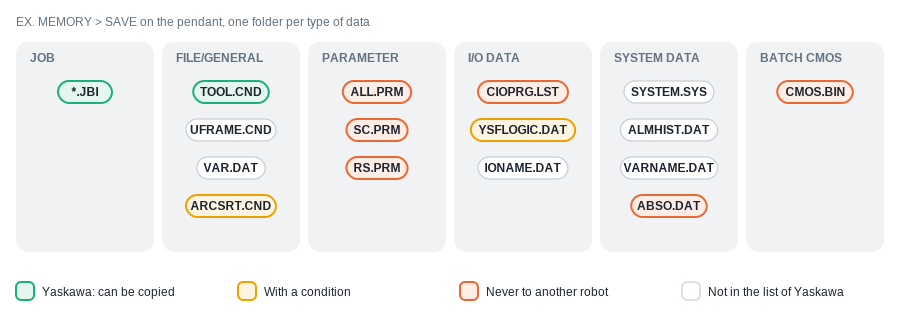
On the pendant, EX. MEMORY > SAVE saves the data of the controller in five folders, plus the CMOS image. On a YRC1000, the same files are on the FTP server of the controller, in one folder per extension (/JOB, /CND, /DAT, /PRM, /SYS, /LST).
| Folder | File | Content | Guide |
|---|---|---|---|
| JOB | *.JBI | The jobs. The header gives the tool (///TOOL) and the user frame (///USER) of the job | Transfer files |
| FILE/GENERAL DATA | TOOL.CND | The tools: name, TCP and tool load | TOOL.CND |
| FILE/GENERAL DATA | UFRAME.CND | The user frames: three taught points and the computed frame | UFRAME.CND |
| FILE/GENERAL DATA | VAR.DAT | All the global variables: B, I, D, R, S, P, BP, EX | Variables |
| FILE/GENERAL DATA | ARCSRT.CND, WELDER.DAT... | Weld conditions and power source data, with the arc welding application | |
| PARAMETER | ALL.PRM, SC.PRM, RS.PRM... | The parameters. ALL.PRM holds all of them in one file | Kinematics models |
| I/O DATA | CIOPRG.LST | The concurrent I/O program (ladder) | |
| I/O DATA | IONAME.DAT, YSFLOGIC.DAT | The names of the I/O signals, the safety logic | |
| SYSTEM DATA | SYSTEM.SYS | Software version, robot model and the operating times | Operating hours |
| SYSTEM DATA | ALMHIST.DAT | The alarm history | Alarm history |
| SYSTEM DATA | VARNAME.DAT | The names of the variables | |
| SYSTEM DATA | ABSO.DAT | The home position calibration of this arm | |
| BATCH CMOS | CMOS.BIN | Binary image of the whole memory | Transfer files |
The list of files depends on the controller, its software and its applications. GetFileList of the SDK gives the real list of your controller, and over HTTP the controller adds its own description to each data file.
CMOS.BIN or the separate files
CMOS.BIN restores a controller after a failure or a replacement. It goes back to the same controller, at the pendant, and Yaskawa must give a one time management mode to load it. It is a binary image: you cannot read it or see what changed in it. The separate files are text: you can read them, compare two dates, and keep them in a version control system. Keep both.
What you can copy to another robot
Yaskawa gives a list of the files you can copy from one controller to another:
- Jobs and
TOOL.CND: yes. CopyTOOL.CNDonly when the tooling is the same on both robots. - Weld files: only between similar power sources.
YSFLOGIC.DAT: set the "Save data CRC check" function to invalid before the copy, and back to valid after.- Never: the parameters (
*.PRM),CMOS.BINandCIOPRG.LST. The system part of the ladder differs between controllers: compare the two ladders instead.ABSO.DATbelongs to one arm.
UFRAME.CND and VAR.DAT are not in this list. A user frame is taught on one robot, in its cell: check it on the other robot before you use it.
Download the files from a PC
The program below downloads every type of text file with FTP, into one folder of the PC per type. A type that the account cannot read is reported and skipped.
using UnderAutomation.Yaskawa;using UnderAutomation.Yaskawa.Common;using UnderAutomation.Yaskawa.Ftp;public class BackupFilesByType{static void Main(){var parameters = new ConnectParameters("192.168.0.1");parameters.Ftp.Enable = true;parameters.Ftp.FtpUser = "ftp"; // "rcmaster" and its password to also get the parametersvar robot = new YaskawaRobot();robot.Connect(parameters);// One folder of the PC per type of file: C:\Backup\JOB, C:\Backup\CND...var types = new[] { FileExtension.JOB, FileExtension.CND, FileExtension.DAT, FileExtension.SYS, FileExtension.PRM, FileExtension.LST };foreach (FileExtension type in types){try{string[] names = robot.Ftp.GetFileList(type);robot.Ftp.DownloadFilesToLocal(names, Path.Combine(@"C:\Backup", type.ToString()));Console.WriteLine($"{type}: {names.Length} files");}catch (FtpException ex){// AccessDenied: this account cannot download this type of fileConsole.WriteLine($"{type}: {ex.Reason}");}}robot.Disconnect();}}
| Account | What it downloads |
|---|---|
anonymous | Jobs, condition files and general data |
ftp | Same, plus the system data and the backups |
rcmaster | Same, plus the parameters |
The rights depend on the controller and its software, see FTP. Without FTP, Http.GetFile(name) reads one file without account on a YRC1000, and the High Speed Ethernet Server reads files and makes the CMOS backup. See Transfer files and backups.
Without code
TouchUp, the robot workbench for VS Code, backs up a Yaskawa controller with the same folders (JOB, JOB and FILE/GENERAL DATA, PARAMETER, I/O DATA, SYSTEM DATA), adds the CMOS backup on demand, and leaves out by default the files that belong to one robot when you copy files to another one. See Back up a controller.