AI tools and MCP server
Let Copilot Chat, Claude Code or another MCP host read your robots and learn the TP and INFORM languages: the read-only tools, the guides and the validator of a program, Copy MCP Server Configuration, the setting to turn it off and the machine policy.
This page explains how an AI assistant can read your robots and learn their programming languages through TouchUp: the tools of Copilot Chat in VS Code, and the MCP server for Claude Code and other MCP hosts. It applies to Fanuc and Yaskawa controllers. The tools only read. They never write to a controller.
What it is
TouchUp is not an AI and sends nothing to any AI service by itself. The chat that you use is the one of your host: VS Code and its Copilot Chat, Claude Code, or the AI chat panel of the desktop and web applications. It offers tools to the AI assistant that you chose. The assistant calls a tool, TouchUp answers with data of the robot, and your assistant uses it in its answer. The AI service that you use sees what the tools return.
| Assistant | How it reaches TouchUp |
|---|---|
| Copilot Chat, or another chat of VS Code that supports tools | The Language Model Tools of VS Code. Nothing to configure |
| Claude Code, or another MCP host | The local MCP server of TouchUp, with the command TouchUp: Copy MCP Server Configuration |
| The AI chat of the desktop and web applications | The local MCP server of TouchUp, already known by the chat. You pick the tools in the chat, see AI chat of the desktop and web applications |
Turn the AI tools on or off
The setting touchup.ai.enabled is on by default. Set it to off in the user settings, and TouchUp registers no tool and starts no MCP server.
An administrator can turn the tools off for every user of the PC, see The machine policy. Then the setting has no effect: the tools stay off.
The tools
All the tools read. In an MCP host, the name of each tool starts with touchup_, for example touchup_get_alarms. Each result carries its evidence: the controller, the time, the file or the backup that the data comes from, so that the assistant can say what it observed.
| Tool | What it returns |
|---|---|
list_controllers | The controllers declared in TouchUp, with brand, address and connection state |
get_status | Mode, execution, program and line, servo, override and alarm count of a connected controller |
get_alarms | The active alarms and the alarm log of a period, newest first |
read_program | The text of a program, with its parse diagnostics when the language service is available |
find_references | Every use of a register, variable, I/O point, label or program |
read_values | The live values of registers, variables, I/O and system variables, at most 100 per call |
get_position | The live position of the robot, or a stored position as the controller shows it |
get_frames | The user frames of a controller, for each motion group: the active number, X Y Z and the orientation, the comment. See User frames and tools |
get_tools | The tools of a controller, in the same form |
list_backups | The backups of a controller, newest first, with the change since the previous one |
list_programs | The programs of a controller or of one of its backups: name, type, size and date, never the content |
list_files | The files and subfolders of a folder of a controller or of one of its backups: names, sizes and dates, never the content |
compare | The change summary of two backups, or of a backup and the live controller |
compare_files | The changes between two versions of one file: two files of the workspace, a file and its version on the controller, in a backup or at a Git revision. Only what changed, never the whole file |
robot_report | The robot report of a controller: identity, options, motion groups, programs, last backups, alarms of the last 30 days and backup status. See Robot report and handover pack |
get_language_guide | The guide of a robot language: the layout of a program, the idioms, the common mistakes and the way to write code |
search_instructions | The instructions of a language that match a word, at most 20 |
get_instruction | One instruction: its syntax, operands, controller generations, description and an example |
get_snippet | A short program for a task, at most 3, written in the style of the language |
validate_program | The check of a whole program, see Validate a program before it is proposed |
These limits apply:
- The tools that read a robot answer for a controller that is already connected in TouchUp. They never connect a controller. The language tools need no controller.
list_programsandlist_filesalso answer for a backup when the controller is not connected. - The backups are read only in the backup folder of TouchUp. The assistant cannot give another path.
robot_reportis made offline, from the inventory, the newest backup and the alarm log of your PC, with the live identity when the controller is connected. It never connects a controller. A field that is not known is absent, and the notes of the result say what is missing, for example "no alarm log on this PC".get_framesandget_toolsread a Fanuc controller. A connected controller answers live. Otherwise the tool answers from the newest backup of that controller that holds the user frames and the tools, and says in its evidence which backup and which date: it is not the state of the controller now. A newer backup that does not hold them, for exampleTP Programs, does not hide an older one. With no such backup the answer says that the controller is not connected and what to do. A Yaskawa controller answers with the reason why it is not read yet. The result does not say which programs use a frame.compare_filestakes two sides. A side is a file of a folder of the workspace, a file of a backup of the list oflist_backups, a file read now from a connected controller, or a file of the workspace at a Git revision (a commit, a branch, a tag,HEAD). Another local path is refused, as is a path with..or a link. For a program it returns the changed lines without the renumbering, for a parameter or variable file the changed rows with the name and the unit of the catalog, and for any other file only the number of changed lines. Reading the Git revision never changes the repository.- A program longer than 64 KB, or a list of more than 200 items, is cut, and the result says so.
- Passwords, tokens and license keys that TouchUp knows are replaced by
***in the results.
What is never possible: a tool that writes a file or a value, moves the robot, resets an alarm, starts a program or sends a file to a controller. The writes of TouchUp (backup, send, confirmation, audit) are commands that you run yourself.
Treat the text of a program, an alarm or a comment as data. TouchUp tells the assistant not to follow instructions written in it, but check what a tool returns before you rely on an answer.
The languages of the robots
An AI model knows the TP language of Fanuc and the INFORM language of Yaskawa poorly: it mixes the controller generations, invents instructions and copies code from forums. The language tools give the assistant the knowledge of TouchUp instead, the same as the Toolbox, the hover and the completion of the editor. They work offline, with no controller and no robot.
- The two languages are called
fanuc-tpandyaskawa-inform. - A generation narrows the answer to one family of controllers:
R-30iB Plusfor Fanuc,YRC1000orYRC1000microfor Yaskawa. Without it, the answer covers every generation of the language. - The guides and the instruction lists are also offered as resources to the MCP hosts that read resources.
- The tools return what TouchUp ships. They quote their source, so that the assistant can say where an instruction comes from.
Start a task by asking the assistant to read the guide of the language, then to search the instructions it needs. For example: "Read the TouchUp guide of Fanuc TP, then write a pick and place program, and validate it."
Validate a program before it is proposed
validate_program checks the whole text of a program that the assistant wrote or changed. It runs on your PC, offline, and sends nothing to a controller.
| Check | What it finds |
|---|---|
| Syntax | A line that the language cannot read |
| Rules of the language | An instruction or operand that does not exist, a jump to a missing label, with the generation if you give it |
| Robot context | A call to a program that the robot does not have. Only when the assistant names a controller of the same brand whose robot index is complete, see Navigate across a robot |
Without a controller or without an index, the result says that the robot context was not checked. It never passes silently.
Each problem comes with its line, its column, its severity (error or warning), its code, a message and the layer that found it. The program is valid when it has no error. The guides tell the assistant to:
- Validate the program before it proposes it to you.
- Fix every error, and every warning it cannot justify. On Fanuc a misspelled instruction is only a warning, and a jump to a missing label stops the program.
- Validate again, until the result is clean.
- Tell you about each warning that stays, and which checks did not run.
The result also carries a validation token: a fingerprint of this exact text, of its language and generation, and of the result. Any change of the text, even one character, gives another token, so a token tells which text was validated. If an assistant gives you a program, ask it for the validation result of that exact text.
A validation is a help, not a test. It does not run the program, it does not know your cell, and it does not replace your review and a test in simulation. A program that you want on a controller goes through the commands that you run yourself, with the confirmation of TouchUp: see Send a file to the controller.
Copilot Chat
With the setting on, the tools appear in the tools list of Copilot Chat in VS Code. In a prompt, type # and the name of a tool to ask the assistant to use it, for example #get_alarms. You can also ask in plain words, for example "Why is Cell 3 stopped?", and the assistant chooses the tools.
Claude Code and other MCP hosts
- Open TouchUp with the AI tools on, and connect the controllers that you want to read.
- Run
TouchUp: Copy MCP Server Configuration. - Choose the format:
Claude Code command(aclaude mcp addline for bash, zsh or PowerShell, not cmd.exe) orJSON for an MCP host(themcpServersentry of the configuration file of your host).

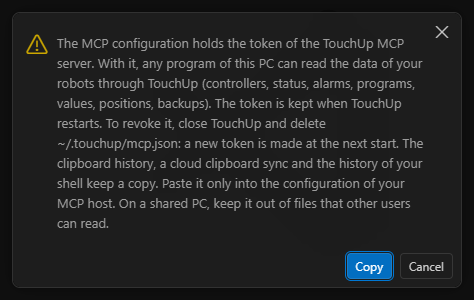
- Read the warning, then choose
Copy.Cancelcopies nothing.
- Paste the line in a terminal, or the JSON in the configuration of your host. For Claude Code, add
--scope userafterclaude mcp addif the server must be known from every folder: without a scope, Claude Code keeps it only for the folder where you ran the command.
The server listens on this PC only, and answers only the requests that carry the token. The configuration that you copied holds this token: with it, any program of this PC can read the data of your robots through TouchUp. Paste it only into the configuration of your MCP host, and keep it out of files that other users can read. The clipboard history, a cloud clipboard sync and the history of your shell keep a copy.
The token is kept when TouchUp restarts. To revoke it, close TouchUp, delete the file .touchup/mcp.json in your user folder, and start TouchUp again: it makes a new token. Then copy the configuration again for your hosts.
When the tools are off, the command says so and copies nothing. When the server is not running, it says so and copies nothing: look at the TouchUp output for the reason.
The machine policy
An administrator can turn the AI tools off for every user of a PC, whatever their settings. The policy can only turn the tools off: it cannot turn them on.
Create the file policy.json with this content:
{ "ai": { "enabled": false } }
| System | Location |
|---|---|
| Windows | C:\ProgramData\TouchUp\policy.json |
| Linux | /etc/touchup/policy.json |
Any other content, an invalid file or a missing file locks nothing. TouchUp reads the file at each tool call, so a lock applies to a TouchUp that is already running: the tools answer an error, and the copy of the MCP configuration is refused. Restart VS Code so that the tools disappear from the list of Copilot Chat.
Protect the policy folder
On Windows, a standard user can create the folder C:\ProgramData\TouchUp if nobody did it before. The user then owns it and can delete policy.json. Prepare the folder as an administrator, before the users start TouchUp:
- If the folder
C:\ProgramData\TouchUpalready exists, delete it and create it again. - Set an explicit access list: full control for the administrators and the system, read for the other users. In an elevated PowerShell:
New-Item -ItemType Directory -Force C:\ProgramData\TouchUpicacls C:\ProgramData\TouchUp /inheritance:r /grant "*S-1-5-32-544:(OI)(CI)F" /grant "*S-1-5-18:(OI)(CI)F" /grant "*S-1-5-32-545:(OI)(CI)RX"Set-Content C:\ProgramData\TouchUp\policy.json '{ "ai": { "enabled": false } }'
- Check with a standard user account that deleting
policy.jsonis refused.
On Linux, /etc/touchup belongs to root and the file is not writable by the other users.