Edit a program
Problems found while you type, the outline, folding, hover, completion and signature help from the instruction catalogs, live values of the controller on the program, examples in the hover, go to definition, line numbers kept while you type, Add Position and Update with Current Position, Open, Copy and Paste Position at the cursor, the Format button and Format Document for TP and INFORM, the colors, and the Shift JIS encoding of Japanese files.
- Problems
- Outline and folding
- Instruction help
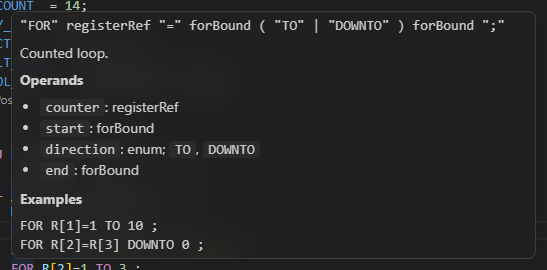
- Examples in the hover
- Where completion appears
- Instruction not available on a generation
- Line numbers and indentation while you type
- Live values of a program
- Add and update a position
- Open, copy and paste a position
- Go to definition and find references
- Format Document
- Colors
- Japanese files and the Shift JIS encoding
- What to read next
This page explains the help that TouchUp gives when you edit a Fanuc TP program (.ls) or a Yaskawa INFORM job (.jbi): problems, outline, folding, hover, completion, go to definition, Format Document and colors. It works on a file opened from a controller and on a file of your PC. Nothing needs a license, and the help is local and writes nothing. Only the live values of a program need a connection to its controller: see below. For the Karel sources, the KCL files and the command files of a Fanuc controller, see Edit Karel and KCL files.
Problems
TouchUp checks the program while you type and lists what it finds in the Problems panel (Ctrl+Shift+M). A problem is also underlined in the editor, and the status bar counts them. Each problem has a severity (error, warning or information) and a code in parentheses, for example TouchUp(W-JMP-TARGET). Click a problem to go to its line. In the desktop and web applications, the Problems panel is open at the bottom on the first start.
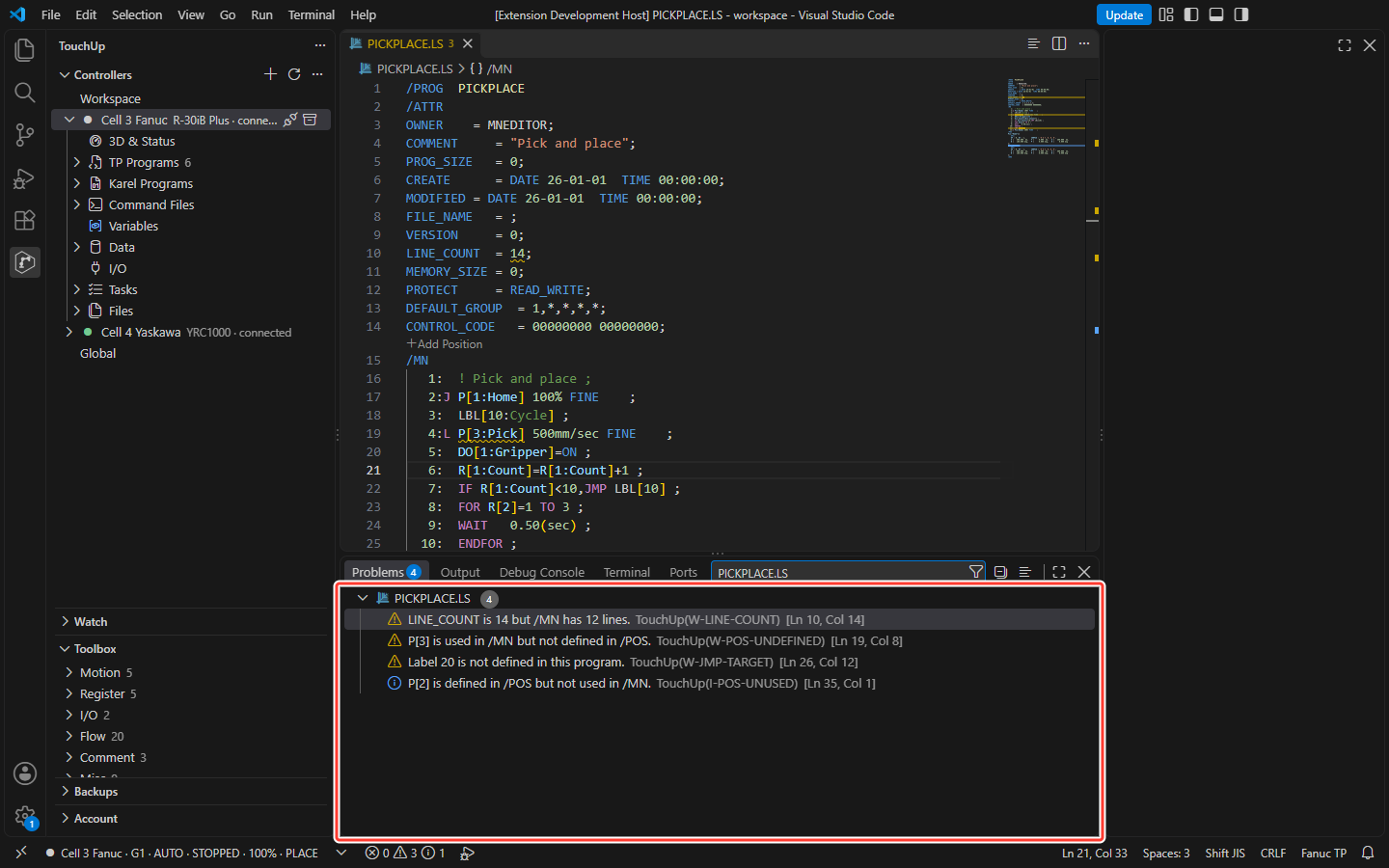
TouchUp reports the syntax errors, and the mistakes that need the whole program to be seen:
| Brand | What is reported |
|---|---|
| Fanuc | A JMP LBL[n] to a label that does not exist, a label defined twice |
| Fanuc | A position P[n] used in the program but not defined in /POS, a position defined but never used |
| Fanuc | A wrong LINE_COUNT, more than 9999 positions, an IF or FOR without its end, an ELSE without its IF |
| Fanuc | A program name that is not the name of the file |
| Fanuc, Yaskawa | A program called by CALL (RUN, JUMP JOB:) that is not in the robot: see Navigate across a robot |
| Fanuc, Yaskawa | An instruction that is not available on the controller generation you chose (see below) |
| Yaskawa | A JUMP to a label that does not exist, a label defined twice |
| Yaskawa | A block (IFTHEN, WHILE, FOR, SWITCH) that is not closed, or a closing without its opening |
| Yaskawa | Blocks nested deeper than the controller allows when you edit a job on the pendant |
A time T= of a Yaskawa job takes up to three decimals, for example WAIT T=20.000 or TIMER T=0.050. TouchUp reports nothing and keeps the text as you wrote it, because the controller accepts it. Four decimals are an error.
The nesting limit is the setting touchup.inform.nestingLimit, 10 by default, from 1 to 20. A problem is a hint, never a block: TouchUp does not refuse to save a file that has problems.
The value of a register is not known. The check of a called program needs the programs of the robot: it is done only when TouchUp has indexed the folder of the robot, see Navigate across a robot.
Outline and folding
The Outline view (in the Explorer, or Ctrl+Shift+O to jump to a symbol) lists the structure of the program.
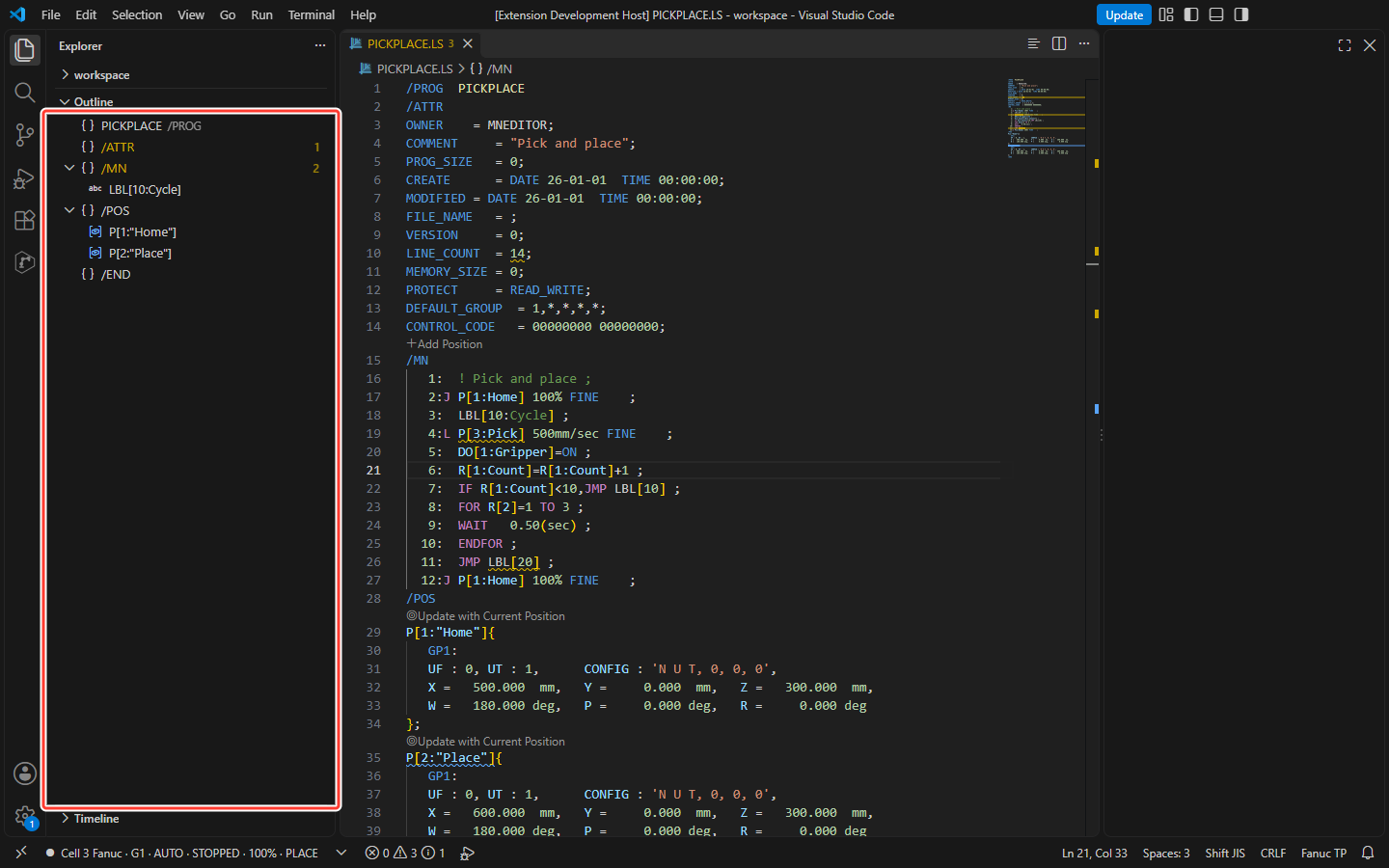
| Brand | Symbols |
|---|---|
| Fanuc | The program, its sections (/ATTR, /MN, /POS, /END), the labels LBL[n] of /MN, the positions P[n] of /POS |
| Yaskawa | The job, its sections (//POS, //INST...), the step positions of //POS, the labels *L of //INST |
Click a symbol to go to it. The editor can also fold what has a start and an end:
- the sections of the program (on Yaskawa,
//POSand//INST), - the blocks
IF,FORandSELECTon Fanuc,IFTHEN,WHILE,FORandSWITCHon Yaskawa, - the position blocks of a TP program,
- a series of comment lines.
A block that is not closed has nothing to fold. Use the arrows next to the line numbers, or Ctrl+Shift+[ and Ctrl+Shift+].
Instruction help
TouchUp knows the instructions of the two languages: the TP instructions of the Fanuc R-30iB Plus, and the INFORM instructions of the Yaskawa YRC1000 and YRC1000micro.
| Help | How | What it shows |
|---|---|---|
| Hover | Put the mouse on an instruction, a motion option, a data type or a tag | The syntax, the summary, the description, the operands (type, range, values, optional or not), what the instruction requires, and examples |
| Completion | Start a statement, then type a blank or = while you write the operands | The instructions, each one inserted with its tab stops. Once an instruction is written, the operands that fit it |
| Signature help | Type a blank, a comma or = after an instruction | The operands of the instruction in order, an optional one between brackets: J position speed unit termination [options] |
In a TP program, a block instruction (IF ... THEN, FOR, SELECT) is inserted with its numbered lines. TouchUp offers it only on a line that has its number. A comment, a macro call and the statements that TouchUp does not know have no help. To pick an instruction in a list instead, use the Toolbox.
Examples in the hover
The hover of an instruction ends with an Examples block: complete lines that you can copy, for example for EXPRESS, IFEXPRESS or SETE on Yaskawa. The data types and the tags have the same help, with their syntax and an example:
| Brand | Words with a hover |
|---|---|
| Fanuc | P, PR, R, SR, AR, LPOS, JPOS, the inputs and outputs (DI, DO, RI, RO, GI, GO...), FINE, CNT, ON, OFF, the speed and time units |
| Yaskawa | B, I, D, R, S, P, LP, PX, C, BP, EX, the local variables, MJ#(, IN#(, OT#(, the options VJ=, V=, PL=, and ANDEXP, OREXP |
The system variables of /POS (UF, UT, CONFIG) have no hover. A position (P[1] of a TP program, C00002, BC or EC of a job) has its own hover: its values, with the frame and the tool, and a link to edit it, see Positions in a program.
Where completion appears
Completion offers only what fits at the cursor:
- on an empty line of the program (
/MNon Fanuc,//INSTon Yaskawa): the instructions, - in the middle of an instruction: only the operands that fit it, for example a position after
J, a label afterJMP, the options afterMOVJ, never another instruction, - nowhere else: nothing in the header of the file (
/PROG,/ATTR,//NAME,///DATE...), nothing in the positions (/POS,//POS), nothing after the;that ends a TP statement, and nothing afterEND.
Instruction not available on a generation
Set the generation of your controller in the settings of your editor:
| Setting | Values | Default |
|---|---|---|
touchup.catalog.fanuc.generation | R-30iB Plus | R-30iB Plus |
touchup.catalog.yaskawa.generation | YRC1000, YRC1000micro | YRC1000 |
When the catalog says that an instruction does not exist on that generation, TouchUp underlines it with a warning: "J is not available on R-30iA." A disabled line is not checked. The catalogs that come with TouchUp do not carry this information yet: the warning appears once they do, and for now no instruction is reported. The same generation hides the instructions of the Toolbox that are not available.
Your own catalog (setting touchup.catalogs.local) is read by the Toolbox. Hover and completion keep the catalog of TouchUp. See Toolbox.
Line numbers and indentation while you type
In a Fanuc program, TouchUp keeps the line numbers of /MN in order while you edit, so that you do not renumber by hand.
| You do | TouchUp does |
|---|---|
Press Enter at the end of a line | Writes the next number on the new line, with the colon and two spaces, and the same indentation. Inside a P-SPS block, the new line is numbered and indented as a line of the block. After a statement that continues on the next line, the new line starts with a colon and no number |
| Insert, delete, cut or paste lines, also with several cursors | Renumbers the lines under, and updates LINE_COUNT |
The renumbering is part of your edit: Ctrl+Z undoes the new line and the new numbers together. The positions of /POS are never touched: their numbers move only with Format Document.
A pasted line of /MN that has no number is an error line: TouchUp then changes nothing, and the numbers and LINE_COUNT stay as they were. A file that you reload or revert from the disk is renumbered when its numbers are not 1 to n, and the editor shows it as modified.
On a Yaskawa job there is no line number and no LINE_COUNT. After an Enter, the new line is indented as the open blocks require (IFTHEN, WHILE, FOR, SWITCH), and the closing of a block goes back to the level of its opening. Each Enter, paste or deleted line also renumbers the step positions (C, BC, EC) in the order where the job uses them, and sorts //POS. This differs from a Fanuc program, where the positions keep their numbers until Format Document.
Live values of a program
For a program opened from a connected controller, TouchUp adds the current values to the editor:
- the hover of a register, a variable or a signal shows its comment and its current value,
- the setting
touchup.liveValues.inlineHints(off by default) shows the values at the end of the line, - while a task runs or is paused, the line that the controller executes is highlighted,
Add to Watch...in the editor menu adds the name under the cursor to the Watch view.
The same applies to a file of your PC that is in the folder of one declared controller. Reading never writes to the controller. The names that have a value, the controller a file belongs to and the limits are on Read live values.
Add and update a position
In a Fanuc program (.ls), a link above the program lines adds a position, and a link above each position of /POS writes the current position of the robot in it. These links change the text of the editor, and Ctrl+Z undoes them. Nothing goes to the controller until you save the file, which is a write with its confirmation: see Send a file to the controller.
| Link | Where | What it does |
|---|---|---|
Add Position | Above /MN | Asks for Cartesian or Joint, then adds the next free P[n] at the end of /POS, and creates /POS when the program has none. The new position is empty (zeros), or takes the current position of the robot |
Update with Current Position | Above each position of /POS | Replaces the values of this position with the current position of the robot, group by group. The frames, the comment and the layout stay |
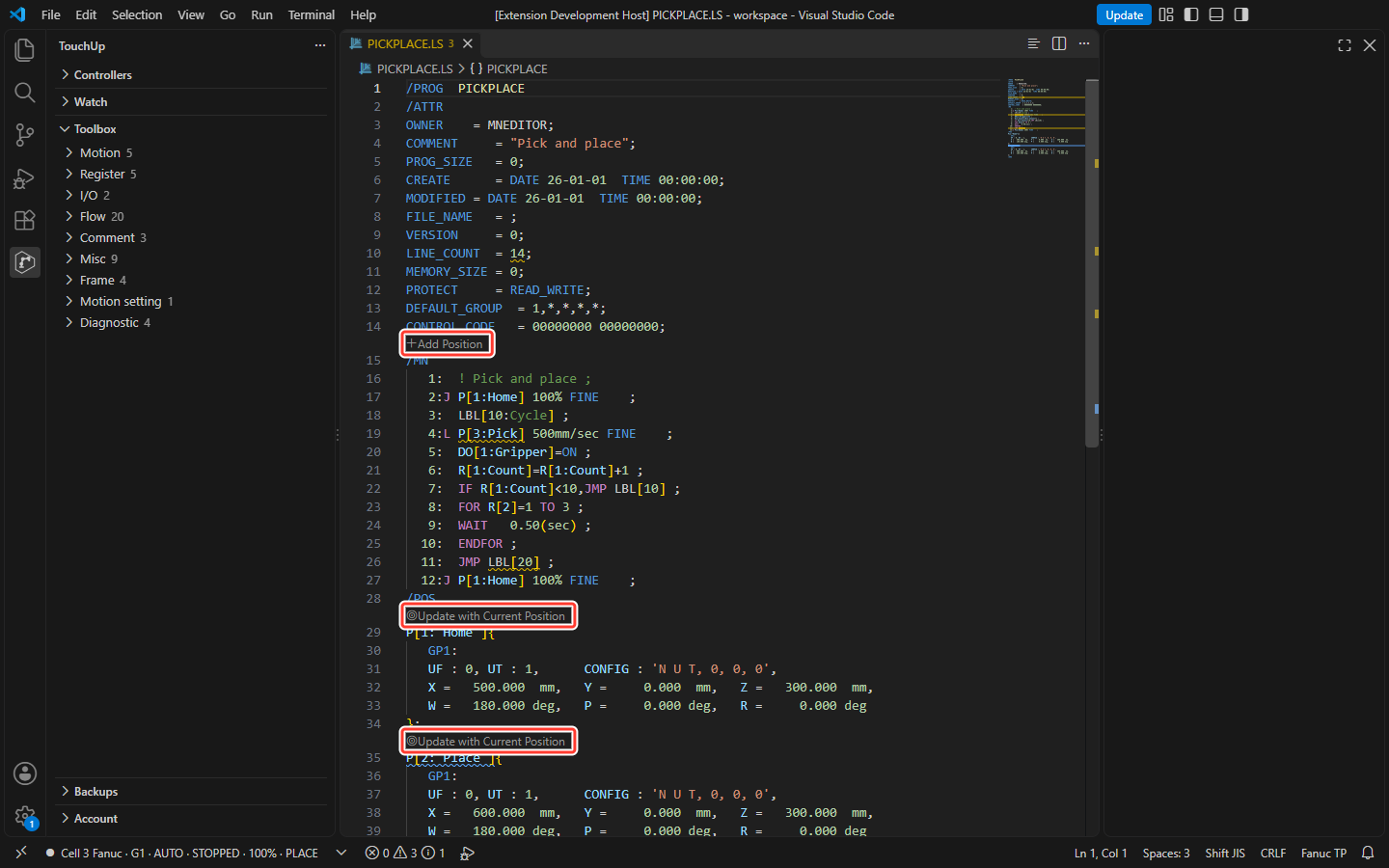
TouchUp: Add Position in the command palette does the same as the first link.
The current position needs a connected controller: the one the program was opened from, or else the active controller of the Controllers view, with its active group. Without it, Add Position offers the empty value only, and Update with Current Position is greyed out, with the reason in its tooltip.
Update with Current Position refuses, with a message, when the result would be wrong:
- the user frame (
UF) or the tool (UT) of the position is not the one selected on the robot: select them on the pendant first, - the position has no frame or no tool (
F), so that it cannot be checked, - the controller does not give the configuration, the joint values or the extended axes that the position needs.
Only the Fanuc programs have these links: TouchUp cannot read the current position of a Yaskawa robot yet.
Open, copy and paste a position
Put the cursor on a position of a Fanuc program or a Yaskawa job (P[3] of an instruction, an entry of /POS, C00002, PR[10], P023), then right click. The menu offers three commands, only when the cursor is on a position:
| Command | What it does |
|---|---|
Open Position in Editor | Reads the position from the controller of the file and opens it in the position editor |
Copy Position | Copies the text of the position from the file, as written in /POS (Fanuc) or as a position of the job (Yaskawa). It needs no connection |
Paste Position | Replaces the values of the position with the position on the clipboard, in the text of the file. Ctrl+Z undoes it. A position in another user frame or tool, or of the other brand, is refused with the reason |
The text is changed like any edit: nothing goes to the controller until you save the file, which is a write with its confirmation. See Edit a position for the editor, and for a Yaskawa controller, which reads positions but does not write them yet.
Go to definition and find references
Put the cursor on a name and press F12 to go to where it is defined, or Shift+F12 to list where it is used.
| Brand | Name | Goes to |
|---|---|---|
| Fanuc | LBL[n] of a JMP | The line LBL[n] |
| Fanuc | P[n] of a motion line | The block P[n] of /POS |
| Yaskawa | *LABEL of a JUMP | The line *LABEL |
| Yaskawa | A step position (C00001) of a move | Its line in //POS |
It works inside the file for labels and positions. A disabled line (// on Fanuc, COMM on Yaskawa) is not a definition, but a use on a disabled line is listed. A label or a position that a register or a variable gives (LBL[R[1]]) cannot be followed.
Across the files of a robot, the same keys follow a called program, a register, a variable or a signal: see Navigate across a robot.
Format Document
Format Document (Shift+Alt+F) puts the numbers of a program in order.
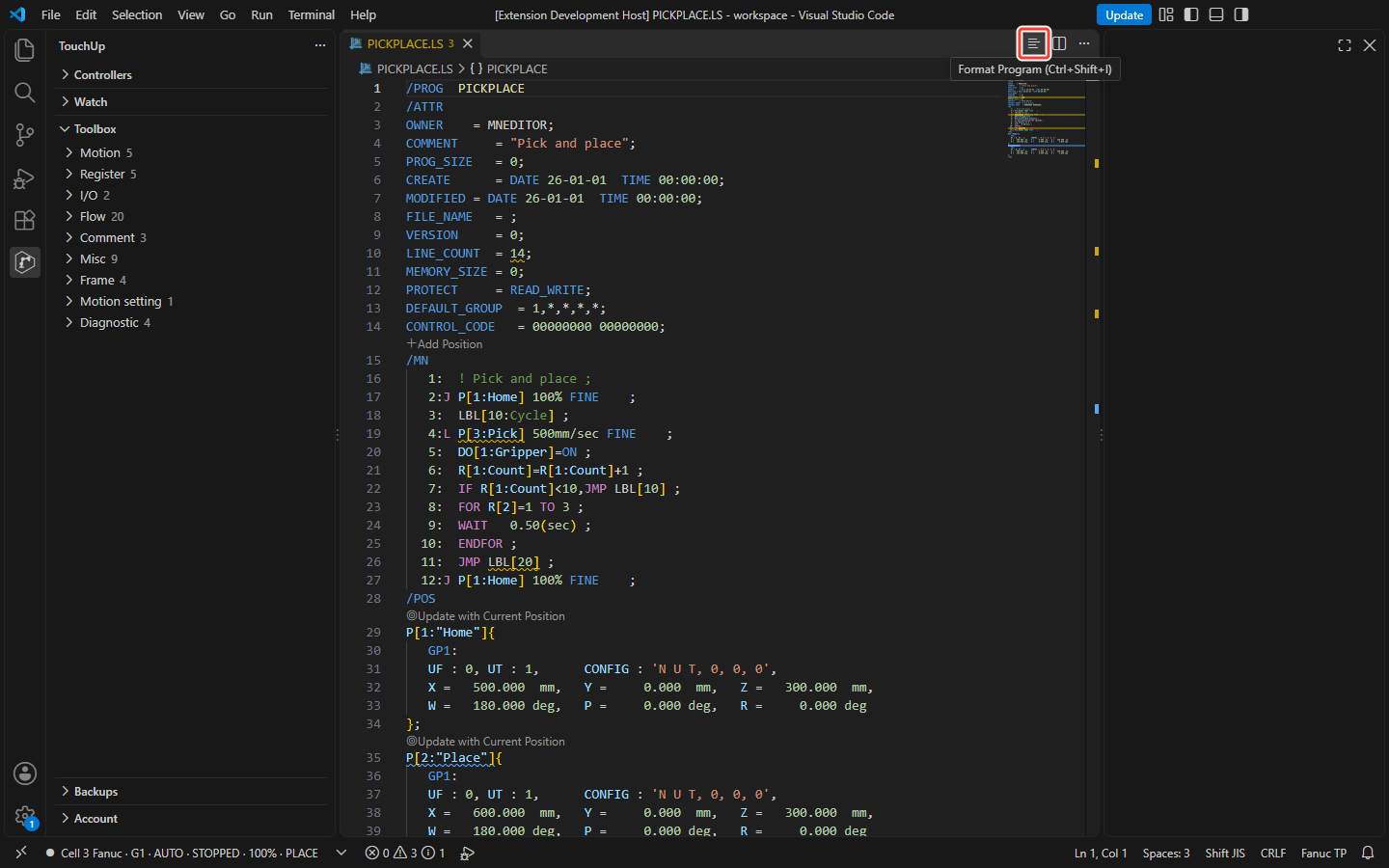
The title of the editor of a TP (.ls) or INFORM (.jbi) program has a Format button. Its tooltip shows the command, Format Program, and its shortcut: Shift+Alt+F on Windows and macOS, Ctrl+Shift+I on Linux. The command Format Program is also in the right-click menu of the editor and in the command palette (TouchUp: Format Program). They are for these two languages only. They run Format Document, and one Ctrl+Z takes the change back.
| Brand | What it renumbers |
|---|---|
| Fanuc | The line numbers of /MN and LINE_COUNT. The positions, in the order where the program uses them, with their uses in /MN. The blocks of /POS are sorted |
| Yaskawa | The step positions (C, BC, EC) in the order of the job, with their uses. The lines of //POS are sorted and ///NPOS is set |
Format Document changes the numbers of the positions. After it, P[7] can be P[3], and C00005 can be C00002. The program does the same thing, but a comparison with the file on the controller, with a backup or with a copy of the program shows many changed lines. The pendant also shows other numbers. Do it on purpose, and read the changes before you save: saving a file of a controller is a write, with a confirmation.
TouchUp leaves the positions as they are when it is not sure of the result: when the program has an error that hides which position is which, when a position is defined twice, or when a position is given by a register (P[R[1]]). The line numbers of a Fanuc program are still put in order. When the text cannot be read as a program (broken characters, or a Yaskawa job with an error that hides the positions), the command does nothing and shows no message.
Format Document is never run by itself: TouchUp does not turn on editor.formatOnSave.
Colors
The editor colors the syntax of the files of each brand, as Open controller files shows. On top of it, each kind of name has its own color, from the theme of your editor:
- registers and variables:
R[1],PR[1],SR[1]on Fanuc,B000,I000,D000on Yaskawa, - inputs and outputs:
DI[1],DO[1],RI,RO,GI,GO,UI,UOon Fanuc,IN#(1),OT#(1)on Yaskawa, - positions:
P[1]on Fanuc,C00001on Yaskawa, - system variables:
$SCR_GRPon Fanuc,$PX001on Yaskawa.
Comments, remarks and texts keep their own color: a name inside them is not colored.
Japanese files and the Shift JIS encoding
Controllers made for Japan write their files in Shift JIS. TouchUp sets the editor to open .ls and .jbi files as Shift JIS, so that the Japanese characters of a comment or a label are read, and saved, as the controller wants. A TP program can also be in UTF-8: for .ls files, the editor chooses between UTF-8 and Shift JIS when it opens the file.
When a file shows broken characters, TouchUp does not guess: it adds an information at the start of the file, "Reopen it with the encoding Shift JIS", and hides the problems that the broken text would cause. For a file of your PC, run Change File Encoding (or click the encoding in the status bar), choose Reopen with Encoding, then Shift JIS. A file opened from a controller follows the setting files.encoding instead: change it in the settings of your editor. While the characters are broken, Format Document does nothing, so that a save does not write the broken characters in the file.
The encoding is a setting of the editor (files.encoding, for the languages fanuc-tp and yaskawa-inform): change it there if your files use another one.