TOOL.CND: read the tool data of a Yaskawa robot
What the TOOL.CND file of a Motoman controller contains, how to download it from a PC and read the name and TCP of each tool in C# or Python.
TOOL.CND is the file where a Yaskawa Motoman controller keeps its tools: the name, the TCP and the tool load of each tool. This page explains what the file contains, and shows how to download it from a PC and read the TCP of every tool in C# or Python.
What TOOL.CND contains
| Item | In the file | Notes |
|---|---|---|
| Number of tools | One block //TOOL n per tool | 64 tools (0 to 63) on DX100 and later, 24 on NX100 |
| Name | ///NAME followed by the text | Can be empty |
| TCP | The first line of numbers: X, Y, Z, Rx, Ry, Rz | mm and degrees |
| Tool load | The next lines of numbers | Weight, center of gravity and inertia |
On the pendant, the file is saved with EX. MEMORY > SAVE > FILE/GENERAL DATA > TOOL DATA. Every tool is in the file, also the tools that are not set: their values are all zero.
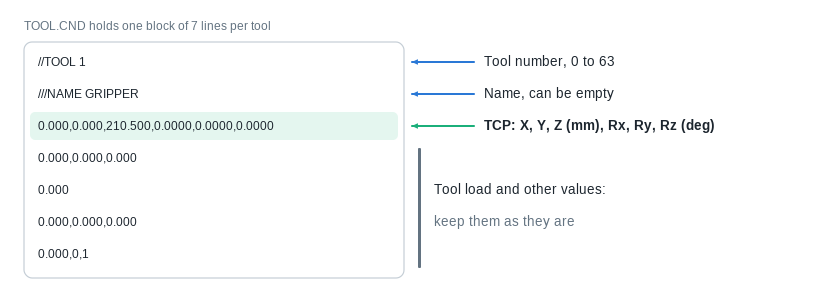
There is no command for the tool data in the High Speed Ethernet Server: the file is the way to read the tools from a PC.
Read the tools from a PC
The SDK downloads the file as text. The program splits it with a few lines of code and prints each tool that is set.
using System.Globalization;using UnderAutomation.Yaskawa;public class ToolCndRead{static void Main(){var robot = new YaskawaRobot();robot.Connect("192.168.0.1");// Download the tool file and keep a copy on the PCstring text = robot.HighSpeedEServer.GetFile("TOOL.CND").Content;File.WriteAllText("TOOL.CND", text);// Each tool: "//TOOL n", "///NAME text", then the TCP line X,Y,Z,Rx,Ry,Rzstring[] lines = text.Split('\n').Select(l => l.Trim()).ToArray();for (int i = 0; i + 2 < lines.Length; i++){if (!lines[i].StartsWith("//TOOL ")) continue;int number = int.Parse(lines[i].Substring(7));string name = lines[i + 1].StartsWith("///NAME") ? lines[i + 1].Substring(7).Trim() : "";double[] tcp = lines[i + 2].Split(',').Select(v => double.Parse(v, CultureInfo.InvariantCulture)).ToArray();if (tcp.Any(v => v != 0)) // skip the tools that are not setConsole.WriteLine($"Tool {number} {name}: X={tcp[0]} Y={tcp[1]} Z={tcp[2]} Rx={tcp[3]} Ry={tcp[4]} Rz={tcp[5]}");}robot.Disconnect();}}
The program uses the High Speed Ethernet Server. The text is the same with Http.GetFile("TOOL.CND") on a YRC1000 (no account, any mode) or with Ftp.GetFile("TOOL.CND"). See Transfer files and backups.
Example of output:
Tool 0 GRIPPER: X=10.5 Y=-20.25 Z=150 Rx=1 Ry=-2 Rz=3Tool 2 WELD: X=-5 Y=0 Z=220.125 Rx=0 Ry=45 Rz=-90
What to do with it
- Back up before a change. A copy of
TOOL.CNDon the PC gives the TCP of every tool before a crash, a new gripper or a calibration. - Check a line of robots. Twin cells with the same tooling must have the same TCP. Read the file of each robot and compare the values with a tolerance.
- Find a changed TCP. A TCP changed on the pendant changes how the robot moves with this tool. Compare the file of today with the one of last week, see Detect what changed on a robot.
The tool of each job is in the header of the job (///TOOL n), and the tool of the current position is ToolNumber of GetRobotCartesianPosition(), see Positions.
Cautions
- Yaskawa says the tool file can be copied from one controller to another. Do it only when the tooling is the same on both robots.
- The FTP server accepts the upload of condition files (
.CND), see FTP file transfers. This page does not cover the write: test it on your controller, with a copy of the file, before you use it in production. - Keep the lines of the tool load as they are. In the tool load, a weight of 0 means that the load is not set: the controller then uses default values.
Without code
TouchUp, the robot workbench for VS Code, opens TOOL.CND as a form: the name and the TCP of each tool in a table, the other lines kept as they are. You can edit a value and send the file back to the controller, and TouchUp refuses while a program runs. See Tool and user frame files.