Compare backups and controllers
Compare two backups, a controller or one of its files with the last backup, two files of your PC, a file of your PC with the controller, or a backup folder of a disk, with a change summary, the noise of each brand removed, and the parameters as a table with the old value struck through.
- What you can compare
- The Compare view
- User frames and tools
- Programs without the renumbering
- Parameter and variable files as a table
- Compare two files of your PC
- Compare a file with the controller
- Compare a file with a Git revision
- From a Git diff of VS Code
- Compare a backup folder of a disk
- Backups of two types
- Compare one file with its last backup
- Without noise
- Files hidden from the compare
- What to read next
This page explains how to compare two backups, a controller with its last backup, two files of your PC, a file of your PC with the controller or with an earlier version in Git, or a backup folder of a disk, and how to read the result. TouchUp hides the noise of each brand, so that only the real changes are shown.
What you can compare
| Compare | Command | Use |
|---|---|---|
| Two backups | TouchUp: Compare Two Backups, or right click a backup in the Backups view, then Compare with... | What changed between two dates. The older backup is always on the left |
| The robot and its last backup | TouchUp: Compare with Last Backup, or right click a connected controller | What changed since the last backup of this controller in the remembered folder. Nothing is written: the files of the controller are read, compared, then deleted |
| One file of the robot and its last backup | Compare with Last Backup on a file of the Files node, or in an editor opened from a controller | What changed in this file since the last backup. Only this file is read from the controller |
| Two files of your PC | Compare with... (TouchUp) on a file in the Explorer, or Select for TouchUp Compare then Compare with Selected (TouchUp) | What changed between a file that you received and the file that you have. See Compare two files of your PC |
| A file of your PC and the robot | Compare with Controller... (TouchUp) on a file in the Explorer | What differs between a file that you have and the same file on a connected controller. See Compare a file with the controller |
| A file of your PC and an earlier version in Git | Compare with Revision... (TouchUp) on a file in the Explorer or in the title menu of the editor, or the button Open in TouchUp Compare of a Git diff | What changed in a program or a parameter file since a commit. See Compare a file with a Git revision |
| A backup folder of a disk | TouchUp: Compare Backup Folder... | A backup that is not in your backup folder (a USB key, a copy that you received, an archive) against another backup or the robot. See Compare a backup folder of a disk |
| Two positions, or a position and the robot | Compare with... in the position editor | The difference of each value, field by field: see Edit a position |
The Compare view
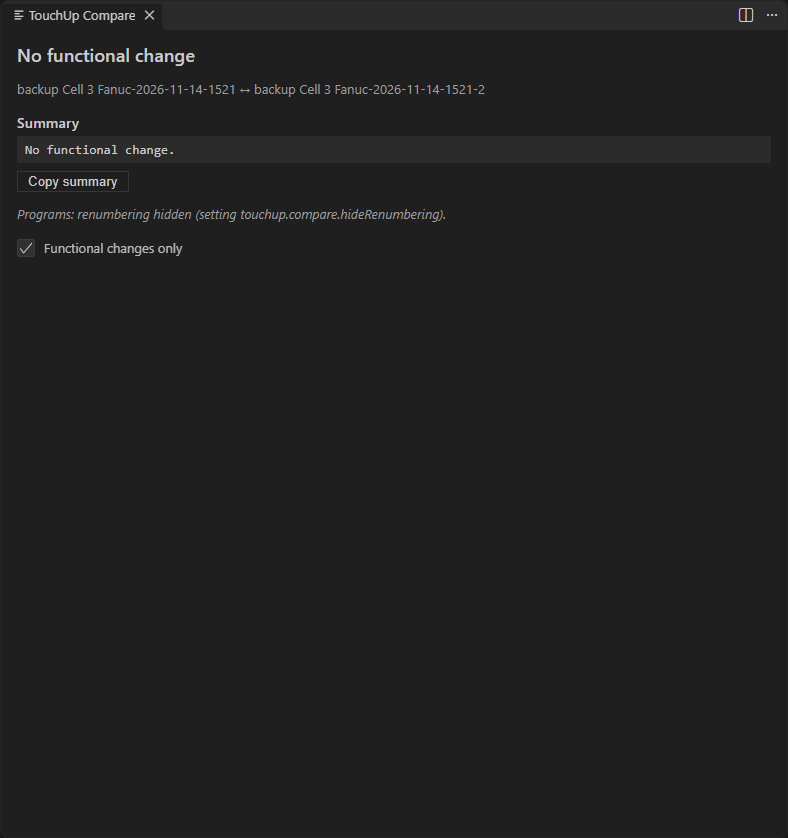
The view lists the files of both sides, with their state:
| State | Meaning |
|---|---|
| Added | Only in the newer side |
| Removed | Only in the older side |
| Changed | A functional change |
| Cosmetic | A change of the noise only, for example a date in a header |
| Unchanged | Same content |
Functional changes only hides the cosmetic and unchanged files. When there is nothing left, the view says "No functional change".
Above the list, the Summary gives the changes in a few lines, for example a program with N changed lines, a position that moved by 12.0 mm, a register or a parameter with its old and new value. The parameters of a Yaskawa controller are shown with their names, and so are its variables when both sides have a VARNAME.DAT. When nothing differs, it says "No functional change." Copy summary puts this text in the clipboard, to paste it in a report or a message.
Click a file to open the diff of its two versions in the editor. A parameter or variable file opens as a table instead, see below.
When both sides can hold the user frames and tools (two Fanuc backups, or a Fanuc backup and the controller), the view also has a section User frames and tools, see User frames and tools.
User frames and tools
Use it to see which user frame or tool was changed between two dates, for example after a crash or a calibration of a tool. It works for Fanuc controllers and backups. TouchUp does not read the user frames and tools of a Yaskawa controller yet, so the section is not offered for Yaskawa.
- Compare two backups, or a backup and the controller, as above.
- In the Compare view, click
Compare the user frames and toolsin the sectionUser frames and tools. A table opens in place of the list.Backreturns to the list.
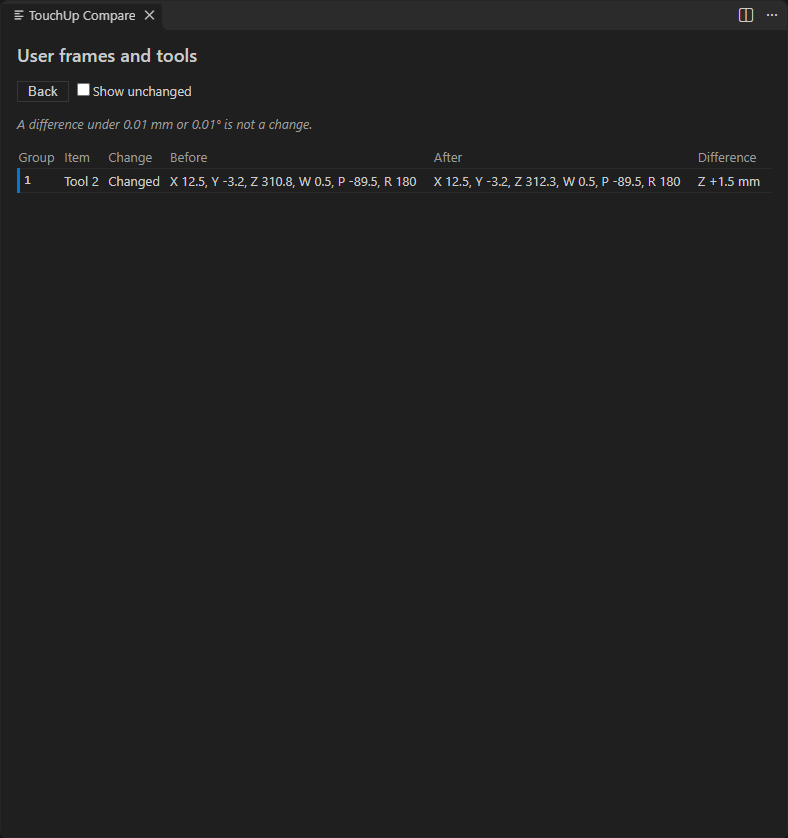
The table has one row per user frame or tool that differs:
| Column | Content |
|---|---|
| Group | The motion group |
| Item | User frame, Tool or Payload, and its number |
| Change | Changed, Added or Removed (Unchanged with the box below) |
| Before and After | The values X, Y, Z, W, P and R of each side |
| Difference | The axes that moved, for example Z +1.5 mm or R -0.2°, and the other differences (a comment, a load) |
A difference of less than 0.01 mm or 0.01° is not a change. The box Show unchanged adds the entries that did not change. Angles are compared on the shortest way round, so 179° and -179° differ by 2°.
A payload schedule is compared only when both sides give it. A backup does not hold the payload schedules, so a compare of a backup with the controller does not report them. A value that only one side gives is not a difference.
The table lists at most 1000 rows. When there are more, it says so, and Show unchanged can be cleared to keep the changes only. Nothing is written to the controller or to the backups. When one side cannot be read, TouchUp shows a message and no table. To look at the values of one robot, see User frames and tools.
Programs without the renumbering
When a line is inserted in a Fanuc program, all the next line numbers change, and the positions can be renumbered. A text diff then shows many lines that did not change. In the Compare view, TouchUp hides this renumbering in the programs (.ls and .jbi): the diff shows only the lines that changed. The title of the diff ends with "(renumbering hidden)", and the Compare view says it in a note.
The setting touchup.compare.hideRenumbering is on by default. Turn it off to see the programs as they are in the backup, with their numbers. Only the display changes: the files are never modified.
Parameter and variable files as a table
The files .prm (Yaskawa parameters), .va (Fanuc variables) and VAR.DAT (Yaskawa variables) open as a table, not as a text diff:
| Column | Content |
|---|---|
| Identifier | The parameter (S2C147), the register or the variable |
| Name | The name from the catalog of TouchUp, from your own catalog (touchup.catalogs.local) or, for a Yaskawa variable, from VARNAME.DAT. A parameter that no catalog knows shows its identifier alone |
| Value | The value that changed: the old value struck through, and the new value beside it. A row that is only in one side shows that value alone |
| Unit | The unit, when the catalog gives one |
Only the rows that differ are listed. The box Show unchanged adds the other rows, and hides them again. Back returns to the list, and Text diff opens the usual diff of the file.
The names of the variables of a Yaskawa controller are in the file VARNAME.DAT, next to VAR.DAT. TouchUp shows them only when both sides have a VARNAME.DAT. Without it, a variable is shown by its type and number, and a variable that goes back to 0 is shown as removed, because a variable with no name and a value of 0 is not listed. A VARNAME.DAT that cannot be read as text counts as no names file.
A table lists at most 1000 rows, the changed, added and removed rows first. When there are more, the table says "The first N of M rows are shown: open the text diff for the rest".
Compare two files of your PC
Use it to compare a program or a parameter file that you received (from a colleague, from a customer, from the support) with the one that you have. It works on a program (.ls, .jbi), a parameter file (.prm), a variable file (.va) and VAR.DAT. It needs no controller and sends nothing anywhere: a .prm file stays on your PC.
- In the Explorer, right click the first file, then
Compare with... (TouchUp). A file dialog opens for the same type of file. Choose the second file. - Or right click the first file, then
Select for TouchUp Compare. Right click the second file, thenCompare with Selected (TouchUp).
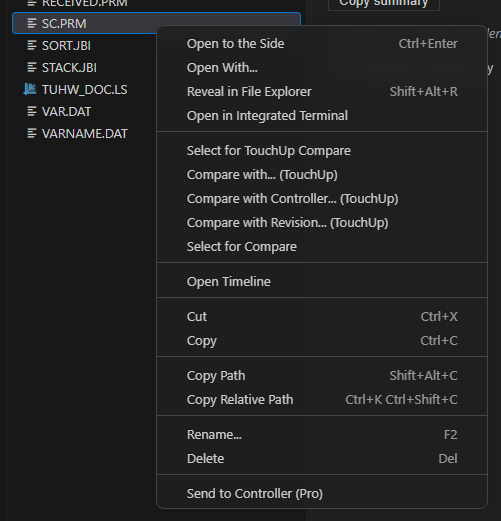
The first file is on the left. The two files must be of the same type: a .ls file and a .jbi file are refused, with a message. The TouchUp entries are shown for these types of file only, and not on a folder. For any other type of file, use the Select for Compare and Compare with Selected of the Explorer: they open the usual text diff.
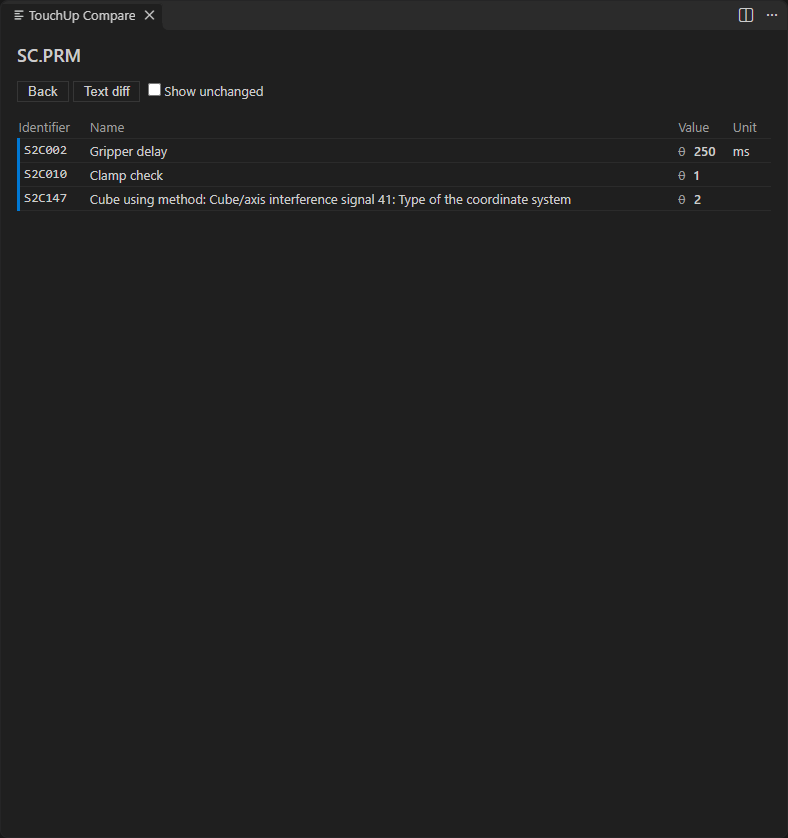
The result uses the same views as the compare of backups. A program opens as a diff without the renumbering. A parameter or variable file opens as the table above, with the names of the catalog. When the two files are the same, TouchUp says "the two files are identical". A file over 64 MiB is refused, with what to do.
A Yaskawa file is read as Shift JIS. A Fanuc file is read as UTF-8, and as Shift JIS when it is not valid UTF-8. A Yaskawa file that you saved again in UTF-8 is read as changed, as the controller would read it.
Compare a file with the controller
Use it to see what differs between a file that you have and the same file in the robot. The controller must be connected.
- In the Explorer, right click a program or a parameter file, then
Compare with Controller... (TouchUp). - When several controllers are connected, choose one. The controllers of the brand of the file come first.
TouchUp reads this one file from the controller and opens the result in the same view as above, with your file on the left and the controller on the right. Nothing is written to the controller, and no other file is read. For a VAR.DAT, the table shows no names, because the file VARNAME.DAT is not read.
TouchUp refuses with a plain message when no controller is connected, when the controller is of another brand than the file (a .jbi file against a Fanuc controller), when the controller does not hold the file, and when the read fails. When the file is the same on the controller, it says so and opens nothing.
Compare a file with a Git revision
Use it to see what changed in a program or a parameter file since an earlier commit of your project, when the file is in a Git repository. It works on a program (.ls, .jbi), a parameter file (.prm), a variable file (.va) and VAR.DAT. It only reads: nothing is written to the repository, and no controller is needed.
- In the Explorer, right click the file, then
Compare with Revision... (TouchUp). The same command is in the title menu of the editor. - Choose a commit in the list. It shows the commits that changed this file, newest first, at most 100: the short id, the first line of the message, the author and the date. Type to search it.
- The file at that commit is on the left, and the file on your disk, with its changes that are not committed, is on the right.
The result uses the same views as the other compares: a program as a diff without the renumbering, a parameter or variable file as a table. For a VAR.DAT, the names come from the VARNAME.DAT of the same commit, when both sides have one.
TouchUp refuses with a plain message when:
- the file is not in a Git repository, or in a linked worktree or a submodule (open the main folder of the repository, or use the Timeline view of VS Code),
- the file has no commit yet,
- the file is a binary file,
- the file at that commit is larger than 64 MiB,
- the file is the same in the commit and on your disk (nothing opens).
The history does not follow a file that was renamed. For another type of file, use the Timeline view of VS Code.
From a Git diff of VS Code
In VS Code, a text diff opened from the Source Control view or from the Timeline view of a supported file has the button Open in TouchUp Compare in its title bar. It opens the same compare for the two sides of that diff: your file, a commit, the commit before it, or the staged copy. When the commit added the file, TouchUp says "was added in" followed by the commit and "there is no earlier version" and opens nothing.
The button exists in VS Code only. The desktop and web applications have no Git diff of this kind, so use Compare with Revision... (TouchUp) there: it works the same way.
Compare a backup folder of a disk
Use it for a backup that is not in your backup folder: a USB key, a copy that you received from a customer, an archive.
- Run
TouchUp: Compare Backup Folder..., or open the menu of the Backups view and chooseCompare Backup Folder.... - Choose the backup folder itself, the one that holds
touchup-backup.json. - Choose what to compare it with: a connected controller (the controller of this backup comes first, and is marked), or
Another backup.... - With
Another backup..., choose a backup of the remembered backup folder, orChoose a folder...for another backup folder of a disk.
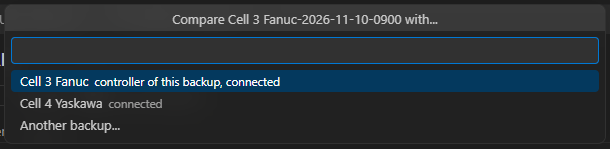
Between two backups, the older one is on the left. With a controller, the backup is on the left and the robot on the right. Nothing is copied into your backup folder and nothing is written to the controller. Reading and comparing are free.
TouchUp checks the folder first and refuses, with what to do:
- A folder that has no readable
touchup-backup.jsonof this version. Choose the backup folder itself, not the folder that contains the backups. - A folder whose name starts with a dot. TouchUp ignores it, as it can be a backup in progress. Rename it, then choose it again.
- A folder that is a link (a symbolic link or a junction). Choose the real folder.
- The same folder twice. Choose another one.
Escape on any list cancels the compare and opens nothing.
Backups of two types
Two backups can have a different type, for example All of above and TP Programs (see Choose the type of backup). TouchUp then compares the files that both types hold, and says it in the summary: "Compared on the files of both backups." The same sentence ends the message of a backup that is compared with a backup of another type.
- A file that is on both sides is always compared.
- A file that is missing on one side is reported as added or removed only when the type of the other side takes it. A program that disappeared between an
All of abovebackup and aTP Programsbackup is reported as removed. A system file that only theAll of abovebackup holds is not reported.
The compare of a controller with its last backup reads the files of the default type of the controller. A backup of a smaller type is compared on its own files.
Compare one file with its last backup
To check one file without a full compare, open the Files node of a connected controller, right click a file, then Compare with Last Backup. The same command is in the title bar and the context menu of an editor opened from a controller.
TouchUp finds the last backup of the controller in the remembered folder, reads this one file from the controller and opens the diff, with the backup on the left and the robot on the right. The diff is a text diff, even for a parameter or variable file. A program is shown without its renumbering, as above, and nothing is written to the controller. The command needs the controller to be connected. It shows a message when there is no backup of this controller yet (TouchUp: Back Up Now first), or when the file is not in the last backup.
Without noise
A controller writes data that changes at every backup without any change of the robot: dates in the headers, counters, line numbers. TouchUp ignores these changes for each brand. The files of the backup are never changed.
Files hidden from the compare
A file that changes at every backup and that you do not want to see, for example a log, can be hidden for one controller with the list Files hidden from the compare of TouchUp: Edit File Lists. The compare of two backups, its summary and the compare with the last backup do not list it, and a backup whose only changes are in hidden files counts as having no functional change. The file stays in every backup. See Choose the files of a backup.
What to read next
- Back up a controller
- Robot report and handover pack, to give the backups and a report to a customer
- The format of a backup
- Edit a position, to compare two positions or a position with the robot
- User frames and tools
- Send a file to the controller