KCL Terminal
Type KCL commands (SHOW, SET VAR, RUN, ABORT, RESET) in a terminal of VS Code and read the answer of a Fanuc controller: how to open it under Command Files, the Pro edition, the confirmation once per connection, safe and unsafe mode, /clear, the history, what is recorded in the audit log and what the terminal does not do.
This page explains the KCL Terminal: a terminal in VS Code where you type KCL commands and read the answer of a Fanuc controller. KCL is the KAREL Command Language of Fanuc: commands such as SHOW, SET VAR, RUN, ABORT and RESET. The terminal is available on Fanuc controllers only. It needs the Pro edition for Fanuc, and a confirmation once per connection.
Open the terminal
- Connect the controller.
- In the Controllers view, open the
Command Filesnode of the controller, then clickKCL Terminal.
Without the tree, run TouchUp: Open KCL Terminal in the Command Palette. It works on the active controller.
The terminal sends its commands through the web server (CGTP) of the controller. When the KCL Terminal node is greyed, it gives the reason. When the reason is the web server, check that the firewalls let port 80 or 3080 through, see Fanuc setup. The controller needs no option. Then connect again.
A Free user sees the dialog of TouchUp Pro, and nothing is sent. A simulated controller is never locked. See Editions and license.
Confirm once per connection
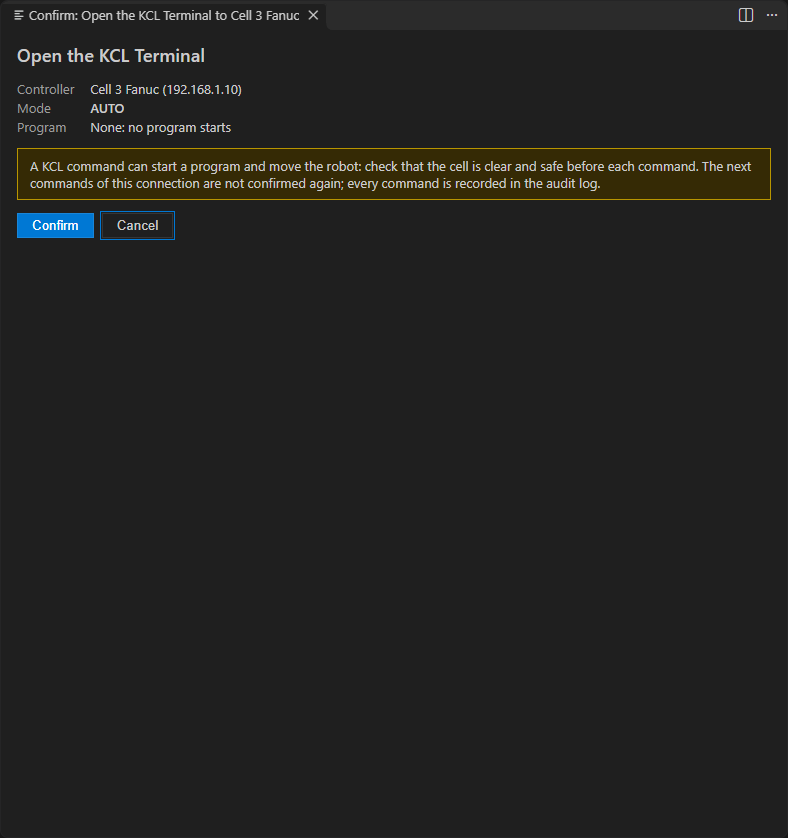
The first time you open the terminal on a connection, TouchUp asks you to confirm. The confirmation shows the controller and its mode, and warns you that a KCL command can start a program and move the robot. Cancel has the focus. The next commands of the same connection are not confirmed again. When you connect again, TouchUp asks again.
Type commands
The terminal opens in the Terminal panel of VS Code, with a short help. Type one command and press Enter. The answer of the controller appears under it.
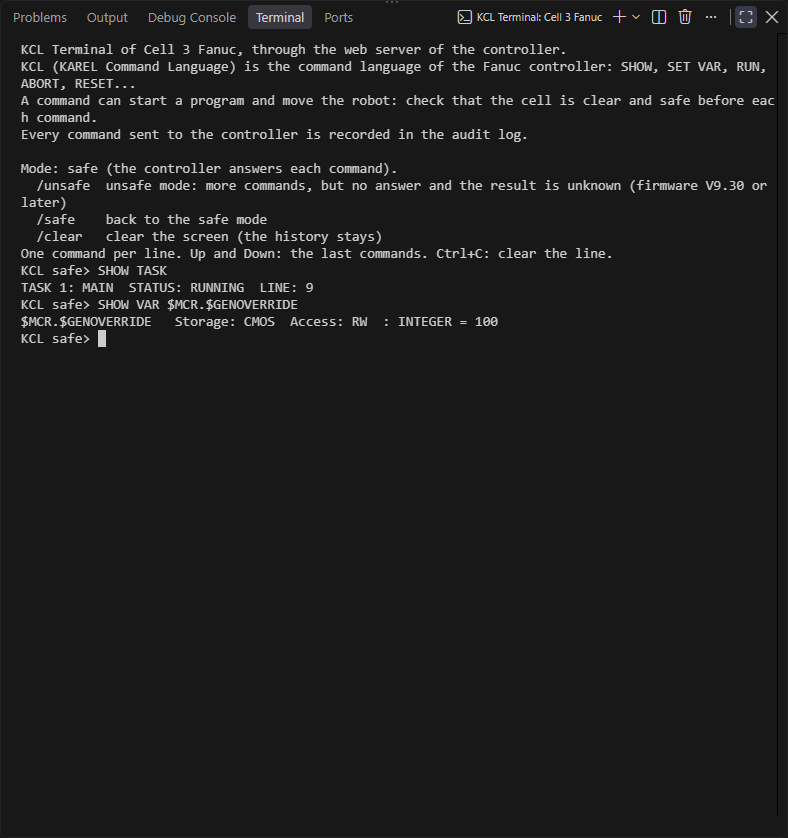
- One command per line. A paste of several lines sends nothing: paste one command at a time.
- History. Up and Down bring back the last commands. The history holds 200 commands and stays in memory only: it is gone when the terminal closes.
- Tab completes the command that you are typing: the KCL commands, then the words that they accept. When several commands fit, the terminal lists them.
Ctrl+Cclears the line that you are typing. It sends nothing./clearclears the screen. The history stays.
A line that starts with / is a command of the terminal. The terminal never sends it to the controller.
You can also send a line of a KCL file (.cf), a KCL line of a command file (.cm) or a KCL('...') call of a Karel source (.kl) from the editor: right click the line, then Run in KCL Terminal. See Run a line in the KCL Terminal.
Safe and unsafe mode
The terminal starts in safe mode: the controller answers each command, and the terminal shows the answer. This is the mode to use.
/unsafeswitches to unsafe mode. More commands are accepted, but the controller gives no answer, so the result of a command is unknown: check the controller. It needs firmware V9.30 or later./safegoes back to the safe mode.
The prompt shows the mode: KCL safe> or KCL UNSAFE>.
What is recorded
Every command sent to the controller is recorded in the audit log, with the answer. A password in a command is masked. The commands that start with / are not sent, so they are not recorded.
What it does not do
- It does not switch the servo power on or off, and it does not jog the robot.
- It does not bypass the remote or local mode of the controller: a command that the controller refuses in its current mode is refused here too.
- It does not reconnect. When TouchUp loses the connection to the controller, the terminal ends. Connect again, then open it again.