Send a file to the controller
Send a program or a file of your PC to a controller, with the steps of every write: license, confirmation, copy of the old file and audit log. A Fanuc program without ASCII Upload: the changed lines or maketp.
This page explains how to send a file of your PC to a controller, and the steps that TouchUp applies to every write: license, confirmation, copy of the old file and audit log. It applies to Fanuc and Yaskawa. The writes of a value and the commands that run, hold or abort a program follow the same steps: see Write values and control a program.
The steps of a write
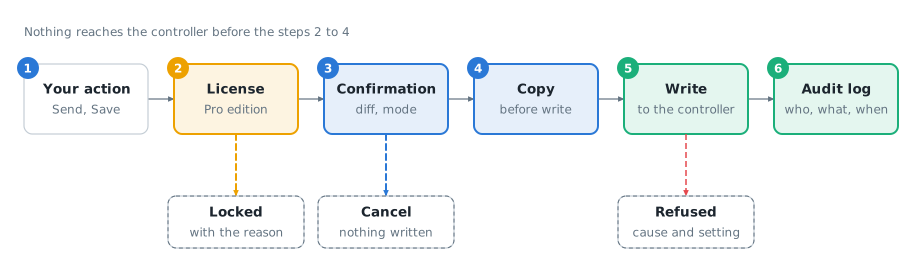
- Your action. A write never happens by itself: it starts from a command, a button or the save of a file of the controller.
- License. A write needs the Pro edition for the brand of the controller. Without it, the action shows a lock and the reason. See Editions and license. A free user who saves or sends a file still sees the diff, with
Confirmgreyed: see A save or a send of a free user shows the diff. - Confirmation. A dialog shows the controller, its mode, the file and the diff with the file on the controller. Cancel: nothing is written. One gesture on several files, for example a delete, gives one confirmation for all of them: see Manage controller files.
- Copy. Before a file is replaced, TouchUp keeps a copy of the version that was on the controller.
- Write. The file is sent to the controller. When the controller refuses it, TouchUp gives the probable cause and the setting to change.
- Audit log. Every write is recorded: time, user, controller, action, file, result and message of the controller.
Send a file
Open the file on your PC (a program you edited, a file of a backup), then run TouchUp: Send to Controller, or right click the file in the Explorer. The file goes to the active controller, shown in the status bar: change it first with TouchUp: Select Active Controller when several controllers are connected.
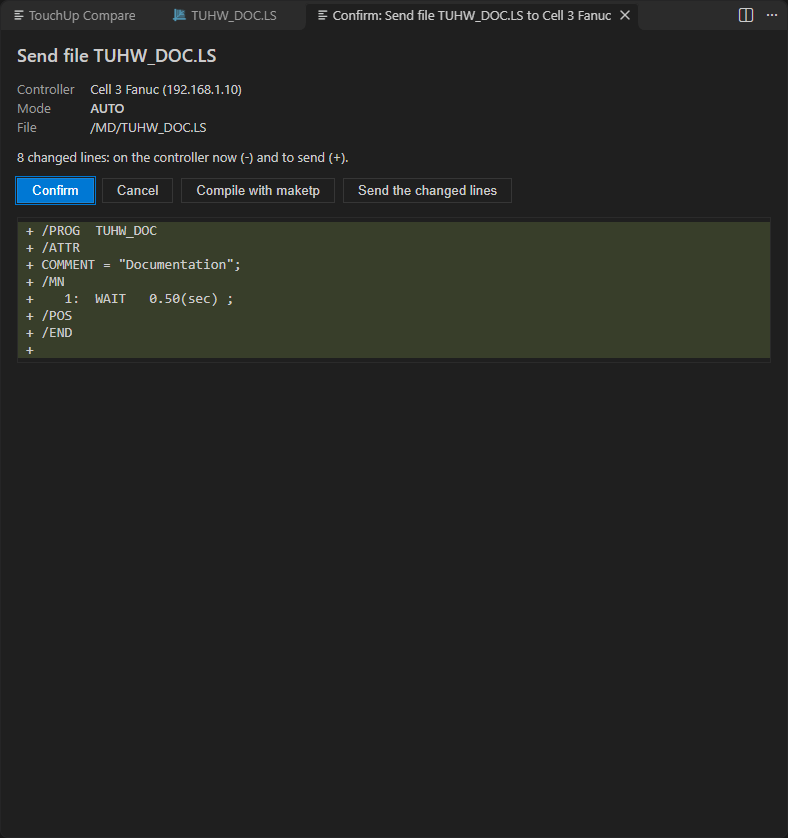
The file is sent as it is, without compile and without any change of its content. A large file shows its progress.
How each brand receives a program
| Brand | Method |
|---|---|
| Fanuc | .ls programs as text, by FTP, when the controller has the ASCII Upload option (R507 or R796). Without it, the confirmation offers other methods, see below |
| Yaskawa | .jbi jobs as text. The controller checks the syntax and refuses a wrong job, with the reason. Overwriting a file needs RS029 and RS214 set to 1 |
The confirmation dialog warns for the file types whose load can change the behavior of the robot, for example the parameter files.
A Yaskawa .prm file is never sent: the controller loads it only from a USB key at the pendant. TouchUp: Send to Controller refuses it, nothing is sent, and the message gives the procedure. See Load a parameter file at the pendant.
Formats that a controller cannot load
Some files are listings that the controller writes, or files that it loads only from a USB key. A controller does not load them from a network. TouchUp refuses them before it sends anything: no license check, no request, and the message gives the reason. This applies to the save of the editor and to TouchUp: Send to Controller. When you send several files, the other files go on.
| Brand | File | Loaded by the controller | What TouchUp does |
|---|---|---|---|
| Fanuc | .ls | Yes | Sent |
| Fanuc | .tp | Yes | Sent |
| Fanuc | .va | No: it is a listing of the variables | Refused. Use Write Changed Values to write the values, see below |
| Yaskawa | .jbi | Yes | Sent |
| Yaskawa | .prm | No: only from a USB key at the pendant | Refused, with the procedure of the pendant |
| Yaskawa | VAR.DAT, VARNAME.DAT, IONAME.DAT, .cnd, CIOPRG.LST | Yes | Sent |
To change the values of a VAR.DAT without sending the file, use the table, which writes the values and not the file, see Write the values of a VAR.DAT. The table writes the variables B, I, D, R and S. A position variable (P, BP and EX) is refused, and the table gives the reason: TouchUp cannot write it yet.
Save of a .va file: Write Changed Values
When you save the text of a .va file of a Fanuc controller, TouchUp refuses the save and nothing is sent. The message gives the reason and offers Write Changed Values. The message is shown once, until you close the document or TouchUp reads it again.
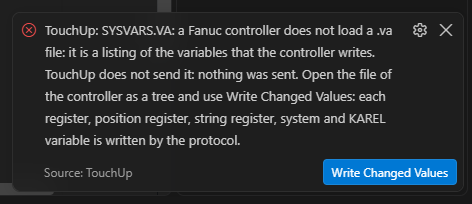
Write Changed Values turns what you changed in the text into pending values of the tree. The values and the comments of the registers that differ from the text you opened become pending values, and the tree opens. Nothing is written yet: click Write N changed values in the tree, which follows the steps of every write, see Write the values of a .va tree. TouchUp keeps you safe in three cases:
- It does nothing when the values cannot be written: the controller is not connected, it has no value write, or the text you opened is not known any more (a tab restored after a restart).
- A value that the controller changed since you opened the file is never written back. Read the file again to see it.
- A change that the tree cannot write is named with its reason, for example a position, a read-only value, an empty value, or a variable that you added or removed. TouchUp drops it only after you confirm. When all your changes are of that kind, the text stays as it is.
Send a Fanuc program without ASCII Upload
A Fanuc controller stores a TP program as a .tp binary file. When the option ASCII Upload is missing, it cannot take the .ls text. The confirmation of a .ls then shows one more button for each method that is available, next to Confirm and Cancel:
| Button | What it does | What it needs |
|---|---|---|
Send the changed lines | Sends only the lines that differ from the program on the controller | Firmware V9.10 or later, and the web server of the controller enabled in the connection options |
Compile with maketp | Compiles the .ls on your PC into a .tp, then lets you confirm and send the .tp | The tool maketp of ROBOGUIDE or WinOLPC on your PC |
TouchUp never picks a method for you and never runs maketp without your click. A method that is not available stays disabled, and the dialog says which option is missing. Compile with maketp is shown with ASCII Upload too, to check that the program compiles.
Send the changed lines
TouchUp compares your .ls with the program on the controller and sends only the changes: the instruction lines that were replaced, inserted or deleted, and the positions that changed. The confirmation still shows the diff, and the copy of the old program and the audit log follow the steps of every write.
What the controller accepts:
- Each line of an instruction must end with
;. - A new line cannot be inserted before line 1.
- A line cannot be empty. TouchUp refuses an empty line before it sends anything.
- A change of the attributes of the program (the header before
/MN) is refused. Send the whole program with ASCII Upload ormaketpinstead.
Compile with maketp
Set touchup.fanuc.winolpcPath to the folder of the WinOLPC or ROBOGUIDE tools that hold maketp. When it is empty, TouchUp looks in the PATH. The setting is read when the controller connects, and it is a machine setting: a workspace cannot change it.
- Click
Compile with maketpin the confirmation. - A second confirmation shows the
.tpand the messages ofmaketp, underMessages of maketp:. - Click
Confirmto send the.tp. Cancel: nothing is sent.
If the .ls changed on the controller since you opened it, the second confirmation is refused. Open the program again and start over.
Common refusals
| Message of the controller | What to do |
|---|---|
| Program in use | Select another program on the controller first |
| Operation password protected | Fanuc: use an FTP user of a higher level, for example INSTALL |
| Command remote not set | Yaskawa: put the key of the pendant in the remote position |
The audit log
TouchUp: Show Audit Log lists the writes, newest first: time, controller, action, target and result.
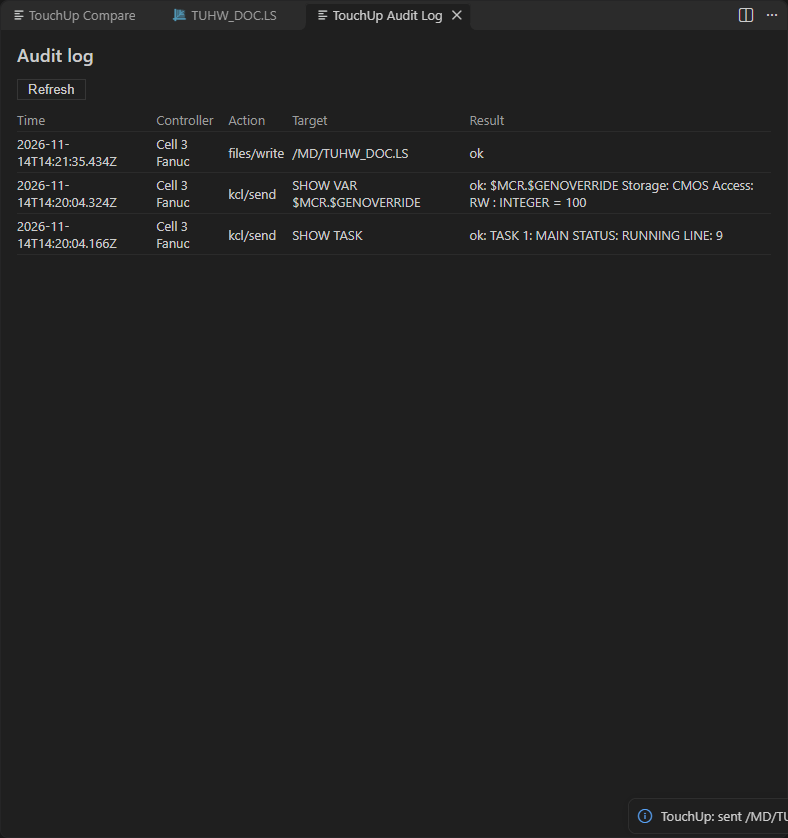
The log is a file of your PC. It contains no password. Before the first write, it says "No write yet: this list shows each change that TouchUp sends to a controller."
What to read next
- Write values and control a program
- Open controller files
- Manage controller files, to create, rename, delete, copy and move files
- Back up a controller, and how to restore one file from a backup
- Parameter and variable files, for the load of a
.prmat the pendant and the write of the values of aVAR.DATor a.vafile