Stream Motion overview
Stream Motion (J519 option) gives the position of the robot at every communication cycle (2 to 8 ms). Requirements, TP program, protocol versions and quick start.
Stream Motion (option J519) lets an external application give the position of the robot at every communication cycle (2, 4 or 8 ms depending on the controller). The robot follows these positions in real time. Typical uses:
- trajectories computed outside the robot (path planning, CAD/CAM, simulation)
- sensor guided motion: vision, force sensor, seam tracking
- teleoperation with a joystick or a haptic device
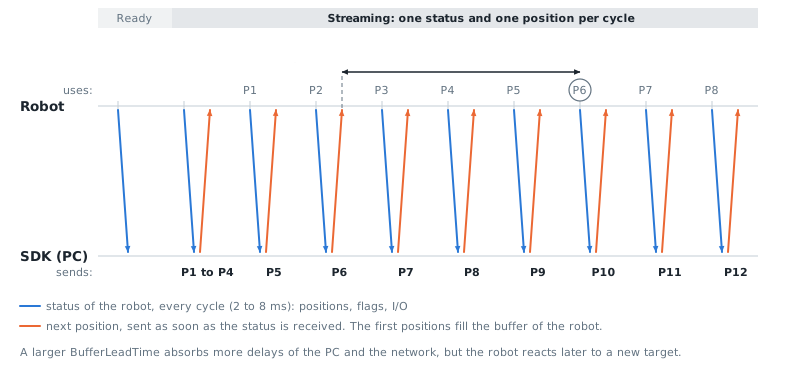
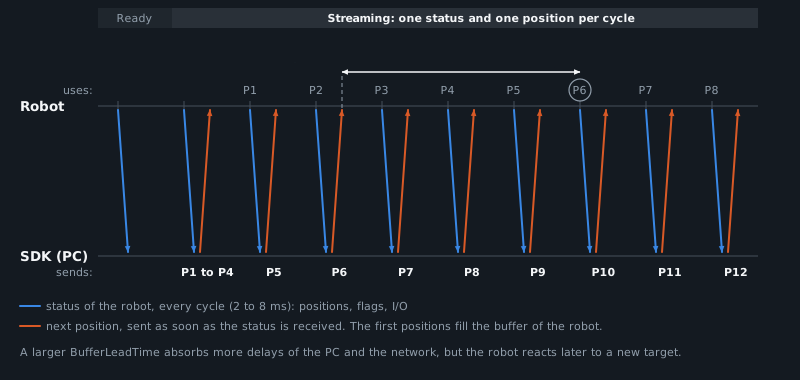
The SDK does the real-time part for you: it synchronizes the positions with the status of the robot, keeps a few positions in advance, stops the robot smoothly if your application stops giving positions, and provides a motion planner that respects the velocity, acceleration and jerk limits of the robot.
Stream Motion or RMI?
| Need | Use |
|---|---|
| Send a few moves (J, L, C) and let the robot plan them | RMI |
| Follow a path or a target that changes in real time | Stream Motion |
| Control the position at every cycle (2 to 8 ms) | Stream Motion |
Requirements on the robot
- Option J519 Stream Motion. Check it with
Features.HasStreamMotion(FTP diagnostics). - A TP program with the instructions
IBGN start[n]andIBGN end[n](see below), run in AUTO mode at 100% override. $PARAM_GROUP[1].$SV_OFF_ENB[*]set toFALSE, otherwise the robot raises MOTN-615.- Resume offset disabled, otherwise the robot raises MOTN-623.
- Only motion group 1 is controlled (robot and up to 3 extended axes).
- The robot listens on UDP port 60015 on the Ethernet port set in
$STMO.$PHYS_PORT.
TP program
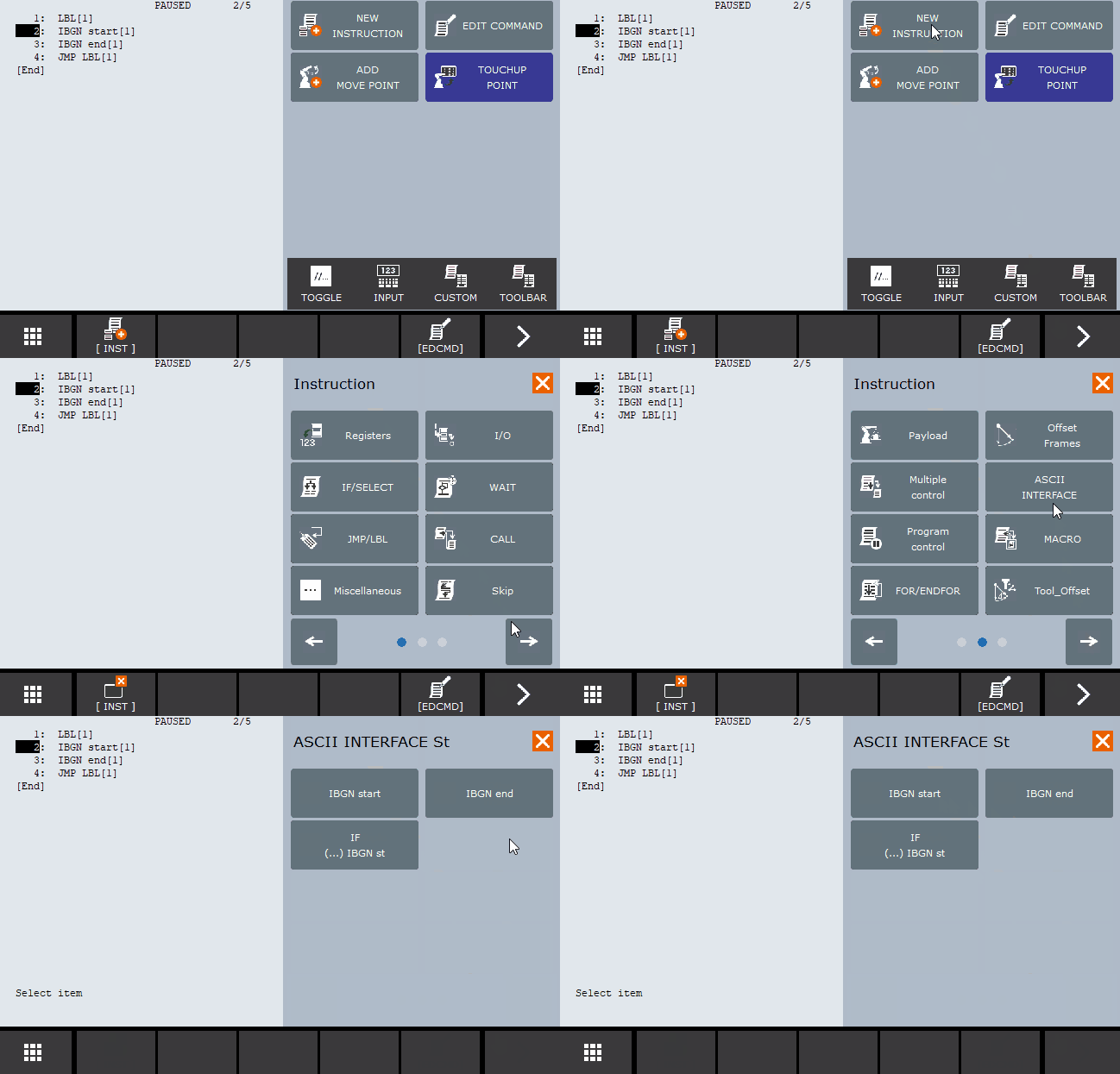
The robot only accepts positions while a program waits on IBGN start[n]. When your application finishes the session, the program continues after IBGN end[n]. This program loops, so each loop is a new session:
/PROG START_STREAM_MOTION_J519/ATTROWNER = MNEDITOR;PROTECT = READ_WRITE;TCD: STACK_SIZE = 0,TASK_PRIORITY = 50,TIME_SLICE = 0,BUSY_LAMP_OFF = 0,ABORT_REQUEST = 0,PAUSE_REQUEST = 0;DEFAULT_GROUP = 1,*,*,*,*;CONTROL_CODE = 00000000 00000000;/MN1: LBL[1] ;2: IBGN start[1] ;3: IBGN end[1] ;4: JMP LBL[1] ;/POS/END
You can add your own instructions before IBGN start or after IBGN end, for example to set an output or to wait for a signal. The program can be started from the teach pendant, or remotely (see Run a program remotely).
IBGN start and IBGN end instructions are located in the ASCII INTERFACE section of the TP program editor. If you don't see this section, please ensure J519 Stream Motion is enabled.
Quick start
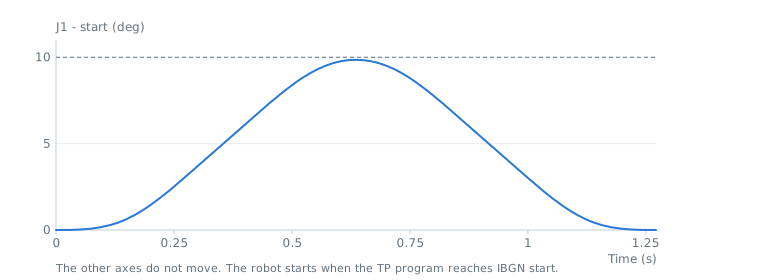
This example moves J1 by 10 degrees and back, with a smooth motion planned within the limits of the robot:
robot.Connect(parameters);var sm = robot.StreamMotion;// Read the limits of the robot and start to receive its statussm.StartMonitoring();// Plan a smooth joint motion: J1 +10 degrees then back, at 20% of the velocity limitsJointsPosition start = sm.QueueEndJointPosition;var target = new JointsPosition(start.Values) { J1 = start.J1 + 10 };var planner = new MotionPlanner(sm.JointLimits, null);Trajectory trajectory = planner.CreateJointPath(FanucMotion.ToJointValues(start)).MoveJoint(FanucMotion.ToJointValues(target), 20, FanucMotion.Cnt(100)).MoveJoint(FanucMotion.ToJointValues(start), 20, FanucMotion.Fine()).Build();// The motion starts when the TP program reaches IBGN startint motionId = sm.Enqueue(trajectory);sm.WaitForMotion(motionId, 60000);// Release the TP program: it continues after IBGN endsm.Finish(10000);robot.Disconnect();}
Try it in the demo application
The demo application (Windows) has a Stream Motion page to test this feature without writing code.
Connect to your robot or to a ROBOGUIDE virtual robot, start the monitoring, then run the TP program described above. Once the robot reaches IBGN start, a session starts and the page shows:
- the client state, the cycle time measured on the robot, the protocol version and the number of active sessions
- the robot status at each cycle: joint and Cartesian position, and whether the robot is moving
- two demo motions built with the motion planner: a joint move of J1 back and forth, and a horizontal circle in Cartesian space
- pause, resume, abort and override applied to the current session
- a log of the sessions and motions, with counters for lost status messages and underruns
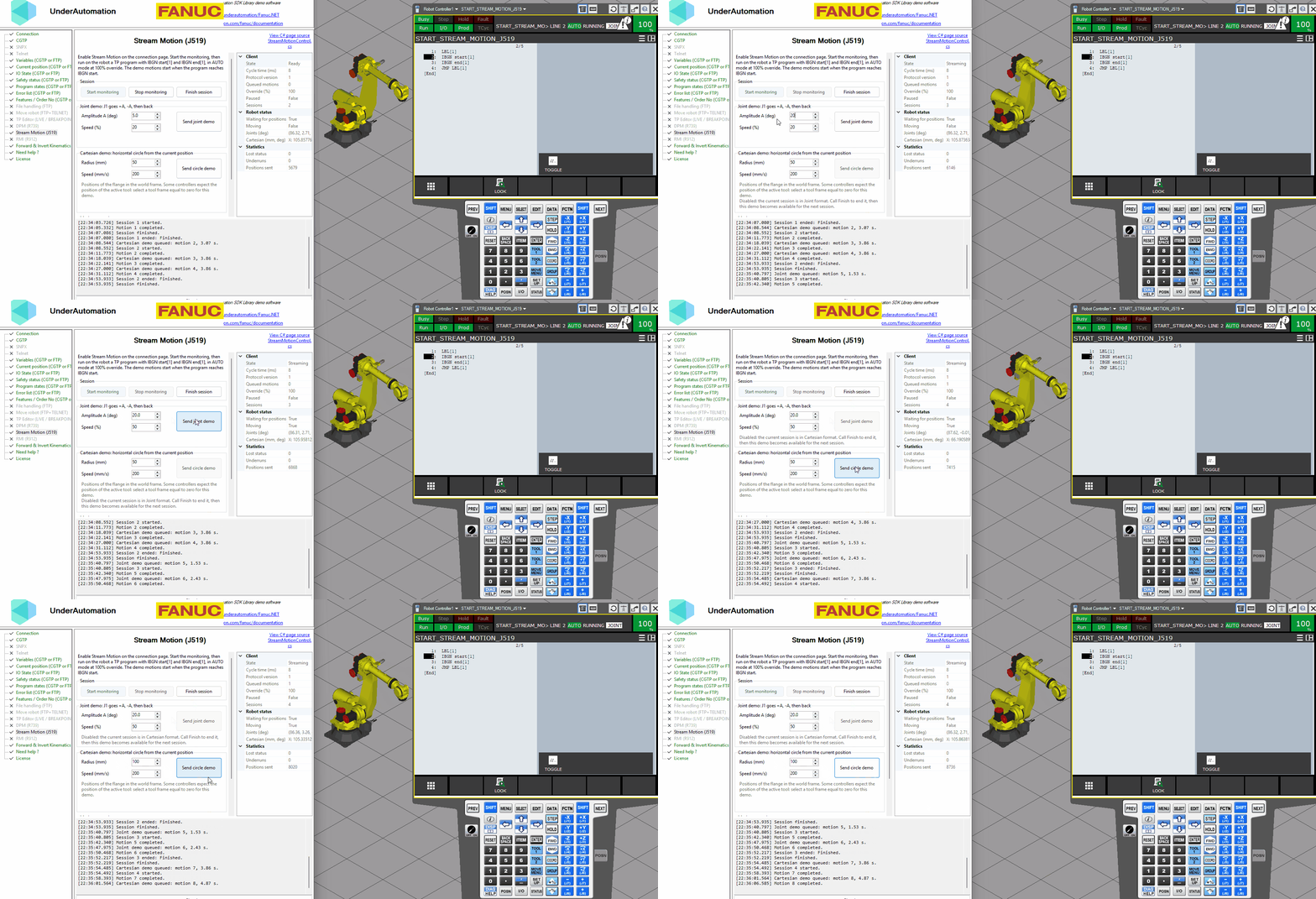
The C# source of this page is in the StreamMotionControl.cs file of the Fanuc.NET repository.
How it works
StartMonitoring()reads the limits of the robot, starts the status output of the robot and measures the communication cycle.- When the TP program reaches
IBGN start, the client state becomesReady. - As soon as positions are available, a session starts. Positions come from one source at a time:
- a queue of trajectories (
Enqueue), see Send trajectories - a target that the robot follows (
StartTracking), see Real-time control - your own callback, called at each cycle (
StartCallbackStreaming)
- a queue of trajectories (
Finish()waits until the robot is at rest, then the TP program continues afterIBGN end.
Trajectories are created with the motion planner of the SDK, described in the Motion section.
During a session, the robot sends its status at every cycle and the SDK answers with the next position. The positions are sent a little in advance (BufferLeadTime), so that a late answer of the PC does not stop the robot:
Protocol versions
Set the version in ConnectionParameters.StreamMotion.ProtocolVersion. It must not be higher than the system variable $STMO.$USABLE_VER (this variable does not exist on older software, which only support version 1).
| Version | Difference |
|---|---|
| 1 (default) | Supported by all controllers. Positions are sent in single precision. |
| 2 | Joint positions are sent in double precision. Recommended for joint motions when available. |
| 3 | The robot can slow down its status output during an automatic stop. Handled by the SDK. |
A version 4 exists on some recent controllers for ROS 2 only. It is not supported.
Useful system variables
| Variable | Description |
|---|---|
$STMO.$USABLE_VER | Highest protocol version of the controller |
$STMO.$COM_INT | Theoretical communication cycle (the SDK measures the real one) |
$STMO.$PKT_STACK | Size of the position buffer of the robot. Use the same value for PacketStackSize |
$STMO.$START_MOVE | Number of positions received before the robot starts to move. Keep it low (default 1) |
$STMO.$PHYS_PORT | Ethernet port used by Stream Motion |
$STMO.$THRS_ABNPOS | Threshold of the abnormal position alarm (MOTN-625) |
$STMO_GRP[1].$FLTR_LN | Filter applied by the robot to the positions: smoother motion, with a small delay |
$STMO_GRP[1].$JNT_VEL_LIM, $JNT_ACC_LIM, $JNT_JRK_LIM | Reference limits of each axis, also given by ReadLimits() |
$MCR.$GENOVERRIDE | General override, must be 100 |
These variables can be read with CGTP, SNPX or Telnet.
Next steps
- Connection, status & session: connect, read the status and the limits, run several sessions.
- Send trajectories: queue trajectories, override, pause and abort.
- Real-time control: follow a target, or compute each position.
- I/O during motion: read and write I/O synchronized with the motion.
- Troubleshooting: alarms and best practices.
API reference
Stream Motion client (J519 option): real-time control of the robot by sending a position every communication cycle.
| Member | Type | Description |
|---|---|---|
StreamMotionClientBase() Constructor | Creates a Stream Motion client | |
ActiveFormat Property read only | PositionFormat | Format of the positions of the current session or of the queued trajectories. Only valid when HasActiveFormat is true. |
BufferLead Property read only | int | Number of positions sent in advance and kept in the robot buffer during the current session |
CartesianLimits Property | CartesianLimits | Cartesian limits used to stop the robot smoothly when the positions stop in Cartesian format. When it is null, conservative values are used. |
Connected Property read only | bool | Indicates whether the client is connected |
CycleTime Property read only | double | Communication cycle of the robot measured from the status, in seconds (for example 0.008 or 0.002). 0 while it is not known. Trajectories are sampled at this period. |
HasActiveFormat Property read only | bool | Indicates if the format of the positions is fixed. A session uses only one format, chosen by the first queued trajectory, StartTracking(PositionFormat%Double%Double) or StartCallbackStreaming(PositionFormat). While this is true, positions in the other format throw a StreamMotionException with FormatMismatch. It becomes false when the queue is empty and no session is active: call Finish(int) to use the other format in the next session. |
IOAnticipation Property | double | Time in seconds by which the I/O events of trajectories are sent before their position (default 0). It compensates the delay between the reception of a position by the robot and the real motion. |
IOValues Property read only | IOValue[] | Last values of the ranges of I/O added with AddIOMonitor(IOType%Int32) |
Ip Property read only | string | IP address of the robot |
IsCallbackStreaming Property read only | bool | Indicates if positions are given by the SetpointRequested event |
IsPaused Property read only | bool | Indicates if the queued trajectories are paused |
IsTracking Property read only | bool | Indicates if the robot follows a target given by SetJointTrackingTarget(JointsPosition) or SetCartesianTrackingTarget(XYZWPRPosition) |
JointLimits Property | JointLimits | Joint limits used to stop the robot smoothly when the positions stop in joint format. It is set to the reference limits of the robot when the limits are read. |
LastStatus Property read only | StreamMotionStatus | Last status received from the robot, or null if no status was received |
Limits Property read only | StreamMotionLimits | Limits read from the robot by ReadLimits or when the status output starts. Null if they were not read. |
Override Property | double | Speed of the queued trajectories in percent (greater than 0, up to 100, default 100). The robot itself must run at 100% override, so this value slows down the trajectories on their path: the positions are the same, only the time is stretched. A change is applied progressively. |
Port Property read only | int | UDP port of the robot |
ProtocolVersion Property read only | int | Protocol version used by this client |
QueueEndCartesianPosition Property read only | ExtendedCartesianPosition | Position where the next queued Cartesian trajectory must start: end of the queue, or last position sent when the queue is empty. Before any Cartesian position was sent, it is the Cartesian position of the status (flange center in the world frame by default). Some controllers expect Cartesian positions of the active tool frame: the start of the first trajectory is then not checked. Null if no status was received. |
QueueEndJointPosition Property read only | JointsPosition | Position where the next queued joint trajectory must start: end of the queue, or current position when the queue is empty. Null if no status was received. |
QueuedMotionCount Property read only | int | Number of trajectories waiting or running |
SessionCount Property read only | int | Number of sessions started since the connection. A session starts when positions are sent after an IBGN start instruction. |
StartTolerance Property | double | Maximum distance between the first position of a trajectory and the position where it starts, in mm or degrees (default 0.01). |
State Property read only | StreamMotionState | Current state of the client |
Statistics Property read only | StreamMotionStatistics | Communication statistics since the status output was started |
ErrorOccurred Event | EventHandler<StreamMotionErrorEventArgs> | Raised when an error occurs in the communication thread |
MotionCompleted Event | EventHandler<MotionEventArgs> | Raised when the robot received the last position of a queued trajectory |
SessionEnded Event | EventHandler<SessionEndedEventArgs> | Raised when a session ends |
SessionStarted Event | EventHandler<SessionEventArgs> | Raised when a session starts (first position sent after an IBGN start instruction) |
SetpointRequested Event | EventHandler<SetpointRequestEventArgs> | Raised in callback streaming mode (see StartCallbackStreaming(PositionFormat)) each time a position must be sent. The handler must give the next position with SetJoints or SetCartesian. It runs on the communication thread, a few cycles before the robot executes the position, and must return quickly. The first requested position (CycleIndex 0) must be the current position of the robot, and the next ones must connect smoothly to it. |
StatusReceived Event | EventHandler<StatusReceivedEventArgs> | Raised when a status is received. It is raised on a dedicated thread and only with the latest status: if the handler is slow, some status are skipped. |
Underrun Event | EventHandler<MotionEventArgs> | Raised when the queue becomes empty while the robot is moving. The robot is then stopped smoothly. |
Abort() Method | void | Stops smoothly on the path of the current trajectory, then cancels the current and the queued trajectories. The session stays open and the robot keeps its position. The callback streaming and the target tracking are stopped, and the robot stops as fast as the limits allow. |
AddIOMonitor(IOType, int) Method | void | Adds a range of 16 consecutive I/O to read. Each position sent to the robot reads one range, so several ranges are read one after the other. Values are only read during a session.
|
ClearIOMonitors() Method | void | Removes all ranges of I/O to read |
ConnectInternal(string, StreamMotionConnectParametersBase) Method | void | Opens the UDP socket to the robot. The robot does not send anything before StartMonitoring is called. |
Disconnect() Method | void | Disconnects from the robot. If a session is active, the robot is stopped smoothly and the session is finished first. |
Dispose() Method | void | Disconnects and releases the resources |
Dispose(bool) Method | void | Disconnects and releases the resources |
Enqueue(Trajectory) Method | int | Adds a trajectory at the end of the queue. The session starts automatically when the robot accepts positions, and the trajectories are sent one after the other, without any change between them.
|
Finish(int) Method | bool | Finishes the session when the queue is empty and the robot is at rest: the last position is sent with the end flag, and the program continues after the IBGN end instruction. If a program waits on IBGN start without session, it is released at the current position. The callback streaming and the target tracking are stopped first.
|
GetIO(IOType, int) Method | bool | Returns the last read state of one I/O. The I/O must be in a range added with AddIOMonitor(IOType%Int32). It returns false while the range was never read.
|
Pause() Method | void | Stops smoothly on the path of the current trajectory. The queue is kept and Resume continues the motion. Use it instead of a HOLD, which is not available during Stream Motion. |
ReadLimits() Method | StreamMotionLimits | Reads the velocity, acceleration and jerk limits of all axes from the robot. The status output is stopped during the reading and started again. Some controllers do not answer while a program waits on an IBGN start instruction: read the limits before. Not allowed during a session. |
Resume() Method | void | Continues the queued trajectories after Pause |
SetCartesianTrackingTarget(XYZWPRPosition) Method | void | Gives a new Cartesian target to follow (see StartTracking(PositionFormat%Double%Double)). Extended axes are used when the target is an ExtendedCartesianPosition, otherwise they keep their target.
|
SetJointTrackingTarget(JointsPosition) Method | void | Gives a new joint target to follow (see StartTracking(PositionFormat%Double%Double))
|
StartCallbackStreaming(PositionFormat) Method | void | Starts to take the positions from the SetpointRequested event instead of the queue. The session starts automatically when the robot accepts positions.
|
StartMonitoring() Method | void | Starts the status output of the robot. The robot then sends its status every communication cycle. The limits of the robot are read first when they are not known yet, and this method returns when the communication cycle is measured. |
StartTracking(PositionFormat, double, double) Method | void | Starts to follow a target position: the robot goes to the last target given by SetJointTrackingTarget(JointsPosition) or SetCartesianTrackingTarget(XYZWPRPosition) as fast as the limits allow, and stops on it. The target can change at any time, even during the motion: the robot then goes smoothly to the new target. The limits are JointLimits in joint format, and CartesianLimits in Cartesian format (the linear and angular limits are shared between X, Y, Z and between the 3 rotation axes). Each axis moves independently, so the path to the target is not a straight line. The first target is the current position. The session starts automatically when the robot accepts positions. The delay between a new target and the start of the motion is about BufferLead cycles plus the delay of the robot: reduce the buffer lead time of the connection parameters for a faster reaction.
|
StopCallbackStreaming() Method | void | Stops the callback streaming. The last position is kept, and the robot stops smoothly if it was moving. |
StopMonitoring() Method | void | Stops the status output of the robot. Not allowed during a session: call Finish(int) first. |
StopTracking() Method | void | Stops the target tracking. If the robot was moving, it stops as fast as the limits allow, then it keeps its position. |
WaitForIdle(int) Method | bool | Waits until the queue is empty and the robot does not move. During target tracking, waits until the robot is stopped on the target.
|
WaitForMotion(int, int) Method | bool | Waits until the robot received the last position of a queued trajectory
|
WaitForReady(int) Method | bool | Waits until a program executes an IBGN start instruction and the robot accepts positions.
|
WriteIO(IOType, int, bool) Method | void | Writes one digital I/O with the next position sent to the robot (only during a session)
|
WriteIOGroup(IOType, int, int, int) Method | void | Writes up to 16 consecutive digital I/O with the next position sent to the robot (only during a session)
|