Starting and Supervising FANUC Programs via SNPX
Using System Variables or UI, you can start, stop and supervise jobs on your Fanuc robot remotely via SNPX protocol.
Overview
This guide demonstrates how to remotely control and monitor FANUC robot programs using the SNPX protocol through the UnderAutomation Fanuc SDK. You will learn how to:
- Connect to a FANUC controller using SNPX
- Select and start programs remotely
- Hold, stop, and reset programs
- Supervise program execution in real time
- Monitor and clear alarms
The SNPX protocol provides a high-speed, low-latency communication channel ideal for production environments requiring real-time monitoring and control.
Prerequisites
Before proceeding, ensure you have:
| Requirement | Details |
|---|---|
| SNPX Option | R651 FRL or R650 FRA + R553 installed on the controller |
| Network | Robot accessible over Ethernet |
| SNPX Enabled | See the SNPX setup guide for configuration |
| Teach Pendant | Key switch set to REMOTE (Auto mode) |
| Controller State | Free of active alarms and no programs running |
| SDK Reference | UnderAutomation Fanuc SDK added to your project |
Controller Configuration
Program Select Mode Setup
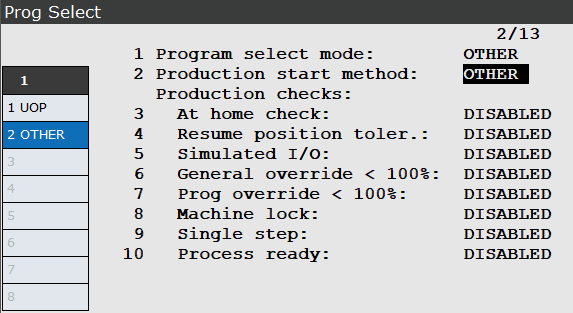
Navigate on the teach pendant to: MENU → SETUP → Prog Select
- Set Program Select Mode to OTHER
- Set Production Start Method based on your preferred startup approach:
- OTHER – Start via
$SHELL_WRK.$CUST_STARTsystem variable - UOP – Start via UI[6:Cycle Start] or UI[18:Prod Start] signal (recommended for production)
- OTHER – Start via
- Cold start the controller after making changes
Connecting to the Robot
Initialize the SDK and connect using SNPX (we disable other protocols for clarity):
using UnderAutomation.Fanuc;// Create robot instancevar robot = new FanucRobot();// Configure connection parametersvar parameters = new ConnectionParameters("192.168.0.1");// Disable other protocols (optional - they are disabled by default)parameters.Telnet.Enable = false;parameters.Ftp.Enable = false;// Enable SNPXparameters.Snpx.Enable = true;// Connect to the robotrobot.Connect(parameters);// Verify connectionif (robot.Snpx.Connected){Console.WriteLine("Successfully connected via SNPX");}
Connection Validation
Use PollAndGetUpdatedConnectedState() to actively check the connection health:
bool isAlive = robot.Snpx.PollAndGetUpdatedConnectedState();
Selecting the Target Program
Set the program name using the $SHELL_WRK.$CUST_NAME system variable. Do not include the .TP extension:
// Select the program to run (without .TP extension)robot.Snpx.StringSystemVariables.Write("$SHELL_WRK.$CUST_NAME", "MY_PROGRAM");
Starting the Program
Enable Remote Control
To allow external control, the system variable $RMT_MASTER must be set to 0.
Before starting any program, allow remote control:
robot.Snpx.IntegerSystemVariables.Write("$RMT_MASTER", 0);
Option 1: System Variable Start (Production Start Method = OTHER)
When Production Start Method is set to OTHER, trigger the start by setting $SHELL_WRK.$CUST_START to 1:
// Start the selected programrobot.Snpx.IntegerSystemVariables.Write("$SHELL_WRK.$CUST_START", 1);
The controller automatically clears this bit once it acknowledges the command.
Option 2: UOP Cycle Start (Production Start Method = UOP)
This method uses UI (User Input) signals, providing additional control capabilities.
Step 1: Configure UI-to-Flag Mapping
Navigate to: MENU → I/O → UOP → select UI → CONFIG
Link UI signals to Flags (Rack 34, Slot 1):
| Configuration | Result |
|---|---|
| UI[1-8] → Rack 34, Slot 1, Start 1 | UI[1]=F[1], UI[2]=F[2], ... UI[8]=F[8] |
| UI[1-8] → Rack 34, Slot 1, Start 4 | UI[1]=F[4], UI[2]=F[5], ... UI[8]=F[11] |
| UI[6-6] → Rack 34, Slot 1, Start 9 | UI[6]=F[9] |
Cold start the controller after configuration.
Step 2: Pulse the Cycle Start Flag
using System.Threading;// Pulse the flag linked to UI[6:Cycle Start]robot.Snpx.Flags.Write(6, true);
Controlling Program Execution via UOP
The UOP interface provides comprehensive control through UI signals:
| UI Signal | Name | Function | Code Example |
|---|---|---|---|
| UI[2] | Hold | Pause program execution | robot.Snpx.Flags.Write(2, false); |
| UI[4] | Cycle Stop | Stop the current cycle | robot.Snpx.Flags.Write(4, false); |
| UI[5] | Fault Reset | Clear active alarms | robot.Snpx.Flags.Write(5, true); |
| UI[6] | Cycle Start | Start/resume program | robot.Snpx.Flags.Write(6, true); |
| UI[18] | Prod Start | Alternative production start | robot.Snpx.Flags.Write(18, true); |
Supervising Program Execution
The SDK provides real-time access to task status through CurrentTaskStatus, which exposes RobotTaskStatus objects containing:
| Property | Type | Description |
|---|---|---|
ProgramName | string | Name of the running program |
LineNumber | short | Current line being executed |
State | RobotTaskState | Current state: Stopped, Paused, or Running |
Caller | string | Parent program that called this one (if applicable) |
Reading Task Status
using UnderAutomation.Fanuc.Snpx.Internal;// Read the main task (index 1)RobotTaskStatus mainTask = robot.Snpx.CurrentTaskStatus.Read(1);// Clean up string values (remove null terminators and trailing spaces)string programName = mainTask.ProgramName.TrimEnd('\0', ' ');string caller = mainTask.Caller.TrimEnd('\0', ' ');Console.WriteLine($"Program: {programName}");Console.WriteLine($"State: {mainTask.State}");Console.WriteLine($"Line: {mainTask.LineNumber}");if (!string.IsNullOrEmpty(caller)){Console.WriteLine($"Called from: {caller}");}
Task Index Reference
| Index | Description |
|---|---|
| 1 | Main task (primary program) |
| 2-5 | Background or concurrent tasks (when configured) |
Monitoring Continuously
Implement a monitoring loop to track program execution in real time:
using System;using System.Threading;using UnderAutomation.Fanuc.Snpx.Internal;RobotTaskStatus previousStatus = null;while (robot.Snpx.PollAndGetUpdatedConnectedState()){RobotTaskStatus currentStatus = robot.Snpx.CurrentTaskStatus.Read(1);// Only report changesif (!currentStatus.Equals(previousStatus)){previousStatus = currentStatus;string name = currentStatus.ProgramName.TrimEnd('\0', ' ');Console.WriteLine($"[{DateTime.Now:HH:mm:ss}] {name} - {currentStatus.State} @ Line {currentStatus.LineNumber}");// Check for completionif (currentStatus.State == RobotTaskState.Stopped && previousStatus?.State == RobotTaskState.Running){Console.WriteLine("Program execution completed!");}}Thread.Sleep(200); // Polling interval}
Waiting for Program Completion
public void WaitForProgramCompletion(FanucRobot robot, int timeoutSeconds = 300){DateTime startTime = DateTime.Now;while (robot.Snpx.PollAndGetUpdatedConnectedState()){RobotTaskStatus status = robot.Snpx.CurrentTaskStatus.Read(1);if (status.State == RobotTaskState.Stopped){Console.WriteLine("Program completed successfully");return;}if ((DateTime.Now - startTime).TotalSeconds > timeoutSeconds){throw new TimeoutException("Program execution timeout");}Thread.Sleep(100);}throw new Exception("Connection lost during execution");}
Alarm Monitoring
Monitor and manage alarms alongside program supervision:
Reading Active Alarms
using UnderAutomation.Fanuc.Snpx.Internal;// Read active alarm at index 1RobotAlarm activeAlarm = robot.Snpx.ActiveAlarm.Read(1);if (activeAlarm != null && activeAlarm.Number != 0){Console.WriteLine($"Active Alarm: {activeAlarm.Id}-{activeAlarm.Number:000}");Console.WriteLine($"Message: {activeAlarm.Message}");Console.WriteLine($"Severity: {activeAlarm.Severity} ({activeAlarm.SeverityMessage})");Console.WriteLine($"Time: {activeAlarm.Time:yyyy/MM/dd HH:mm:ss}");if (!string.IsNullOrEmpty(activeAlarm.CauseMessage)){Console.WriteLine($"Cause: {activeAlarm.CauseMessage}");}}
Reading Alarm History
// Read alarm history (most recent first)for (int i = 1; i <= 5; i++){RobotAlarm historyAlarm = robot.Snpx.AlarmHistory.Read(i);if (historyAlarm != null && historyAlarm.Number != 0){Console.WriteLine($"[{i}] {historyAlarm.Time:yyyy/MM/dd HH:mm:ss} - {historyAlarm.Message}");}}
Clearing Alarms
// Clear all active alarms via SNPX commandrobot.Snpx.ClearAlarms();// Or via UI[5] Fault Resetrobot.Snpx.Flags.Write(5, true);
Complete Example
Here is a comprehensive example that ties everything together:
using System;using System.Threading;using UnderAutomation.Fanuc;using UnderAutomation.Fanuc.Snpx.Internal;class Program{static void Main(){var robot = new FanucRobot();var parameters = new ConnectionParameters("192.168.0.1");parameters.Snpx.Enable = true;parameters.Telnet.Enable = false;parameters.Ftp.Enable = false;try{// Connect to the robotConsole.WriteLine("Connecting to robot...");robot.Connect(parameters);Console.WriteLine("Connected successfully");// Clear any existing alarmsrobot.Snpx.ClearAlarms();// Enable remote controlrobot.Snpx.IntegerSystemVariables.Write("$RMT_MASTER", 0);// Select the program to runstring programName = "MY_PROGRAM";robot.Snpx.StringSystemVariables.Write("$SHELL_WRK.$CUST_NAME", programName);Console.WriteLine($"Selected program: {programName}");// Start the program (using system variable method)Console.WriteLine("Starting program...");robot.Snpx.IntegerSystemVariables.Write("$SHELL_WRK.$CUST_START", 1);// Monitor executionRobotTaskStatus previousStatus = null;DateTime startTime = DateTime.Now;int timeoutSeconds = 300;while (robot.Snpx.PollAndGetUpdatedConnectedState()){// Check for timeoutif ((DateTime.Now - startTime).TotalSeconds > timeoutSeconds){Console.WriteLine("Timeout reached - stopping program");robot.Snpx.Flags.Write(4, true); // Cycle StopThread.Sleep(100);robot.Snpx.Flags.Write(4, false);break;}// Read current task statusRobotTaskStatus status = robot.Snpx.CurrentTaskStatus.Read(1);// Report changesif (!status.Equals(previousStatus)){string name = status.ProgramName.TrimEnd('\0', ' ');Console.WriteLine($"[{DateTime.Now:HH:mm:ss}] {name} - {status.State} @ Line {status.LineNumber}");// Check for completionif (status.State == RobotTaskState.Stopped &&previousStatus != null &&previousStatus.State == RobotTaskState.Running){Console.WriteLine("Program completed!");break;}previousStatus = status;}// Check for alarmsRobotAlarm alarm = robot.Snpx.ActiveAlarm.Read(1);if (alarm != null && alarm.Number != 0){Console.WriteLine($"ALARM: {alarm.Message}");break;}Thread.Sleep(200);}}catch (Exception ex){Console.WriteLine($"Error: {ex.Message}");}finally{// Always disconnectrobot.Disconnect();Console.WriteLine("Disconnected");}}}
Troubleshooting
| Issue | Possible Cause | Solution |
|---|---|---|
| Connection refused | SNPX option not installed or enabled | Verify R651 FRL or R650 FRA + R553 options are active |
| Start command ignored | Robot not in remote mode | Set teach pendant to REMOTE/Auto, verify $RMT_MASTER = 0 |
| Program not selected | Wrong Program Select Mode | Set Program Select Mode to OTHER and cold start |
| Task status always Stopped | Start signal not received | Check alarms, verify UI mapping, ensure Cycle Start was pulsed |
| Intermittent disconnects | Network issues | Check Ethernet cable, verify IP configuration |
| Alarm prevents start | Active fault on controller | Clear alarms with ClearAlarms() or UI[5] |
Related Documentation
- SNPX Setup Guide – Configure SNPX on your FANUC controller
- Telnet Protocol – Alternative remote control method
- FTP File Operations – Upload/download programs and files