Send trajectories
Queue joint or Cartesian trajectories, send your own positions, and control the motion with override, pause and abort.
The easiest way to move the robot with Stream Motion is to give it complete trajectories. The client keeps them in a queue and sends them one after the other, at the communication cycle of the robot.
Queue trajectories
Create a trajectory with the motion planner, then call Enqueue(). It returns an identifier to wait for this motion.
var sm = robot.StreamMotion;sm.StartMonitoring();sm.MotionCompleted += (sender, e) => Console.WriteLine($"Motion {e.MotionId} completed");var planner = new MotionPlanner(sm.JointLimits, null);// Each trajectory starts where the previous one ends: QueueEndJointPositionJointsPosition home = sm.QueueEndJointPosition;var p1 = new JointsPosition(home.Values) { J1 = home.J1 + 15 };int first = sm.Enqueue(planner.CreateJointPath(FanucMotion.ToJointValues(home)).MoveJoint(FanucMotion.ToJointValues(p1), 50, FanucMotion.Fine()).Build());var p2 = new JointsPosition(p1.Values) { J2 = p1.J2 + 10 };int second = sm.Enqueue(planner.CreateJointPath(FanucMotion.ToJointValues(sm.QueueEndJointPosition)).MoveJoint(FanucMotion.ToJointValues(p2), 50, FanucMotion.Fine()).Build());int back = sm.Enqueue(planner.CreateJointPath(FanucMotion.ToJointValues(sm.QueueEndJointPosition)).MoveJoint(FanucMotion.ToJointValues(home), 50, FanucMotion.Fine()).Build());// Wait for one motion, or for the whole queuesm.WaitForMotion(first, 30000);sm.WaitForIdle(60000);robot.Disconnect();}
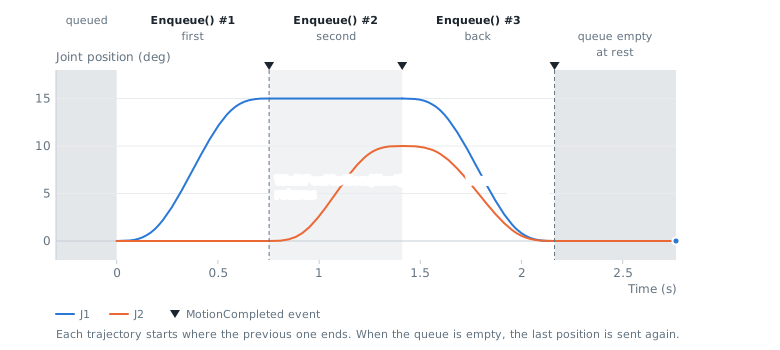
Rules of the queue:
- Each trajectory must start where the previous one ends. Use
QueueEndJointPositionorQueueEndCartesianPositionas start position: when the queue is empty, it is the current position of the robot. - Trajectories are played one after the other without any change. To join two motions without stop, put them in the same trajectory (CNT, CR or spline).
- All trajectories of a session use the same format, joint or Cartesian. To change the format, finish the session first (see one format per session).
ActiveFormatgives the current format. - The session starts when the first trajectory is queued and a program waits on
IBGN start. You can queue trajectories before.
WaitForMotion() returns when the robot received the last position of the trajectory, WaitForIdle() when the queue is empty and the robot is at rest. The MotionCompleted event is raised for each trajectory.
Cartesian trajectories
Cartesian trajectories work the same way. Give Cartesian limits to the planner, because the robot does not provide them:
var sm = robot.StreamMotion;sm.StartMonitoring();// Cartesian limits are not known by the robot: give yoursvar cartesianLimits = new CartesianLimits(250, 1000, 5000, 45, 180, 900);var planner = new MotionPlanner(sm.JointLimits, cartesianLimits);// Cartesian positions sent to the robot: flange center in the world frameXYZWPRPosition start = sm.QueueEndCartesianPosition;var down = new XYZWPRPosition(start.X, start.Y, start.Z - 50, start.W, start.P, start.R);Trajectory trajectory = planner.CreateCartesianPath(FanucMotion.ToCartesianPose(start)).MoveLinear(FanucMotion.ToCartesianPose(down), 100, FanucMotion.Fine()).MoveLinear(FanucMotion.ToCartesianPose(start), 100, FanucMotion.Fine()).Build();sm.WaitForMotion(sm.Enqueue(trajectory), 30000);robot.Disconnect();}
Good to know:
- The positions are the flange center in the world frame. Some controllers (for example the CRX) expect the position of the active tool: select a tool frame equal to zero, or give the planner the tool of the robot (see tool and user frames).
- The robot converts each position into joint positions and checks the joint limits. The SDK cannot check them for Cartesian positions: choose prudent Cartesian limits and validate them on the robot.
- Cartesian positions are always sent in single precision. At 2 ms, changes of orientation can exceed the jerk limit of the wrist because of rounding. Prefer joint trajectories for large changes of orientation.
Send your own positions
If your application already computes one position per cycle, create the trajectory from these samples. They are sent without any change, so check them first:
var sm = robot.StreamMotion;sm.StartMonitoring();// Your own positions, one per communication cycledouble cycle = sm.CycleTime;JointsPosition start = sm.QueueEndJointPosition;var samples = new List<JointsPosition>();int count = (int)(3.0 / cycle);for (int i = 0; i <= count; i++){// J1 +10 degrees with a smooth cosine profiledouble s = (1 - Math.Cos(Math.PI * i / count)) / 2;samples.Add(new JointsPosition(start.Values) { J1 = start.J1 + 10 * s });}Trajectory trajectory = Trajectory.FromJointSamples(samples.Select(FanucMotion.ToJointValues).ToArray(), cycle);// The positions are sent as they are: check them against the limits of the robot firstTrajectoryReport report = trajectory.Check(sm.JointLimits, cycle, sm.ProtocolVersion == 1);if (!report.IsValid) trajectory = trajectory.Retime(sm.JointLimits, cycle, sm.ProtocolVersion == 1);sm.WaitForMotion(sm.Enqueue(trajectory), 30000);robot.Disconnect();}
The period of the samples must be the communication cycle of the robot (CycleTime). To give positions at other times, use timed points (see Trajectories from points).
Override, pause and abort
The robot runs at 100% override during Stream Motion. The client can slow down the trajectories on their path:
var target = new JointsPosition(start.Values) { J1 = start.J1 + 30 };sm.Enqueue(planner.CreateJointPath(FanucMotion.ToJointValues(start)).MoveJoint(FanucMotion.ToJointValues(target), 10, FanucMotion.Fine()).Build());// Slow down the queued trajectories on their path (the robot runs at 100% override)sm.Override = 50;// Stop smoothly on the path, then continuesm.Pause();Thread.Sleep(2000);sm.Resume();// Stop smoothly on the path and cancel all queued trajectories. The session stays open.sm.Abort();sm.WaitForIdle(10000);// The next trajectory starts from the stop positionJointsPosition stoppedAt = sm.QueueEndJointPosition;robot.Disconnect();}
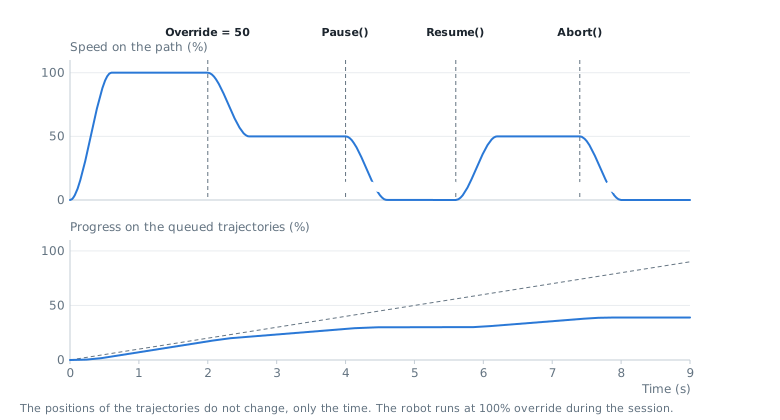
Override(1 to 100%) changes the speed progressively. The positions are the same, only the time changes.Pause()stops the robot smoothly on its path.Resume()continues.Abort()stops the robot smoothly on its path, then cancels the current and the queued trajectories. The session stays open.
The HOLD button of the teach pendant is not available during a session: use Pause().
When the queue is empty
- If the robot is at rest, the client keeps sending the last position and the session stays open.
- If the robot is moving (the trajectories were not queued fast enough), the client stops the robot smoothly within its limits and raises the
Underrunevent.
API reference
Robot trajectory in joint or Cartesian format. A trajectory can be evaluated at any time between 0 and Duration, and can carry I/O events.
| Member | Type | Description |
|---|---|---|
CycleTime Property read only | double | Period between two samples in seconds, when the trajectory was created from samples. 0 otherwise. |
Duration Property read only | double | Duration of the trajectory in seconds |
EndsAtRest Property read only | bool | Indicates if the velocity and the acceleration are zero at the end of the trajectory |
Format Property read only | PositionFormat | Format of the positions of this trajectory |
IOEvents Property read only | IOEvent[] | I/O events of this trajectory, sorted by time |
StartsAtRest Property read only | bool | Indicates if the velocity and the acceleration are zero at the start of the trajectory |
MaxExternalAxisCount Field | int | Maximum number of external axes of a Cartesian trajectory |
MaxJointCount Field | int | Maximum number of axes of a joint trajectory |
AddIOEvent(double, DigitalSignal, bool) Method | void | Adds a digital signal change at a given time of the trajectory
|
Check(JointLimits, double, bool) Method | TrajectoryReport | Checks the velocity, acceleration and jerk of each axis as a robot computes them from a stream of positions: positions sampled at the communication cycle, differences between consecutive positions divided by the cycle time, and positions before the first one equal to the first one. The trajectory must be in joint format.
|
CheckCartesian(CartesianLimits, double) Method | CartesianTrajectoryReport | Checks the linear and angular velocity, acceleration and jerk, computed from positions sampled at the communication cycle. The trajectory must be in Cartesian format. The joint limits of the robot cannot be checked from Cartesian positions.
|
FromCartesianSamples(CartesianPose[], double) Method static | Trajectory | Creates a Cartesian trajectory from poses taken at a fixed period. When the trajectory is streamed to a robot at the same period, the poses are sent without any change.
|
FromJointSamples(JointValues[], double) Method static | Trajectory | Creates a joint trajectory from positions taken at a fixed period. When the trajectory is streamed to a robot at the same period, the positions are sent without any change.
|
FromTimedCartesian(CartesianPose[], double[]) Method static | Trajectory | Creates a Cartesian trajectory that passes through poses at given times. The poses are joined by a smooth curve (cubic spline), and the robot is at rest at the first and the last pose. The orientation is interpolated with quaternions, so it has no singularity. The times are kept: use CheckCartesian(CartesianLimits%Double) to verify the limits, and RetimeCartesian(CartesianLimits%Double) to slow down the trajectory if needed.
|
FromTimedJoints(JointValues[], double[]) Method static | Trajectory | Creates a joint trajectory that passes through positions at given times. The positions are joined by a smooth curve (cubic spline), and the robot is at rest at the first and the last position. The times are kept: use Check(JointLimits%Double%Boolean) to verify the limits, and Retime(JointLimits%Double%Boolean) to slow down the trajectory if needed.
|
GetCartesian(double) Method | CartesianPose | Returns the Cartesian pose at the given time. The trajectory must be in Cartesian format.
|
GetJoints(double) Method | JointValues | Returns the joint position at the given time. The trajectory must be in joint format.
|
Retime(JointLimits, double, bool) Method | Trajectory | Returns the same path played slower so that the joint limits are respected (see Check(JointLimits%Double%Boolean)). The positions are the same, only the time is stretched. Returns this trajectory when it is already valid.
|
RetimeCartesian(CartesianLimits, double) Method | Trajectory | Returns the same path played slower so that the Cartesian limits are respected (see CheckCartesian(CartesianLimits%Double)). The positions are the same, only the time is stretched. Returns this trajectory when it is already valid.
|
SampleCartesian(double) Method | CartesianPose[] | Samples the trajectory at a fixed period. The trajectory must be in Cartesian format.
|
SampleJoints(double) Method | JointValues[] | Samples the trajectory at a fixed period. The trajectory must be in joint format.
|
ToString() Method | string |