Status and servo
Read the mode and the state of a Yaskawa controller, switch the servo power, hold the robot, select the cycle mode, lock the pendant and show a message on it.
This page shows how to read the state of a Yaskawa Motoman controller with the SDK, and how to change it: servo power, hold, cycle mode, pendant lock and pendant message. It covers every controller with the High Speed Ethernet Server.
Read the status
GetStatusInformation() reads the mode, the execution state, the hold and the alarm flags in one request.
var robot = new YaskawaRobot();robot.Connect("192.168.0.1");RobotStatusData status = robot.HighSpeedEServer.GetStatusInformation();// Mode of the controllerConsole.WriteLine($"Teach: {status.Teach}, play: {status.Play}, remote: {status.CommandRemote}");// Cycle mode: step, one cycle or automatic (continuous)Console.WriteLine($"Step: {status.Step}, cycle: {status.Cycle}, automatic: {status.Automatic}");// ExecutionConsole.WriteLine($"Running: {status.Running}, servo on: {status.ServoOn}");// Hold, from the pendant, from an external signal or from a commandConsole.WriteLine($"Hold: {status.InHoldStatusPendant} {status.InHoldStatusExternally} {status.InHoldStatusByCommand}");// Alarm and errorConsole.WriteLine($"Alarm: {status.Alarming}, error: {status.ErrorOccurring}");robot.Disconnect();}
| Property | true when |
|---|---|
Teach, Play | The controller is in teach mode, in play mode |
CommandRemote | The controller accepts the commands of the PC |
Step, Cycle, Automatic | The cycle mode: step, one cycle, continuous |
Running | A job or a move is executed |
ServoOn | The servo power is on |
InHoldStatusPendant | The hold button of the pendant is pressed |
InHoldStatusExternally | The external hold signal is on |
InHoldStatusByCommand | A hold was sent by SetHold(true) |
Alarming | An alarm is active, see Alarms |
ErrorOccurring | An error message is shown |
InGuardSafeOperation | The robot is in guard safe operation |
The status is a snapshot. To follow its changes, read it in a loop: see Monitor the state of the robot.
Servo power and hold
SetServo(on) switches the servo power, SetHold(on) holds the robot or releases the hold. Both need the remote mode.
var robot = new YaskawaRobot();robot.Connect("192.168.0.1");// Switch the servo power on. The SDK waits up to PowerOnTimeoutMilliseconds (8 s)robot.HighSpeedEServer.SetServo(true);// Hold the robot, then release the holdrobot.HighSpeedEServer.SetHold(true);robot.HighSpeedEServer.SetHold(false);// Switch the servo power offrobot.HighSpeedEServer.SetServo(false);robot.Disconnect();}
| Method | true | false |
|---|---|---|
SetServo | Servo power on | Servo power off |
SetHold | Hold: the robot stops on its path, servo stays on | Release the hold |
SetTeachPendantLockState | Lock the pendant | Unlock the pendant |
The servo power takes several seconds to come on. For SetServo(true) the SDK waits PowerOnTimeoutMilliseconds (8000 ms by default) instead of DataTimeoutMilliseconds.
ServoCommand(OnOffCommandType, value) of the previous versions does the same and still works. It is marked obsolete: use the methods above in new code. They have the same names on the Ethernet Server.
Lock the pendant
When a PC drives the cell, lock the pendant so that nobody changes the mode or starts a job from it at the same time.
var robot = new YaskawaRobot();robot.Connect("192.168.0.1");// Lock the programming pendant, so that nobody changes the mode or starts a job from itrobot.HighSpeedEServer.SetTeachPendantLockState(true);// Unlock itrobot.HighSpeedEServer.SetTeachPendantLockState(false);robot.Disconnect();}
Cycle mode
SetCycle(cycle) selects how a job runs when it is started: step by step, one cycle, or in a loop.
var robot = new YaskawaRobot();robot.Connect("192.168.0.1");// Execute the job step by steprobot.HighSpeedEServer.SetCycle(RobotCycleType.Step);// Execute the job oncerobot.HighSpeedEServer.SetCycle(RobotCycleType.OneCycle);// Execute the job in a looprobot.HighSpeedEServer.SetCycle(RobotCycleType.Automatic);robot.Disconnect();}
RobotCycleType | The job runs |
|---|---|
Step | One line at each start |
OneCycle | Once, then stops |
Automatic | In a loop |
SwitchingCommand(SwitchingCommands) of the previous versions does the same and is marked obsolete.
Message on the pendant
Display(message) shows a message to the operator on the programming pendant. The message has 24 characters at most: a longer one is cut.
var robot = new YaskawaRobot();robot.Connect("192.168.0.1");// Show a message on the programming pendant, 24 characters at mostrobot.HighSpeedEServer.Display("Part 42 done");robot.Disconnect();}
Try it in the demo application
Everything on this page can be tried without writing code, in the Status page of the demo application.
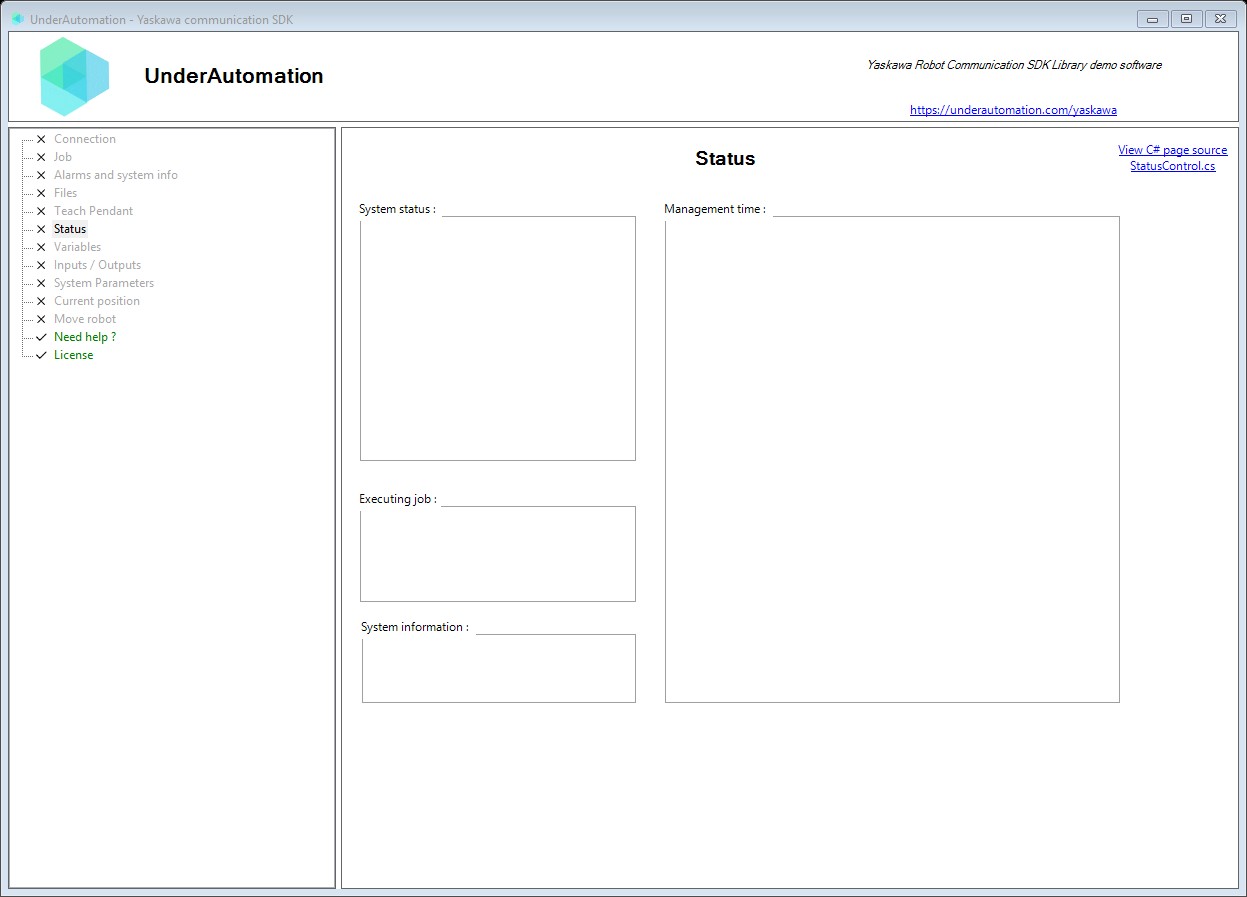
The demo application is open source. The C# source of this page is StatusControl.cs.
Reference
Methods of HighSpeedEServerClientBase :// Displays a popup message on the robot programming pendant. Message will appear as a notification to the operator.RobotDataHeader Display(string message);// Reads the current operational status of the robot controller. Returns information about mode (teach/play), running state, hold status, alarms, and servo power.RobotStatusData GetStatusInformation();// Sets the execution cycle type.RobotDataHeader SetCycle(RobotCycleType cycle);// Sets the hold state of the robot.RobotDataHeader SetHold(bool enable);// Enables or disables servo power.RobotDataHeader SetServo(bool enable);// Locks or unlocks the teach pendant.RobotDataHeader SetTeachPendantLockState(bool locked);
Contains the current operational status of the robot controller. Provides information about the robot's mode, running state, and safety conditions. Retrieved using the status information reading command.
| Member | Type | Description |
|---|---|---|
Alarming Property read only | bool | Gets whether an alarm is currently active. Check GetAlarm() for detailed alarm information. |
Automatic Property read only | bool | Gets whether the robot is in automatic operation mode. When true, the robot can operate automatically without pendant interaction. |
CommandRemote Property read only | bool | Gets whether remote command mode is enabled. When true, the robot accepts commands from external sources (including this API). |
Cycle Property read only | bool | Gets whether the robot is in cycle execution mode. When true, the robot executes one complete cycle then stops. |
ErrorOccurring Property read only | bool | Gets whether an error condition is occurring. Errors may prevent normal operation until resolved. |
InGuardSafeOperation Property read only | bool | Gets whether the robot is in guard safe operation mode. Indicates collaborative/safety-rated operation mode is active. |
InHoldStatusByCommand Property read only | bool | Gets whether the robot is held by a command (software hold). A hold command was issued via the API or job instruction. |
InHoldStatusExternally Property read only | bool | Gets whether the robot is held by an external hold signal. External safety circuit has triggered a hold condition. |
InHoldStatusPendant Property read only | bool | Gets whether the robot is held by the programming pendant. Operator has pressed hold on the pendant. |
Play Property read only | bool | Gets whether the robot is in play mode. In play mode, the robot can execute programmed jobs. |
Running Property read only | bool | Gets whether the robot is currently running (executing a job). |
ServoOn Property read only | bool | Gets whether servo power is enabled. Servo must be ON for the robot to move. |
Step Property read only | bool | Gets whether the robot is in step (single-step) execution mode. When true, the robot executes one instruction at a time. |
Teach Property read only | bool | Gets whether the robot is in teach mode. In teach mode, the robot can be manually positioned and jobs can be edited. |