Edit a position
Open a position register or the position of a program, read it in its stored form and the other form computed, edit the values and the Fanuc configuration, Apply with a confirmation, Copy as TP or JBI and Paste as a pending value, the Position view that edits a position in the text of a program with the controller that computes its other form and Set to current position, the robot in 3D with the edited target and the position as read, Compare with the current position or another one, and the Yaskawa limits.
- What the editor shows
- Open a position
- Edit a value
- Form and current position of a Fanuc position register
- The configuration of a Fanuc position
- Write with Apply
- What TouchUp refuses to write on Fanuc
- Copy and paste
- Compare
- Positions in a program
- Open a position of a program
- Apply to the text
- The other form and the current position
- Add a position to a job
- The robot in the position editor
- Free and Pro
- Yaskawa
- What to read next
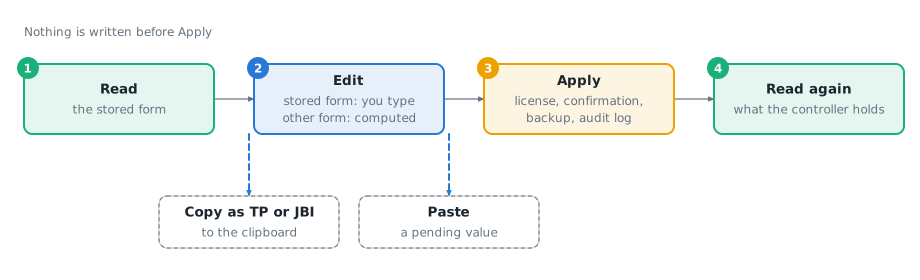
This page explains how to read, edit, copy, compare and write one robot position with the position editor of TouchUp: a position register or a position of a program. It reads Fanuc and Yaskawa controllers. It writes to Fanuc controllers only: Yaskawa has no position write yet, see Yaskawa. Nothing is written before you click Apply. A position of a program can also be edited in the text of the program, in the Position view of the side bar: see Positions in a program.
What the editor shows
One editor shows one position. It reads the position from the controller and shows it in two forms:
- The stored form, the one that the controller holds: Cartesian (X, Y, Z, the orientation, the configuration and the user frame and tool) or joints. You edit this form.
- The other form, marked
(computed): the joints of a Cartesian position, or the Cartesian value of a joint position. TouchUp asks the controller to compute it again after each change, a short moment after you stop typing. Nothing is written for it.
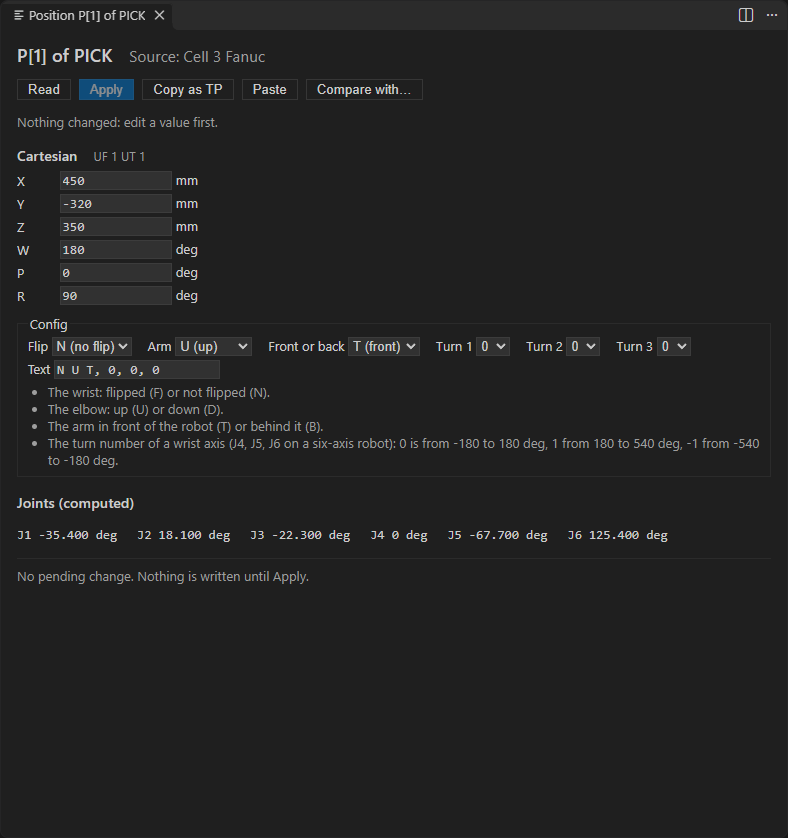
A Cartesian value is never shown without its frame. A Fanuc position shows UF 1 UT 1 (user frame and tool), a Yaskawa position User frame 1, Tool 1 or Robot coordinates. The orientation is W P R on Fanuc and Rx Ry Rz on Yaskawa. A robot with several motion groups shows one tab per group.
Open a position
The position is read each time the editor opens. A second request for the same position shows the editor that is already open.
| From | How |
|---|---|
| The Command Palette | TouchUp: Open Position Editor... asks for the position on the active controller (PR[10] or P[1] on Fanuc, P023 or C00002 on Yaskawa). A position of a program asks for the program or the job next |
| The Data panel | Click Open on a position register (PR[n] on Fanuc) or a position variable (P, BP, EX on Yaskawa). The other registers have no such button |
| The Watch view | Right click a position register or a position variable, then Open in Position Editor. The other values have no such command |
| A program or a job | Click the lens Edit above a position, or put the cursor on it, right click, then Open Position in Editor. The position opens in the Position view, see Positions in a program |
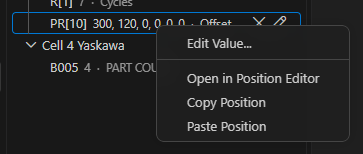
In a Fanuc TP program (.ls) or a Yaskawa INFORM job (.jbi), the cursor is on a position when it is on a P[n] of an instruction, anywhere in an entry of /POS, on a C00002 of a job (a step or its line of //POS), or on a register or a variable (PR[10], P023). The menu entries appear only then. A position that is written in the file is read from the text of the file: no controller is needed. A register or a variable (PR[10], P023) is read from the controller that the file belongs to, see Which controller a file belongs to. A file of your PC that belongs to none asks which controller of its brand to use.
The editor asks nothing else of a controller that is not connected: it says <controller> is not connected: connect it, then Read.
Edit a value
Type in a field of the stored form. A changed field shows its old value and the difference, for example was 450 (+15), and the line at the bottom lists the pending changes. Read reads the position again and drops the pending value.
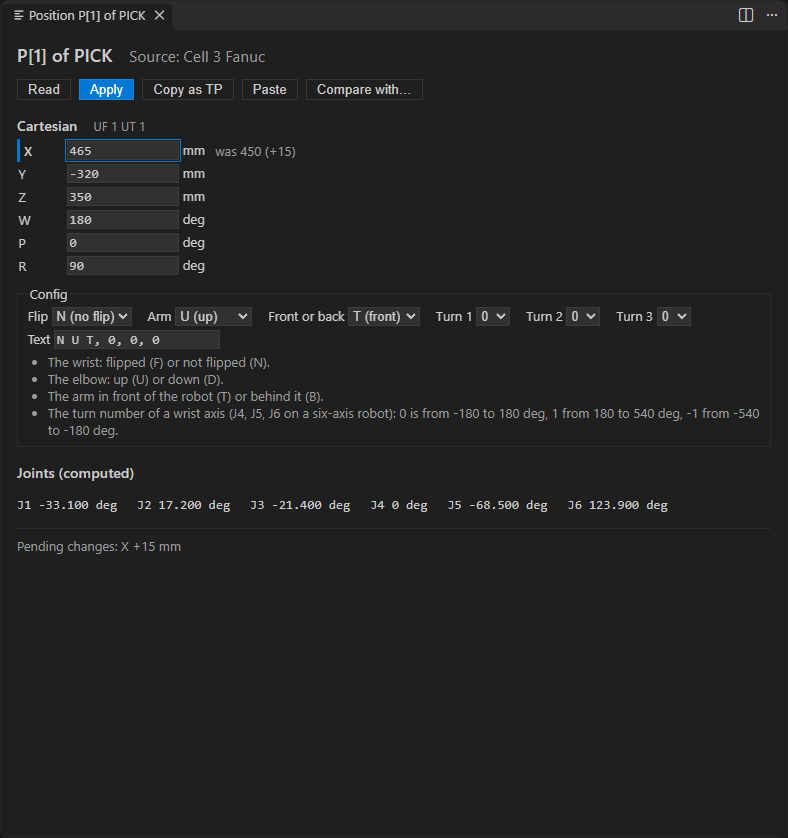
TouchUp refuses a value that cannot be a position, and says which field: a length or a joint outside ±1,000,000, an angle outside -180 to 180, a joint in pulses that is not a whole number. A value that the controller cannot reach shows Unreachable with the reason, in place of the joints.
Only the stored form is edited. A Fanuc position register can change its stored form with the form selector, see Form and current position of a Fanuc position register. A position of a program keeps its form: to change it from Cartesian to joints, use the teach pendant.
Form and current position of a Fanuc position register
A Fanuc position register (PR[n], opened without a program) has two more tools above its fields. A position of a program and a Yaskawa position do not have them.
| Tool | What it does |
|---|---|
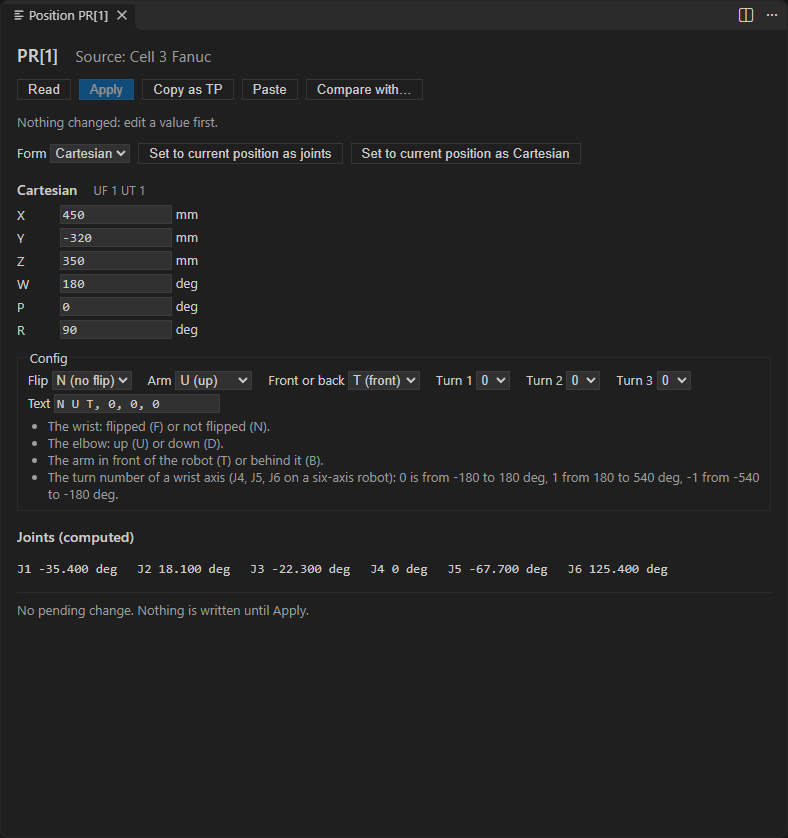
Form | A selector with Cartesian and Joints. It converts the pending value to the other form. The controller computes the conversion with its own kinematics, with the user frame and the tool of the register: TouchUp computes nothing |
Set to current position as joints | Reads the current position of the robot, for the motion group of the register, and makes its joints the pending value |
Set to current position as Cartesian | The same, as a Cartesian value, with the frame and the tool as the controller reports them |
Nothing is written by these tools. The result is a pending value, and the list of the pending changes shows it, for example form Cartesian to joints. Apply writes it, with its confirmation, as for any other change. The robot does not move.
The selector is disabled, and the line next to it gives the reason, while the other form is being computed, when the controller cannot be reached, when the other form cannot be computed, and when a value is wrong.
The change in both ways works on a real Fanuc controller: from Cartesian to joints and from joints to Cartesian. The controller computes the Cartesian value in the user frame and the tool of the register, or in the active ones when the register records none.
One limit remains: a Cartesian value in a position register is written only over a register that was read with its extended axes, all at 0. The usual read of a register gives no extended axes, so Apply then writes the register in joints only, and refuses a Cartesian value. You can still convert the register to Cartesian to read it. This is the refusal listed in What TouchUp refuses to write on Fanuc, until a planned update of TouchUp. TouchUp does not work around this limit, so as not to write a wrong position.
The configuration of a Fanuc position
The configuration of a Cartesian position of a Fanuc controller has a field for each flag and for each turn number. The Text field shows the same configuration in the form of the controller, for example N U T, 0, 0, 0, and stays editable.
| Field | Values |
|---|---|
Flip | F flip, N no flip (the wrist) |
Arm | U up, D down (the elbow) |
Front or back | T front, B back (the arm in front of the robot or behind it) |
Turn 1, Turn 2, Turn 3 | The turn number of a wrist axis: 0 is from -180 to 180 degrees, 1 from 180 to 540, -1 from -540 to -180 |
Each field has a short explanation under it. A flag that TouchUp does not know is changed in the text only. A text that is not a configuration, or an empty one, is refused: give its flags and turn numbers, as N U T, 0, 0, 0. A change of the configuration counts as a pending change, and the joints are computed again. A Yaskawa form is shown as a text and cannot be edited.
Write with Apply
Apply writes the pending value to the controller. It follows the steps of every write, see Send a file to the controller:
- TouchUp checks the license, and that the controller can write this position.
- A dialog shows the position, its value on the controller now and its value after the write.
Cancelhas the focus: pressing Enter once writes nothing. - TouchUp keeps a copy of the position as it was before the write.
- The position is written, then read again. The editor shows what the controller holds now, and the pending value is gone.
- A line is added to the audit log.
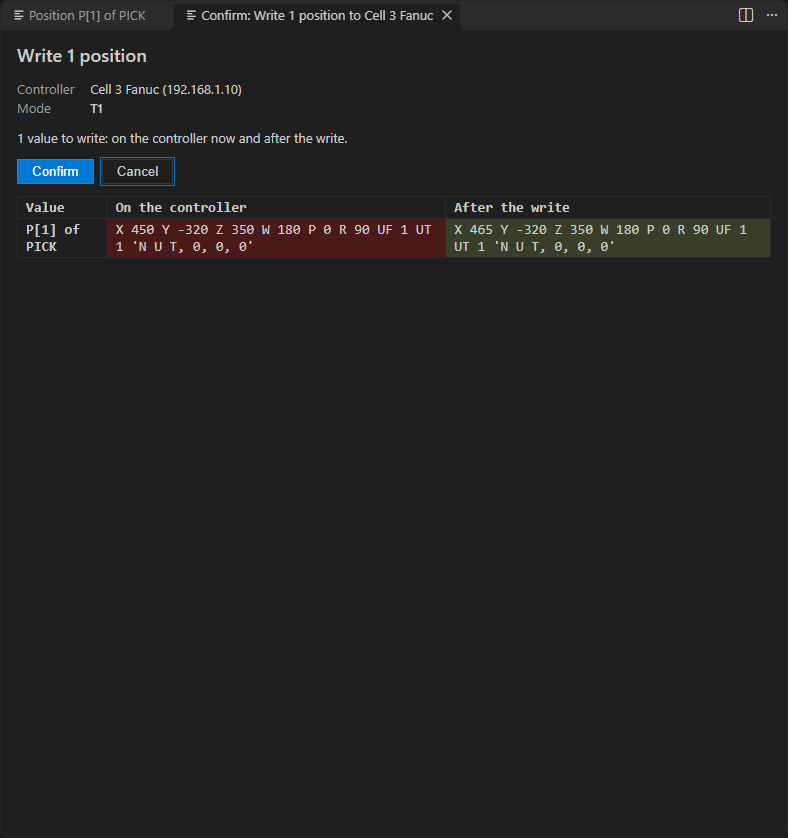
When the controller does not answer after the write was sent, the outcome is unknown: read the position again and check the controller.
Apply is greyed out, and its tooltip and the line under the buttons say why, when:
- the controller is not connected, or does not offer the write of this position (the reason is the one of the controller),
- the edition is Free: the button
TouchUp Pro...opens the dialog of the Pro edition, see Editions and license, - the position could not be read, or a read or an Apply is running,
- a value is wrong, or nothing changed,
- the joints are being computed, or the position is unreachable,
- the same values were refused before: change a value, or
Read, to try again.
A failure of the computation for another reason shows Not computed with the reason, and does not block Apply.
What TouchUp refuses to write on Fanuc
TouchUp writes a Fanuc position only when it can do it without losing anything that the controller holds. It refuses, with the reason and without sending anything:
- a position of a group 2 or more, or of several motion groups: TouchUp writes the group 1 alone, until it is checked on a cell with several groups. Teach such a position at the pendant,
- a position when the number of axes of the group 1 is not known,
- a position register of a group of more than 6 axes, or that holds an extended axis other than 0,
- a position read with fewer joints than the group has axes, because the values that TouchUp does not see would be lost,
- a joint value in a unit that is not degrees (a joint in pulses or in another unit is refused),
- a Cartesian value over a position that is stored in joints, because an extended axis such as a rail could be lost. Write the joints, or teach the position at the pendant,
- a Cartesian value in a position register read without its extended axes (see above),
- a joint value over a Cartesian position of a group that has extended axes, because the unit of an extended axis is not known. Write it in the Cartesian form,
- a position of a program in the Cartesian form that does not give every extended axis that the position holds,
- a configuration that is not valid, or a Cartesian value without a user frame and a tool number (a position register keeps no user frame or tool).
Copy and paste
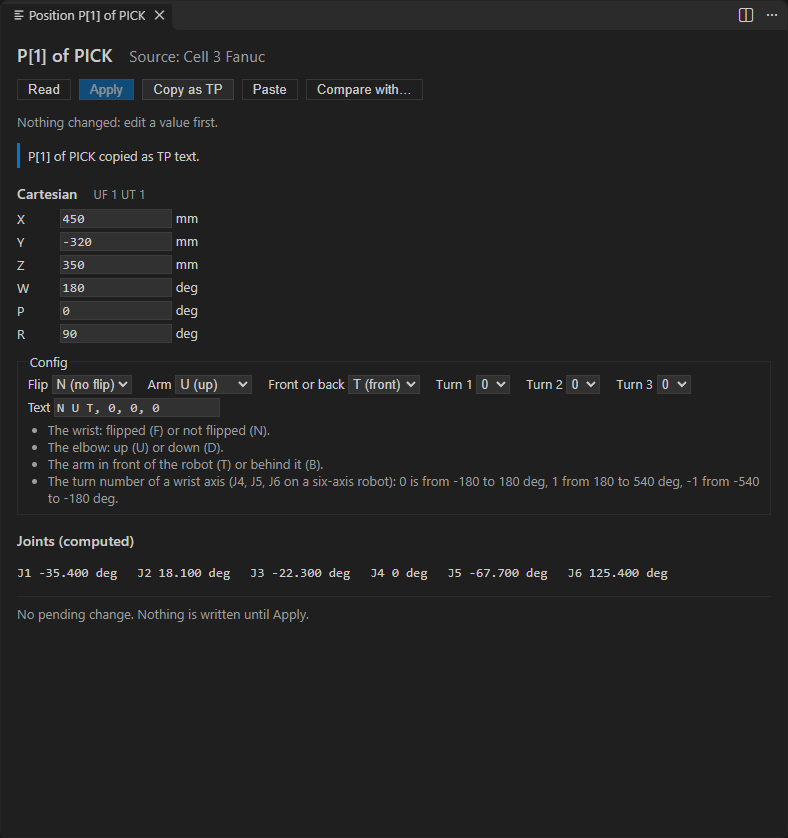
Copy as TP (Copy as JBI on Yaskawa) puts the position on the clipboard as the text of the program: the entry of /POS of a TP program, or a position of a job. You can paste it in a program, in the position editor of another position, or in another application. It copies the value shown in the editor, with your pending changes.
Paste reads the clipboard as a position and makes it the pending value. A paste never writes to the controller: the editor shows the difference with the position, and Apply is the only write. TouchUp refuses, with the reason, a text that is not one position, a position of the other brand, a Fanuc Remote TCP position, or a text of more than 64 KB. The pasted position must have the same form and the same number of joints and extended axes as the position it replaces.
The commands Copy Position and Paste Position are also in the menus of the views and of a program:
| Where | Copy Position | Paste Position |
|---|---|---|
| A position register or variable of the Registers, Variables and Watch views | Reads the position from the controller and copies it | Opens the editor with the clipboard as the pending value |
| A position of the program under the cursor | Copies the text of the position from the file, without a connection | Replaces the values of the position in the text of the file, and leaves the rest of the file as it is. A copy in another user frame or tool is refused. Ctrl+Z undoes it. Save the file to send it, with its confirmation |
Compare
Compare with... puts the value of the editor, with its pending changes, next to another position. Nothing is written.
- Click
Compare with.... - Choose
Current position of the robot, orAnother position...and type a position of the same controller. The list is not shown when the controller cannot give its current position (Yaskawa): TouchUp asks for the position at once. - A table lists each field with the value here, the other value and the difference (here minus the other): the frame, X, Y, Z, the distance in mm, the orientation, the extended axes, the configuration, then the joints. An angle difference takes the shortest way round.
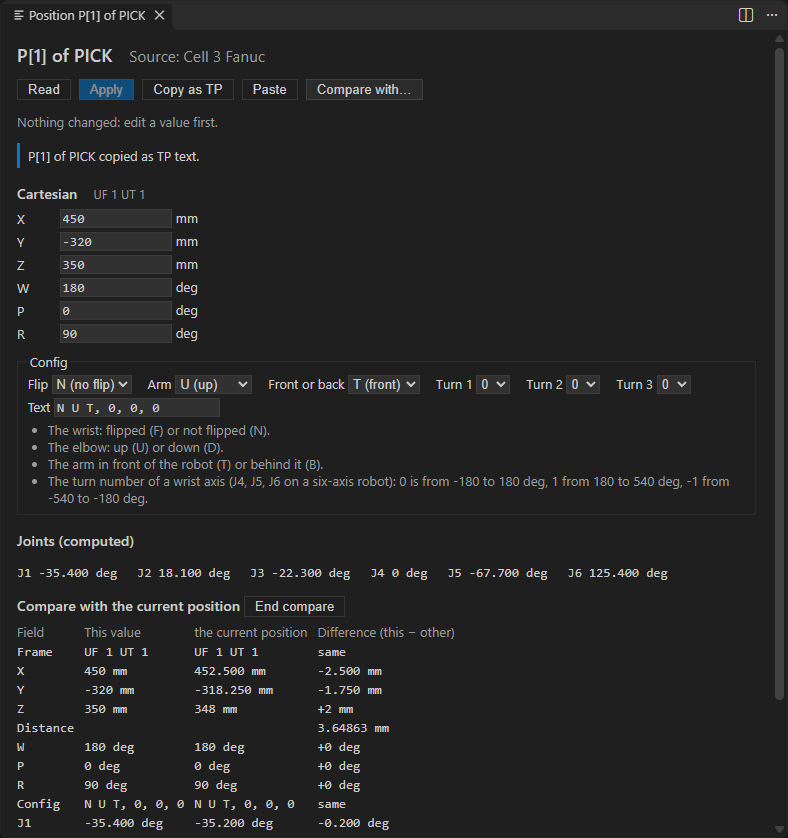
End compare closes the table. TouchUp says why it cannot compare a field instead of showing a wrong difference:
- the two Cartesian values are in another user frame or tool, or one of them has none recorded,
- the joints are not the same number, or not in the same unit, or the extended axes differ,
- a group exists on one side only,
- a form is not known (it could not be computed).
Positions in a program
In a Fanuc TP program (.ls) or a Yaskawa INFORM job (.jbi), you can edit a position in the text of the program, without leaving the text editor. The position opens in the Position view of the TouchUp side bar, next to the program. The view is collapsed at the first start: open it, or click Edit on a position.
Open a position of a program
| From | What it does |
|---|---|
The lens Edit | Above each entry of /POS of a TP program, and above each C, BC and EC entry of //POS of a job. It opens the position in the view. The text editor stays open |
| The cursor | While the Position view is visible, it shows the position under the cursor of the active program, and changes when you move the cursor to another position. A line with no position leaves the view as it is |
| The hover | Hover a position: the tooltip shows its values, with the frame and the tool, and the link Edit (on a job, also New position) |
Open Position in Editor | Right click a position, see Open a position |
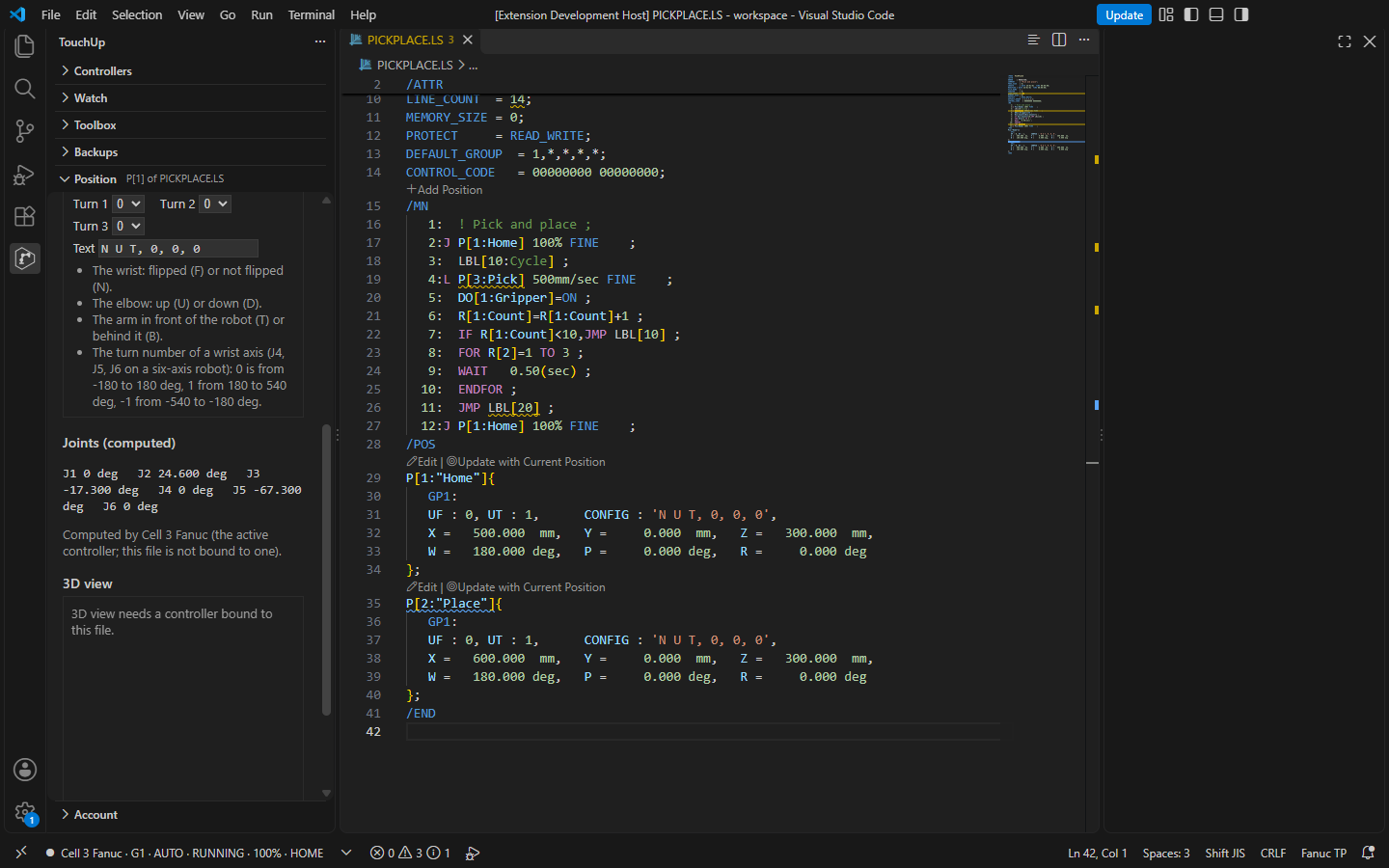
The view follows the cursor only while it holds no pending value. After you change a value, it stays on its position until you click Apply to the text or Read. If you click Edit on another position meanwhile, TouchUp says that the view holds a pending value, and does not change it.
The view reads the position from the text of the program, shown as Source: Text of <file>. A register or a variable (PR[10], P023) is not in the text: it opens in its own editor, see Open a position.
Apply to the text
Edit the values as in any position editor, see Edit a value. The button Apply to the text replaces the values of the position in the text of the program:
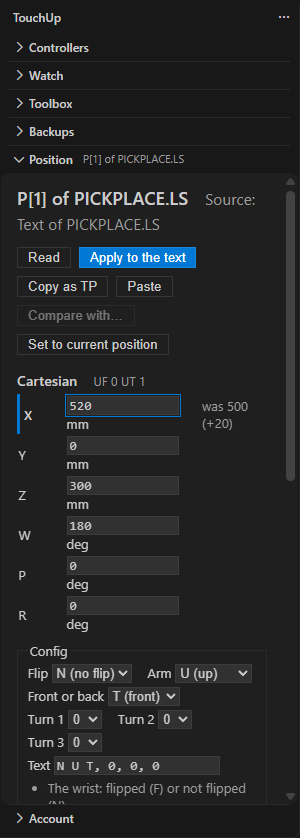
- It is free: no license, no confirmation. The text of the program changes, and nothing is sent to the controller.
- It is one undo step:
Ctrl+Zbrings the old values back. - The rest of the file stays as it is. Only the values of this position change. The user frame and the tool of the position stay, and so do the other positions and the layout of the file.
- To reach the controller, save the file there. The file goes to the controller as any other file, with its confirmation, see Send a file to the controller.
Apply to the text is refused, with the reason, when:
- the position changed in the text since the view read it: click
Read, then edit again, - the document is read-only, for example a file of a backup,
- the value is in another user frame or tool than the position of the text (change them in the text), or has another configuration form than the position of a job,
- a TP position is taught with
UF ForUT F(no frame or tool number): give the numbers in the text first.
Compare with... is not available for a position read from the text. Read, Copy as TP (Copy as JBI on a job) and Paste work. A BC or an EC position of a job cannot be copied or pasted: they are not positions of the robot, only the C positions are.
The other form and the current position
A position of a program is stored in one form: joints or Cartesian. The view shows the other form, marked (computed), and a controller computes it. The text of the program is not changed by it.
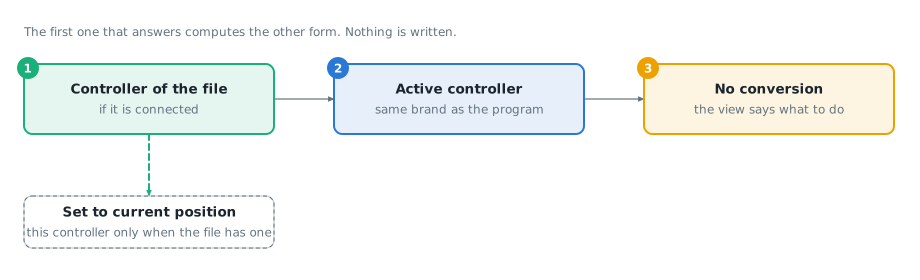
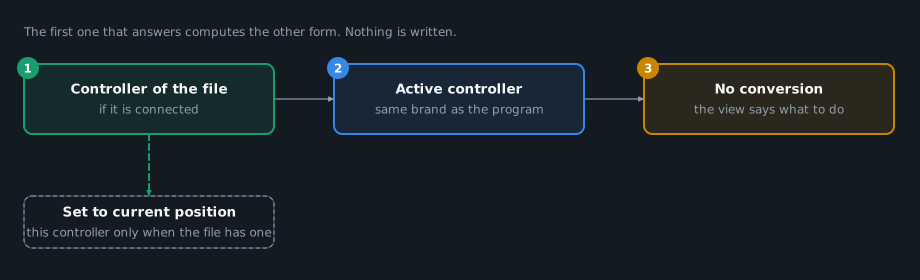
The controller that computes the other form is the first of these that is connected:
- The controller that the file belongs to, see Which controller a file belongs to.
- Else the active controller, when it has the same brand as the program.
A controller of another brand never computes a position. When there is none, the other form is not computed, and the view says what to do: connect the controller of the file, make a connected controller of the brand the active one, or bind the file to a controller of the right brand. Under the computed form, the line Computed by <controller> names the controller that answered, and why it was chosen, for example (the controller of this file) or (the active controller; this file is not bound to one). The controller gets the user frame and the tool of the position with it. The active controller can be another robot model than the one of the program: TouchUp shows the result and does not hide this. The view computes the other form again when you change the active controller, when a controller connects or disconnects, or when you bind the file to another one.
The button Set to current position makes the current position of the robot the pending value, in the form that the text stores:
- A joint position keeps its user frame, its tool and its units, and takes the joints of the robot.
- A Cartesian position takes the Cartesian value of the robot. The robot must be in the user frame and the tool of the position: otherwise TouchUp refuses and says which ones to select on the robot, for example
Select UF 1 and UT 1 on the robot. - A TP position taught with
UF ForUT Fis refused: give the numbers in the text first. - When the file belongs to a controller, only this controller is read, even when another controller is the active one: a current position is a teach value, and it must come from the right robot. The tooltip of the button names the controller. A file that belongs to none uses the active controller of the same brand.
The text changes only when you click Apply to the text. Nothing is written to a controller, and the robot does not move. Apply to the text still needs no license and no confirmation.
TouchUp does not change the user frame or the tool of a position of the text, and does not rewrite a position in the other form: change them in the text, or at the pendant.
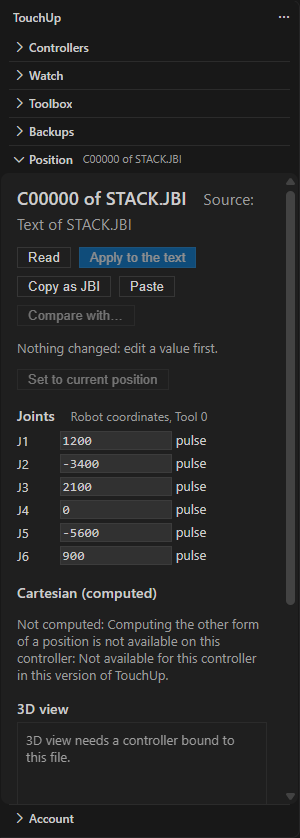
Yaskawa. The conversion between pulses and Cartesian, and the current position of a Yaskawa robot, are not available yet. TouchUp has no kinematics for Yaskawa, and it does not guess. The view says so, and the button Set to current position is greyed out with the reason. A Yaskawa position of a job is still edited in its own form and applied to the text.
Add a position to a job
The lens New position is above the NOP line of a job. It adds a position to the job:
- A new
Cposition is added to//POS, with the next free number and zero pulses, and the count of///NPOSgoes up by one. - A line
MOVJ C<n> VJ=25.00is added beforeEND. - The
Positionview opens on the new position, so that you can set its values and clickApply to the text.
It is one undo step and writes nothing to the controller. The new position has the number of axes of the other joint positions of the job. When the job has none, the number comes from the controller that the file belongs to, when this controller has one motion group. TouchUp refuses, with the reason, a job of several groups or a job whose number of axes is not known: write one C position in pulses in //POS first, then click New position again. A job without END or without a robot group is refused too.
The robot in the position editor
Once the position is read, the editor draws the robot under the values, in the part 3D view. It is the same drawing as in the Robot 3D tab, at the pose of the position:
- The solid robot is the target: the joints that you edit, or, for a Cartesian value, the joints that the controller computes for it.
- The transparent robot is the position as it was read. It is drawn only when the target is different, so that you see what the edit changes.
A line under the drawing says which is which: Solid: the pending value. Transparent: the position as it is read. Drag in the drawing to turn the view. The drawing does not reset when you type.
TouchUp never draws a robot at a pose it does not know. It draws the six joints of the arm, and only when each of them is known in degrees. In place of the robot, a reason is shown:
| Reason | When |
|---|---|
Reading the kinematic parameters of the robot. | The data of the robot are being read |
The joints are being computed. | The Cartesian value that you typed is being converted |
Unreachable: ... | The robot cannot reach the Cartesian value |
Correct the values first. | A field holds a wrong value |
3D view not available for this position: the joints in degrees are not known. | A Yaskawa position (its joints are in pulses), or joints that are not computed |
3D view needs a controller bound to this file. | The position is read from the text of a program: it is not drawn there |
| The reason of the controller | The controller does not give the data of the robot: FTP not enabled, a Yaskawa group above 1 |
A joint above the sixth, such as a rail, is not drawn.
Free and Pro
| Free, every mode | Pro |
|---|---|
Open, Read, edit, Copy as TP, Paste, Compare with..., and Apply to the text in a program | Apply, the write to the controller |
Pro is given per brand: a Fanuc license writes to Fanuc controllers. A simulated controller is never locked. See Editions and license.
Yaskawa
| What | Yaskawa |
|---|---|
| Read | The position variables P, BP, EX, and the positions C00002 of a job. A Cartesian position is read in robot or user coordinates: a position in tool or base coordinates is refused with the reason. Joints are in pulses |
| The other form | Not computed. The editor says so, also for a position of a job read from the text, see The other form and the current position |
Apply | Not available yet: TouchUp has no write of a Yaskawa position, so as not to lose its form, user frame or configuration. Change it at the pendant |
| The form | Shown as a text, read only |
Copy as JBI | A position in pulses is copied. A Cartesian position is refused for now: the controller gives the first six fields of its configuration, and the file of a job needs all of them. A Cartesian position of a job file under the cursor is copied from the text of the file |
Compare with... | With another stored position. The current position of a Yaskawa robot is not offered |