Alarms and logs
Notifications of the alarms, the active alarms, the continuous alarm log beyond the history of the controller, its filters and its CSV export.
This page explains how TouchUp shows the alarms of a controller: the notifications, the active alarms and the continuous alarm log, with its filters and its CSV export. It applies to Fanuc and Yaskawa.
Notifications
When a connected controller raises an alarm, TouchUp shows a notification with the code and the text. Its Show button opens the Alarms & Logs panel on this alarm.

A lost connection and a battery alarm also show a notification. A battery alarm is shown once, as a warning: the battery keeps the mastering and the programs of the controller.
Turn them off
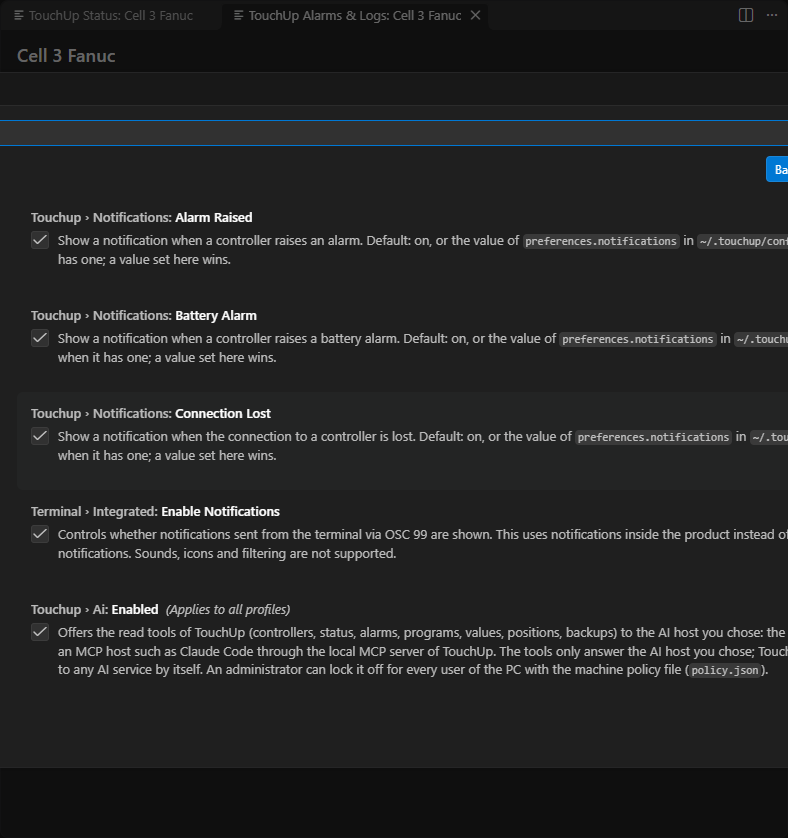
Three settings, in the TouchUp section of the settings (File, Preferences, Settings):
| Setting | Notification |
|---|---|
touchup.notifications.alarmRaised | An alarm is raised |
touchup.notifications.connectionLost | The connection to a controller is lost |
touchup.notifications.batteryAlarm | A battery alarm is raised |
The Alarms & Logs panel
TouchUp: Open Alarms & Logs, or a click on the status bar when an alarm is active, opens the panel of the active controller. It has two tabs. When no controller is connected, the panel says "No controller is connected. Connect one in the Controllers view, then select it here."
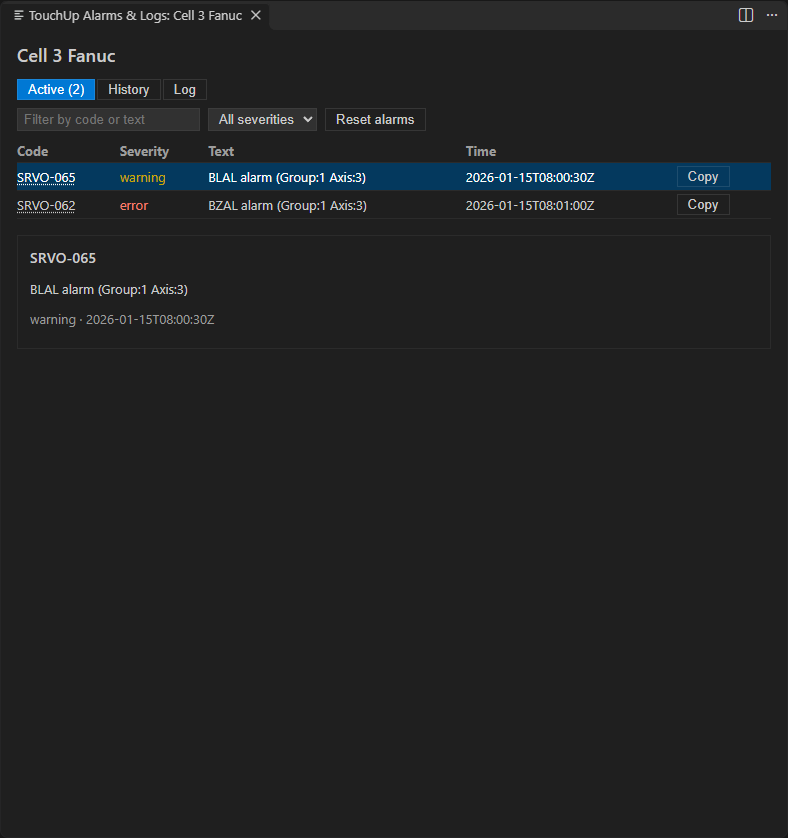
Active
The alarms active now: code, severity, text and time. Filter by code or text, and by severity. Select an alarm to see its cause and its remedy, when the controller gives them.
Log
While TouchUp is connected, it records every alarm with its time in a log on your PC, merged with the history of the controller and without duplicates. The controller keeps a short history (100 entries on a Fanuc controller): the log of TouchUp has no such limit.
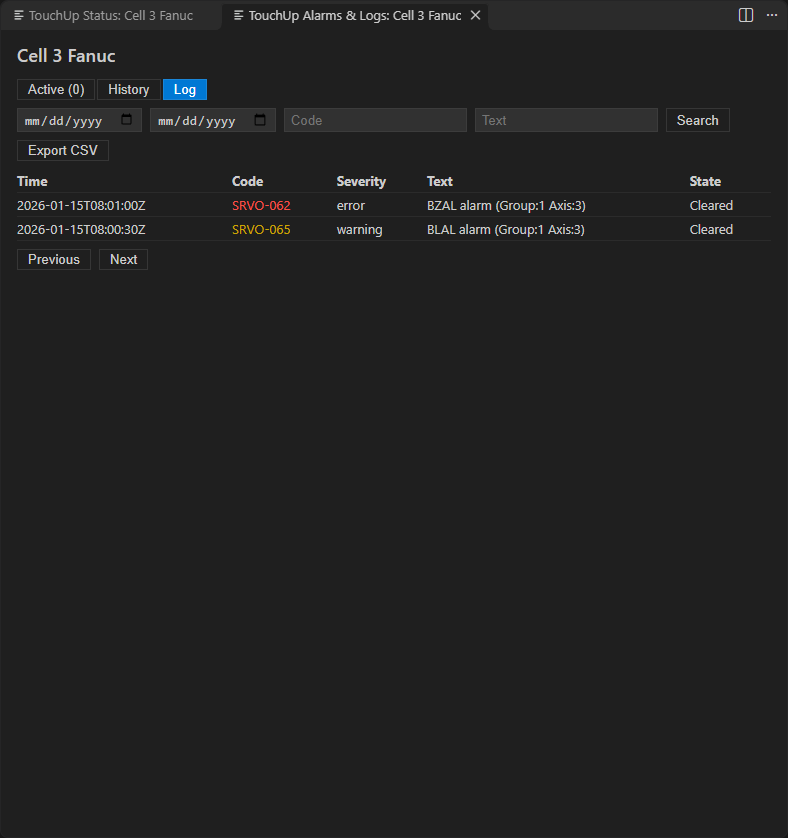
Filter the log by code and by text, then click Search. The log is shown page by page, with Previous and Next.
Reset the alarms
Reset Alarms resets the active alarms of a connected controller. It is in the right-click menu of the controller. It asks you to confirm, and it is free: no license is needed. An alarm whose cause is still there comes back. See Write values and control a program for the details and for Yaskawa, where the remote mode must be on.
Export to CSV
Export CSV, in the Log tab, writes the alarms of the current filter to a CSV file. The file opens in Excel with the accents. A text that starts with =, +, - or @ is quoted, so that a spreadsheet does not run it as a formula.
What to read next
- Status and status bar
- Write values and control a program, to reset the alarms
- Back up a controller