Read and write registers
Exchange values between a UR robot program and a PC with the boolean, integer and float registers, with RTDE up to 500 Hz.
This article shows how to exchange values between a program that runs on a Universal Robots cobot and a PC, with the general purpose registers, in C# or Python. The registers are read and written while the program runs, up to 500 times per second with RTDE.
The registers
A UR controller has three types of registers, each as inputs and as outputs:
| Type | Content | Numbers | Fieldbus | RTDE |
|---|---|---|---|---|
| Boolean | true or false | 0 to 127 | 0 to 63 | 64 to 127 |
| Integer | 32 bit signed integer | 0 to 47 | 0 to 23 | 24 to 47 |
| Float | Floating point number | 0 to 47 | 0 to 23 | 24 to 47 |
The names are given from the point of view of the robot:
- input registers: written by an external system (RTDE, fieldbus), read by the program;
- output registers: written by the program, read by an external system.
Use the RTDE half (24 to 47, 64 to 127) when a fieldbus also uses the registers.
In the robot program
| Task | URScript |
|---|---|
| Read an input register | read_input_boolean_register(n), read_input_integer_register(n), read_input_float_register(n) |
| Read an output register | read_output_boolean_register(n), read_output_integer_register(n), read_output_float_register(n) |
| Write an output register | write_output_boolean_register(n, value), write_output_integer_register(n, value), write_output_float_register(n, value) |
A program cannot write an input register.
Which way to choose
| Way | Reads | Writes | Frequency |
|---|---|---|---|
| RTDE | All registers | Input registers | Up to 500 Hz |
| Primary Interface | no | Output registers, with URScript | When you send it |
RTDE is the way for both directions. The Primary Interface writes an output register with URScript: in a secondary program (sec), the running program does not stop.
Read with RTDE
Add the registers to the outputs of the RTDE setup, with their number. The bits 0 to 63 are read as two 32 bit integers (InputBitRegisters0To31, InputBitRegisters32To63), the bits 64 to 127 one by one.
static void Main(string[] args){var robot = new UR();var parameters = new ConnectParameters("192.168.0.1");parameters.Rtde.Enable = true;parameters.Rtde.Frequency = 500;// Input registersparameters.Rtde.OutputSetup.Add(RtdeOutputData.InputBitRegisters0To31); // 32 bits in one integerparameters.Rtde.OutputSetup.Add(RtdeOutputData.InputBitRegisters32To63);parameters.Rtde.OutputSetup.Add(RtdeOutputData.InputBitRegisters, 64); // one by one, 64 to 127parameters.Rtde.OutputSetup.Add(RtdeOutputData.InputIntRegisters, 24);parameters.Rtde.OutputSetup.Add(RtdeOutputData.InputDoubleRegisters, 24);// Output registersparameters.Rtde.OutputSetup.Add(RtdeOutputData.OutputBitRegisters0To31);parameters.Rtde.OutputSetup.Add(RtdeOutputData.OutputBitRegisters32To63);parameters.Rtde.OutputSetup.Add(RtdeOutputData.OutputBitRegisters, 64);parameters.Rtde.OutputSetup.Add(RtdeOutputData.OutputIntRegisters, 24);parameters.Rtde.OutputSetup.Add(RtdeOutputData.OutputDoubleRegisters, 24);robot.Connect(parameters);robot.Rtde.OutputDataReceived += (sender, e) =>{var values = e.OutputDataValues;uint inputBits0To31 = values.InputBitRegisters0To31;bool inputBit64 = values.InputBitRegisters.X64;int inputInt24 = values.InputIntRegisters.X24;double inputDouble24 = values.InputDoubleRegisters.X24;uint outputBits0To31 = values.OutputBitRegisters0To31;bool outputBit64 = values.OutputBitRegisters.X64;int outputInt24 = values.OutputIntRegisters.X24;double outputDouble24 = values.OutputDoubleRegisters.X24;};}}
Write with RTDE
Add the input registers to the inputs of the RTDE setup, then write them with WriteInputs.
static void Main(string[] args){var robot = new UR();var parameters = new ConnectParameters("192.168.0.1");parameters.Rtde.Enable = true;// Only input registers can be written with RTDEparameters.Rtde.InputSetup.Add(RtdeInputData.InputBtRegisters32To63);parameters.Rtde.InputSetup.Add(RtdeInputData.InputBitRegisters, 64);parameters.Rtde.InputSetup.Add(RtdeInputData.InputIntRegisters, 24);parameters.Rtde.InputSetup.Add(RtdeInputData.InputDoubleRegisters, 24);robot.Connect(parameters);var inputs = new RtdeInputValues();inputs.InputBtRegisters32To63 = 0xCA; // bits 32 to 63 in one integerinputs.InputBitRegisters.X64 = true;inputs.InputIntRegisters.X24 = 2;inputs.InputDoubleRegisters.X24 = 3.14;robot.Rtde.WriteInputs(inputs);}}
Write an output register with URScript
robot.Connect("192.168.0.1");// One line: the running program stopsrobot.PrimaryInterface.Script.Send("write_output_float_register(0, 1.5)");// In a secondary program: the running program continuesrobot.PrimaryInterface.Script.Send("sec writeRegister():\n" +" write_output_float_register(0, 1.5)\n" +"end\n");}}
Try it in the demo application
Everything on this page can be tried without writing code, in the Real-time Data Exchange (RTDE) page of the demo application.
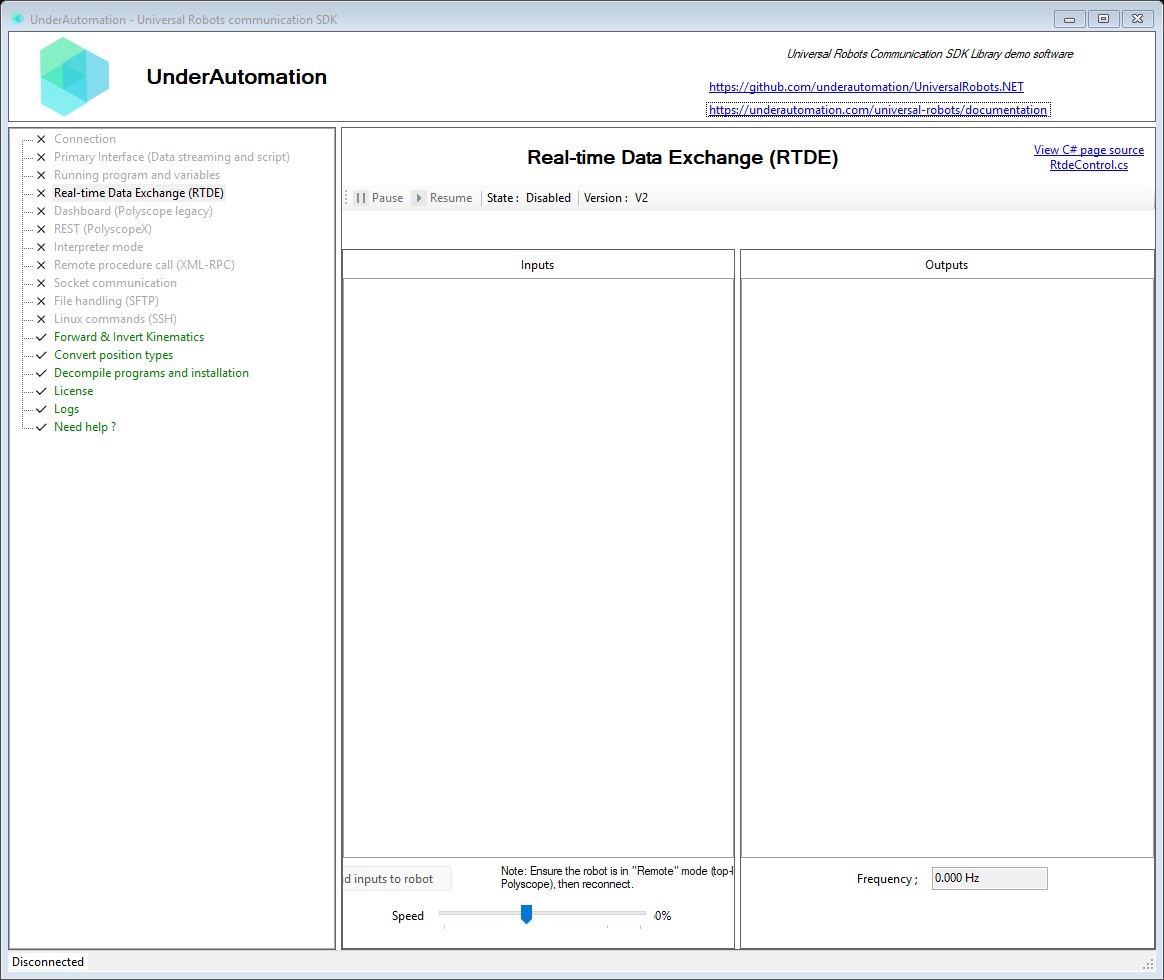
The demo application is open source. The C# source of this page is RtdeControl.cs.
What to read next
- RTDE: the setup, the frequency and the events.
- Read and write variables: the program and installation variables.