Robot report and handover pack
The robot report as a Markdown file and a PDF, made offline from the backups, the inventory and the alarm log of your PC, and the handover pack: one zip with the newest backup and the report of each robot, what the import checks and refuses.
This page explains how to make the report of a robot, as a Markdown file and a PDF, and how to give the backups and the reports of your robots to a customer or a colleague in one file, the handover pack. It applies to Fanuc and Yaskawa controllers. Both are free, and neither writes anything to a controller.
The robot report
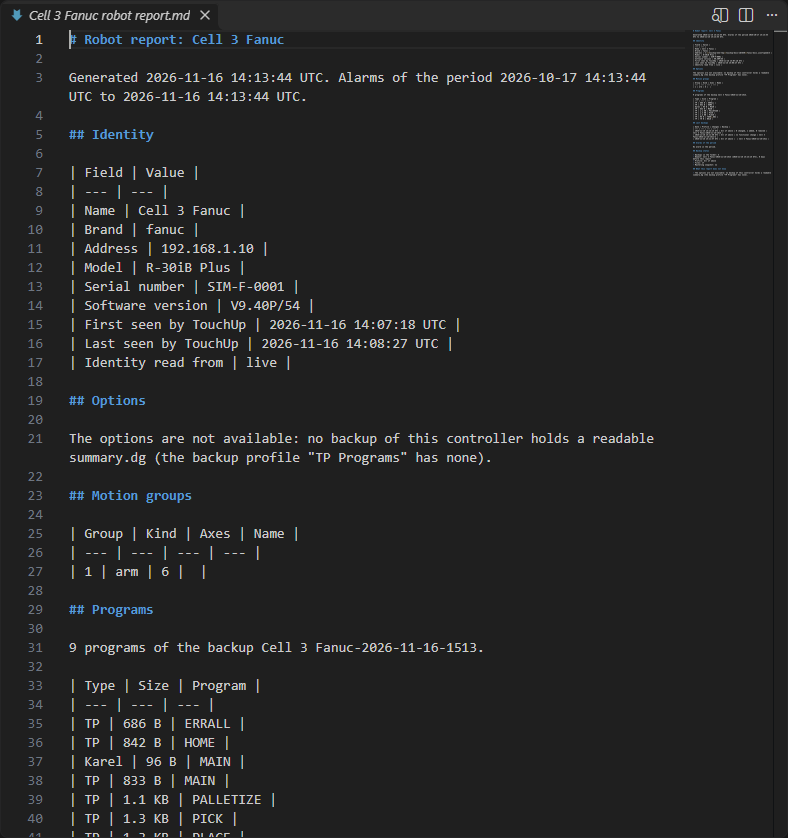
The robot report is the sheet that you give to a manager or a customer: which robot it is, what it holds, what changed and what went wrong. It is made from what TouchUp already has on your PC: the inventory, the newest backup of the controller and the alarms that TouchUp recorded. It needs no connection to the controller. A controller that is connected gives its live identity.
What the report holds
| Section | Content |
|---|---|
| Identity | Name, brand, address, model, serial number, software version, first and last time seen by TouchUp, and where the identity was read from: the live connection, the inventory or the newest backup |
| Options | The software options of the robot, with their order number |
| Motion groups | Number, kind, axes and name of each group |
| Programs | The programs of the newest backup: type, size and name |
| Last backups | The last 10 backups of the controller, with the date, the type and the changes since the previous one |
| Alarms of the period | The alarms of the last 30 days, newest first, with time, code, severity, active or cleared, and text |
| Backup status | The number of backups in the folder, the newest and its age in days, its type, its number of files, the files that the controller refused, and for a Fanuc robot whether a mastering snapshot is kept |
| What this report does not know | What is missing, in plain words |
The report never shows an empty list as if it were good news. A PC with no alarm log says "the alarms are not known", and not "no alarm". A section that TouchUp cannot fill says why. A list of more than 500 items is cut, and the report says "Showing the first 500 of N".
The options of a Fanuc robot come from the diagnostic summary file summary.dg of the newest backup that holds it. A backup of a smaller type, for example TP Programs, does not keep this file. TouchUp then reads the newest backup that has it, and the report names this backup and its date. The options of a Yaskawa robot are not given in this version, and the report says so.
Export a report
- Run
TouchUp: Export Robot Report, or right click a controller of the Controllers view, thenExport Robot Report. Without a controller selected, choose one in the list. - Choose the destination folder, then
Export here.
TouchUp looks for the backups of the controller in the remembered backup folder. When there is none, it looks in the destination folder.
It writes two files in the destination folder, from the same data, so that both say the same thing:
<controller name>-report-<date>.md, the Markdown file.<controller name>-report-<date>.pdf, the PDF.
A report of the same day does not replace the first one: the next files are named ... (2), ... (3). A name that the file system does not accept is changed, for example a name with a slash. The PDF holds Latin text and Japanese text, as the names and the comments of a Japanese controller. When the files are written, TouchUp opens the Markdown text in a read-only document and tells where the files are.
The dates of the report are in UTC, and the files are the same on every PC for the same data.
Ask an AI assistant
The AI tool robot_report gives the same data to your AI assistant, for one controller. It reads the same sources, offline, and never connects the controller. The notes of the report come with it, so that the assistant says what is not known. See AI tools and MCP server.
The handover pack
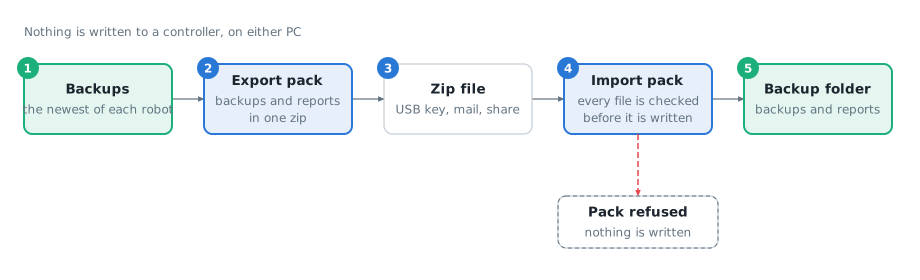
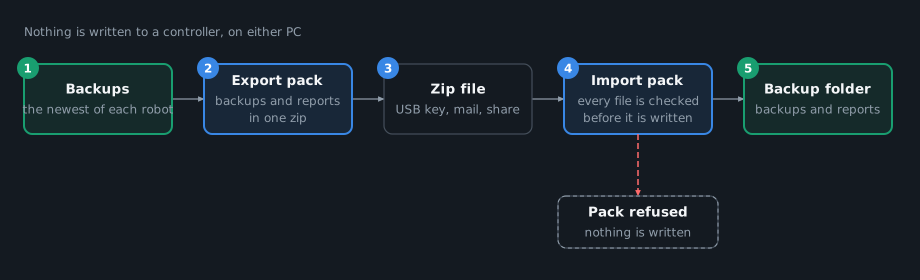
A handover pack is one zip file with the newest backup of each robot that you choose, the mastering snapshot of a Fanuc robot when the backup has one, and the report of each robot. You give it to the end customer, or to a colleague who works on the same robots on another PC.
Export a pack
- Run
TouchUp: Export Handover Pack. - Choose the folder of the backups, then
Use these backups. - Tick the robots to hand over. All robots of the folder are ticked. A robot with no backup in this folder is not in the list.
- Choose the name of the zip file. The default is
handover-<date>.zipin the folder of the backups.
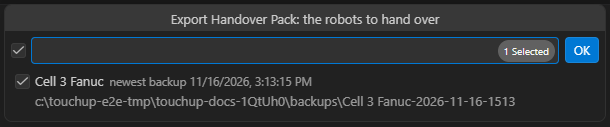
A notification shows the progress. The reports are made inside it, from the newest backup of each robot, the inventory and the alarm log, with no connection. At the end, TouchUp says where the zip is, how many robots and files it holds.
- Only reads are done. The backups and the controllers are not changed, and the zip is a new file: TouchUp never writes over an existing file.
- A file of a backup that is a link, that is missing, or that changed since the backup was taken is left out. The message counts the files left out and names the first ones.
- A robot whose report cannot be made is named in the message. The pack holds the reports of the other robots.
Import a pack
- Run
TouchUp: Import Handover Pack. - Choose the zip file.
- Choose the backup folder to import into, then
Import here.
The Backups view lists the imported backups. The message says how many were imported, how many were already there, and where the reports are.
TouchUp reads the pack as a file that it does not trust. It checks the whole zip before it writes one byte, and refuses the pack with the reason when:
- The zip is not a handover pack made by TouchUp, or it was made by a newer version of TouchUp. Update TouchUp, then import it again.
- A file of the zip is not in the list of the pack, or a file of the list is not in the zip, or a file does not have the size and the checksum of the list. The pack was changed or damaged after it was made.
- A name is not acceptable: a path that goes out of the folder, a link, a name that Windows reserves, a name with invisible or reordering characters, two names that differ only by upper and lower case.
- The pack is too big: more than 50,000 files, a file over 256 MiB once extracted, more than 2 GiB in all, or a file that expands more than 200 times, as a zip bomb does.
- A backup of the pack does not match its own
touchup-backup.json, or belongs to another controller than the pack says. - A report that is not a
.mdor a.pdffile.
When the checks pass, TouchUp extracts the pack into a hidden temporary folder, checks each file again, then renames each backup into your folder. Nothing is ever replaced:
- A backup that is already in your folder with the same content is not imported again. The message says "already there, skipped".
- A different backup with the same folder name gets the next free name:
-2,-3. - The reports go to a folder named after the zip, for example
handover-2026-11-16-reports. - When the import is cancelled, fails or is refused, your folder is as it was before.
The checks find a damaged pack and a hostile zip. They do not tell who made the pack: nothing in it is signed. Import only the packs of a source that you trust. An imported backup is a normal backup: you can compare it, read it, and, with a Pro license, restore from it like any other, with the confirmation of every write. See Back up a controller.
What to read next
- Back up a controller, to make the backups that the report and the pack use
- Compare backups and controllers, to compare an imported backup
- The format of a backup, to read a backup without TouchUp
- Alarms and logs, for the alarm log of the report