Status and status bar
The active controller in the status bar, the Status view (program and line, mode, execution, servo, speed override and alarms, live) and the Identify button that shows Hello TouchUp! on the controller.
This page explains what TouchUp shows of a connected controller, live: the status bar and the Status view. It applies to Fanuc and Yaskawa, and the values are read without any change on the controller.
The status bar
The status bar, at the bottom of the window, shows the active controller: its name, its mode, its execution state and the number of active alarms. The color changes with the state: a warning when the program is paused, an error when an alarm is active.

Click it to open the Status view, or the Alarms & Logs panel when an alarm is active.
Change the active controller or group
A small chevron button, right of the controller item, has the tooltip Change the active controller or group. Click it, or run TouchUp: Change Active Controller or Group.
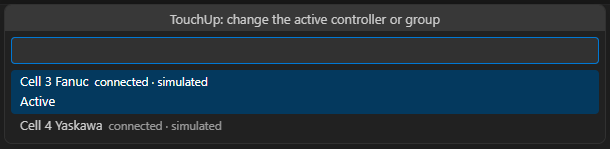
- The list shows every declared controller, with its state and its brand. The active one is marked
Active. - A controller that has several motion groups has one indented line per group under it.
- Choose a line: the controller (and the group) becomes the active one in one step.
- A controller that is not connected shows
TouchUp: <name> is not connected.and nothing changes. Connect it first.
The older command TouchUp: Select Active Controller lists the connected controllers only, then asks the group in a second list.
The Status view
TouchUp: Open Status, or a click on the status bar, opens the Status view of the active controller.
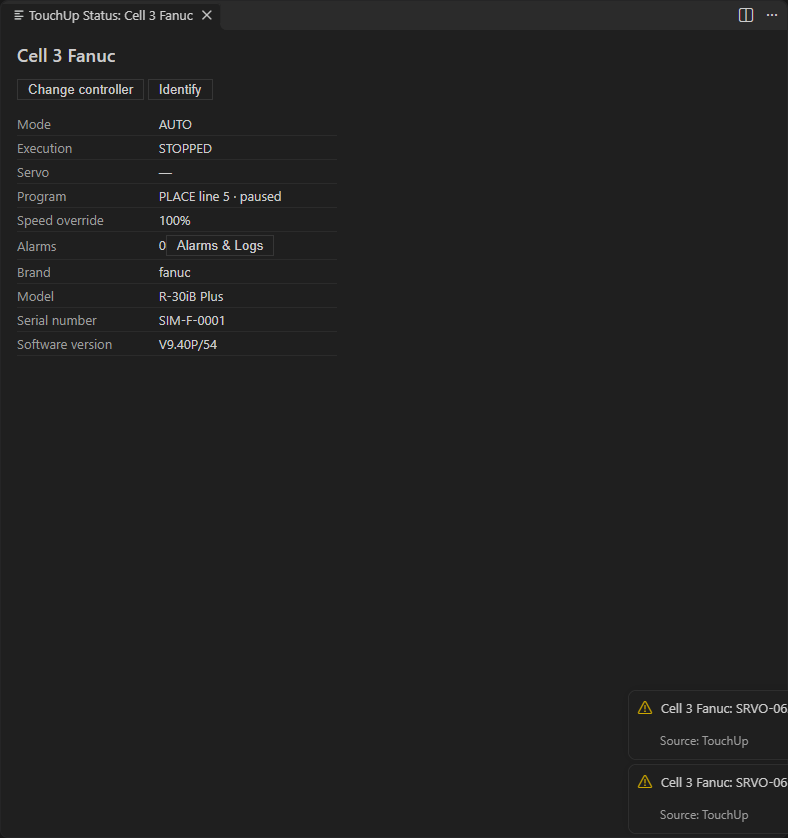
| Row | Content |
|---|---|
| Program | The program or job that runs, and its line. One row per task when several tasks run |
| Mode | The mode of the controller, for example AUTO or T1 on Fanuc, PLAY or TEACH on Yaskawa |
| Execution | Running, paused or stopped |
| Servo | Servo power on or off |
| Speed override | The general override, in percent |
| Alarms | The number of active alarms, with a link to Alarms and logs |
A value that the controller does not give is shown as unknown, never as a guess.
When no controller is connected, the view says "No controller is connected. Connect one in the Controllers view, then select it here."
Identify the controller
The Identify button of the Status view, or TouchUp: Identify Controller, shows the message "Hello TouchUp!" on the display of the controller (the teach pendant). Use it to check that the controller on screen is the one in front of you. It is free, it changes nothing on the controller, and TouchUp sends it only when you click.
When the controller cannot show a message, the button is grayed out and the page says why. The real Fanuc and Yaskawa controllers do not offer this display function yet. The Status view of a simulated controller has it enabled. The guide that adds a controller has the same check on its last page, see Connect to your first controller.
How often the values change
By default the status is refreshed every second, the alarms every 2 seconds and the tasks every second. You can change these periods, see How often TouchUp reads a controller. Reading never changes the controller: it is free, and it works in every mode.