Toolbox
The instructions of the TP or INFORM language by category, a search, an insert at the cursor, on the right line, with its tab stops, and your own catalog laid over the shipped one.
This page explains the Toolbox, a view that lists the instructions of the language you are editing and inserts one at the cursor. It works for Fanuc TP programs (.ls, catalog of the R-30iB Plus) and Yaskawa INFORM jobs (.jbi, catalog of the YRC1000 and YRC1000micro). Nothing needs a license or a connection.
Open the Toolbox
The Toolbox is in the TouchUp activity bar, under the Controllers and Watch views and above the Backups view. It is closed at the first start, and it opens by itself, once, each time you open a Fanuc TP program or a Yaskawa INFORM job while the TouchUp side bar is shown. The focus stays in the editor.
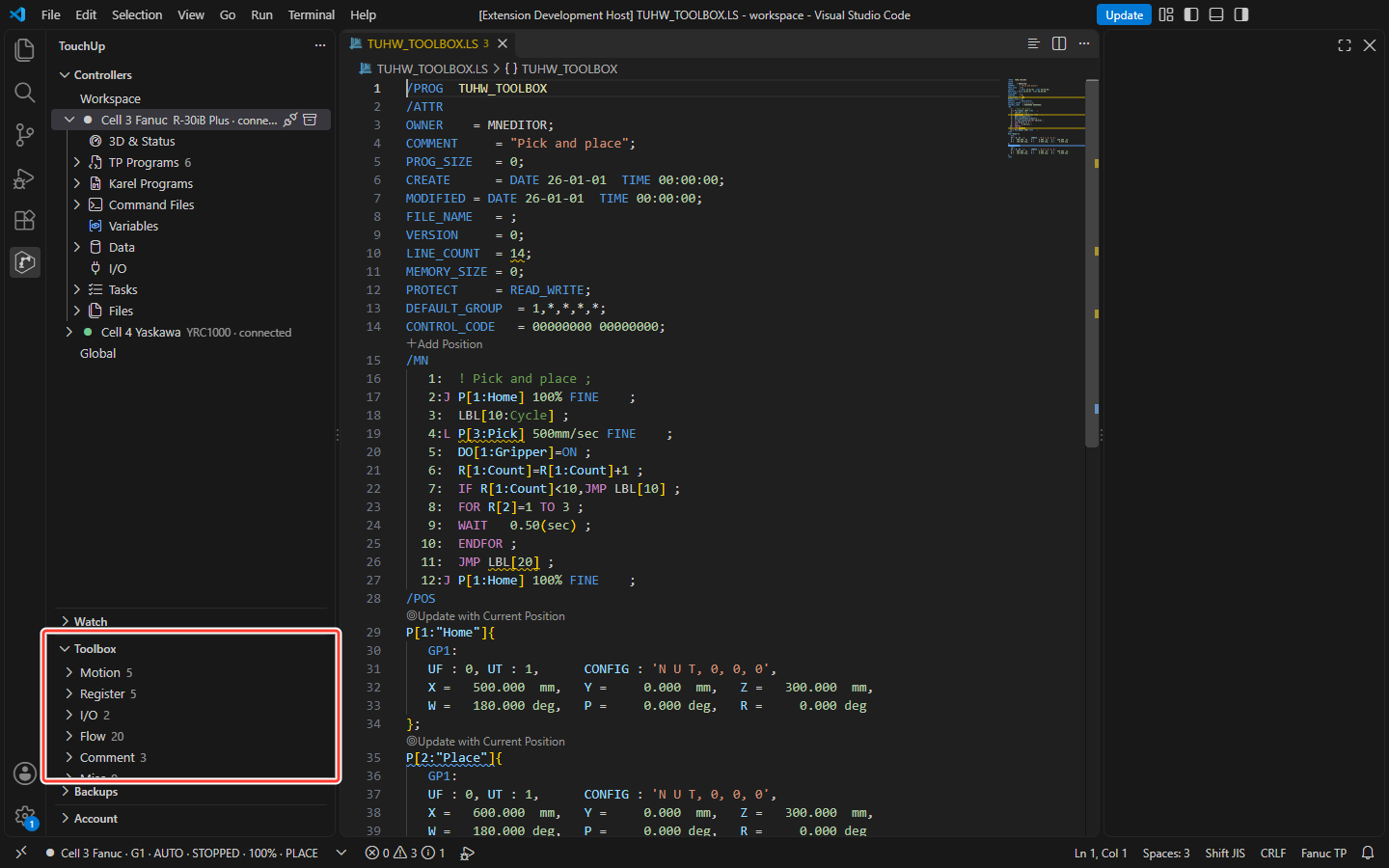
The Toolbox follows the active editor: open a .ls or a .jbi file and the tree shows the instructions of its language. With another file, or no file, the view is empty and asks you to open a TP or an INFORM file.
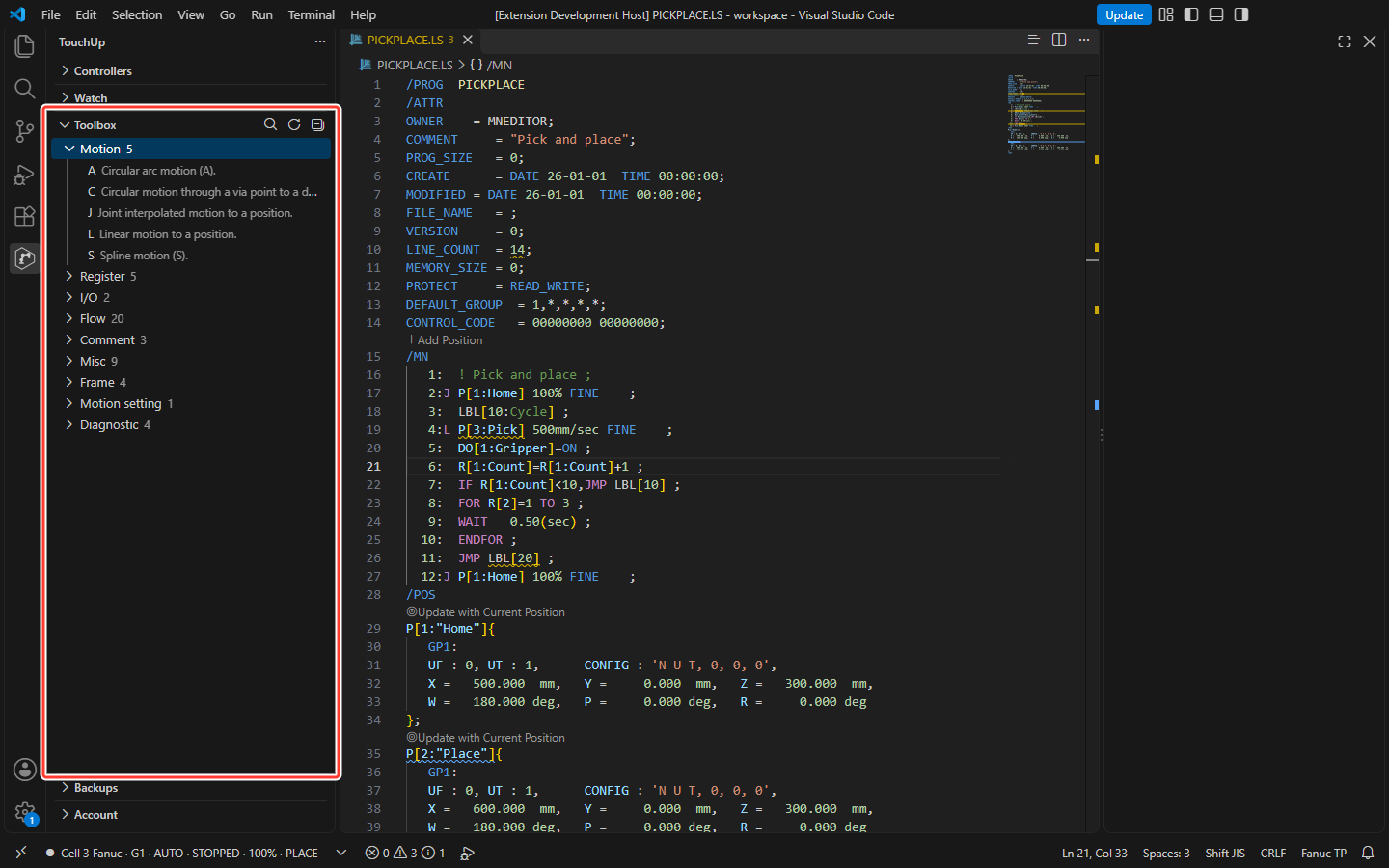
The tree has one node per category (motion, I/O, flow...) with its count. The instructions of a category are sorted by name, with their summary. Put the mouse on one to see its syntax, its summary, its first example and what it requires.
The Toolbox lists the same instructions as the completion, see Edit a program. It leaves out the motion options and the attributes of a TP program, and the words that are written inside another instruction. When the catalog says that an instruction is not available on the generation of your controller, the Toolbox hides it. The generation is the setting touchup.catalog.fanuc.generation or touchup.catalog.yaskawa.generation. A generation that the catalog does not know hides nothing.
Search
Click the magnifier in the title of the view, then type words. An instruction matches when every word is in its name (the Japanese keyword of a TP instruction counts), in its summary or in its category, whatever the case. The categories open, the view shows Search: <words>, and a button with a cross clears the search.
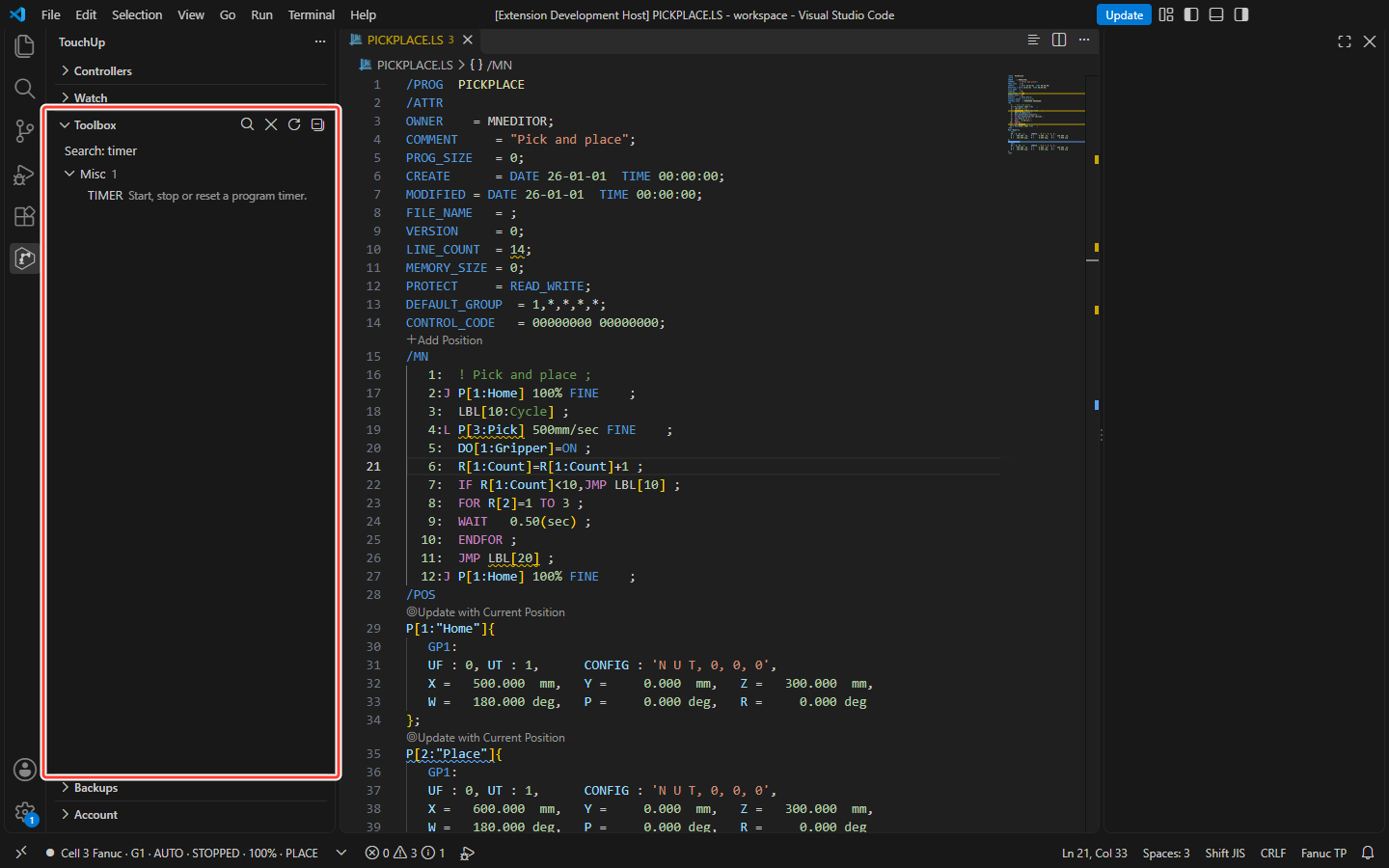
Escape keeps the search. An empty text clears it.
Insert an instruction
Click an instruction, or use the + button of its row, or Insert Instruction in its context menu. TouchUp inserts it at the cursor of the active editor, then puts the focus back in the editor. The tab stops of the instruction are ready: type the value, press Tab for the next one. A tab stop can offer a choice, for example FINE or CNT100.
Where the instruction goes
The place depends on the line of the cursor, for a TP program and for an INFORM job:
- The line is empty (in a TP program: it has only its number): the instruction goes on this line.
- The line has something else: the instruction goes on a new line under it. In a TP program, the new line takes the next number, with the colon in the same column. In a job, it takes the indentation of the line of the cursor.
- The cursor is outside the program lines (in a TP program, outside
/MN; in a job, outsideNOP...END): the instruction is added at the end of the program, before/POSor beforeEND.
After a selection of several lines, only the first line counts. The lines under a TP instruction are renumbered at once and LINE_COUNT follows, as when you type: see Edit a program.
In a TP program, a block instruction (IF ... THEN, FOR, SELECT) is inserted with its numbered lines. A statement that continues on the next line, without its ;, is not recognized as such: the instruction goes under it.
INFORM instructions are inserted as the catalog gives them.
TouchUp refuses, with a warning and without any change, when the active editor is not a TP or an INFORM file, when it is read-only, or when the instruction is not in the catalog of its language.
The insert only changes the text of the open file. Nothing goes to the controller until you save a file of a controller, and that save is a write, with its confirmation: see Send a file to the controller.
Your own catalog
The setting touchup.catalogs.local is a list of catalog files (JSON, the same format as the catalogs of TouchUp). A relative path is read from the workspace folder.
For the Toolbox, a file that holds instructions of the same brand is laid over the catalog of TouchUp:
- an instruction with the same id replaces the one of TouchUp,
- the other instructions are added, and a new category is a new node.
A valid file of another brand, or a catalog of parameters, is ignored without a message. A file that cannot be read gives one warning, "the local catalog ... is not used by the Toolbox", and is skipped. The Toolbox reads the files again when the setting or the workspace folder changes, and when you click the refresh button of the view.
Hover and completion do not read your catalog: they keep the catalog of TouchUp. The same setting also gives your names to the table of a parameter file, see Parameter and variable files.