Files and backup
List, download, upload and delete the job and data files of a Yaskawa controller, and download its CMOS backup.
This page shows how to transfer files between a PC and a Yaskawa Motoman controller with the SDK: list, download, upload and delete jobs and data files, and download the CMOS backup. The file transfers use the UDP port 10041 of the High Speed Ethernet Server.
List the files
GetFileList(pattern) lists the files whose name matches a pattern with *.
var robot = new YaskawaRobot();robot.Connect("192.168.0.1");// Job filesstring[] jobs = robot.HighSpeedEServer.GetFileList("*.JBI").Files;// Variable data and condition filesstring[] dat = robot.HighSpeedEServer.GetFileList("*.DAT").Files;string[] cnd = robot.HighSpeedEServer.GetFileList("*.CND").Files;foreach (string file in jobs)Console.WriteLine(file);robot.Disconnect();}
| Pattern | Files |
|---|---|
*.JBI | Jobs |
*.DAT | Data files, for example the variables |
*.CND | Condition files |
*.PRM | Parameter files |
Download a file
GetFile(name) downloads a file. Content is the text of the file, ContentRaw its bytes. The optional callback gives the progress of large files.
var robot = new YaskawaRobot();robot.Connect("192.168.0.1");// Download a file, with an optional progress callbackRobotFileContentData file = robot.HighSpeedEServer.GetFile("WELD01.JBI", progress =>{Console.WriteLine($"{progress.FileName}: {progress.DownloadedBytes} bytes");});// Text content, and the raw bytes for a binary fileFile.WriteAllText("WELD01.JBI", file.Content);File.WriteAllBytes("WELD01.copy.JBI", file.ContentRaw);robot.Disconnect();}
Upload a file
LoadFile(name, content) sends a text file to the controller. A job sent this way appears in the job list of the controller, ready to select.
var robot = new YaskawaRobot();robot.Connect("192.168.0.1");string content = File.ReadAllText("WELD01.JBI");// Send the file to the controller, with an optional progress callbackrobot.HighSpeedEServer.LoadFile("WELD01.JBI", content, progress =>{Console.WriteLine($"{progress.LoadedBytes} / {progress.TotalBytes} bytes");});robot.Disconnect();}
- To replace a file that exists on the controller, the parameters
RS029andRS214must be1. See Connect to your robot. - The controller checks the syntax of a job when it receives it. A job with an error is refused, with the reason in the message of the
InvalidDataAnswerException.
Delete a file
DeleteFile(name) deletes a file of the controller. There is no undo: download the file first if you may need it.
var robot = new YaskawaRobot();robot.Connect("192.168.0.1");// Delete a job file of the controller. There is no undorobot.HighSpeedEServer.DeleteFile("WELD01.JBI");robot.Disconnect();}
CMOS backup
BatchDataBackup() makes the controller write its CMOS backup (jobs, parameters, settings) to /SPDRV/CMOSBK.BIN. Then GetFile downloads it.
var robot = new YaskawaRobot();robot.Connect("192.168.0.1");// Ask the controller to write its CMOS backup to /SPDRV/CMOSBK.BIN.// It takes several secondsrobot.HighSpeedEServer.BatchDataBackup();// Download the backup as binaryRobotFileContentData backup = robot.HighSpeedEServer.GetFile("/SPDRV/CMOSBK.BIN");File.WriteAllBytes("CMOSBK.BIN", backup.ContentRaw);robot.Disconnect();}
- The backup takes several seconds. While it runs, a download of the file fails with an
InvalidDataAnswerException: wait and try again. - The command needs the automatic backup function with the RAM disk as device. In management mode, select
SETUP>AUTO BACKUP SETand setDEVICEtoRAMDISK. If this menu is missing, start the controller in maintenance mode and setAUTOBACKUPtoUSEDinSYSTEM>SETUP>OPTION FUNCTION.
Timeouts
The file transfers wait FileTimeoutMilliseconds (4000 ms by default) for each answer of the controller. Increase it if large files fail on a slow network. See Connect to your robot.
Try it in the demo application
Everything on this page can be tried without writing code, in the Files page of the demo application.
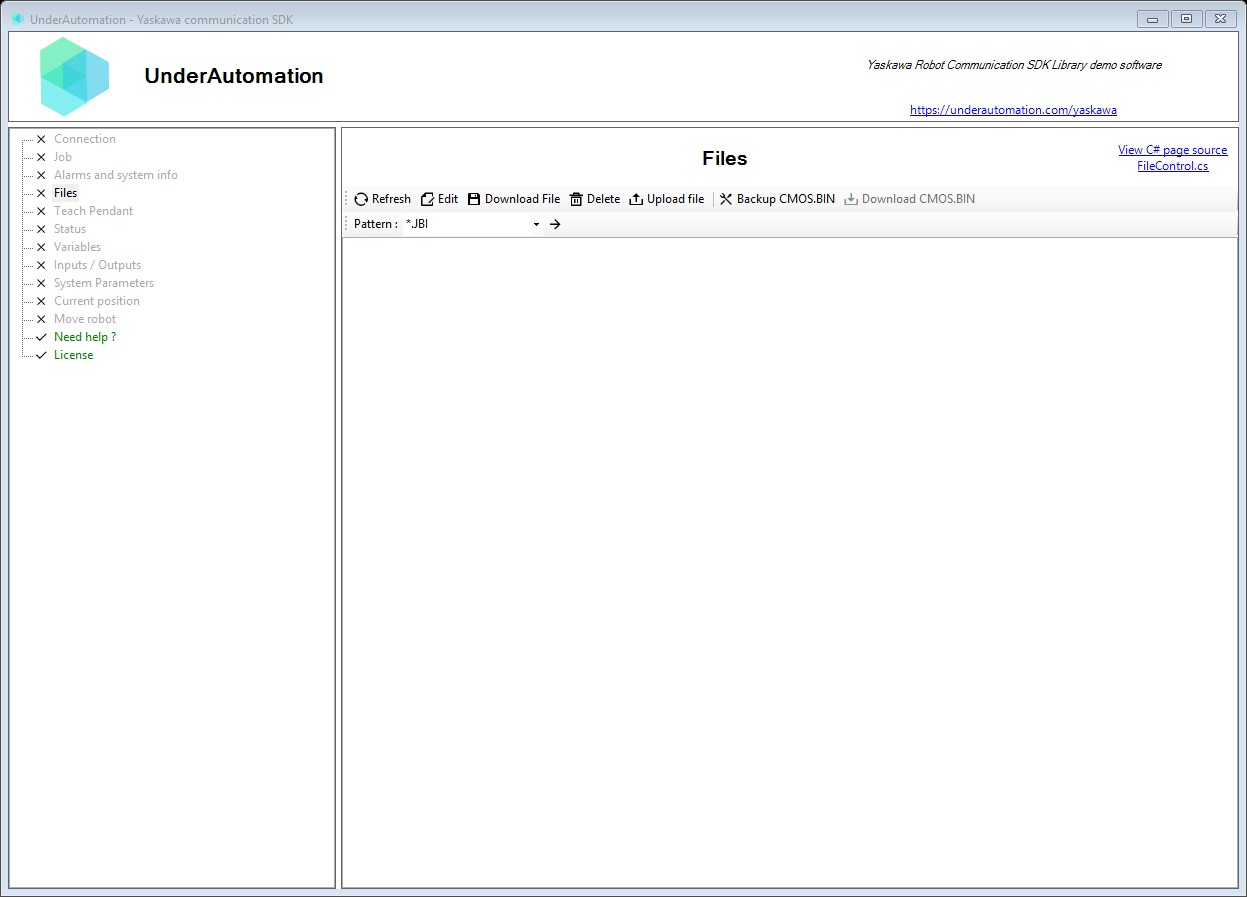
The demo application is open source. The C# source of this page is FileControl.cs.
Reference
Methods of HighSpeedEServerClientBase :// Performs a backup of the robot's CMOS. The CMOS.BIN file is copied locally in the robot controller to "/SPDRC/CMOSBK.BIN". The operation can take several seconds to complete. After this command, the backup file can be downloaded using GetFile("/SPDRC/CMOSBK.BIN"). To enable this command : in "MANAGEMENT MODE", select {SETUP} - {AUTO BACKUP SET} and set "DEVICE" to "RAMDISK". If this menu is not available, Reboot the controller in Maintenance Mode and set System / Setup / OPTION FUNCTION / AUTOBACKUP to "Used", then do a "Safety board flash reset" from File / InitializeRobotDataHeader BatchDataBackup(string file = "/SPDRV/CMOSBK.BIN");// Deletes a file from the robot controller's file system. Use with caution as deleted files cannot be recovered.RobotDataHeader DeleteFile(string name);// Downloads (saves) a file from the robot controller to the PC. Large files are received in multiple blocks and automatically reassembled. Special use case : to download CMOS.BIN, first perform a CMOS backup using BatchDataBackup, then use GetFile with the backup file path.RobotFileContentData GetFile(string name, HighSpeedEServerClientBase.GetFileProgressDelegate onGetFileProgress = null);// Retrieves a list of files matching a pattern from the robot controller. Supports wildcards for matching multiple files.RobotFileListData GetFileList(string pattern);// Uploads (loads) a file from the PC to the robot controller. Large files are automatically split into 479-byte chunks for transmission.RobotDataHeader[] LoadFile(string name, string content, HighSpeedEServerClientBase.LoadFileProgressDelegate onLoadFileProgress = null);
Contains the result of a file listing operation on the robot controller. Returns an array of file names matching the specified pattern.
| Member | Type | Description |
|---|---|---|
Files Property read only | string[] | Gets the array of file names returned by the listing operation. File names include extensions (e.g., "MYJOB.JBI", "SYSTEM.SYS"). |
Headers Property read only | List<RobotDataHeader> | Gets the list of response headers from multi-block transfers. File listings may span multiple UDP packets for large directories. |
Contains the content of a file downloaded from the robot controller. Provides methods for parsing structured file content such as job files and parameter files.
| Member | Type | Description |
|---|---|---|
Content Property read only | string | Gets the text content of the downloaded file. |
ContentRaw Property read only | byte[] | Gets the text content of the downloaded file. |
FileName Property read only | string | Gets the name of the downloaded file. |
Headers Property read only | List<RobotDataHeader> | Gets the list of response headers from multi-block transfers. Large files are transferred in multiple UDP packets. |
GetParam(string, int, int) Method | int | Extracts an integer parameter value from a structured file section. Useful for reading values from parameter files and job data.
|
Contains progress information for file upload (LoadFile) operations. Used with the LoadFileProgressDelegate callback to track upload progress.
| Member | Type | Description |
|---|---|---|
Completed Property read only | bool | Gets whether the file upload has completed successfully. |
FileName Property read only | string | Gets the name of the file being uploaded. |
LoadedBytes Property read only | int | Gets the number of bytes uploaded so far. |
TotalBytes Property read only | int | Gets the total size of the file in bytes. |
Contains progress information for file download (GetFile) operations. Used with the GetFileProgressDelegate callback to track download progress.
| Member | Type | Description |
|---|---|---|
Completed Property read only | bool | Gets whether the file download has completed successfully. |
DownloadedBytes Property read only | int | Gets the number of bytes downloaded so far. |
FileName Property read only | string | Gets the name of the file being downloaded. |