Jobs
List the jobs of a Yaskawa controller, select a job and start it, hold it, and read the executing job, its line and the call stack of each task.
This page shows how to run the jobs of a Yaskawa Motoman controller from a PC with the SDK: list them, select one, start it, hold it, and follow its execution. A job is a program of the controller, written in INFORM.
List the jobs
The jobs are .JBI files of the controller. GetFileList("*.JBI") gives their names.
var robot = new YaskawaRobot();robot.Connect("192.168.0.1");// Job files of the controller, for example "WELD01.JBI"string[] files = robot.HighSpeedEServer.GetFileList("*.JBI").Files;foreach (string file in files)Console.WriteLine(Path.GetFileNameWithoutExtension(file));robot.Disconnect();}
Select and start a job
SelectJob(name, line) selects a job and the line to start from. StartJob() starts the selected job.
var robot = new YaskawaRobot();robot.Connect("192.168.0.1");// Select the job by its name, without the .JBI extension, at line 0robot.HighSpeedEServer.SelectJob("WELD01", 0);// Starting needs the play mode, the remote mode and the servo onrobot.HighSpeedEServer.SetServo(true);robot.HighSpeedEServer.StartJob();robot.Disconnect();}
- The name is the name of the job, without the
.JBIextension. - The line
0is the start of the job. - Starting needs the play mode, the remote mode and the servo power. Selecting needs the setting
JOB SELECT WHEN REMOTE AND PLAY. See Connect to your robot. - The cycle mode (step, one cycle, continuous) decides what happens at the end of the job: see Status and servo.
Hold and restart
A hold stops the robot on its path and keeps the servo power. After the hold is released, StartJob() continues the job from the current line.
var robot = new YaskawaRobot();robot.Connect("192.168.0.1");// Hold the job: the robot stops on its path and keeps the servo powerrobot.HighSpeedEServer.SetHold(true);// Release the hold, then start again from the current linerobot.HighSpeedEServer.SetHold(false);robot.HighSpeedEServer.StartJob();robot.Disconnect();}
Follow the execution
GetExecutingJobInformation() reads the name of the executing job, its line, its step and the speed override. GetJobStack(task) reads the call stack of a task: the master job first, then each job called with CALL.
var robot = new YaskawaRobot();robot.Connect("192.168.0.1");// Job that the controller executes, with its line and stepRobotJobData job = robot.HighSpeedEServer.GetExecutingJobInformation();Console.WriteLine($"{job.Name}, line {job.Line}, step {job.Step}, speed override {job.SpeedOverride} %");// Call stack of the master task: the outermost job firstRobotJobStackData stack = robot.HighSpeedEServer.GetJobStack(0);Console.WriteLine(string.Join(" > ", stack.Jobs));// Call stack of the sub task 1RobotJobStackData sub1 = robot.HighSpeedEServer.GetJobStack(1);robot.Disconnect();}
Argument of GetJobStack | Task |
|---|---|
0 | Master task |
1 to 15 | Sub tasks |
To know when a job ends, read GetStatusInformation().Running in a loop: see Run a job.
Send a job to the controller
A job written or changed on the PC is sent as a file: see Files and backup. Then select it and start it as above.
Try it in the demo application
Everything on this page can be tried without writing code, in the Job page of the demo application.
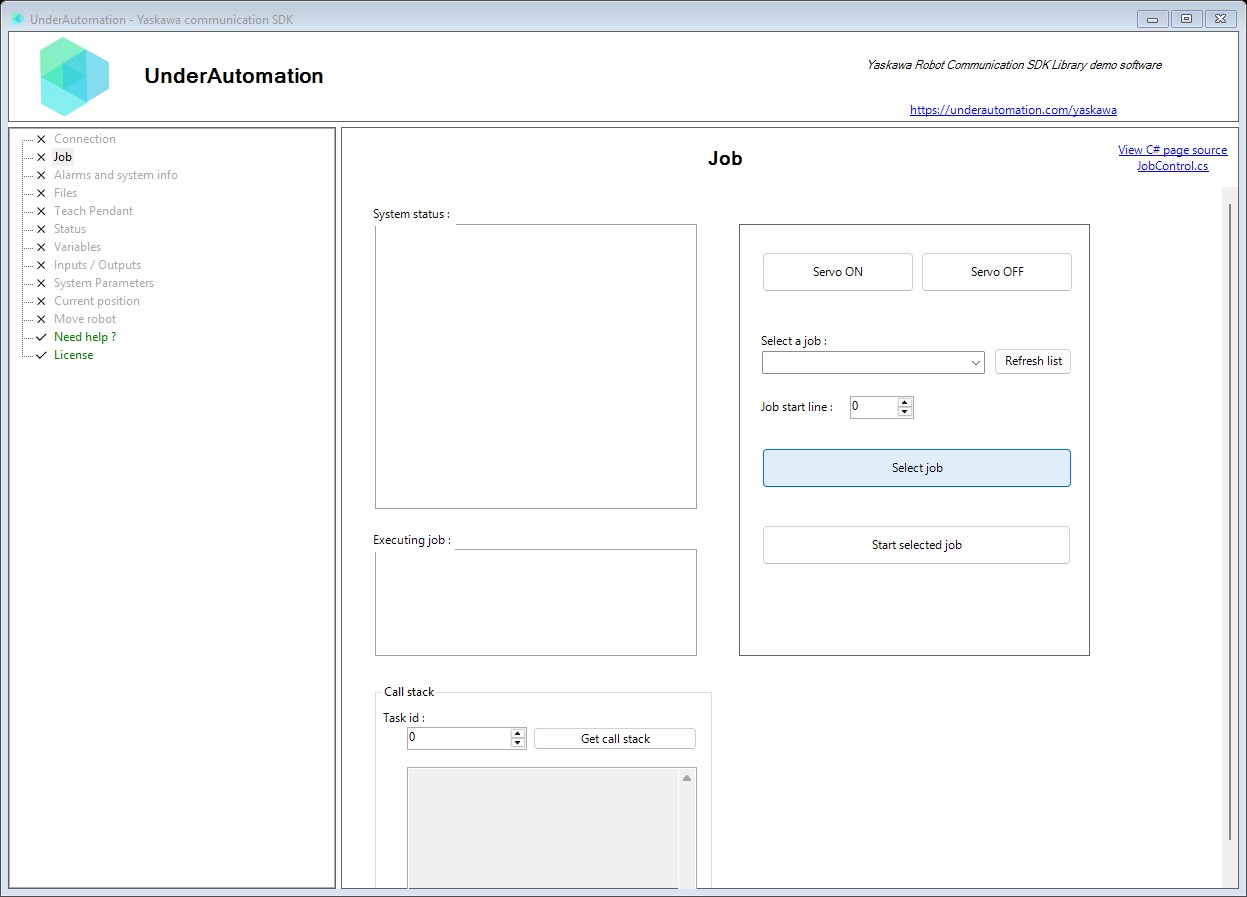
The demo application is open source. The C# source of this page is JobControl.cs.
Reference
Methods of HighSpeedEServerClientBase :// Reads information about the currently selected and executing job (program). Returns job name, current line, step, and speed override percentage.RobotJobData GetExecutingJobInformation();// Reads the job call stack for a specific task on the robot controller. Returns the current nesting of CALL instructions, from the outermost job to the currently executing one.RobotJobStackData GetJobStack(int taskNumber = 0);// Selects a job for execution and optionally positions to a specific line. Call StartJob after selecting to begin execution.RobotDataHeader SelectJob(string job, int line);// Starts execution of the currently selected job. The job must be selected first using SelectJob before calling this method. Servo must be ON and the robot must not be in alarm state.RobotDataHeader StartJob();
Contains information about the currently executing job (program) on the robot controller. Retrieved using the executing job information reading command.
| Member | Type | Description |
|---|---|---|
Line Property read only | int | Gets the current line number being executed within the job. Line numbers are 1-based and correspond to the job listing. |
Name Property read only | string | Gets the name of the currently selected/executing job. Job names can be up to 32 characters. Returns empty string if no job is selected. |
SpeedOverride Property read only | double | Gets the current speed override percentage (0-100). This is the global speed multiplier applied to all motions. |
Step Property read only | int | Gets the current step number within the job. Step numbers track the execution progress through motion instructions. |
Contains the job call stack for a specific task on the robot controller. Represents the current nesting of CALL instructions, from the outermost job to the currently executing one. Only supported on DX200 (AY/BY/YN) controllers.
| Member | Type | Description |
|---|---|---|
Jobs Property read only | string[] | Gets the job names in the call stack, outermost first. The first entry is the root job, the last entry is the currently executing job. Empty if no nested calls are active. |