Back up a controller
One click backup of a Fanuc or Yaskawa controller into the folder of your choice or of your workspace, one subfolder per backup, with the changes since the last one, the three file lists of a controller, the restore of one file, the copy of files to another robot of the same brand with the robot-specific files left out, the commit to Git and the mastering values of a Fanuc robot.
- Back up a controller
- Choose the type of backup
- Fanuc image backup
- SYSTEM.SYS of a Yaskawa controller
- CMOS backup of a Yaskawa controller
- Where to save
- The backup folder
- Choose the files of a backup
- The patterns
- The Backups view
- Open the I/O panel of a backup
- Restore one file from a backup
- Copy files to another robot
- Files that belong to one robot
- The confirmation
- What TouchUp checks before it sends
- Commit the backup to Git
- Push
- Mastering of a Fanuc robot
- What to read next
This page explains how to back up a Fanuc or Yaskawa controller with TouchUp, where the backup is written and what it contains. A backup only reads the controller: it is free. Restoring a file from a backup, or copying files to another robot, is a write.
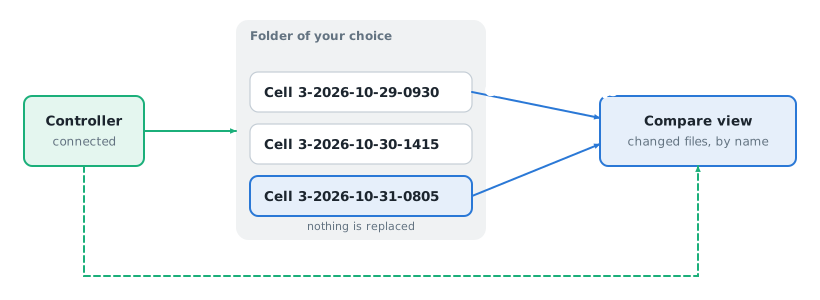
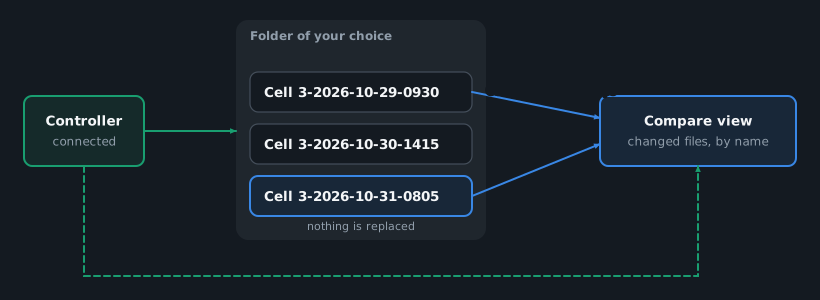
Back up a controller
- Connect to the controller.
- Right click it in the Controllers view, then
Back Up Now, or runTouchUp: Back Up Now. - Choose where to save, in a list (see below).
Back Up Now saves the type of backup of the controller (see Choose the type of backup): all the files of the brand, unless you chose another type. A Yaskawa controller can also give its CMOS backup, see CMOS backup of a Yaskawa controller.
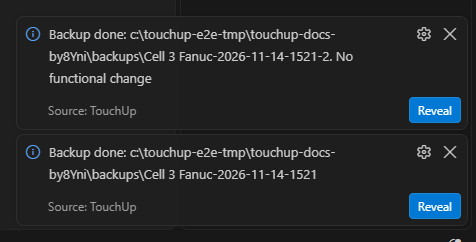
A notification shows the progress, with a Cancel button. At the end, it gives the path of the backup, and the number of files changed, added and removed since the previous backup of this controller. Reveal opens the folder. For a Fanuc controller, the message ends with "This is not an image backup: it cannot restore a dead controller". See Fanuc image backup.
Choose the type of backup
A type of backup is a list of files. The names are the ones that the pendant of the brand shows. Without a choice, a backup takes the first type of the list, which has all the files described in Choose the files of a backup.
| Brand | Types |
|---|---|
| Fanuc | All of above (default), TP Programs, System files, Application, Error log |
| Yaskawa | All data (default), JOB, JOB and FILE/GENERAL DATA, PARAMETER, I/O DATA, SYSTEM DATA |
What each type takes:
- Fanuc
TP Programs: the programs (*.TP,*.LS,*.DF,*.MN). The*.LSlistings are there so that TouchUp can compare the programs. - Fanuc
System files: the system variables, the frames, the registers and the I/O configuration (SYS*.SV,SYS*.VA,FRAMEVAR.*,NUMREG.*,POSREG.*,DIOCFGSV.*). They belong to this robot. - Fanuc
Application:*.DT,*.STM,*.HTM,*.XMLand*.TX. The*.GIFand*.JPGfiles are not taken. - Fanuc
Error log:ERR*.LSandHIST*.LS, to send to support. - Yaskawa
JOB: the jobs (*.JBI).JOB and FILE/GENERAL DATA: the jobs, the conditions and the data that you can move to another robot.PARAMETER,I/O DATAandSYSTEM DATAbelong to this robot.
To choose the type:
- For one backup: right click a connected controller, then
Back Up (choose type)..., or runTouchUp: Back Up (choose type).... The list shows the types of the brand. The default is markeddefault, and the type thatBack Up Nowuses is markedBack Up Now uses it. Then TouchUp asks the folder, as above. - For
Back Up Now: runTouchUp: Edit File Lists. The first entry,Type of Back Up Now, lists the types. The choice is saved in the configuration file of the controller, with the lists below.
The three file lists below apply on top of the type: Files never backed up always removes files, and Files to back up replaces the files of the type.
The Backups view and the messages of a failed backup give the type of each backup, for example "TP Programs, 12 files".
Fanuc image backup
The pendant of a Fanuc controller can make an image backup (FROM and SRAM). TouchUp cannot: it copies the files, which is enough to compare, to read the programs and to restore one file. A backup of TouchUp does not restore a dead controller. The message at the end of a Fanuc backup and the tooltip of the Backups view say it.
SYSTEM.SYS of a Yaskawa controller
A Yaskawa backup saves SYSTEM.SYS, in All data and in SYSTEM DATA. TouchUp never sends this file to a controller: a restore, a copy to another robot, a send and a delete refuse it. It belongs to the robot it comes from.
CMOS backup of a Yaskawa controller
The CMOS backup is the complete image of the memory of a Yaskawa controller, the file CMOSBK.BIN. It is the backup that you restore at the pendant when a controller is replaced or lost. TouchUp takes it remotely, with the other files. It is an extra of any type of backup, and it is off by default.
- For one backup:
Back Up (choose type)..., then choose the type, thenInclude the CMOS backup. - For
Back Up Now: runTouchUp: Edit File Lists, chooseCMOS backup with Back Up Now, thenOn.Offgoes back to the default.
Before it starts, TouchUp shows a confirmation with Back Up: the CMOS backup runs after the text files, it takes about ten minutes, and the controller needs the automatic backup with RAMDISK as device (parameter RS004 = 21). While this device is selected, the controller does not make its automatic backup to the SD card. TouchUp never changes a setting of the controller: set RS004 at the pendant before you ask for the CMOS backup.
The text files are saved first, so that a problem with the image keeps them:
- The image is saved in the subfolder
binaryof the backup, asbinary/CMOSBK.BIN. Its hash is intouchup-backup.json. TouchUp compares it by its hash only, not by its content. Cancelstops the wait of TouchUp, not the controller: it keeps working on the image. The text backup is kept.- The controller can refuse: the robot is running, another backup is in progress, or
RAMDISKis not the device. The text backup is kept, and the message says why and what to do. - TouchUp waits 15 minutes at most. After that, or if the link to the controller is lost, the text backup is kept and the message says why.
At the end, the message says "CMOS backup saved". The Backups view shows + CMOS after the type, for example "All data + CMOS, 12 files". Restore the image at the pendant, never from TouchUp.
Where to save
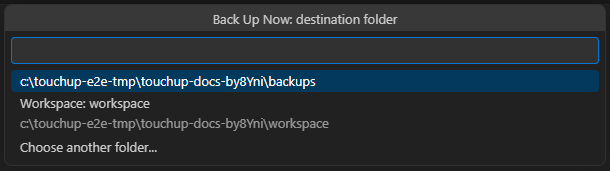
Back Up Now asks for the destination in a list:
- the last folder used, when it still exists;
- one entry per folder of the open workspace, named
Workspace: <name>with its path below. Choose it to keep the backups in Git with your project; Choose another folder..., to pick any other folder.
A workspace folder that is also the last folder is listed once. Without an open workspace, the list has the last folder and Choose another folder... only. In the web application, the folders are those of the PC that runs the application.
The backup folder
In the chosen folder, TouchUp creates one subfolder per backup, named after the controller, the date and the local time, for example Cell 3-2026-10-31-0805. Nothing is replaced: the history of a robot is the list of its subfolders.
Any folder of the PC can be chosen: a network share, a folder synchronized by your company, a Git repository. No open folder and no workspace are needed. TouchUp remembers the last folder in ~/.touchup/config.json.
Each backup holds a file touchup-backup.json that describes it: the controller, the date, the TouchUp version and the list of files. The format is public, so that a script can read a backup without TouchUp: see The format of a backup.
In the web application, the folder is on the PC that runs the application, not on the PC of the browser.
Choose the files of a backup
By default, a backup takes the files that TouchUp knows for the brand: every file of the MD: device of a Fanuc controller (without the *.tmp files), and the jobs, data, conditions, parameters and lists of a Yaskawa controller (*.JBI, *.DAT, *.CND, *.PRM, *.LST). Three lists change this for one controller.
| List | What it does |
|---|---|
| Files to back up | Replaces the default list: only the files that match one of the patterns are backed up |
| Files never backed up | Added to what the brand never backs up. It wins over the files to back up |
| Files hidden from the compare | The files are still backed up, but they are not listed in the compare, in its summary, in the check for a change of a new backup, nor in the message of a Git commit |
An empty list means the default. The third list never removes a file from the backup: use it for a file that changes at each backup, for example a log, and that you do not want to see as a change.
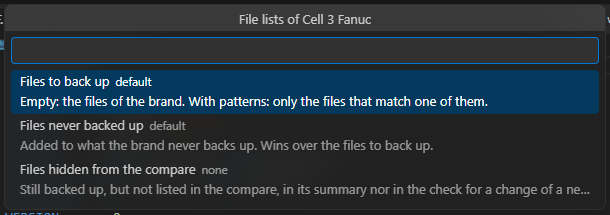
Run TouchUp: Edit File Lists, or right click the controller in the Controllers view, then choose the list. For each list you can add a pattern, remove patterns, or go back to the default. Escape goes up one level. The command is free and sends nothing to the controller. Each change is saved at once in the configuration file of the controller: the nearest .touchup/config.json that declares it, see Controllers and configuration files.
The patterns
One rule for the three lists:
*stands for any text,?for one character. The case does not matter.- A pattern without
/matches the name of the file, in any folder:*.dg,TEMP*.JBI. - A pattern with
/matches the whole path as the controller has it. The first/is optional:/MD/LOG/*on a Fanuc controller,JOB/TEMP*on a Yaskawa controller. - The list of the compare also accepts the path as the Compare view shows it.
TouchUp refuses an empty pattern, a pattern of more than 200 characters, a pattern with \, : or .., and an empty folder name (//), and says why in the input box. A list holds 100 patterns at most. A duplicate is not added.
The compare of a controller with its last backup uses the same lists to choose the files that it reads from the controller: a file that you excluded is not reported as added.
The Backups view
The Backups view, under the Controllers view, lists the backups of the remembered folder. Right click a backup to compare it with another one (Compare with...) or to open its folder (Reveal in File Explorer). For a Yaskawa backup, Open I/O Panel opens its signals, see below.
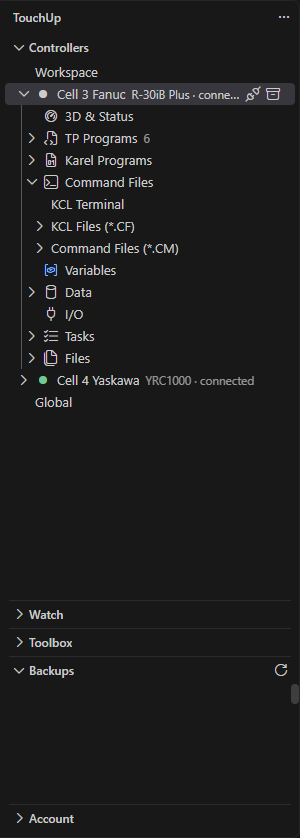
Each line gives the type of the backup, + CMOS when it holds the CMOS backup of a Yaskawa controller, then its number of files. A backup made before the types existed shows no type.
Before the first backup, the view says "No backup yet. Back up a controller to see its backups here.", with the button Back Up Now.
Open the I/O panel of a backup
Right click a backup in the Backups view, then Open I/O Panel, to see the I/O signals of a Yaskawa controller without a connection. A backup counts as a Yaskawa backup when its files hold a job, a .PRM parameter file or CIOPRG.LST. For a backup of another brand, TouchUp says that the I/O panel of a backup is for a Yaskawa controller.
The panel is the table of the Yaskawa I/O panel: filters, search, sort, and one line per channel. Its title gives the controller and the date of the backup, and a backup opens in its own panel.
- It shows the names of the I/O signal catalog, the logical names and the classification, without a value, and the registers
M000toM999after the relays. TouchUp reads nothing from a controller. - The column
User namegives the names that you gave to the general purpose signals on the controller. They come fromIONAME.DATin the backup, read only. A backup without that file has no user names. - The search of a backup looks in the user names too: search a name, for example
GRIPPER, to find its signal. The search of a connected controller does not, see Names. - Everything is read-only. To write a network input or a register, connect the controller and use its I/O panel.
Restore one file from a backup
To put one file of a controller back to its version in a backup, connect the controller, then right click the file in the Files node and run Restore This File from a Backup.... The command is also in the right click menu of an editor opened from the controller. A restore is a write: it needs the Pro edition, and a lock marks the command in the Free edition (Restore This File from a Backup (Pro)...).
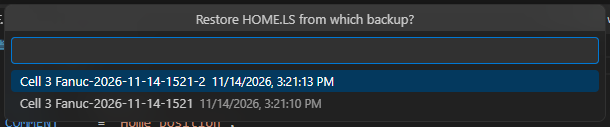
- Choose the backup in the list
Restore <file> from which backup?. The list shows the backups of this controller in the remembered folder, newest first. - The confirmation shows the diff between the file on the controller now and the file of the backup. Cancel: nothing is written.
- Confirm. TouchUp keeps a copy of the file that was on the controller, writes the backup version and records the write in the audit log. An editor that shows the file reads it again.
A message at the end says <file> restored from backup <folder>. TouchUp refuses the restore, with the reason, in these cases:
- No backup folder is remembered yet, or no backup of this controller is in it. Run
TouchUp: Back Up Nowfirst. - The file is not in the chosen backup.
- The file is a Yaskawa
.prm. A controller loads a parameter file only from a USB key at the pendant: copy the file from the backup folder to the key. See Load a parameter file at the pendant.
TouchUp restores one file at a time. A whole backup is not restored in one click.
Copy files to another robot
To bring files of one robot to a second robot of the same brand, copy them from a backup of the first one. For example, a job that you tuned on one cell goes to its twin. The source is always a backup, never the first robot live: take a fresh Back Up Now of it first if you need its files of today. The target is a connected controller of the same brand. A Fanuc backup goes to a Fanuc controller and a Yaskawa backup to a Yaskawa controller. The robot that the backup comes from is never offered as a target.
A copy is a write to the target. It needs the Pro edition, and a lock marks the command in the Free edition (Copy Files to Another Robot (Pro)...). It goes through the same steps as every write, see Send a file to the controller.
- Right click a backup in the Backups view, then
Copy Files to Another Robot..., or runTouchUp: Copy Files to Another Robot. From the Command Palette, choose the backup in the listCopy files from which backup?(newest first). - Connect the target if it is not. Choose it in the list
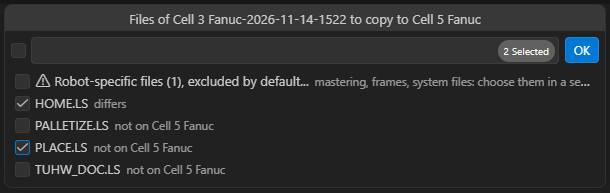
Copy files of <backup> to which robot?. - TouchUp compares the target, read live, with the backup. Choose the files to copy in the list
Files of <backup> to copy to <target>. It holds the files of the backup that differ from the target, each with the reason:differs, ornot on <target>. No file is ticked beforehand. - Confirm. The confirmation names the backup, the robot it comes from and the target, and lists the files.
Cancelhas the focus.
When no file differs, TouchUp says nothing to copy: the files of <target> are the same as the backup <name>. and sends nothing.
Files that belong to one robot
Some files describe one arm and are wrong on another robot. TouchUp leaves them out by default: they are not in the first list, not read from the backup and not sent.
| Brand | Files left out | Why |
|---|---|---|
| Fanuc | sysmast.* | Mastering of this arm: another robot would lose the calibration of its axes |
| Fanuc | sysframe.*, framevar.* | User and tool frames taught on this robot |
| Fanuc | sysservo.* | Servo parameters of the motors of this arm |
| Fanuc | sysvars.*, system.va | System variables of this robot |
| Fanuc | syspass.* | Passwords of this controller |
| Fanuc | *.sv, sys*.va | System files, loaded only at a controlled start |
| Yaskawa | ABSO.DAT | Absolute data (encoder home positions) of this arm |
| Yaskawa | TOOL.CND | Tool data calibrated on this robot |
| Yaskawa | UFRAME.CND | User frames taught on this robot |
| Yaskawa | CMOS*.BIN | CMOS backup of the whole controller, restored only at the pendant |
A Yaskawa .prm file is never offered: a controller loads a parameter file only from a USB key at the pendant, see Load a parameter file at the pendant.
When such files differ, the first list has a first row Robot-specific files (<n>), excluded by default.... Tick it, then OK, to open a second list. It gives the reason under each file.
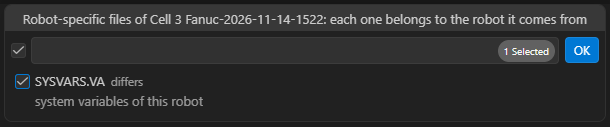
A file ticked there asks one more question. It names each file and says that it is usually wrong on another robot.
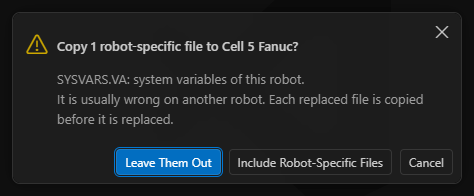
Leave Them Outcopies the other files that you ticked, without these ones.Include Robot-Specific Filesadds them. The confirmation then names them again.EscapeorCancelstops the copy. Nothing is read from the backup and nothing is sent.
The confirmation
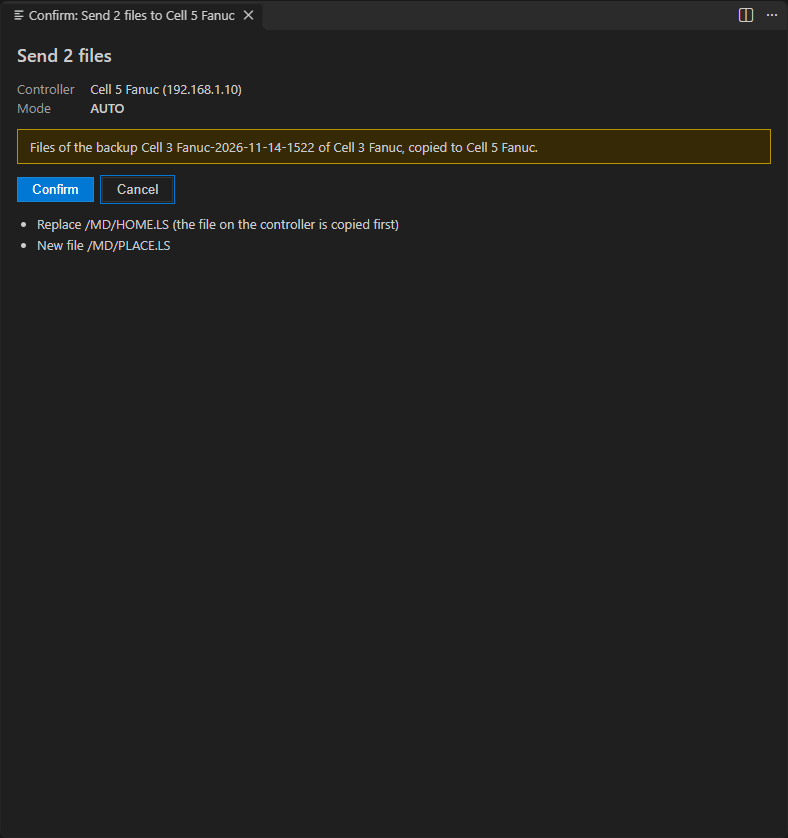
The confirmation lists each file as Replace or New file. TouchUp replaces a file only when the compare saw it on the target. Any other file is added, and never replaces an existing one. Before a file is replaced, TouchUp keeps a copy of it on the controller, and the copy is recorded in the audit log. At the end, a message lists what was written and, for a refused file, the reason.
What TouchUp checks before it sends
TouchUp reads each file that you ticked from the backup folder and checks its size and checksum against the list of the backup (touchup-backup.json). One file that fails the check refuses the whole copy, and the message names it:
- A file edited by hand, or replaced, since the backup was taken:
<file> changed since the backup <name> was taken. - A file that is no longer in the backup folder, or that the list of the backup does not describe.
- A file of more than 5 MB, or files of more than 50 MB together. Copy them in several steps.
In each case nothing is sent. Take a new backup of the source robot, then copy again. A copy also stops, with the reason, when no robot of the same brand is connected, when no backup folder is remembered yet, or when the backup does not say the brand of its robot.
Commit the backup to Git
When the backup folder is inside a Git repository, for example the repository of your project (see Workspace: <name> above), the end of the backup asks what to do with the new files.
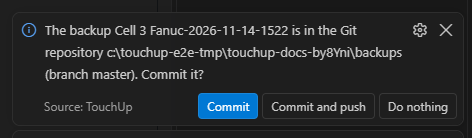
The question names the repository and its branch. Choose:
| Choice | What it does |
|---|---|
Commit | Commits the files of this backup, and only them |
Commit and push | Commits, then pushes the branch to its upstream |
Do nothing | Leaves the files in the folder, not committed |
The question comes after a backup that has a functional change, and after the first backup of a controller in the folder. After a backup with no functional change, nothing is asked: the backup stays in the folder, not committed.
What TouchUp does and does not do:
- It never creates a repository and never writes the Git configuration. Without a repository around the folder, nothing is asked. Create the repository yourself, with the Git of VS Code or a terminal.
- The message of the commit is
Backup of <controller> (<folder of the backup>), then the summary of the changes since the previous backup, as the Compare view gives it. A file hidden from the compare is not in it. - It commits only the files of the backup folder. When something else is staged in the repository, it does not commit and tells you: commit or unstage that first. A file that Git ignores (
.gitignore) is not committed, and the message says so. - The Git hooks and the signing of commits do not run.
- It does not commit when the repository is in a state that needs your attention: a detached HEAD, a merge, a rebase, a cherry-pick or a revert in progress, conflicts, a lock file left by another Git command. The message says what to do, and your Git tool finishes the work. A backup folder in a linked worktree or in a submodule is not committed either.
Push
Commit and push pushes the current branch to its upstream: no force, no tags, and only over HTTPS. It does not push when the branch has no upstream, when the remote is not HTTPS, when the branch pushes to another remote than its upstream, or when the remote branch has commits that your repository does not have: pull them with the Git of VS Code, then push. The commit stays in your repository in each of these cases, and the message says why the push did not happen.
The first push asks for a user name and a token or a password for the host of the remote. TouchUp keeps them in the keychain of the operating system, only after a push that worked, and sends them only to that host. A refusal of the host (401) makes TouchUp forget them and ask again at the next push. They are never written in a message, a log, the Git configuration or a commit.
Mastering of a Fanuc robot
Each backup of a Fanuc controller keeps the mastering values that the controller held at that time, when the backup has a readable sysmast.va. They are a reference for the day the robot must be mastered again: a battery that ran flat, a motor that was replaced. TouchUp only reads them. It never writes the mastering of a robot.
Run TouchUp: Show Mastering (Fanuc), or right click a Fanuc controller in the Controllers view. No connection is needed: the values come from the last backup of the controller in the remembered folder, not from the robot now.
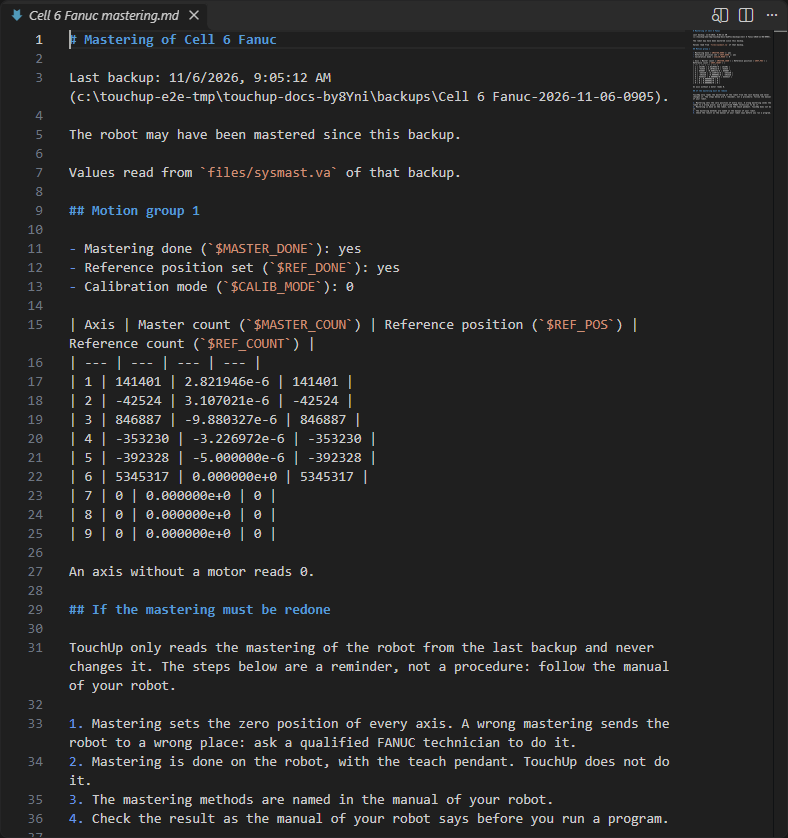
The document gives the date of that backup and, for each motion group, whether the mastering and the reference position are done, the calibration mode, and a table with the master count, the reference position and the reference count of each axis. An axis without a motor reads 0. Under the values, a reminder says that the robot is mastered on the teach pendant, by a qualified FANUC technician, with the method of the manual of your robot. It is a reminder, not a procedure.
When the last backup has no mastering values, because its type does not take them (TP Programs, Error log), TouchUp reads the newest backup of the controller that has them. The document gives the date of that backup.
The view says "The robot may have been mastered since this backup". Back up the controller again to read the values of today. When the folder has no backup of the controller, or the backup holds no readable sysmast.va, the document says so. On a Yaskawa controller, TouchUp keeps no mastering and the command says it.
What to read next
- Compare backups and controllers
- Robot report and handover pack, to give the backups of your robots to a customer
- The format of a backup
- Data and I/O panels
- Send a file to the controller