File system
Browse the controller file system, download and upload files, create, copy, rename and delete files and directories.
robot.Rws.File gives access to the file system of the controller: browse it, download and upload files, and create, rename, copy or delete files and directories. Nothing has to be shared or mounted on the PC.
Paths are the ones used on the controller. The environment variables of the controller are accepted where a path is expected, $home and $temp for example, and they behave as directories. robot.Rws.Controller.GetEnvironmentVariable gives the real path behind such a name.
Browse the file system
ListDirectory returns a DirectoryListing with the files, the subdirectories and, at the root, the storage devices of the controller. The complete content is always returned, however many entries the directory holds.
AbbController robot = new AbbController();robot.Connect("192.168.0.1");// The root lists the storage devices of the controllerDirectoryListing root = robot.Rws.File.ListDirectory("/");foreach (DeviceItem device in root.Devices){Console.WriteLine($"{device.Name} ({device.DeviceType}) {device.FreeSpace}/{device.TotalSpace} bytes");}// A directory lists its files and its subdirectoriesDirectoryListing listing = robot.Rws.File.ListDirectory("$home");Console.WriteLine($"{listing.DirectoryCount} directories, {listing.FileCount} files");foreach (DirectoryItem directory in listing.Directories){Console.WriteLine($"[DIR] {directory.Name}");}foreach (FileItem file in listing.Files){Console.WriteLine($"{file.Name} {file.Size} bytes, modified {file.ModificationDate}");}robot.Disconnect();}
Pass "/" or null to list the root. The root is where the storage devices are, with their free and total space. A DeviceItem has a DeviceType: Fixed for an internal disk, Removable for a USB key, RamDisk, Remote for a network storage, Unknown otherwise.
FileCount, DirectoryCount, DeviceCount and TotalCount are computed by the SDK, they save a null check on the three arrays.
One class per kind of item
FileItem, DirectoryItem and DeviceItem all derive from FileSystemItem, which carries the name and the dates. There is no flag saying what an item is, the type itself says it.
DirectoryListing listing = robot.Rws.File.ListDirectory("/");// The three arrays hold subclasses of the same base classList<FileSystemItem> items = new List<FileSystemItem>();items.AddRange(listing.Directories);items.AddRange(listing.Files);items.AddRange(listing.Devices);foreach (FileSystemItem item in items){// Name, CreationDate and ModificationDate come from the base classConsole.Write($"{item.Name} {item.ModificationDate} ");// What the item really is, is found with a type test, not with a flagif (item is FileItem file){Console.WriteLine($"file of {file.Size} bytes");}else if (item is DirectoryItem directory){Console.WriteLine($"directory, read only: {directory.IsReadOnly}");}else if (item is DeviceItem device){Console.WriteLine($"device of type {device.DeviceType}, {device.FreeSpace} bytes free");}}robot.Disconnect();}
CreationDate and ModificationDate are nullable, the controller does not always report them. Size is in bytes and only exists on a file.
Download a file
Four methods read a file, they differ only by what you get back.
| Method | Returns |
|---|---|
GetFileAsText(path, encoding) | string, UTF-8 when no encoding is given |
GetFileAsBytes(path) | byte[] |
GetFileToDestination(path, localPath) | Nothing, the file is written on the PC |
GetFileAsReadonlyStream(path) | A readable Stream |
AbbController robot = new AbbController();robot.Connect("192.168.0.1");// A text file, UTF-8 by defaultstring text = robot.Rws.File.GetFileAsText("$home/notes.txt");// Another encoding when the file is not UTF-8string latin = robot.Rws.File.GetFileAsText("$home/notes.txt", Encoding.GetEncoding("iso-8859-1"));// A binary filebyte[] bytes = robot.Rws.File.GetFileAsBytes("$home/backup.zip");// Straight to a file of the PCrobot.Rws.File.GetFileToDestination("$home/backup.zip", @"C:\temp\backup.zip");// As a stream, to copy the content without keeping a second copy of itusing (Stream source = robot.Rws.File.GetFileAsReadonlyStream("$home/backup.zip"))using (FileStream destination = System.IO.File.Create(@"C:\temp\backup.zip")){source.CopyTo(destination);}robot.Disconnect();}
Use GetFileAsText for a RAPID module, a configuration file or a log. Use the bytes or the stream for a backup archive or any binary content. The synchronous GetFileAsReadonlyStream buffers the whole content in memory first, for compatibility with .NET Framework 3.5 and 4.0. GetFileAsReadonlyStreamAsync reads from the network as you read the stream, which is the one to use for a large file.
Upload a file
The four upload methods mirror the downloads. An existing file is replaced.
AbbController robot = new AbbController();robot.Connect("192.168.0.1");// From a string, UTF-8 by defaultrobot.Rws.File.UploadFileFromText("$home/notes.txt", "Written by the SDK");// From raw bytesrobot.Rws.File.UploadFileFromBytes("$home/data.bin", new byte[] { 1, 2, 3, 4 });// From a file of the PCrobot.Rws.File.UploadFileFromPath("$home/MyModule.mod", @"C:\temp\MyModule.mod");// From a stream, for a large fileusing (FileStream source = System.IO.File.OpenRead(@"C:\temp\MyModule.mod")){robot.Rws.File.UploadFileFromStream("$home/MyModule.mod", source);}robot.Disconnect();}
UploadFileFromText writes UTF-8 by default, pass an Encoding for another one. UploadFileFromStream sends the content as it reads it, so a large file does not have to be loaded in memory.
Create the destination directory first with CreateDirectory when it does not exist yet.
Create, rename, copy and delete
AbbController robot = new AbbController();robot.Connect("192.168.0.1");// Directories. The new name can be nested, the missing levels are created.robot.Rws.File.CreateDirectory("$home", "MyApp/Logs");robot.Rws.File.RenameDirectory("$home/MyApp/Logs", "Archive");robot.Rws.File.CopyDirectory("$home/MyApp/Archive", "Archive2", true);robot.Rws.File.DeleteDirectory("$home/MyApp/Archive2");// Files. The third argument of the copy overwrites an existing target.robot.Rws.File.RenameFile("$home/notes.txt", "notes-old.txt");robot.Rws.File.CopyFile("$home/notes-old.txt", "notes-backup.txt", true);robot.Rws.File.DeleteFile("$home/notes-old.txt");robot.Disconnect();}
A few points to know:
CreateDirectorytakes the parent directory and the new name. The name can be nested, and the missing levels are created.- The new name of a rename or a copy is relative to the directory the item is in. An absolute path on the controller is also accepted.
- The copy methods take an
overwriteargument. Withfalse, the controller refuses to replace an existing target. DeleteDirectorydeletes the directory and its content. There is no recycle bin on the controller, a deleted file is gone.
The controller protects part of its file system. A write in a read only location fails with an RwsException, and IsReadOnly on the item tells you before you try. The user account also needs the matching UAS grant.
Around the file system
Other services write files on the controller and leave them for this one to read:
- Controller writes a backup in a folder of the controller. Browse that folder and download its files, as shown in Backup & restore a controller.
- Event log writes the whole log to one file with
SaveInSystemDumpFormat. - RAPID modules loads a module from a path on the controller, so a module written from the PC is uploaded first and loaded afterwards.
Nothing here needs the mastership, the file system is not one of its domains. Loading into RAPID what you uploaded does need it.
Try it in the demo application
Everything on this page can be tried without writing code, in the File handling (RWS) page of the demo application.
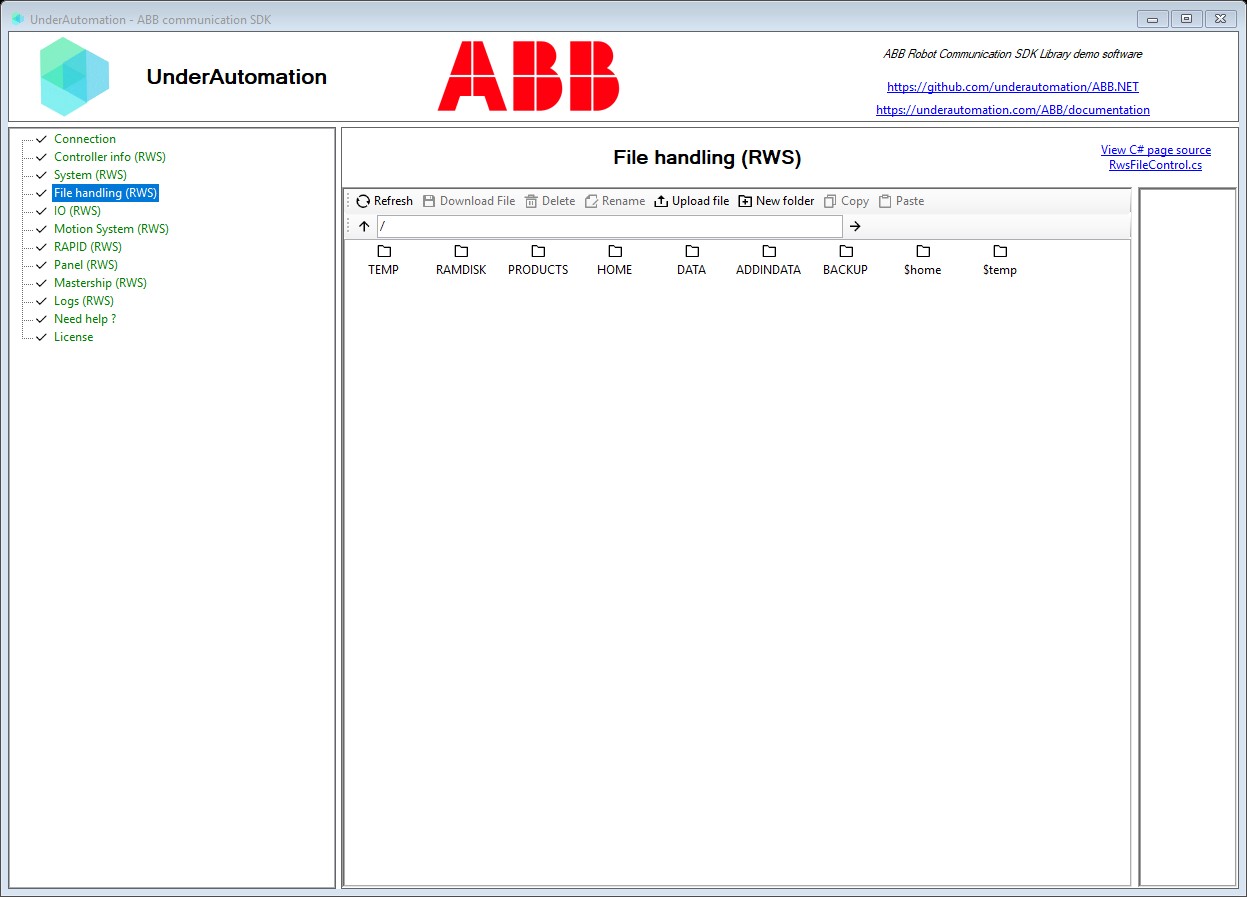
The demo application is open source. The C# source of this page is RwsFileControl.cs.
API reference
Methods of FileService :// Copies a directory (synchronous)void CopyDirectory(string path, string newName, bool overwrite);// Copies a file (synchronous)void CopyFile(string path, string newName, bool overwrite);// Creates a new directory (synchronous) The newName parameter can contain nested directory structure (e.g. "parentdir/subdir") which will create both directories if they don't exist.void CreateDirectory(string path, string newName);// Deletes a directory and all its subdirectories and files (synchronous)void DeleteDirectory(string path);// Deletes a file (synchronous)void DeleteFile(string path);// Gets file content as raw bytes (synchronous)byte[] GetFileAsBytes(string path);// Gets file content as a read-only stream (synchronous) For sync: Returns a read-only MemoryStream (buffered for .NET 3.5/4.0 compatibility) For true HTTP streaming with large files, use GetFileAsReadonlyStreamAsync() insteadStream GetFileAsReadonlyStream(string path);// Gets file content as text (synchronous)string GetFileAsText(string path, Encoding encoding = null);// Downloads a file to a local path (synchronous)void GetFileToDestination(string path, string localPath);// Lists contents of a directory resource (synchronous) Environment variables (e.g. $home, $temp) and devices are treated as directories. When listing the root path ("/", null, or "\\"), the response includes available devices in DirectoryListing.Devices. The complete content is always returned, however many entries the directory holds.DirectoryListing ListDirectory(string path);// Renames a directory (synchronous)void RenameDirectory(string path, string newName);// Renames a file (synchronous)void RenameFile(string path, string newName);// Uploads a file from raw bytes (synchronous)void UploadFileFromBytes(string path, byte[] content, string contentType = null);// Uploads a local file to the controller (synchronous)void UploadFileFromPath(string path, string localPath, string contentType = null);// Uploads a file from a stream (synchronous)void UploadFileFromStream(string path, Stream contentStream, string contentType = null);// Uploads a file from text (synchronous)void UploadFileFromText(string path, string content, Encoding encoding = null);
Every method also exists in an asynchronous version, with the same name followed by Async and an optional CancellationToken.
Represents a directory listing containing files, subdirectories, and devices. Returned by FileService.ListDirectory(path). When listing the root path ("/"), the Devices array contains available storage devices (C:, hd0a, etc.). When listing a subdirectory, only Files and Directories are typically populated.
| Member | Type | Description |
|---|---|---|
DirectoryListing(string) Constructor | Initializes a new instance of the DirectoryListing class | |
DeviceCount Property read only | int | Number of devices in this listing |
Devices Property | DeviceItem[] | Devices available in this listing (typically only present at root "/") |
Directories Property | DirectoryItem[] | Subdirectories contained in this directory |
DirectoryCount Property read only | int | Number of subdirectories in this listing |
FileCount Property read only | int | Number of files in this listing |
Files Property | FileItem[] | Files contained in this directory |
Path Property read only | string | Path that was listed |
TotalCount Property read only | int | Total number of items (files + directories + devices) |
ToString() Method | string | Returns a string representation of this directory listing |
Abstract base class for all file system items returned by the File Service. Derived classes: FileItem, DirectoryItem, DeviceItem
| Member | Type | Description |
|---|---|---|
FileSystemItem() Constructor | Initializes a new instance of the FileSystemItem class | |
CreationDate Property | DateTime? | Creation date of the resource, if available |
ModificationDate Property | DateTime? | Last modification date of the resource, if available |
Name Property | string | Name of the item (file name, directory name, or device name such as "C:") |
ToString() Method | string | Returns the name of the item |
Represents a file entry in the robot controller file system.
| Member | Type | Description |
|---|---|---|
FileItem() Constructor | Initializes a new instance of the FileItem class | |
IsReadOnly Property | bool | Indicates if the file is read-only |
Size Property | long | File size in bytes |
ToString() Method | string | Returns a string representation of this file entry |
Represents a directory entry in the robot controller file system.
| Member | Type | Description |
|---|---|---|
DirectoryItem() Constructor | Initializes a new instance of the DirectoryItem class | |
IsReadOnly Property | bool | Indicates if the directory is read-only |
ToString() Method | string | Returns a string representation of this directory entry |
Represents a device entry in the robot controller file system (e.g. C:, hd0a). Devices are returned alongside files and directories when listing the root path ("/") or any directory that contains mounted devices.
| Member | Type | Description |
|---|---|---|
DeviceItem() Constructor | Initializes a new instance of the DeviceItem class | |
DeviceType Property | DeviceType | Type of device (Fixed, Removable, RamDisk, Remote) |
FreeSpace Property | long | Free storage space in bytes |
IsEnabled Property | bool | Indicates if the device is enabled |
IsReadOnly Property | bool | Indicates if the device is read-only |
TotalSpace Property | long | Total storage space in bytes |
ToString() Method | string | Returns a string representation of this device entry |