Get started with .NET
Add the multi-brand robot library UnderAutomation.Robotics to a .NET project: frameworks, NuGet, DLL, a first program on a Fanuc then a Yaskawa controller with the same code.
This page shows how to add UnderAutomation.Robotics to a C#, VB.NET or F# project and write a first program for a Fanuc, Yaskawa, Universal Robots, ABB or Stäubli controller. The library is one fully managed DLL, UnderAutomation.Robotics.dll, with one API for the five brands: only the connection parameters change from one brand to the other.
Your project already uses a brand SDK, for example UnderAutomation.Fanuc? Replace its reference and keep your code and your license key, if its maintenance covers the release date of Robotics: see Migrate from a brand SDK.
Prerequisites
- A .NET project, in Visual Studio, Visual Studio Code or with the
dotnetcommand line. - A controller of one of the five brands on the network, or the simulator of its robot maker (not Yaskawa): see Work without a robot.
- The settings of the controller for the methods you call, for example the remote mode for the commands: see Connect to your robot.
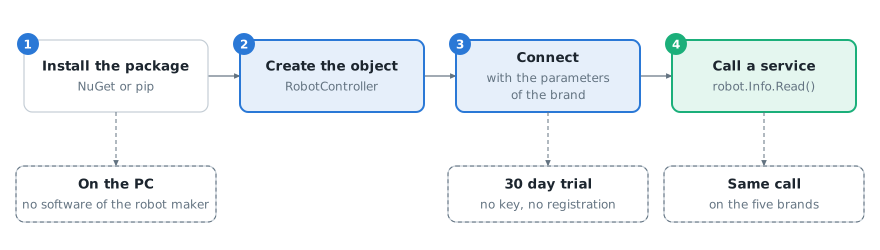
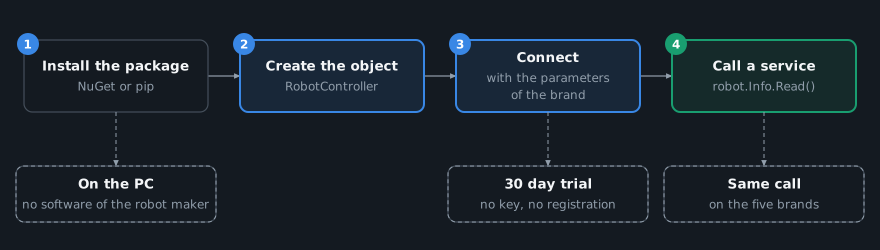
Nothing to install on the PC: no software of the robot maker, no driver, no USB key.
Install from NuGet
NuGet picks the right DLL for your project.
dotnet add package UnderAutomation.Robotics
With the Package Manager console of Visual Studio:
Install-Package UnderAutomation.Robotics
Or right click the Dependencies node of your project, select Manage NuGet Packages..., search for UnderAutomation.Robotics and install the latest version.
Package page: nuget.org/packages/UnderAutomation.Robotics
Do not reference a brand package (UnderAutomation.Fanuc, UnderAutomation.Yaskawa...) in the same project: Robotics contains the same types, and the build fails with the error CS0433. See Migrate from a brand SDK.
First program
Connect and read the identity of the controller
Import the namespace UnderAutomation.Robotics.Controllers and the namespace of the brand, create a RobotController, connect it with the connection parameters of the brand and read a value.
static void Main(){// No key is needed during the 30 day trial.// After the trial, register the license key of each brand once, before the first connection.// FanucRobot.RegisterLicense("YourCompanyName", "YOUR_FANUC_LICENSE_KEY");// The brand comes from the type of the parameters: here a Fanuc controllerRobotController robot = new RobotController();robot.Connect(new ConnectionParameters("192.168.0.1"));// Identity of the controllerRobotControllerInfo info = robot.Info.Read();Console.WriteLine($"{info.BrandName} {info.Model}, software {info.SoftwareVersion}");robot.Disconnect();}}
The brand comes from the class of the connection parameters. Here, ConnectionParameters of the namespace UnderAutomation.Fanuc connects to a Fanuc controller.
The same code for another brand
For a Yaskawa controller, only the connection parameters change. The rest of the code is the same: this example reads the identity of a Fanuc and of a Yaskawa controller with one loop.
static void Main(){// A cell with a Fanuc and a Yaskawa controller: only the connection parameters changeRobotConnectionParameters[] cell ={new UnderAutomation.Fanuc.ConnectionParameters("192.168.0.1"),new UnderAutomation.Yaskawa.ConnectParameters("192.168.0.2"),};foreach (RobotConnectionParameters parameters in cell){// The same code for both brandsRobotController robot = new RobotController();robot.Connect(parameters);RobotControllerInfo info = robot.Info.Read();Console.WriteLine($"{info.BrandName} {info.Model}, software {info.SoftwareVersion}");robot.Disconnect();}}}
| Brand | Connection parameters |
|---|---|
| Fanuc | UnderAutomation.Fanuc.ConnectionParameters |
| Yaskawa | UnderAutomation.Yaskawa.ConnectParameters |
| Universal Robots | UnderAutomation.UniversalRobots.ConnectParameters |
| ABB | UnderAutomation.ABB.ConnectionParameters |
| Stäubli | UnderAutomation.Staubli.ConnectionParameters |
When the brand and the address come from a configuration file, RobotConnectionParameters.Create(brand, address) creates the parameters from two strings: see Connect to your robot.
The identity of the controller, as in this example, is available on the five brands. Some other methods are not: a method that a brand does not have throws FeatureNotSupportedException, and IsAvailable returns false before the call. The Routing page gives, for each method, the protocol used on each brand.
License
Each brand runs for 30 days without a key, from the first use of the library, with no registration. A trial license key from the license page of underautomation.com extends the trial of one brand. After the trial, buy the license of each brand you connect and call RegisterLicense of this brand, once, before the first connection. A key of one brand does not unlock the other brands. Robotics has no license of its own: see Licensing.
Supported frameworks
Targets of the DLL
The DLL is compiled in AnyCPU for 14 targets:
| Family | Versions |
|---|---|
| .NET Framework | 3.5, 4.0, 4.5, 4.5.1, 4.5.2, 4.6, 4.6.1, 4.6.2, 4.7, 4.7.1, 4.7.2, 4.8 |
| .NET Standard | 2.0, 2.1 |
.NET Core 2.0 and later and .NET 5 to .NET 10 use the .NET Standard 2.0 or 2.1 DLL. They run on Windows, Linux and macOS.
Dependencies
The DLL has no native dependency. The .NET Framework DLLs have no dependency. The .NET Standard DLLs depend on the NuGet package System.Text.Encoding.CodePages, which decodes the strings of controllers set to a Japanese or Chinese language. NuGet installs it with the library.
Download the DLL
Without NuGet, reference the DLL yourself. The releases of the GitHub repository Robotics.NET give the DLL and its XML documentation in a zip, in one folder per target (net35, net48, netstandard2.0...). Reference the DLL of your target in your project.
On Windows, a downloaded file can be blocked. Before you extract the zip, right click it, open Properties, check Unblock and click OK. A blocked DLL can fail to load.
With a .NET Standard DLL from the zip, also add the NuGet package System.Text.Encoding.CodePages to your project.
Demo application
The folder Demo of Robotics.NET holds the C# sources of a Windows Forms application. It connects to a controller of any of the five brands and shows the result of each protocol and the route of each method. It never moves the robot and never writes to the controller. The folder Examples holds console examples, one per topic. Both projects need the .NET 8 SDK. See Demo application.
Use the library with an AI agent
An AI agent such as Claude Code, Codex, GitHub Copilot or Cursor can write your C# code with the library. Without help, it does not know which methods a brand has, which protocol each method uses, or what the controller needs for it. The UnderAutomation skill gives it the documentation of this version of the library: routes of each brand, native names, connection parameters, errors and safety rules for robot motion.
With the skill installed, you can ask for example:
Install the skill in your project:
npx skills add underautomation/skills --skill underautomation-robotics-csharp
Or paste this prompt to your agent: "Install the UnderAutomation Robotics skill: follow https://underautomation.com/robotics/documentation/ai-skills.md". The other installation modes are in AI agent skills.
Shell sources
The folder UnderAutomation.Robotics.ObfuscatedSources of Robotics.NET contains every public type and member of the library, with its XML documentation: the common API (UnderAutomation.Robotics.*) and the five brand SDKs. The bodies of the methods are replaced by "Source is hidden". Use it to:
- browse the API and its documentation on GitHub, without installing anything;
- jump to a definition from your code editor, with the same names and signatures as the DLL;
- see the structure of the code that the source license delivers.
Source license
The Standard and Pro licenses deliver the obfuscated DLL. The source code of Robotics, with its Visual Studio solution, needs a Source license of each of the five brand SDKs. You can change it and build it yourself, within the limits of the license agreement. See Licensing and the pricing page.
What to read next
- How it works: the library in four diagrams.
- Connect to your robot: the connection parameters of each brand and the settings of the controllers.
- How-to articles: variables, IO, programs, position, alarms, files, state and moves: one code per task, and the brands that support it.
- Work without a robot: the simulators of the robot makers.
- Common API: the services of
RobotController. - Routing: which protocol each method uses on each brand.
- Licensing: the trial and the license key of each brand.
- AI agent skills: install the C# skill of the library in Claude Code, Codex, GitHub Copilot or Cursor.
- API reference: the shell sources.