Read live values
The Registers, Variables, I/O, Tasks and Watch views, the completion, the CSV export and import and the reorder of the Watch list, and the values on the programs you edit: comment, current value, inline hints and the line the controller executes, on Fanuc and Yaskawa.
This page explains how to read the live values of a connected controller: the Data, I/O and Variables panels, the Tasks node of a controller, the Watch view of the TouchUp side bar, and the values shown on the programs you edit. It applies to Fanuc and Yaskawa controllers. Reading never writes to the controller: it is free, and it works in every mode. To change a value, see Write values and control a program.
Where the values are
Registers, variables and I/O are in panels of the editor area, opened from the nodes of a controller in the Controllers view. The side bar keeps one view for live values, the Watch view, which lists the values of several controllers. A panel follows the controller whose node you clicked, not the active one.
| Where | What it shows |
|---|---|
Data panel | A page of registers or variables of one kind, with their value and comment, that you can edit |
I/O panel | A page of signals of one kind, with their value, comment and simulation state |
Variables panel (Fanuc) | Every system variable and every variable of a program, as a tree of variables and fields, with a search |
Tasks node | The tasks of the controller, their program and line, and their call stack |
| Watch view | The values that you chose, grouped by controller |
The Data and I/O panels are described in Data and I/O panels. A panel is empty when there is nothing to read, and it says why: for example "Cell 3 Fanuc is not connected: connect it to read its values." A controller that does not give its values shows the reason, or "Reading registers, variables and I/O is not available".
The values change every second while a panel or the Watch view is on screen. When you hide the tab, close the side bar, or disconnect the controller, TouchUp stops reading.
Registers and I/O
A panel shows 50 values at a time, of one kind. Each row is the reference, then the value, then the comment of the controller. A value that the controller refuses is shown with the message of the controller.
| Brand | Data panel | I/O panel |
|---|---|---|
| Fanuc | R numeric registers, PR position registers, SR string registers, and the KAREL variables and positions of the controller | DI, DO, RI, RO, GI, GO, AI, AO, UI, UO, SI, SO, F flags |
| Yaskawa | B, I, D, R, S variables, and the position variables P, BP, EX | IN#, OT#, IG#, OG# |
The first index is 1 on Fanuc, and 0 for the Yaskawa variables (B000), and 1 for the Yaskawa signals (IN#(1)). The Kind list of the panel chooses the kind, Next 50 and Previous 50 move through the indexes. A simulated signal of a Fanuc controller shows simulated after its comment.
Variables
The Variables panel of a Fanuc controller lists every variable that the controller has, system variables and variables of KAREL programs, as the demo application of the SDK does. Open the node Variables of the controller.
- The first time, TouchUp reads the list: a notification shows the progress and has a Cancel button.
Refreshreads it again. - The table is a tree: a variable, then its fields, then the elements of an array.
+and-open and close a node. - The search field looks in the names, in the names of the fields and in the values, not only in the names of the variables. A search for
$GENOVERRIDEshows$MCRopened down to that field. Add to Watchon a row follows that variable or field in the Watch view.
The list is a copy read at one moment: its date is above the table. At most 100,000 nodes are read, and a text is cut after 256 characters. When the controller has more, the panel says that the list is cut.
The KAREL variables and positions are also kinds of the Data panel of a Fanuc controller (KAREL Vars, KAREL Positions): they list the variables of the programs that the Variables panel read. A KAREL position is read only in the panel.
Positions
A position register (PR[n] on Fanuc) or a position variable (P, BP, EX on Yaskawa) shows its value as a text on several lines. Right click its row in the Watch view for three commands: Open in Position Editor, which shows the position in Cartesian and joint form, Copy Position and Paste Position. They are on the position registers and variables only. See Edit a position.
Comments and names
| Brand | What is shown next to the value |
|---|---|
| Fanuc | The comment of the register, of the position register or of the signal. A comment changed on the pendant can take up to a minute to appear. A controller reached only through the SNPX option does not give the comment of R and SR registers |
| Yaskawa | The name of the variable (B, I, D, R, S, P, BP, EX), read from the file VARNAME.DAT of the controller. The I/O of a Yaskawa controller have no comment |
TouchUp reads the names of a Yaskawa controller once for each connection, so the first values can show before them. A rename on the pendant shows after you reconnect. When the controller refuses the file (it is used by another function, or the pendant is editing it), the values stay without names for one minute, then TouchUp asks again.
Tasks
The Tasks node of a connected controller lists its tasks. Open the node: a row is the name of the task, its state (for example running, paused), and its program and line: MAIN running · PICK:9. Open a task to see its call stack, the first program of the task on top and the programs that it called below it, down to the one that runs now. This order is the same on Fanuc and on Yaskawa. On Yaskawa, the row of the task also shows the step of the job: MAIN running · SUB2:5 · step 4.
Click a task or a frame to open the program of the controller at that line. TouchUp opens /MD/<name>.LS on Fanuc and /JOB/<name>.JBI on Yaskawa, in a preview tab.
| Brand | What to know |
|---|---|
| Fanuc | The line is the line number of /MN. The call stack is read over FTP: with FTP not enabled on the controller, or a user who cannot read the program state, the tasks are listed without their stack. A slow controller can leave the stack out for a moment |
| Yaskawa | The line is counted from NOP. The controller gives the line of the current job only: a job that called the next one shows the line of its CALL when it has exactly one CALL of that job, see Yaskawa. Otherwise it has no line number, and a click on it opens the job without moving the cursor |
A task that has no program has nothing to open. When the program cannot be opened, TouchUp shows the reason in a message.
The commands that hold, continue or abort the programs, run a program and reset the alarms are in the right-click menu of the controller: see Write values and control a program.
Watch
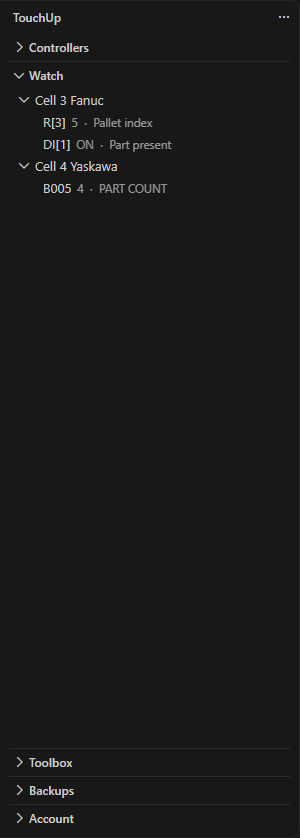
The Watch view is the list of the values that you follow, for any declared controller, in one place. Use the + button or TouchUp Watch: Add to Watch...: TouchUp asks for the controller when several are declared (the active one first), then for the value. r[ 05 ] is written R[5].
| Action | How |
|---|---|
| Add a value | +, or Add to Watch... in the editor menu, see below |
| Remove a value | The x of its row, or the Clear All button to empty the list. Right click a selection of rows, then Remove from Watch, to remove several |
| Reorder the values | Drag a row, or a selection of rows, and drop it on another row or on a controller |
| Export and import the list | The menu ... of the view, see Export and import a CSV file |
| Change a value on the controller | The pencil Edit Value..., see Write values and control a program |
The list is kept for each workspace. A controller shows its values only while it is connected: otherwise its rows say not connected, or values not available with the reason in the tooltip. A controller that is no longer declared stays in the list, greyed, until you remove its values.
The input of Add to Watch
The input of the value is a list that filters while you type, as the console of a debugger does.
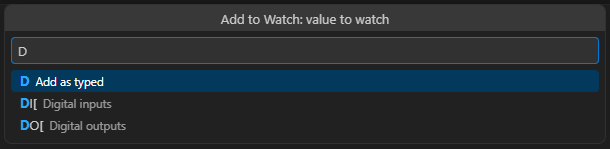
- The list offers the kinds of the brand that begin with what you typed. A Fanuc controller offers
R[,PR[,SR[, the signals (DI[,DO[...) and$for the system variables. After$, the list also has the names of the variables that TouchUp read from the controller, and ends withRefresh the variables of <controller>. A Yaskawa controller offersB,I,D,R,S,P,BP,EXand the signals (IN#(,OT#(...). - Choose a kind with the arrow keys and
Enter: it goes in the field and adds nothing yet. Type the index, then pressEnteragain. - Any text is accepted. What you type is the first line of the list,
Add as typed, and it is cleaned the same way as before:r[ 05 ]is writtenR[5]. - The example in the field follows the brand of the controller you chose. Fanuc:
R[5], PR[1], DO[3], $PARAM_GROUP[1].$PAYLOAD. Yaskawa:B005, I010, D020, P023, IN#(1). - A text that is not a reference changes the title of the list to say what to type.
Export and import a CSV file
The menu ... of the title of the view has Export to CSV... and Import from CSV....
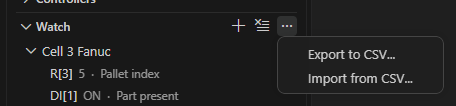
Export to CSV... asks for a file name and writes the whole list, in the order of the view. An empty list gives a message and no file.
| Rule | Detail |
|---|---|
| Columns | A first line controller,value, then one line per value: the name of the controller as the Controllers view shows it, and the reference, for example Cell 3 Fanuc,R[3] |
| Format | Comma separated text, UTF-8, one line per value. A field with a comma, a quote or a line break is between quotes. The mark that some spreadsheets add at the start of the file is accepted |
Import from CSV... adds the values of the file after those of the list.
- A reference is cleaned as when you type it. A reference already in the list is not added again, and the message counts it.
- A file of more than 1 MB, or a file whose first line is not
controller,value, is refused:<file> is not a Watch list. Export one first: its first line is controller,value. - At most 500 values are added for each import and for each controller. The message says
N skipped, limit 500. - A value that starts with
=,+,-or@is skipped. A spreadsheet would run it as a formula, and a reference never starts with one of them. - A controller name that TouchUp does not know, or that two controllers share, is asked once: a list shows the declared controllers and
Skip.Skip(orEscape) imports none of the values of that name.
The message at the end says how many values were added, for example 3 values added to Watch (1 already in the list).
Values in your programs
When you edit a Fanuc TP program or a Yaskawa INFORM job of a connected controller, TouchUp shows the values of the registers, variables and signals of the lines, and the line that the controller executes. It needs a connection to that controller, and a controller that gives its values.
Which controller a file belongs to
A file belongs to one controller, never to "the active one":
| File | Controller |
|---|---|
| A program opened from a controller (see Open controller files) | That controller |
A file of your PC, in the folder of a controller declared by a .touchup folder of the workspace | That controller. With several folders, the nearest one |
| A file of your PC in a folder that declares several controllers | None, TouchUp cannot tell which one it is for |
| Any other file of your PC, or a controller declared in your user folder only | None |
A file bound to no controller, or to a controller that is not connected, has no live value. See Controllers and configuration files to declare a controller in a folder.
Hover
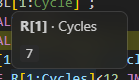
Put the mouse on a register, a variable or a signal: the hover shows its comment and its current value. It is added to the help of the editor, after the description of the instruction when there is one. A simulated value is marked. A value that the controller refuses is shown as the message of the controller. When the controller does not answer within 2 seconds, there is no hover.
| Brand | Names with a live value |
|---|---|
| Fanuc | R[n], PR[n], SR[n], the signals (DI, DO, RI, RO, GI, GO, AI, AO, UI, UO, SI, SO, F), the system variables ($MCR.$GENOVERRIDE) and the variables of a program ([PICK]count). The comment after the colon (R[1:Cycles]) is allowed |
| Yaskawa | B, I, D, R, S, P, BP, EX written with 3 or 4 digits (B005, P023), and IN#(n), OT#(n), IG#(n), OG#(n) |
Some names have no live value:
- an indirect reference: in
R[R[3]], the innerR[3]has a value, the outer one has none, - a name in a comment or in a text,
- a name that only looks like a reference (
AR[1]), and a Yaskawa variable written with fewer than 3 digits (B5), - the positions
P[n]of a Fanuc program.
Inline hints
The setting touchup.liveValues.inlineHints (off by default) shows the values at the end of the line, in the editor: = 7 for one value, R[1] = 7 · R[3] = 5 for several. A hint is cut after 60 characters: the hover has the whole value. A name that the controller refuses shows no hint. The values are read when the lines come into view, not continuously. The setting can be set for one folder only.
Executed line
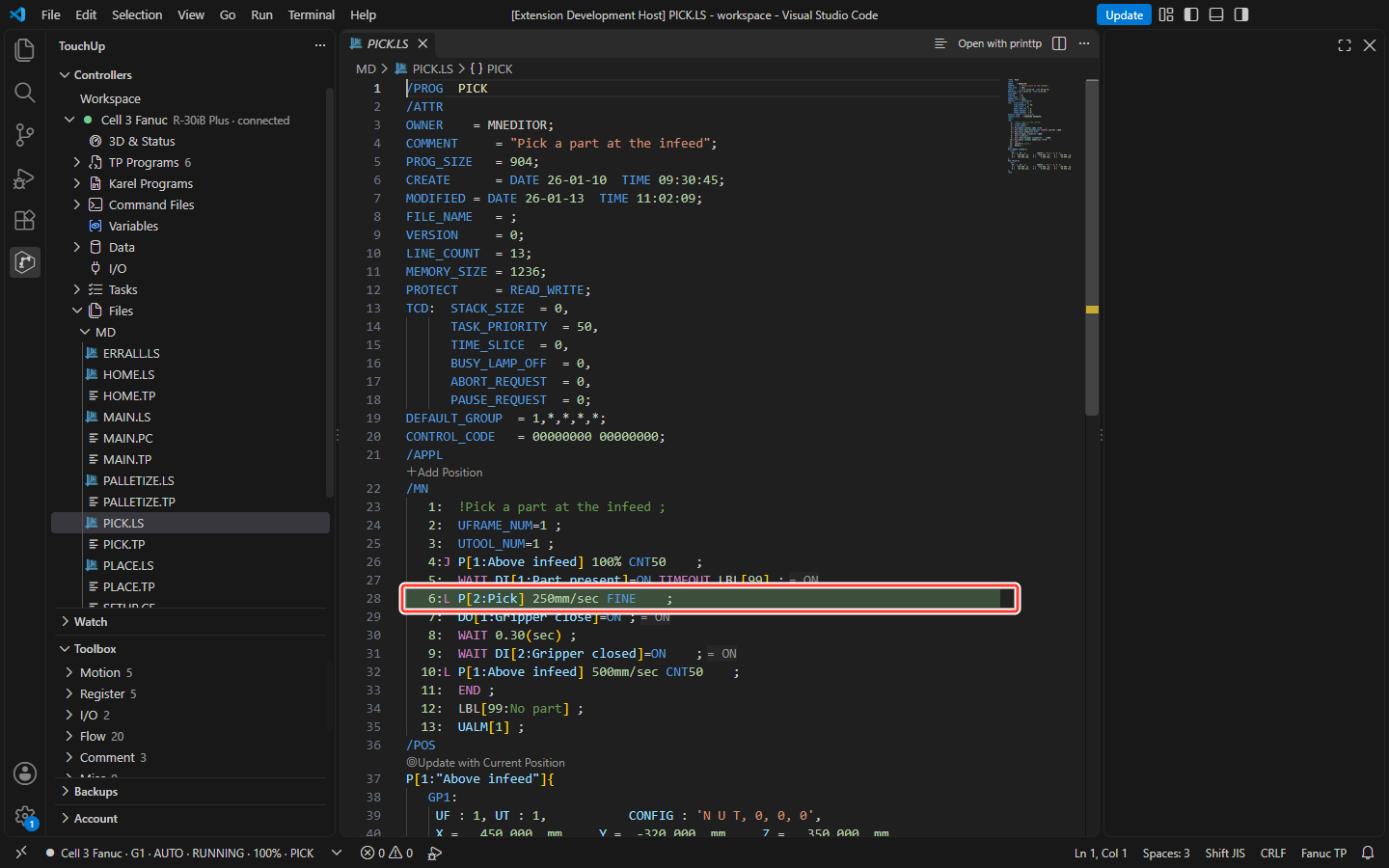
While a task runs or is paused, TouchUp highlights the line it executes in the programs that are open and bound to the controller, in the colors of the debugger. A line of a caller (the line of a CALL that leads to the current program) is highlighted lighter. A stopped task marks nothing. A line that the controller does not give is never highlighted. This does not need the Tasks node to be open.
Variable names after $
In a Fanuc TP listing bound to a connected controller, type $: the completion lists the names of the variables of that controller ($PARAM_GROUP[1].$PAYLOAD, $MCR.$GENOVERRIDE), narrowed by what follows. The names come from the list that the Variables panel reads, kept on your PC for each controller with its date. The last entry, Refresh the variables of <controller>, reads the list again, like the command TouchUp: Refresh Variables. The cache holds names only, never values.
Add to Watch from the editor
In a program, the editor menu has Add to Watch.... Put the cursor on a register, a variable or a signal first: TouchUp adds it to the Watch list for the controller of the file. Without a name under the cursor, or for a file that belongs to no controller, it asks for the controller and the value, as the + button does.