User frames and tools
The User Frames and Tools view of a Fanuc controller or backup: the tables with the active ones and the payload schedules, the pending value and its difference with the controller, why Apply is not available yet, the compare of two backups and the AI tools.
This page explains the User Frames and Tools view of TouchUp: the user frames and the tools of a robot, as a table and in 3D, with the active ones, the payload schedules and a place to prepare a change. It reads Fanuc controllers and Fanuc backups. TouchUp does not read the user frames and tools of a Yaskawa controller yet. Reading is free.
Writing is off in this version. TouchUp reads the user frames and tools of a Fanuc controller but does not write them yet: Apply and Copy From... stay greyed, with the reason beside them, until the write is verified on a controller. They stay off for a Yaskawa controller too, which TouchUp does not read yet. Use the pendant to change a user frame or a tool today. The sections Apply a change and Copy From another robot or a backup say what TouchUp does when a controller accepts the write.
Open the view
- In the Controllers view, right click a controller, then
Show User Frames and Tools. - In the Backups view, right click a backup, then
Show User Frames and Tools. - Or run
TouchUp: Show User Frames and Toolsin the Command Palette: it opens the active controller, see Change the active controller or group.
TouchUp opens one tab for each controller or backup. A second run shows the tab that is already open, and reads the values again. The Refresh button reads them again too.
When the controller is not connected, the tab says <controller> is not connected. Connect it to read its user frames and tools. When the controller cannot give them, the tab shows the reason in place of the tables, and nothing else.
What TouchUp reads
| Source | What you get |
|---|---|
| A connected Fanuc controller | For each motion group: the user frames 1 to 9, the tools 1 to 10, the number of the active user frame and of the active tool, and the payload schedules 1 to 10 |
| A Fanuc backup | The same, except the payload schedules. The backup must hold the system files of the controller, as All of above does, see Choose the type of backup. A TP Programs backup does not |
| A Yaskawa controller or backup | Not read yet: the tab says why |
TouchUp reads a connected Fanuc controller through its web server, so the web server must be reachable, see Prepare a Fanuc controller.
TouchUp does not read the comments of the user frames and tools of a Fanuc controller yet: the column Comment is empty, and the comment field of the edit panel is greyed.
Read the tables
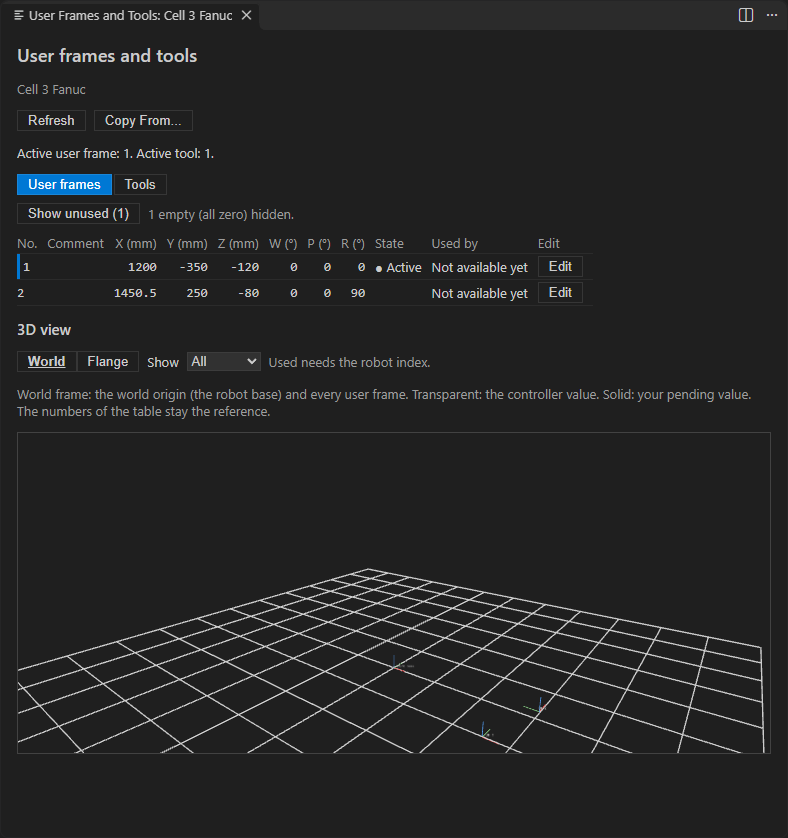
The tab has two tabs, User frames and Tools. When the robot has several motion groups, the list Motion group chooses the group. Above the tabs, a line gives the active user frame and the active tool of the group. When the controller does not give the active number, it says not known.
One row is one user frame or one tool:
| Column | Content |
|---|---|
| No. | The number |
| Comment | The comment, when the controller gives one |
| X, Y, Z (mm) | The position of the origin |
| W, P, R (°) | The orientation, in the terms of Fanuc |
| Load | Tools only, when the controller gives it: the mass in kg, the center of gravity in mm and the inertia in kg·m² |
| State | Active for the user frame or the tool that the robot uses now. The word is shown, not only a color. Changed here marks an entry that has a pending value, see below |
| Used by | How many positions and programs use this entry. In this version the column says Not available yet |
| Edit | Opens the edit panel. Only for a connected controller, not for a backup |
An empty entry, with all its values at zero and no comment, is hidden. Show unused (N) shows them, and Hide unused hides them again. The active entry is never hidden.
On the Tools tab, the section Payload schedules (read only) lists the payload schedules of the group: the number, the comment and the load. Only a connected Fanuc controller gives them.
A backup is shown with ", read only" after its name: it has no edit.
Prepare a change
Click Edit on a row of a connected controller. The edit panel opens under the table, and the focus goes to it.
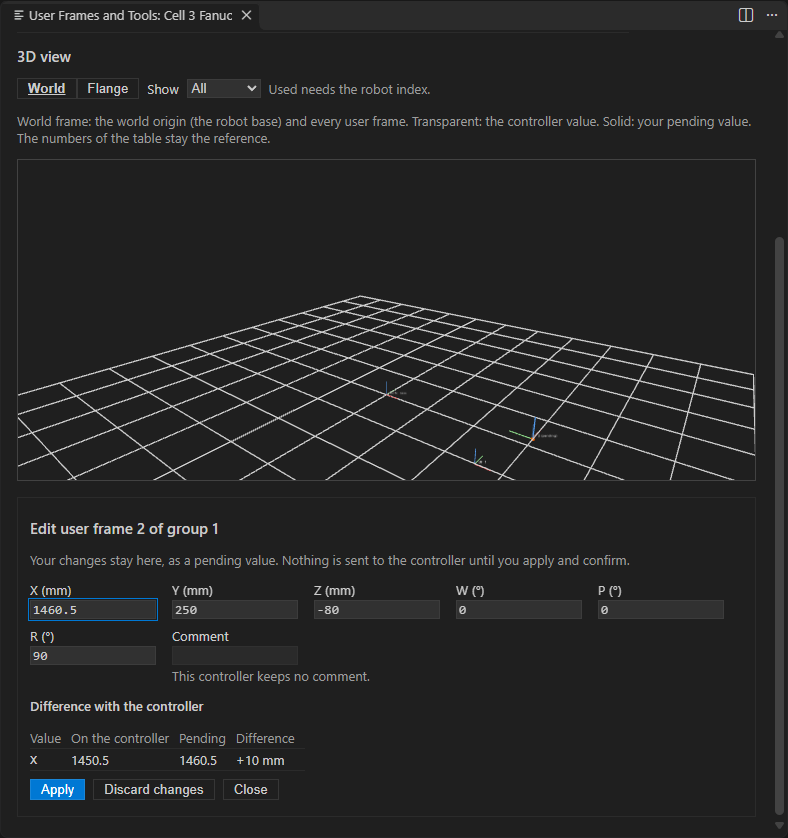
- Type a new value in a field X, Y, Z, W, P or R. A value must be a plain decimal number. Another text gets
Enter a number. - The table
Difference with the controllerlists each value that you changed, with the value on the controller, the pending value and the difference, for example+10 mm. With no change, it saysNo change. Discard changesforgets your pending values of this entry.Closecloses the panel and gives the focus back to theEditbutton.
The pending value is yours only. Nothing is sent to the controller until you apply and confirm: the panel says so. A Refresh reads the controller again and keeps the values that you typed. A value that you did not touch follows the controller, so you never see a change that you did not make. The pending values stay while the tab is hidden behind another tab. They are not saved: closing the tab forgets them.
Only the six values X, Y, Z, W, P and R are written. The comment of a Fanuc entry and the load of a tool are not.
Apply is greyed, with the reason beside it, when the controller does not accept the write. On a Fanuc controller, in this version, the reason reads This version of TouchUp reads the user frames and tools of a Fanuc controller but does not write them yet. On a Yaskawa controller it reads TouchUp does not write the user frames and tools of a Yaskawa controller. Apply is greyed too while no value is changed and while a field is not a number.
Apply a change
The rest of this section is what you get when the controller accepts the write. Writing is a Pro function, like every write of TouchUp, see Free and Pro.
- Change the values of an entry and click
Apply. TouchUp reads the entry again on the controller. When it differs from what the view showed, TouchUp writes nothing, tells you, and reads the view again: check the value, then try again. - The confirmation panel lists the entry, its values on the controller and after the write, the change (for example
X +10 mm) and the impact on the positions. It always asks, and it is the same panel as for the other writes of TouchUp. - Click
Confirm. TouchUp saves the user frames and tools of the controller on your PC, then writes the values. - TouchUp reads each value back from the controller and tells the result. A value that reads back within 0.01 mm, or 0.01° for the rotation, is written. Anything else is a failure and the message says which value.
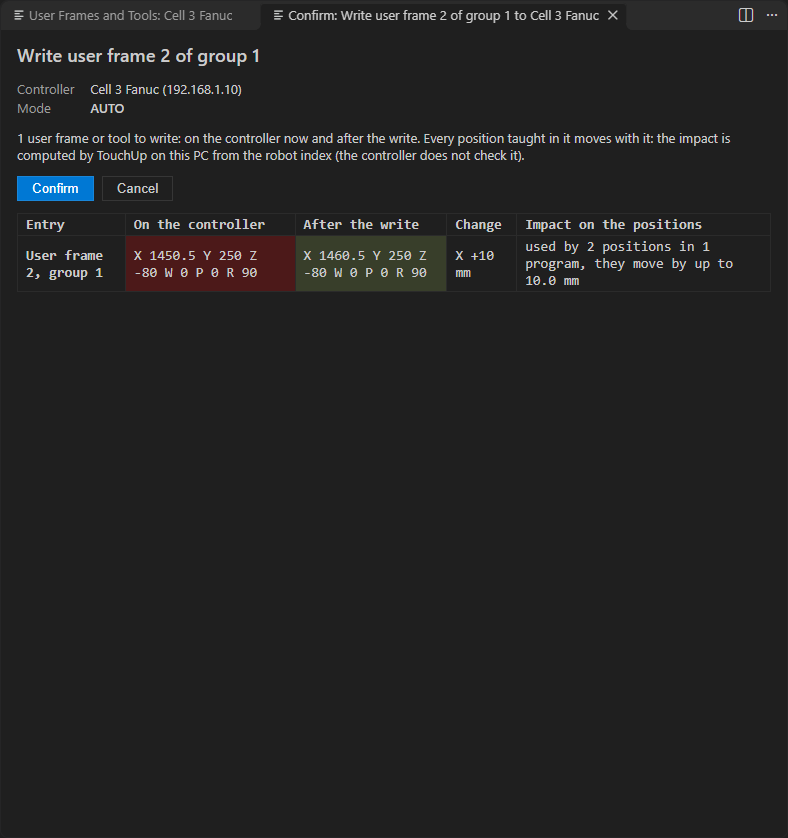
The impact is computed by TouchUp on your PC, from the programs of the robot that it indexed: every position taught in the user frame or with the tool moves with it. The sentence reads, for example, used by 14 positions in 5 programs, they move by up to 12.5 mm. The controller does not check it. When TouchUp has no index of the robot, it says impact unknown (no robot index), never 0. See Navigate across a robot to index a robot.
The result is one of these:
| Message | Meaning |
|---|---|
<entry> written and read back. | The controller holds the value that you wrote |
<entry> written, not read back: <reason>, check it on the controller. | The write went through, but TouchUp could not read the value back. A warning, not a success: look at the entry on the pendant |
<entry> not written: <reason> | The controller refused, or the value that it holds is not the one that you wrote |
A write is refused, with nothing written, in these cases:
- A program is running or held (paused) and the entry is the active user frame or the active tool of its group. A held program continues with the same frame and tool, so it counts as running. Stop or abort the program, then apply again.
- A program is running or held and the controller does not say which user frame or tool is active: the entry may be in use.
- The entry changed on the controller since the view read it, or it does not exist on this controller.
- The Free edition is used: the locked confirmation shows the same rows with
Confirmgreyed and the Pro offer, and sends nothing.
TouchUp records the write in the audit log, one record per entry, see Send a file to the controller. An unknown outcome, for example a link that dropped after the write, is reported as unknown: read the user frames and tools again before you try again.
Copy From another robot or a backup
Copy From... in the toolbar of a connected controller copies user frames and tools from another robot, or from a backup, to this controller. The target is always the controller of the view: the view of a backup has no copy.
- Click
Copy From.... A list shows the other connected robots of the same brand, then the backups of your backup folder of the same brand. User frames and tools are never copied between two brands. - Choose the source. TouchUp only reads it.
- A second list shows only the entries whose values differ from this controller by more than 0.01 mm or 0.01°, each with its difference, and
(active)for the active one. Nothing is ticked: tick the entries to copy. - One confirmation lists all the ticked entries with the difference and the impact on the positions, as for
Apply. Then the write and the read back are the same, for all the entries together.
Only the six values are copied, not the comment or the load. TouchUp leaves out, and says how many: an entry that this controller does not have (a number or a motion group), the entry 0, and a motion group that uses other rotation terms. When nothing differs, it says nothing to copy. When there is no source, it says what to do: connect another robot of the same brand, or take a backup of one with TouchUp: Back Up Now.
The same refusals as Apply hold, and Copy From... is greyed with the same reason when the controller does not accept the write. To copy files, programs and parameters between robots, see Copy files to another robot.
The 3D view
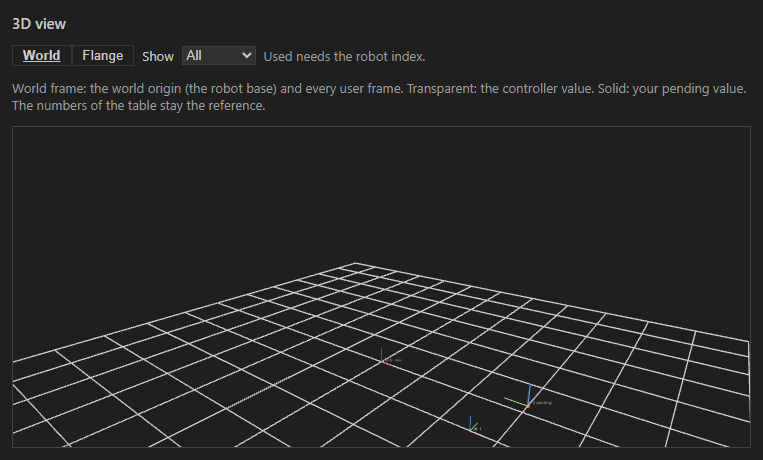
Under the tables, the part 3D view draws the entries of the group. It shows the same numbers as the tables, which stay the reference.
| Control | What it does |
|---|---|
World | The world frame (the base of the robot) and every user frame, each at its position and orientation, with its number |
Flange | The flange, and each tool at its TCP, joined to the flange by a line. The center of gravity of a tool shows with its mass when the controller gives it |
Show | All draws every entry of the table, Used only the entries that a position uses (greyed in this version, as the column Used by is not available yet), Selected only the entry of the edit panel (it needs a controller: a backup is read only) |
On a controller, a transparent triad is the value of the controller and a solid triad is your pending value, so that you see what a change moves. Drag in the drawing to turn the view. The drawing has a text description for screen readers.
TouchUp never draws what it cannot trust. Under the drawing, the list Not drawn gives the reason for each entry that is left out, for example UF 3 is not drawn: a value is not a number, or is more than 1 km from the origin. At most 64 entries are drawn, and the list says how many.
Free and Pro
| Free | Pro |
|---|---|
| Open the view, read, the 3D view, prepare a pending value, compare | Apply and Copy From..., the writes to the controller |
Pro is given per brand. See Editions and license. In this version the writes stay off for Fanuc and Yaskawa whatever the edition.
Compare the user frames and tools
To see what changed between two dates, compare two backups, or a backup and the controller, and use the section User frames and tools of the Compare view. See Compare backups and controllers.
Ask an AI assistant
The AI tools touchup_get_frames and touchup_get_tools give the user frames and the tools of a controller to your AI assistant: for each group, the active number, the values and the comment. See AI tools and MCP server. They never connect a controller. A connected controller answers live. Otherwise the tool answers from the newest backup of that controller that holds the frames, and says so, with the date of the backup.
What to read next
- Compare backups and controllers
- Edit a position, where a position shows its user frame and its tool
- Back up a controller
- Prepare a Fanuc controller