Develop without a robot (URSim)
Install URSim, the simulator of Universal Robots, in VirtualBox for PolyScope 5 or in Docker for PolyScope X, and connect the SDK to it.
This page shows how to develop and test an application without a robot, with URSim, the simulator of Universal Robots. URSim runs the software of the controller: the SDK connects to it like to a real robot.
Which simulator
| Simulator | Robots | Runs in | Interfaces for the SDK |
|---|---|---|---|
| URSim PolyScope | CB-Series and e-Series | A Linux virtual machine (VirtualBox) | All: Primary Interface, Dashboard, RTDE, Interpreter Mode, SSH and SFTP |
| URSim PolyScope X | Robots with PolyScope X | A Docker container | REST API, Primary Interface, RTDE |
Download URSim from the download center of Universal Robots, in the Software section of your robot. A free account is needed.
URSim PolyScope, in a virtual machine
Install
- Download and install VirtualBox. In the installer, keep the network features, including the host-only network.
- Import the URSim virtual machine in VirtualBox.
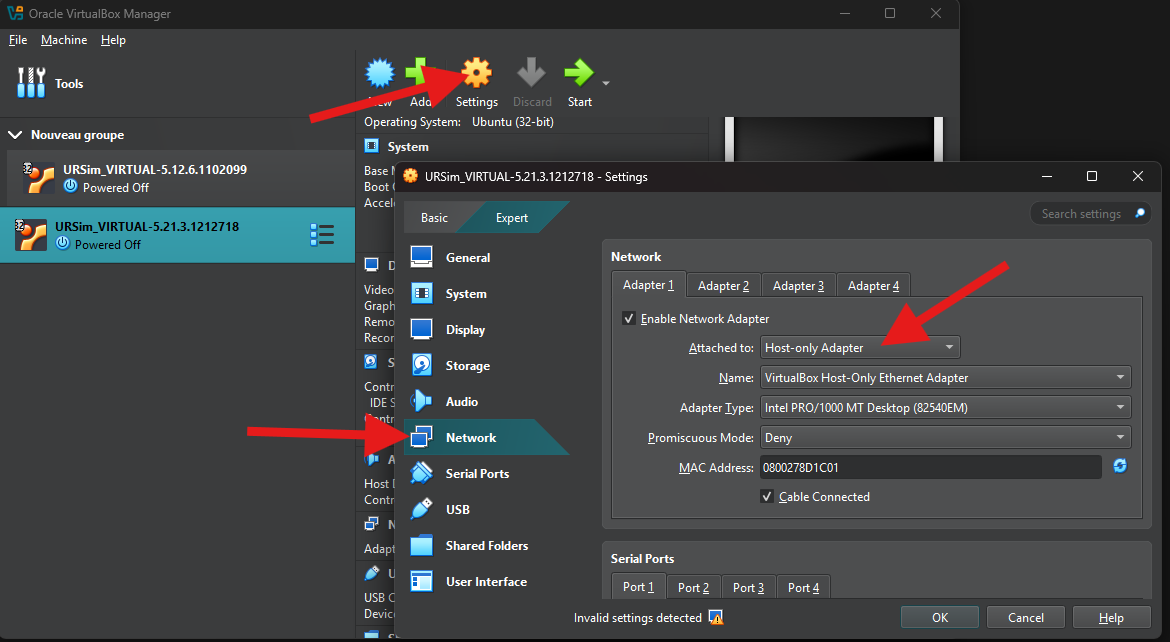
- Before you start it, open the settings of the virtual machine,
Network. Attach the adapter toHost-only Adapter, with the default VirtualBox host-only adapter.
Start a robot
- Start the virtual machine. The Linux desktop shows one shortcut per robot model (UR3, UR5, UR10...).
- Start the model you want. PolyScope opens.
- Click the menu at the top right of PolyScope to see the address of the simulated robot. Use this address in
Connect.
Differences with a robot
- The Linux user is
ur, passwordeasybot. On a robot, it isroot. - The programs are in
/home/ur/ursim-current/programs, instead of/programson a robot. - The services and the remote control are set in PolyScope, as on a robot: see Prepare the robot.
URSim PolyScope X, in Docker
Install
- Download and install Docker Desktop, then start it.
- In a terminal, run the image of URSim PolyScope X:
docker run --rm -it -p 80:80 -p 30001:30001 -p 30004:30004 --add-host "host.docker.internal:host-gateway" --env HOST_ARCH=amd64 --network bridge --privileged universalrobots/ursim_polyscopex:latest
| Option | Role |
|---|---|
-p 80:80 | The web interface and the REST API. If port 80 is used, write -p 8080:80 |
-p 30001:30001 | The Primary Interface |
-p 30004:30004 | RTDE |
--privileged | The rights that the simulation needs |
Connect
Open http://localhost in a browser (or http://localhost:8080) to see PolyScope X. Connect the SDK to 127.0.0.1. With -p 8080:80, set Rest.Port to 8080 in ConnectParameters.
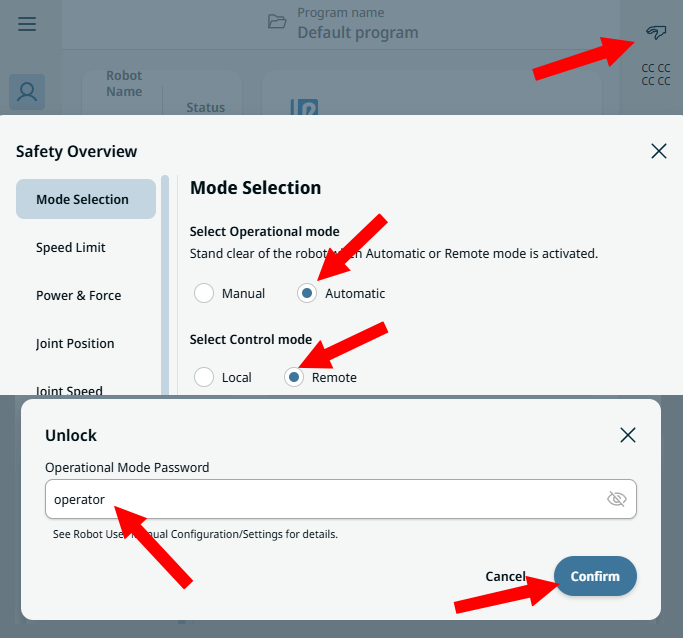
To accept commands, switch PolyScope X to remote control. The default password is operator.
Try it in the demo application
The demo application connects to URSim like to a robot.
Everything on this page can be tried without writing code, in the Connection page of the demo application.
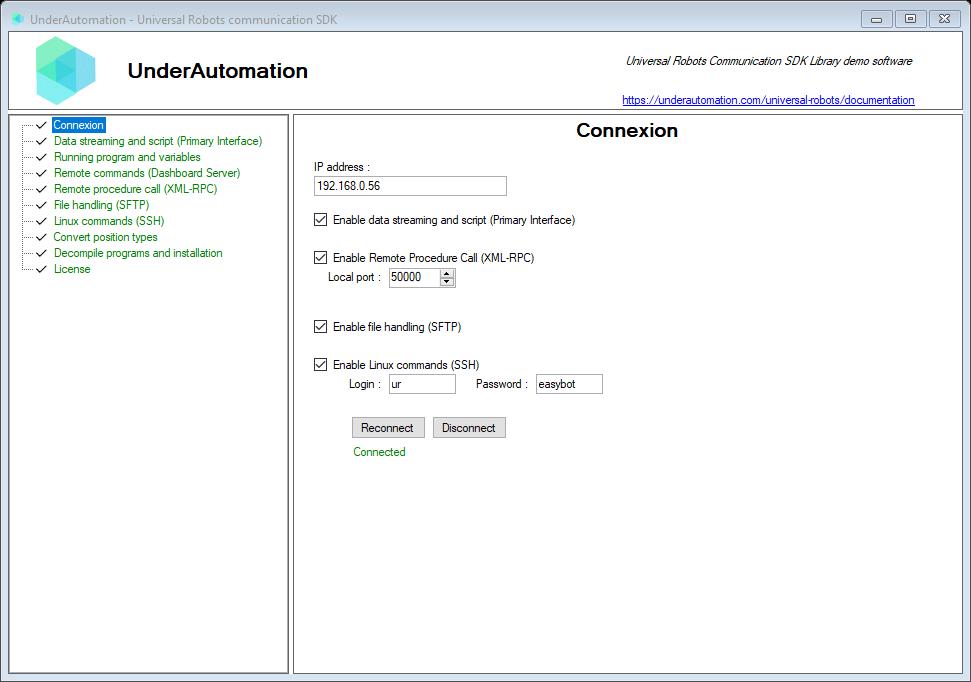
The demo application is open source. The C# source of this page is ConnectControl.cs.
What to read next
- Connect to the robot: the interfaces and their settings.
- REST API: the commands of PolyScope X.
- Demo application: try every interface without code.