Try the SDK with the demo application
A Windows application, one executable and open source, that calls the features of the SDK. Test what your Fanuc controller answers before you write any code.
The demo application lets you try the Fanuc SDK on your controller or on a ROBOGUIDE virtual robot, before you write any code. It is a Windows desktop application that exposes the features of the SDK with buttons and fields, and shows what the controller answers.
Download
Download UnderAutomation.Fanuc.Showcase.Forms.exe
There is no installer. The application is one self contained executable, built with .NET 8 for Windows: it runs on a PC without .NET. Copy it where you want, run it, delete it when you are done.
Windows can block a file downloaded from the internet. Right click the file, open Properties, check Unblock and click OK.
The application runs in the 30 day trial of the SDK. The License page registers a key.
What it does
Connection
The tree on the left has one page per feature. Start with the Connection page: enter the IP address of the controller, or the folder of a ROBOGUIDE robot, and check the protocols to enable. The other pages stay disabled until their protocol is connected.
Everything on this page can be tried without writing code, in the Connection page of the demo application.
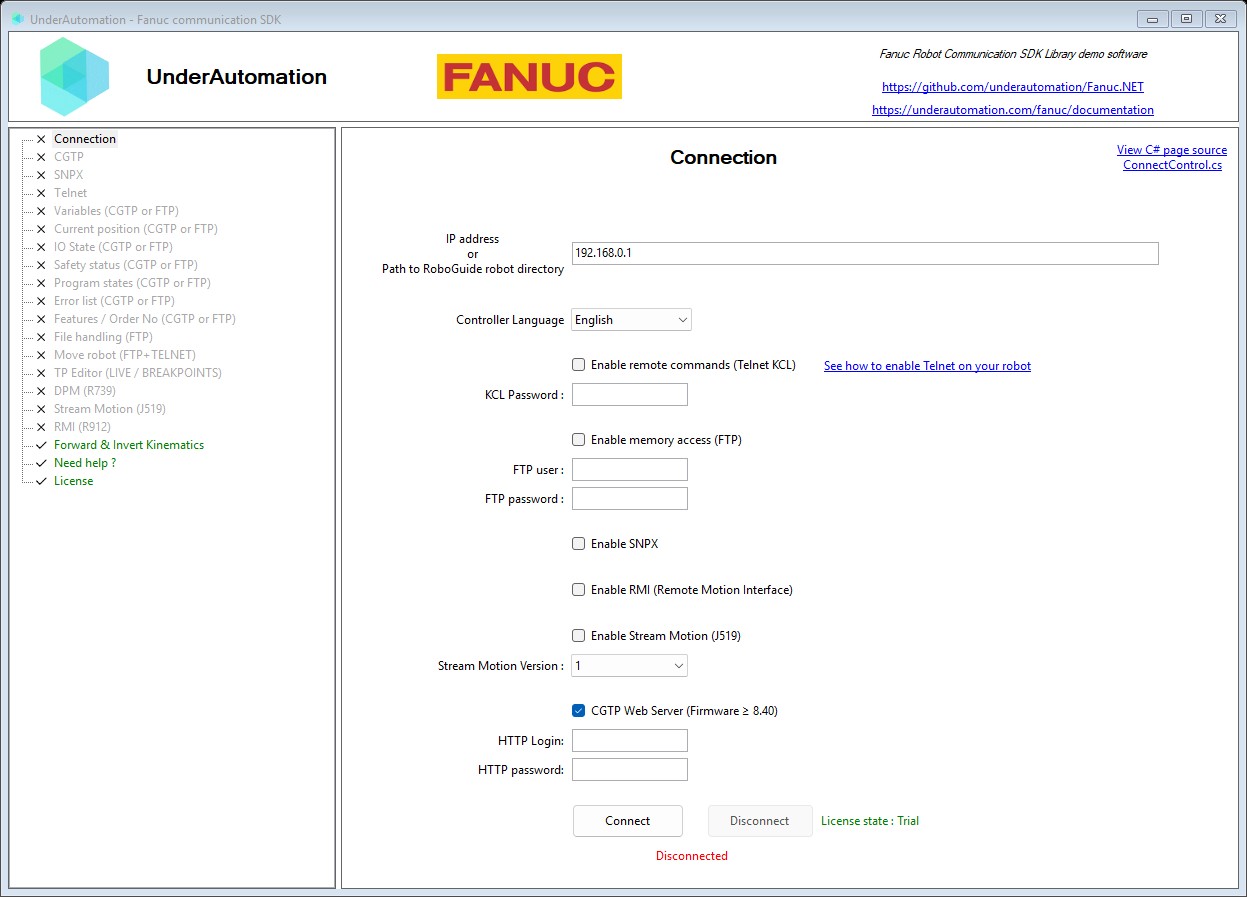
The demo application is open source. The C# source of this page is ConnectControl.cs.
Pages of the application
| Page in the application | What you can try | Documentation |
|---|---|---|
| Connection | Address or ROBOGUIDE folder, language, protocols and their credentials | Connect to your robot |
| CGTP | Programs, source lines, files, I/O, kinematics, variables, registers, alarms | CGTP overview |
| SNPX | Registers, variables, signals, simulation, batch reading, alarms, tasks, comments | SNPX overview |
| Telnet | Run, pause, hold and abort programs, ports, variables, KCL commands | Telnet overview |
| Variables (CGTP or FTP) | Browse the variable files of the controller | Read & write system variables |
| Current position (CGTP or FTP) | Joint and Cartesian position of each motion group | Get current position |
| IO State (CGTP or FTP) | State of the digital I/O | Control inputs & outputs |
| Safety status (CGTP or FTP) | E-Stop, deadman, fence, TP enable | Diagnostics & variables |
| Program states (CGTP or FTP) | Tasks, programs, lines and call stack | Monitor task execution |
| Error list (CGTP or FTP) | Alarm history | Reset alarms remotely |
| Features / Order No (CGTP or FTP) | Software options installed on the controller | Diagnostics & variables |
| File handling (FTP) | Browse, download, upload, delete files | File management |
| Move robot (FTP+TELNET) | Move the robot to a position with a TP program | Move robot remotely |
| TP Editor (LIVE / BREAKPOINTS) | Edit a TP program, run it, set breakpoints, step line by line | TP editor with breakpoints |
| DPM (R739) | Move the robot with the mouse through Dynamic Path Modification | Move robot with mouse |
| Stream Motion (J519) | Monitor the robot, send joint and Cartesian trajectories | Stream Motion overview |
| RMI (R912) | Build a list of motion instructions and send it | RMI overview |
| Forward & Invert Kinematics | Forward and inverse kinematics of 82 arm models, offline | Forward & inverse kinematics |
| License | Register a license key, read the state of the trial | Licensing |
The pages Move robot, DPM, Stream Motion and RMI move the arm. Try them on ROBOGUIDE first, then on the real robot with low speeds.
Read its source
The application is open source: github.com/underautomation/Fanuc.NET, folder UnderAutomation.Fanuc.Showcase.Forms.
It is a Windows Forms project for .NET 8. It references the same UnderAutomation.Fanuc DLL as your project: there is nothing specific to the demo in the way it calls the SDK. Each page of the application is one C# user control in the Components folder, and its View C# page source link opens it on GitHub. Copy the calls you need into your code.
What to read next
- Connect to your robot: the connection parameters, in code.
- Test with ROBOGUIDE: run the application without a real robot.
- Get started with .NET: add the SDK to your project.